> For the complete documentation index, see [llms.txt](https://docs.ox.security/llms.txt). Markdown versions of documentation pages are available by appending `.md` to page URLs; this page is available as [Markdown](https://docs.ox.security/admin-settings/settings.md).
# Settings
{% hint style="success" %}
**At a glance:** Manage organization-wide and personal settings so that OX works best for you and your organization.
{% endhint %}
## Overview
As its name suggests, the **Settings** page is the place to manage the settings that affect how you and your organization work with OX. View and manage different categories of settings by switching among the tabs at the top of the page:
* [Organization](#organization)
* [Usability](#usability)
* [Scan](#scan)
* [Applications](#applications)
* [Notifications](#notifications)
* [Login](#login)
* [API keys](#api-keys)
* [Secrets](#secrets)

Organization
In the **Organization** tab, you can:
* View and edit the name of your organization (as it appears in the OX interface)
* View and copy the organization ID
* Delete the organization
**Deleting an organization**
**Caution!** Deleting an organization removes all its data from the OX system (including scan history and audit logs). Once the organization is deleted, it can't be recovered. Be very certain this is what you want to do before you proceed.
**To delete an organization:**
1. In the **Delete organization** section, click the  button.
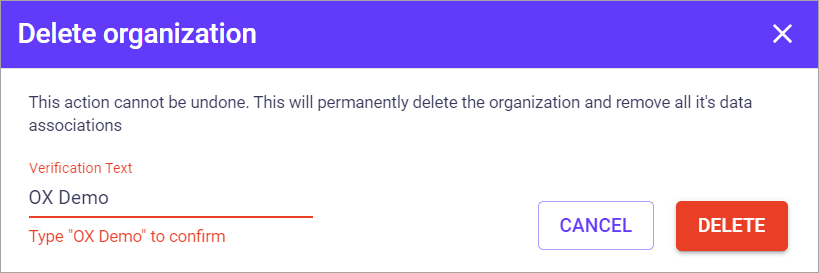
2. In the dialog, confirm your action by typing the verification text and clicking **Delete.** \\
button.
2. In the dialog, confirm your action by typing the verification text and clicking **Delete.** \\
Usability
Scan
Applications
Notifications
Login
In the login settings section you can manage your OX Security login options.
%20(1).png?alt=media) The green icon on the login options indicates that the respective login option is configured and approved.
You can revoke the configured login option by clicking on the respective option and selecting the revoke option.
The green icon on the login options indicates that the respective login option is configured and approved.
You can revoke the configured login option by clicking on the respective option and selecting the revoke option.
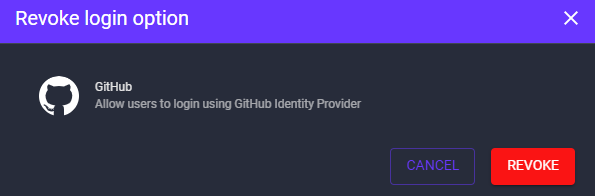 This will remove this login option from the options the user sees when he logs into OX.
**Configure login**
You can configure the new login option by clicking on it and providing the required details.
This will remove this login option from the options the user sees when he logs into OX.
**Configure login**
You can configure the new login option by clicking on it and providing the required details.
 Every login option has its own configuration e.g to configure Azure AD SSO, you need to specify the Azure domain, client ID, and client secret. You can follow the list of instructions provided by us for configuration.
API keys
The OX API supports authentication via API key, passed in an HTTP header.
**Create an API key**
**To create an API key for use with the OX API:**
1. Click the **CREATE API KEY** button.
Click to zoom
2. In the **Create API Key** dialog:
1. Enter a name that will help you identify your API key later.
2. Under **API Key Type,** select the **API Integration** option.
Click to zoom
3. \[optional] Change the expiration date of the API key.
* By default, the expiration date is set to one year from the time you created it.
4. Click the **CREATE** button.
5. The **API Key Secret** will be displayed. This is what you’ll use in the [authorization header](https://www.notion.so/Working-with-the-OX-API-62f91e59c1104a20b37f6a969dfceb01?pvs=21) of your API calls.
\*\*Important:\*\* Be sure to copy the \*\*API Key Secret\*\* to your clipboard before closing the dialog; then, paste it immediately into a secure location, such as a password manager. Once you close the \*\*Create API Key\*\* dialog, you won’t be able to access the \*\*API Key Secret\*\* again. (So, if you haven’t copied it, you’ll need to create a new key.)
Click to zoom
6. Click the **DONE** button to close the dialog.
3. The API key you created is now displayed in the table.
Click to zoom
Secrets
---
# Agent Instructions
This documentation is published with GitBook. GitBook is the documentation platform designed so that both humans and AI agents can read, navigate, and reason over technical content effectively. Learn more at gitbook.com.
## Querying This Documentation
If you need additional information that is not directly available in this page, you can query the documentation dynamically by asking a question.
Perform an HTTP GET request on the current page URL with the `ask` query parameter, and the optional `goal` query parameter:
```
GET https://docs.ox.security/admin-settings/settings.md?ask=&goal=
```
`ask` is the immediate question: it should be specific, self-contained, and written in natural language.
`goal` is optional and describes the broader end goal you are ultimately trying to accomplish on behalf of the user. GitBook uses it to tailor the answer towards what is most useful for that goal.
The response will contain a direct answer to the question and relevant excerpts and sources from the documentation.
Use this mechanism when the answer is not explicitly present in the current page, you need clarification or additional context, or you want to retrieve related documentation sections.