> For the complete documentation index, see [llms.txt](https://docs.ox.security/llms.txt). Markdown versions of documentation pages are available by appending `.md` to page URLs; this page is available as [Markdown](https://docs.ox.security/api-documentation/api-reference/model-context-protocol/mcp-integration-guide.md).
# MCP Integration Using MCP Integration Key
This guide explains how to integrate OX Security with your IDE or AI coding tool using an [MCP server](/api-documentation/api-reference/model-context-protocol.md). It includes setup for the following:
* [MCP Integration key](#creating-a-new-mpc-integration-key)
* [Cursor integration with OX MCP](#integrating-cursor-with-ox-mcp)
* [Claude Desktop integration with OX MCP](#integrating-claude-desktop-with-ox-mpc)
* [Claude Code integration with OX MCP](#claude-code-integration-with-ox-mcp)
* [VS Code integration with OX MCP](#integrating-visual-studio-code-with-ox-mpc)
## Creating a new MCP integration key
To integrate with the MCP server, you need to create an integration key.
**To create a new MCP integration key:**
1. From the left pane of the **OX dashboard**, select **Settings > API Key Settings**.
2. In the **API Key Settings** window, select **CREATE API KEY**.
3. In the **Create API Key** box set the following:
| Parameter | Description |
| ------------------- | -------------------------------------------------------------------------------------------------------------------------------------------------------------------------------------------------------------------------------------------------------------------------- |
| **API Key Name** | A descriptive name for the API key to identify its purpose MCP key 1 |
| **API Key Type** | Select **VibeSec/MCP Integration** |
| **Assign role** |
Assign a role according to your permissions needs, as follows:
Admin for full access.
Dev Manager/Security Champion for limited access to specific actions.
|
| **Assign scopes** |
Defines which applications and issues the API key can access:
Entire organization: Access to all applications and issues in the organization.
Custom: Access restricted to specific applications/issues.
|
| **Expiration Date** | The date and time when the API key will expire and no longer be valid. |
4. Copy the **API Key Secret** to be used when connecting to APIs. Save the key in a safe location. This is the only time when you can see and copy the actual key.
5. Select **CLOSE**. The new key appears in the **API Key Settings** page.
## Integrating Cursor with OX MCP
By integrating with OX’s MCP, Cursor becomes a security-aware development assistant, able to query live security data, suggest actions, and triage issues directly from your IDE
**To integrate Cursor with OX MCP:**
1\. Click [here](cursor://anysphere.cursor-deeplink/mcp/install?name=ox-security\&config=eyJ1cmwiOiJodHRwczovL21jcC5hcGlrZXkuYXBwLm94LnNlY3VyaXR5LyIsImhlYWRlcnMiOnsiQXV0aG9yaXphdGlvbiI6IlBBU1RFX1lPVVJfQVBJX1RPS0VOX0hFUkUifX0%3D), to open Cursor in the relevant location where you can start working.
2. In the authorization header, replace the placeholder value with the [MCP Integration key that you saved](#creating-a-new-mpc-integration-key).
3. Select **Install**.
In the Cursor tools menu, OX Security logo appears.
More info: [Cursor Documentation](https://docs.cursor.com/en/tools/developers).
## Integrating Claude Desktop with OX MCP
Claude Desktop offers an intuitive interface for integrating with OX Security's MCP, providing teams with robust security capabilities directly from their desktop environment.
Claude Desktop supports the following integration methods:
* **Method 1, local configuration file:** Manual JSON editing in `claude_desktop_config.json`. The configuration file supports only local (stdio) MCP servers, so this method uses the `mcp-remote` bridge to reach the OX MCP server.
* **Method 2, custom connector:** Configured entirely in the Claude Desktop interface, with no configuration file editing and no Node.js setup. Available if your Claude account already supports request headers for custom connectors (currently in beta).
### Method 1: Local configuration file
Claude Desktop's configuration file supports only local (stdio) MCP servers, so this method uses the `mcp-remote` bridge to connect to the remote OX MCP server.
#### **Prerequisite: Node.js**
This method uses `npx` to run the `mcp-remote` bridge. Because `npx` is included with Node.js, Node.js v18 or later must be installed and available on your `PATH` before you configure the connection.
To verify that Node.js and `npx` are available, open a new terminal and run:
```
node -v
npx -v
```
Both commands must return a version number. If either command is not recognized, install the Node.js LTS version:
* **Windows:** Download Node.js from `nodejs.org`, or run `winget install OpenJS.NodeJS.LTS`.
* **macOS:** Download Node.js from `nodejs.org`, or run `brew install node`.
* **Linux:** Use your distribution's package manager, or download Node.js from `nodejs.org`.
After installing Node.js, fully quit Claude Desktop, including from the system tray or menu bar, and then start it again. This ensures that Claude Desktop uses the updated `PATH`. Closing the application window without quitting the application is not sufficient.
If you use `nvm`, make sure the active Node.js version is 18.x or later.
> **Note:** If you do not want to install Node.js, use Method 2, custom connector. This method does not require Node.js or changes to the configuration file.
**To integrate Claude Desktop with OX MCP using the configuration file:**
1. In Claude Desktop, go to **Settings** > **Developer**.
2. Select **Edit Config**.
Claude automatically opens the configuration file `claude_desktop_config.json`
3. Add the JSON MCP server configuration for OX Security:
```json
{
"mcpServers": {
"ox-security": {
"command": "npx",
"args": [
"mcp-remote",
"https://mcp.apikey.app.ox.security/",
"--header",
"Authorization:PASTE_YOUR_API_TOKEN_HERE"
]
}
}
}
```
> **Note:** `claude_desktop_config.json` usually already exists and contains other Claude Desktop settings. Do not delete or replace them, only add the OX Security configuration:
>
> * If the file does not have an `mcpServers` section yet, add the whole `"mcpServers"` block shown above as an additional top-level section (for example, right after the opening `{`), and keep all other settings unchanged.
> * If the file already has an `mcpServers` section with other MCP servers, add only the `"ox-security"` entry inside it.
> * Only if the file is empty, its entire content should be exactly the JSON above.
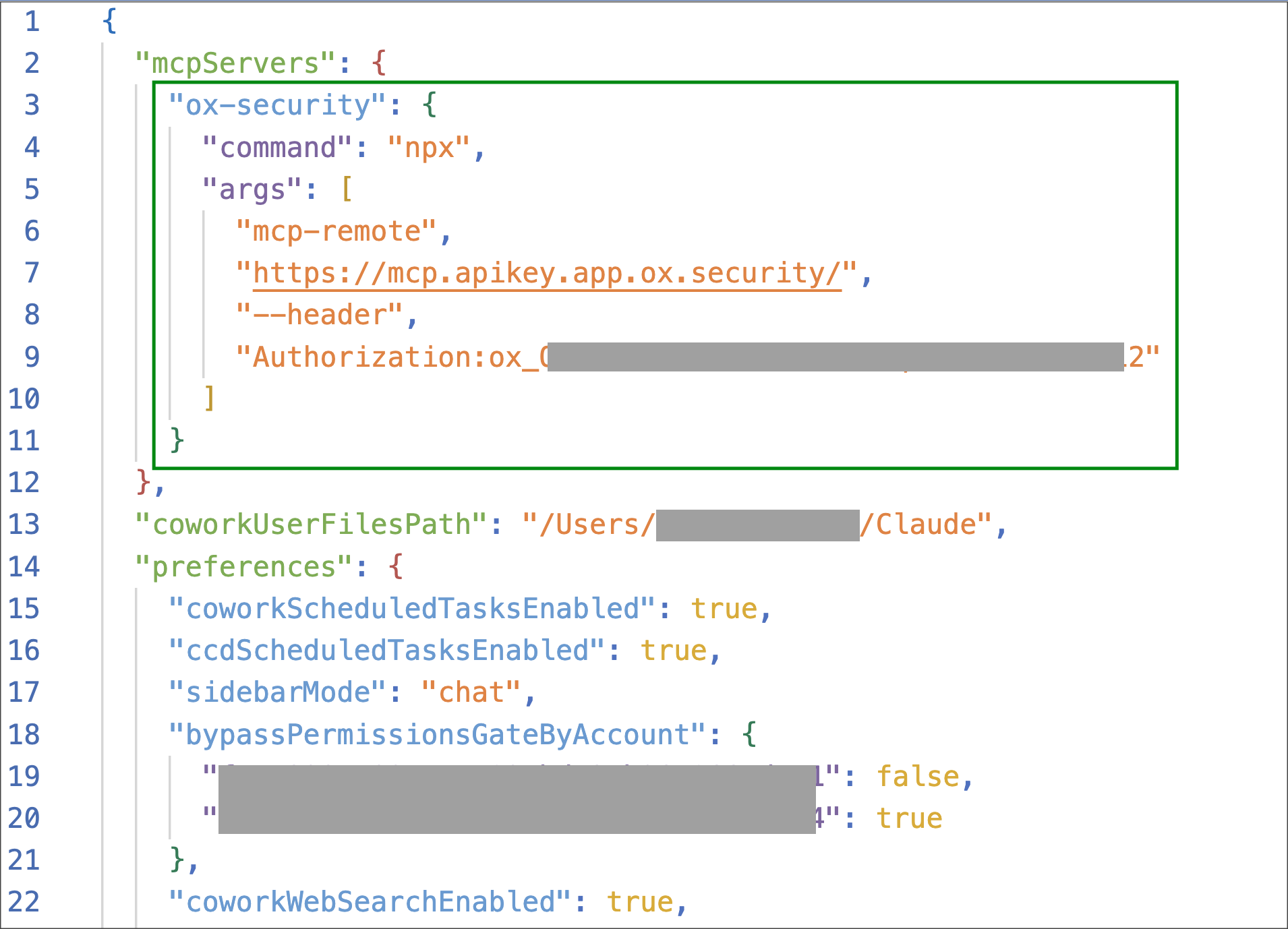
For example, this is how the configuration file can look after the OX Security section is added — the rest of the settings remain untouched:
4. Replace `PASTE_YOUR_API_TOKEN_HERE` with the MCP Integration key that you saved.
5. Save the file and restart Claude Desktop.
After restart, OX Security appears as an available MCP server in Claude Desktop.
**Troubleshooting: Claude Desktop shows the server as failed or disconnected**
Open the Claude Desktop MCP log and check for any of the following errors:
```
'npx' is not recognized as an internal or external command
```
On Windows.
```
npx: command not found
```
On macOS or Linux.
```
spawn npx ENOENT
```
Or:
```
Server transport closed unexpectedly, this is likely due to the process exiting early
```
These errors indicate that Claude Desktop could not start the `mcp-remote` bridge because Node.js is not installed or is not available on the `PATH` inherited by Claude Desktop.
To resolve the issue:
1. Verify Node.js as described in the prerequisite above. In a new terminal, run:
```
node -v
npx -v
```
Both commands must return a version.
2. If both commands return a version but Claude Desktop still cannot start the bridge, quit Claude Desktop completely, including from the system tray or menu bar, and then start it again.
Claude Desktop reads the `PATH` when it starts. If Node.js was installed while Claude Desktop was running, you must fully restart the application for it to use the updated `PATH`.
3. On Windows, if the issue persists, use `npx.cmd` or run Node.js directly, as described in Troubleshooting (Windows) below.
4. Verify that the API key type is `VibeSec/MCP Integration`.
5. Verify that the header value contains the raw API key, starting with `ox_`, without a `Bearer` prefix.
**Troubleshooting (Windows)**
In case you have issues setting up MCP servers in Windows using the configuration file, consider using alternative commands, such as `npx.cmd` or direct Node.js execution.
**Use `npx.cmd`:**
```json
{
"mcpServers": {
"ox-security": {
"command": "npx.cmd",
"args": [
"-y",
"mcp-remote@0.1.18",
"https://mcp.apikey.app.ox.security/",
"--header",
"Authorization:${AUTH_TOKEN}"
],
"env": {
"AUTH_TOKEN": "PASTE_YOUR_API_TOKEN_HERE"
}
}
}
}
```
**Run Node.js directly:**
1. Install MCP Remote globally:
```bash
npm install -g mcp-remote@0.1.2
```
2. Update your config with your local Node.js path:
```json
{
"mcpServers": {
"ox-security": {
"command": "C:\\YOUR_NODE_INSTALL_FOLDER\\node.exe",
"args": [
"YOUR_MCP_REMOTE_FOLDER\\node_modules\\mcp-remote\\dist\\client.js",
"https://mcp.apikey.app.ox.security/",
"--header",
"Authorization:${AUTH_TOKEN}"
],
"env": {
"AUTH_TOKEN": "PASTE_YOUR_API_TOKEN_HERE"
}
}
}
}
```
### Method 2: Custom connector
Anthropic is gradually rolling out support for authenticating custom connectors with request headers (currently in beta). If your Claude account already supports request headers for custom connectors, see [Anthropic's documentation](https://claude.com/docs/connectors/custom/remote-mcp#authenticating-with-request-headers).
You can connect to OX MCP entirely from the Claude Desktop interface, with no configuration file editing and no Node.js setup:
1. In Claude Desktop, go to **Settings** > **Connectors**.
2. Select **Add custom connector**.
3. Set a name (for example, **OX Security**) and the URL:
```
https://mcp.apikey.app.ox.security/
```
4. Open **Request headers** and add a header: select `authorization` as the header name, and paste the MCP Integration key that you saved as the value. Enter the key exactly as is — do not add a `Bearer` prefix.
5. Mark the header as **Required**.
6. Select **Add**.
If the **Request headers** section does not appear in the Add custom connector dialog, your account does not have the feature yet — use the local configuration file method instead.
OX Security tools are now available in Claude Desktop conversations through the tools menu.
> **Note:** On Team and Enterprise plans, custom connectors are added by an Owner under **Admin settings** > **Connectors**, and members then connect from **Settings** > **Connectors**.
## **Claude Code integration with OX MCP**
Claude Code, Anthropic's agentic coding tool for the terminal, connects to OX Security's MCP directly from the command line, allowing developers to query live security data, triage issues, and get remediation guidance without leaving their coding session.
> **Note:** Ensure Claude Code is installed and up to date. To check your version, run `claude --version`; to update, run `claude update`. For installation instructions, see the [Claude Code documentation](https://docs.anthropic.com/en/docs/claude-code/overview).
**To integrate Claude Code with OX MCP:**
1. Open a terminal and run the following command:
```bash
claude mcp add --transport http ox-security https://mcp.apikey.app.ox.security/ --header "Authorization: PASTE_YOUR_API_TOKEN_HERE"
```
2. Replace `PASTE_YOUR_API_TOKEN_HERE` with the MCP Integration Key that you saved.
3. Start Claude Code:
```bash
claude
```
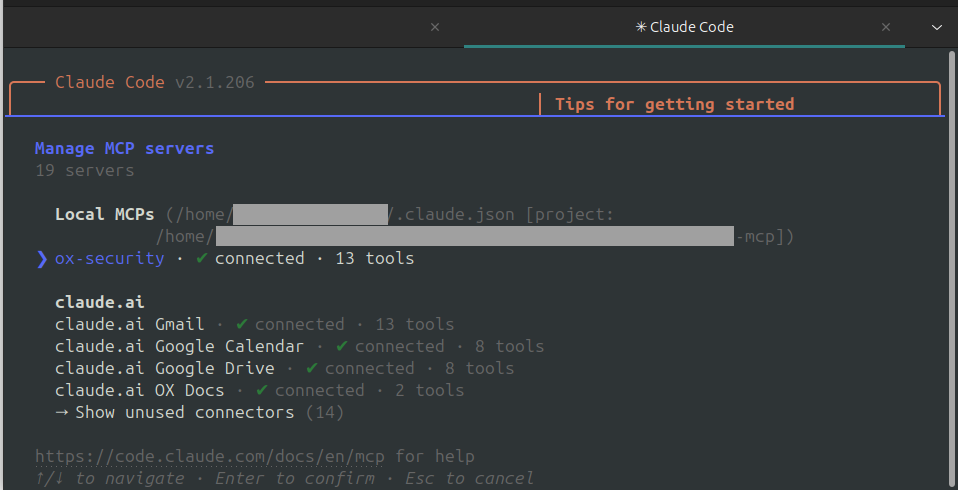
4. In the Claude Code session, run the `/mcp` command to verify the connection. `ox-security` appears in the list of MCP servers with a **connected** status, along with the OX Security tools available to Claude Code.
When connected, you can ask Claude Code security questions in natural language, for example: *"Give me the top 3 applications by business value from OX."*
#### Choosing a configuration scope
By default, the server is added in the **local** scope and is available only to you in the current project directory. Use the `--scope` flag to make it available more broadly:
| Scope | Command flag | Description |
| ----------- | ----------------- | --------------------------------------------------------------------------------------------------------------- |
| **local** | (default) | Available only to you, in the current project directory. |
| **user** | `--scope user` | Available to you in all projects on your machine. |
| **project** | `--scope project` | Shared with your team through a `.mcp.json` file in the project root, which can be checked into source control. |
For example, to make OX Security available in all of your projects:
```bash
claude mcp add --transport http --scope user ox-security https://mcp.apikey.app.ox.security/ --header "Authorization: PASTE_YOUR_API_TOKEN_HERE"
```
#### Manual configuration (alternative)
Instead of using the `claude mcp add` command, you can add the OX Security MCP server configuration directly to a `.mcp.json` file in your project root:
```json
{
"mcpServers": {
"ox-security": {
"type": "http",
"url": "https://mcp.apikey.app.ox.security/",
"headers": {
"Authorization": "PASTE_YOUR_API_TOKEN_HERE"
}
}
}
}
```
> **Note:** If the `.mcp.json` file is checked into source control, do not store the MCP Integration Key in it. Claude Code supports environment variable expansion, set the key in an environment variable (for example, `OX_API_TOKEN`) and reference it in the configuration as `"Authorization": "${OX_API_TOKEN}"`.
#### Troubleshooting
If `ox-security` does not appear as connected:
1. Run `claude mcp list` in the terminal to check the server's connection status.
2. Verify that the MCP Integration Key was pasted correctly and has not expired. You can review your keys in the **OX dashboard** under **Settings > API Key Settings**.
3. Remove and re-add the server:
```bash
claude mcp remove ox-security
claude mcp add --transport http ox-security https://mcp.apikey.app.ox.security/ --header "Authorization: PASTE_YOUR_API_TOKEN_HERE"
```
## Integrating Visual Code with OX MCP
Visual Studio Code provides versatile options to connect with OX Security's MCP, enabling developers to streamline their security workflows within the versatile VS Code ecosystem.
> **Note:** This method also uses `npx` to run the `mcp-remote` bridge and requires Node.js v18 or later. For more information, see [Prerequisite: Node.js](#prerequisite-node.js).
**To integrate VS Code with OX MCP:**
1. Open **VS Code Settings**.
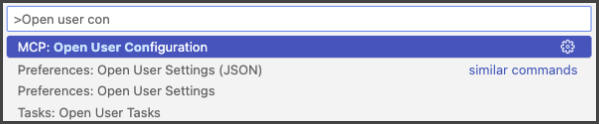
2. Open **MCP User Configuration**, see [VS Code MCP Docs](https://code.visualstudio.com/docs/copilot/chat/mcp-servers) for details.
3. Add the JSON MCP server configuration for OX Security in `mcp.json`:
```json
{
"servers": {
"ox-security": {
"command": "npx",
"args": [
"mcp-remote",
"https://mcp.apikey.app.ox.security/",
"--header",
"Authorization:PASTE_YOUR_API_TOKEN_HERE"
]
}
}
}
```
4. Replace `PASTE_YOUR_API_TOKEN_HERE` with the [MCP Integration key that you saved](#creating-a-new-mpc-integration-key).
5. Save the configuration.
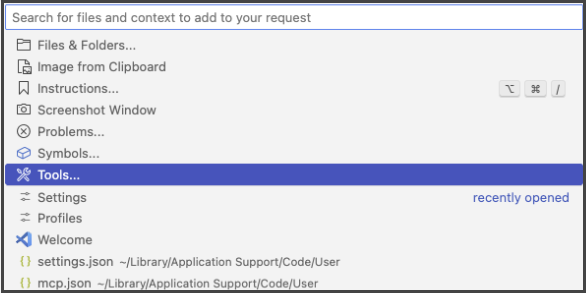
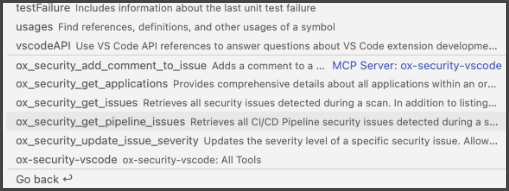
6. In the **VS Code chat**, click **Add Context**.
7. Select the desired tools.
OX Security appears as an available MCP server.
---
# Agent Instructions
This documentation is published with GitBook. GitBook is the documentation platform designed so that both humans and AI agents can read, navigate, and reason over technical content effectively. Learn more at gitbook.com.
## Querying This Documentation
If you need additional information that is not directly available in this page, you can query the documentation by asking a question.
Perform an HTTP GET request on the following URL with the `ask` and `goal` query parameters:
```
GET https://docs.ox.security/api-documentation/api-reference/model-context-protocol/mcp-integration-guide.md?ask=&goal=
```
`ask` is the immediate question: it should be specific, self-contained, and written in natural language.
`goal` is what the user is ultimately trying to achieve, the reason they need the answer. Sharing it helps GitBook give you a better, more relevant answer. A goal is most helpful when it describes the outcome the user wants rather than restating the question. For example, with `ask=how do I create an API token`, a goal like `automate deployments from our CI pipeline` lets GitBook tailor the answer to that use case.
The response will contain a direct answer to the question and relevant excerpts and sources from the documentation.
Use this mechanism when the answer is not explicitly present in the current page, you need clarification or additional context, or you want to retrieve related documentation sections.