> For the complete documentation index, see [llms.txt](https://docs.ox.security/llms.txt). Markdown versions of documentation pages are available by appending `.md` to page URLs; this page is available as [Markdown](https://docs.ox.security/exclusions-and-sla/scope-policy-and-sla-compliance/enforcing-sla.md).
# Enforcing SLA
Security’s Service Level Agreement (SLA) capability is designed to help organizations maintain security standards by setting and enforcing time-based commitments for resolving security issues.
In many cases, organizations commit to their clients that certain types of security issues, especially those with high severity, are resolved within a defined period. OX Security’s SLA management capability enables teams to efficiently track and meet these commitments. It provides a structured way to monitor resolution timelines and automate actions when deadlines are not met.
## Automated OX SLA Management
OX Security’s automated SLA management eliminates the inefficiencies and risks associated with manual SLA tracking.
By centralizing SLA tracking, OX provides real-time visibility and automation, freeing teams from manual work and helping them address issues faster and more efficiently.
## OX SLA Use Cases
By default OX SLA capability is disabled. You need [to enable it](#enabling-sla-and-setting-conditions) and then you can use is as follows:
* [Configure SLA conditions](#configuring-sla-conditions)
* [Monitor SLA compliance](#monitoring-sla-compliance)
* [Change SLA settings for specific issues](#changing-sla-settings-for-specific-issues)
* [Monitor issues SLA trends](#monitoring-issue-sla-trends)
* [Schedule automated actions](#automated-actions)
### Configuring SLA conditions
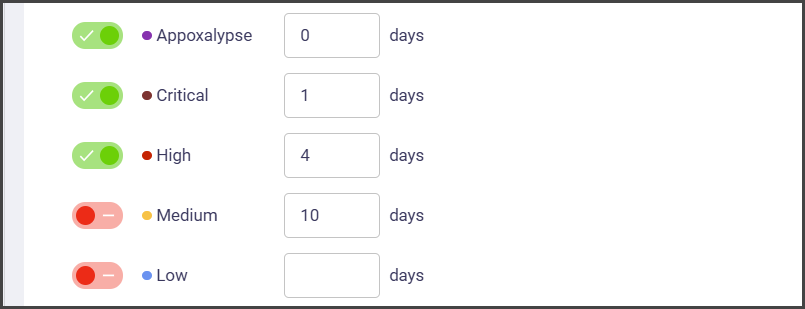
You can define SLA conditions based on issue severity.
For instance, set an SLA for Critical issues to be resolved within one day.
### Monitoring SLA compliance
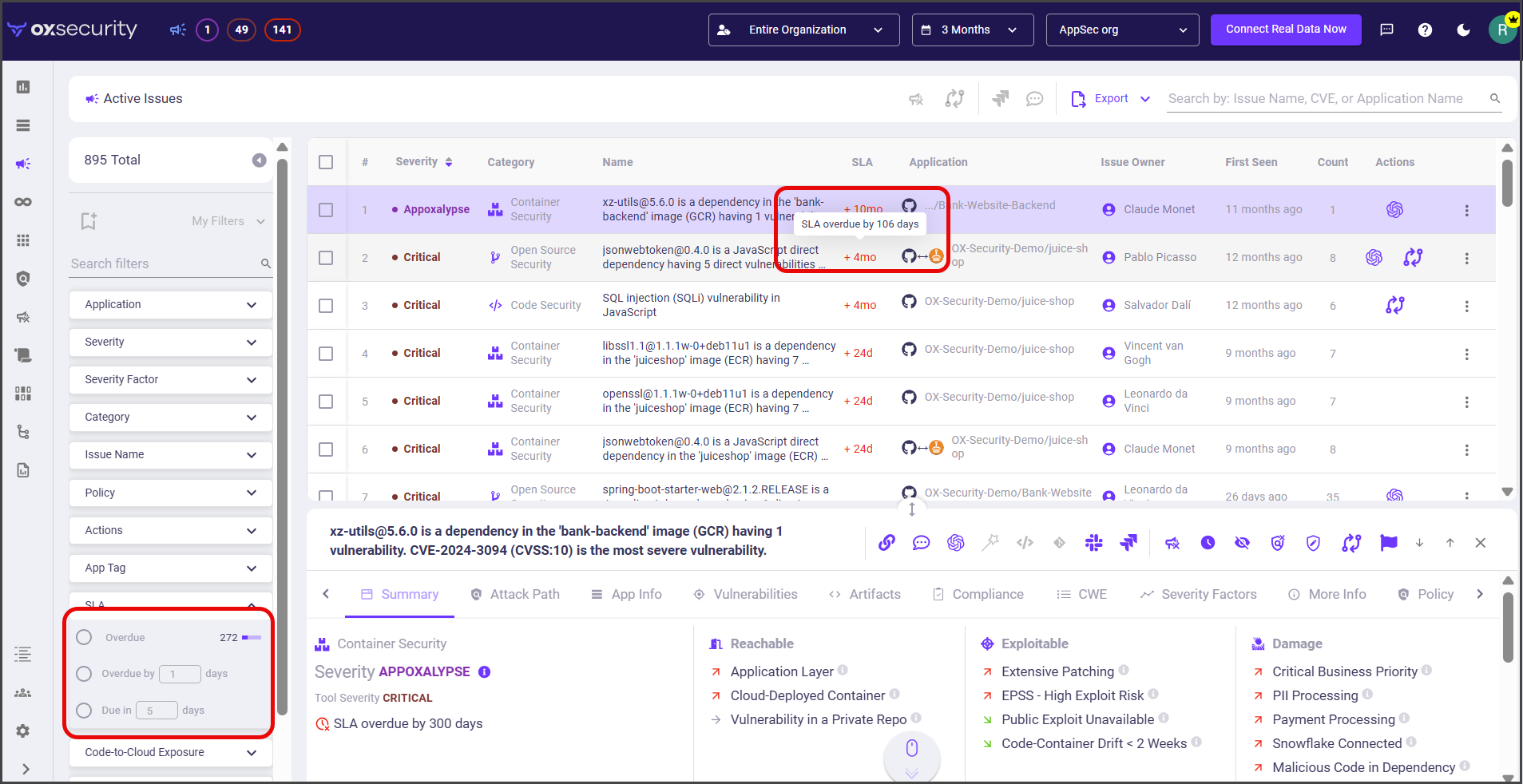
You can track SLA compliance in real time across all workloads. This helps teams stay informed of SLA adherence and address breaches quickly.
For example, in the Dashboard you can see the total number of SLA in the overdue status.
While in the Issues page, you can view the status of SLA adherence for each security issue and filter the page info for specific info, such as finding all the issues whose SLA is overdue for 1 day, or all the issues whose SLA will be due in 5 days.
### Changing SLA settings for specific issues
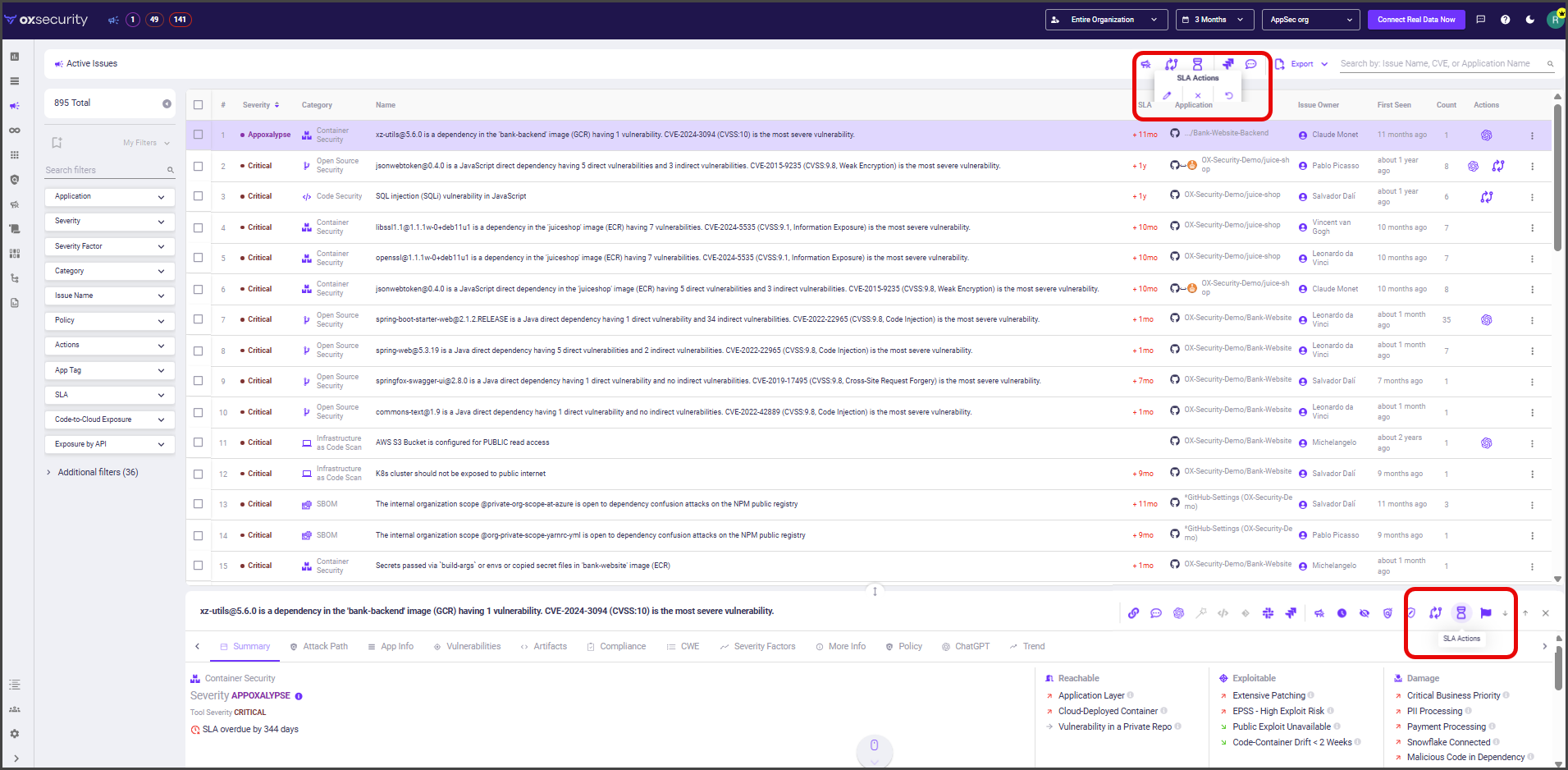
SLA definitions are set globally based on issue severity, but you can manually adjust these settings for specific issues you select. This provides greater control over SLA management.
For example, all issues with Critical severity are assigned a 7-day SLA. However, some critical issues may be more complex and require additional time to resolve. In such cases, the AppSec manager can select specific critical issues and extend their SLA.
If, after a few days, the AppSec manager sees that the selected issues can be resolved along with others, they can reset the SLA settings for those issues, returning them to the original global settings.
Alternatively, the AppSec manager may identify certain issues that do not require an SLA and choose to cancel the SLA for those issues.
### Monitoring issue SLA trends
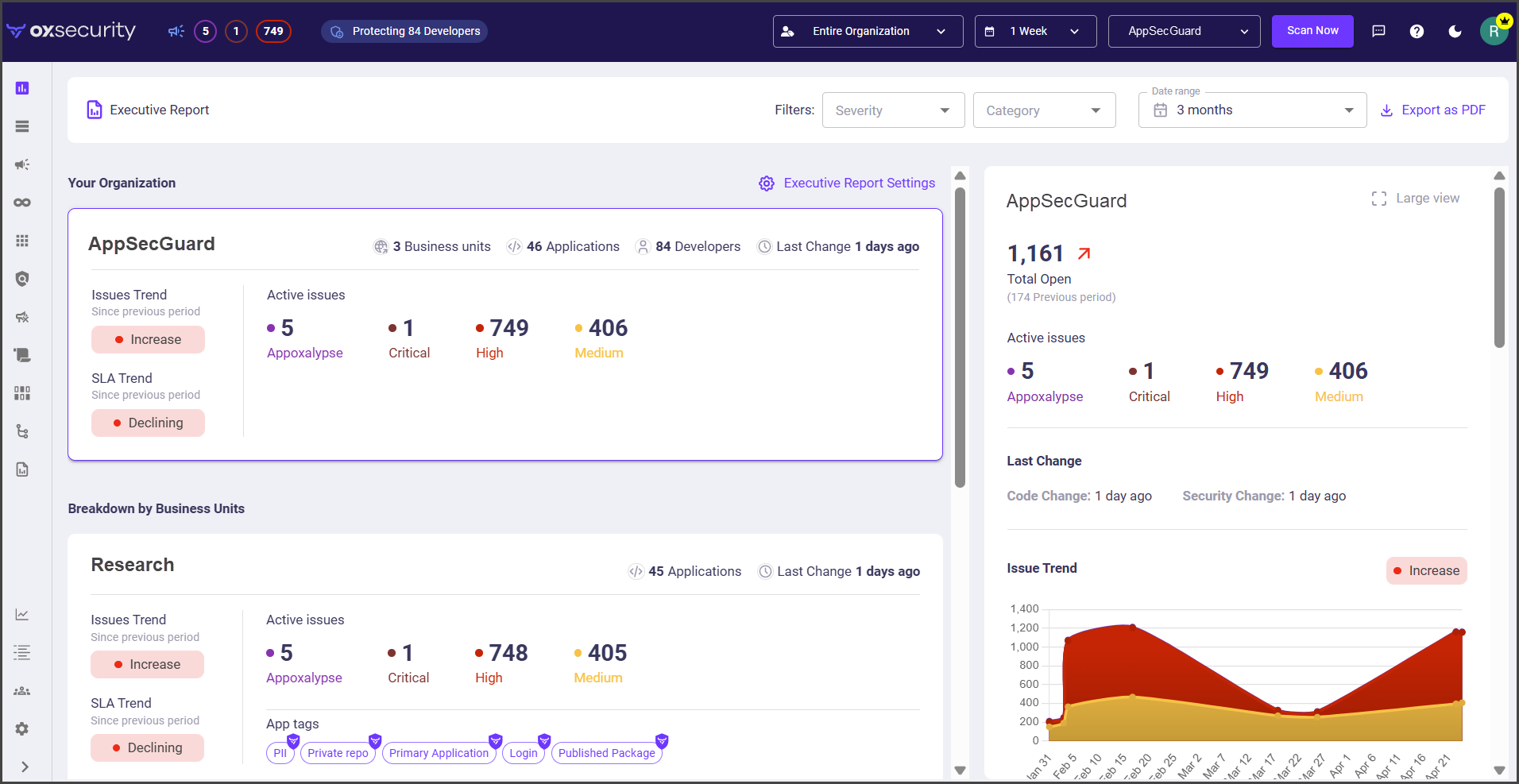
Issues SLA compliance trends provide insights into how well the team is meeting its service level commitments. These reports can be customized to show performance across different business units and teams, helping leadership make informed decisions about resource allocation.
You can find issues SLA trends as part of Executive Reports.
For example, create a monthly report that shows issue resolving trend and issues SLA trend within the defined timeframe. The report can be shared with management to highlight areas for improvement or present successful performance.
### Automated actions
OX Security can automatically trigger actions such as Slack alerts or ticket creation when SLA deadlines are breached.
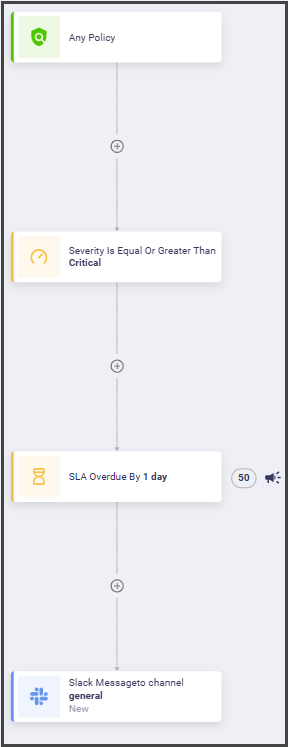
For example, you can define that when the policies with severity level equal or greater than Critical are SLA overdue by 1 day, then a Slack notification is sent.
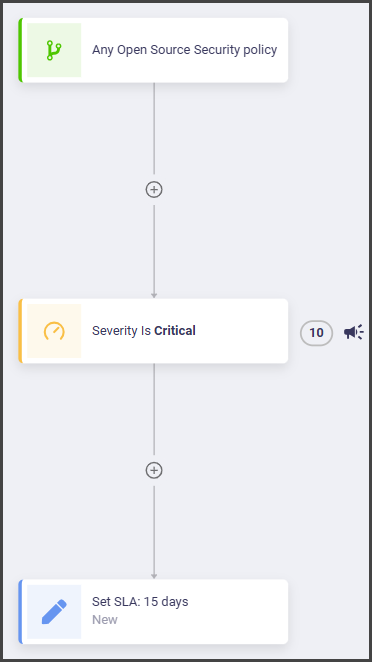
Another scenario is when for example Critical issue severity is set for all the issues in the system to 7 days, but the appsec admin thinks that for open source policies they need 15 days. In that case they can define that for each new Open Source Security policy Critical issue the SLA definition will be automatically changed to 15 days.
## Enabling SLA and Setting Conditions
Before using SLA, you need to enable it.
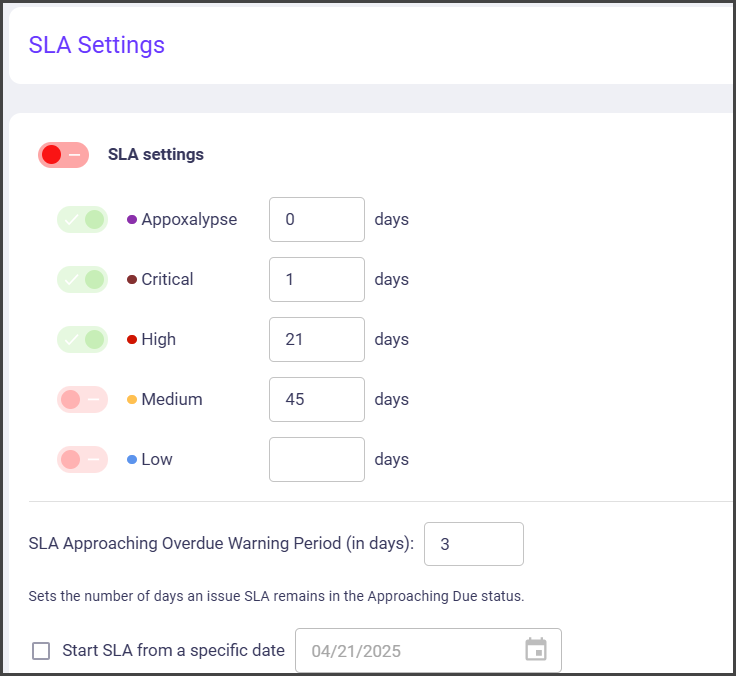
1. In the OX app, go to **Settings > SLA**.
2. Set the following:
| Parameter | Description |
| ----------------------------------------------------- | -------------------------------------------------------------------------------------------------------------------------------------------------------------------------------------------------------------------------------------------------------------------------------------------------------------------------------------------------------------------------- |
| **SLA** | Enables the capability. |
| **Severity levels (Appoxalypse, Critical and so on)** | Set the SLA period for each severity level. |
| **SLA Approaching Overdue Warning Period (in days):** |
Sets the number of days for the SLA Approaching Overdue status.
When this period expires, the issue is considered to have breached the SLA.
For example, if the value is set to 5 days, and there are 3 days left until the SLA breach, the following SLA status appears in the issue's info: -3d. This means that this issue's SLA is due in 3 days.
|
| **Start SLA from a specific date** |
Enable this option to set the date from which SLA counting begins.
Changing this date resets the SLA counting for your organization.
|
3. Select **SAVE**.
---
# Agent Instructions
This documentation is published with GitBook. GitBook is the documentation platform designed so that both humans and AI agents can read, navigate, and reason over technical content effectively. Learn more at gitbook.com.
## Querying This Documentation
If you need additional information that is not directly available in this page, you can query the documentation dynamically by asking a question.
Perform an HTTP GET request on the current page URL with the `ask` query parameter, and the optional `goal` query parameter:
```
GET https://docs.ox.security/exclusions-and-sla/scope-policy-and-sla-compliance/enforcing-sla.md?ask=&goal=
```
`ask` is the immediate question: it should be specific, self-contained, and written in natural language.
`goal` is optional and describes the broader end goal you are ultimately trying to accomplish on behalf of the user. GitBook uses it to tailor the answer towards what is most useful for that goal.
The response will contain a direct answer to the question and relevant excerpts and sources from the documentation.
Use this mechanism when the answer is not explicitly present in the current page, you need clarification or additional context, or you want to retrieve related documentation sections.