# Monitoring Exclusions

The Exclusions page provides centralized visibility into all exclusions defined across the organization. From this page, you can review which issues are excluded, where the exclusions apply, who created them, and whether they are time-bound.

<figure><img src="/files/ILvXi017lr0US8sAMHZX" alt=""><figcaption></figcaption></figure>

It is commonly used to review all active exclusions before a compliance or security audit, identify long-lived exclusions that may require re-evaluation, track temporary (snoozed) exclusions and their expiration dates, and understand why certain issues do not appear in active findings.

The Exclusions page allows you to understand why an issue does not appear in active findings, who excluded it and when, whether the exclusion is permanent or temporary, and what matching logic is used.

The Exclusions page shows both fully-excluded issues and partial exclusions (where only some of an issue's aggregations were excluded).

This page is read-only and is intended for audit, review, and governance purposes. You can [define exclusions in the Active Issues page](https://claude.ai/local_sessions/local_dc7e6536-89e5-470c-99c9-90e85d0ba107).

## Exclusions table

The table lists all exclusions that match the current filters.

<table><thead><tr><th width="174">Column</th><th>Description</th></tr></thead><tbody><tr><td>Type</td><td>Indicates the category of the excluded issue, such as code, secret, or cloud.</td></tr><tr><td>Issue</td><td>The name of the excluded issue.</td></tr><tr><td>App Name</td><td>The application or cloud account where the exclusion applies.</td></tr><tr><td>Match</td><td>The logic used to apply the exclusion, such as file paths, resource identifiers, rule IDs, or code locations.</td></tr><tr><td>Count</td><td>Number of occurrences affected by the exclusion.</td></tr><tr><td>Excluded By</td><td>The user who created the exclusion.</td></tr><tr><td>Comment</td><td>Indicates whether a comment was added when the exclusion was created.</td></tr><tr><td>Snooze Till</td><td>Shows the expiration date for temporary exclusions.</td></tr><tr><td>Applied Date</td><td>The date the exclusion was applied.</td></tr></tbody></table>

## Filters and search

You can narrow down the list of exclusions using the filters panel or the search bar.

| Filter         | Description                                            |
| -------------- | ------------------------------------------------------ |
| App Name       | Filters exclusions by application or cloud account.    |
| Exclusion Type | Filters by the type of excluded issue.                 |
| Issue Name     | Filters by issue name.                                 |
| Created By     | Filters exclusions by the user who created them.       |
| Policy Name    | Filters exclusions originating from a specific policy. |

The search bar supports free-text search by issue name or application name.

## Managing exclusions

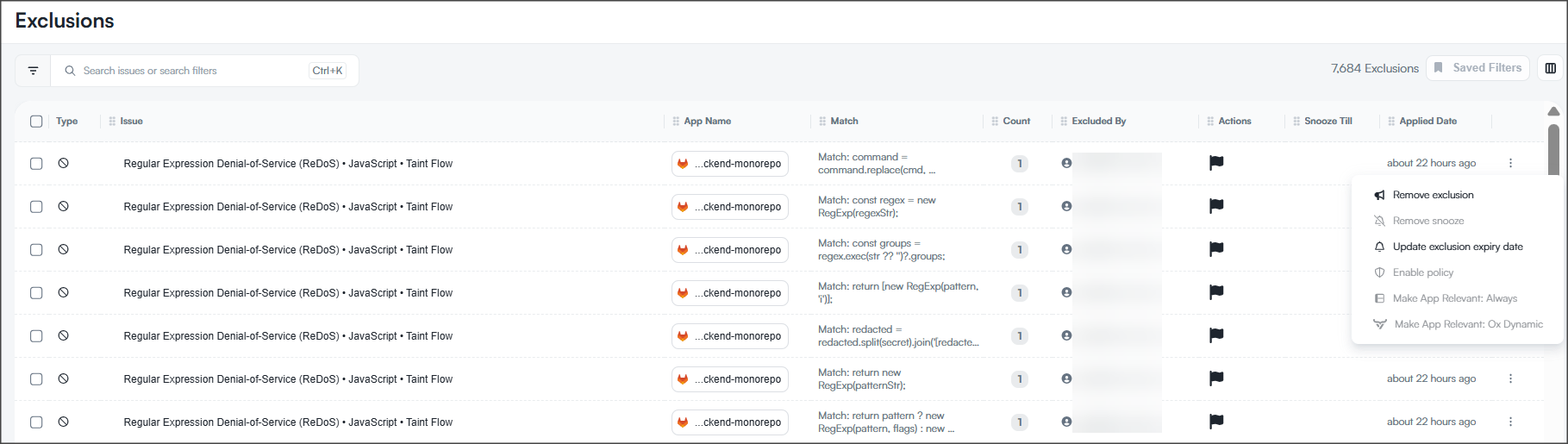
Although exclusions are created elsewhere in the platform, they can be managed from the Exclusions page.

<figure><img src="/files/jsd7knhvIyGhwMENM893" alt=""><figcaption></figcaption></figure>

Each exclusion row includes an actions menu. Available actions depend on the exclusion type, its current state, and your permissions.

| Action                        | Description                                                               |
| ----------------------------- | ------------------------------------------------------------------------- |
| Remove Exclusion              | Deletes the exclusion. The issue is evaluated again in future scans.      |
| Update Exclusion Expiry Date  | Updates the expiration date of a temporary exclusion.                     |
| Remove Snooze                 | Removes the time limit from a snoozed exclusion.                          |
| Make App Relevant: Always     | Marks the application as always relevant for evaluation, when applicable. |
| Make App Relevant: OX Dynamic | Restores dynamic relevance evaluation for the application.                |
| Enable Policy                 | Re-enables the policy associated with the exclusion, when relevant.       |

Actions that are not applicable to a specific exclusion appear disabled.

### Reviewing excluded issues in the Removed Issues page

The Exclusions page lists only the metadata for each exclusion. To see the excluded issue details, open the [Removed Issues](/scan-and-analyze-with-ox/analyzing-scan-results/resolved-issues.md#removed-issues) page and filter by Removed Reason.


---

# Agent Instructions: Querying This Documentation

If you need additional information that is not directly available in this page, you can query the documentation dynamically by asking a question.

Perform an HTTP GET request on the current page URL with the `ask` query parameter:

```
GET https://docs.ox.security/exclusions-and-sla/scope-policy-and-sla-compliance/exclusions-new.md?ask=<question>
```

The question should be specific, self-contained, and written in natural language.
The response will contain a direct answer to the question and relevant excerpts and sources from the documentation.

Use this mechanism when the answer is not explicitly present in the current page, you need clarification or additional context, or you want to retrieve related documentation sections.