> For the complete documentation index, see [llms.txt](https://docs.ox.security/llms.txt). Markdown versions of documentation pages are available by appending `.md` to page URLs; this page is available as [Markdown](https://docs.ox.security/generate-reports/built-in-reports/scan-history-report.md).
# Scan History Report
## About Scan History
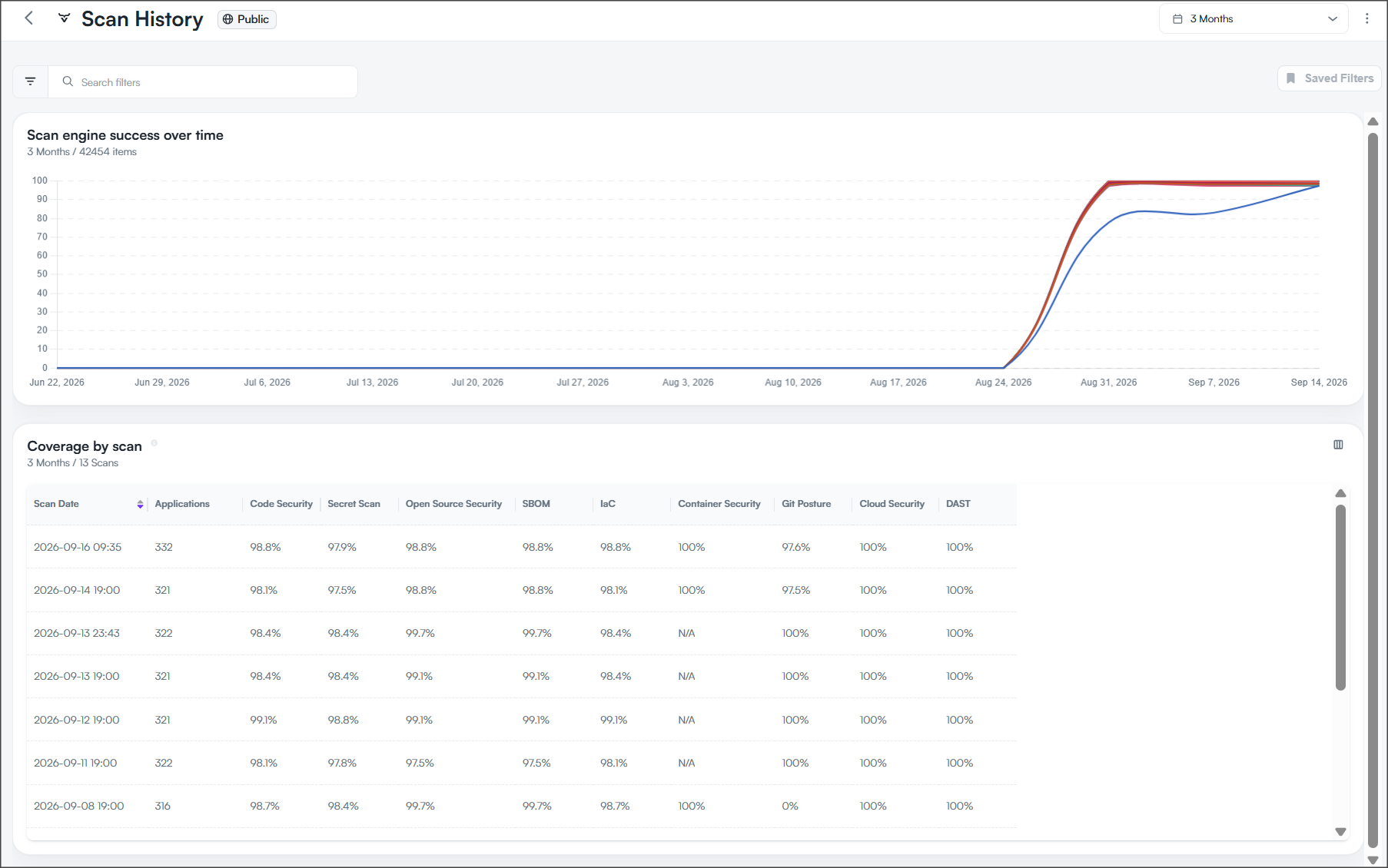
The Scan History Report provides visibility into scan coverage across your applications. Use this report to monitor scan success rates by security category, review coverage for individual scans, compare scan coverage across applications, and identify gaps in scan coverage.
To access the report, go to Reports > Scan History Report.
## Coverage by Category
The Coverage by Category section displays scan success rates for each security category across applications during the selected period.
Each category displays the percentage of applicable applications that were successfully scanned.
For example, a Git Posture coverage rate of 77.9% indicates that approximately 77.9% of applicable applications were successfully scanned for Git Posture.
The summary does not distinguish between failed scans and categories that were not applicable to individual applications.
## Coverage by Scan
The Coverage by Scan section displays scan coverage for each scan and security category.
Each row represents a scan. The percentages indicate the proportion of applicable applications that were successfully scanned for each category.
| Column | Description |
| -------------------- | -------------------------------------------------------------- |
| Scan Date | Date and time when the scan ran. |
| Applications | Number of applications included in the scan. |
| Code Security | Scan coverage for code security issues. |
| Secret Scan | Scan coverage for secrets. |
| Open Source Security | Scan coverage for open source security issues. |
| SBOM | Scan coverage for Software Bill of Materials (SBOM) data. |
| IaC | Scan coverage for Infrastructure as Code (IaC). |
| Container Security | Scan coverage for container security issues. |
| Git Posture | Scan coverage for Git posture. |
| Cloud Security | Scan coverage for cloud security issues. |
| DAST | Scan coverage for Dynamic Application Security Testing (DAST). |
## Coverage by App
The Coverage by App section displays scan coverage information grouped by application.
Each row represents an application and summarizes its scan coverage across security categories.
The information is similar to the scan coverage summary available in the Scan History tab of the individual application's details page.
## Understanding scan coverage
Coverage is calculated according to whether the relevant scan categories successfully ran for the applications included in a scan.
A coverage percentage indicates the proportion of applicable applications that were successfully scanned for that category. For example, 98% coverage means that the category was successfully scanned for 98% of the applications to which it applied.
A scan category can have the following outcomes at the application level:
| Status | Description |
| ------- | ------------------------------------------------------------------------------------------------------------------------------------------------------------- |
| Success | The scan category was applicable to the application and completed successfully. |
| Failure | The scan category was applicable to the application but did not complete successfully. |
| N/A | The scan category was not applicable to the application. For example, the application might not contain the files or technologies required for that category. |
N/A does not indicate a scan failure. It means that OX determined that the category did not apply to the application.
## Filter scan history
You can filter the Scan History page to focus on scan coverage for specific applications, organizational groups, or scan characteristics.
| Filter | Description |
| ---------------- | --------------------------------------------------------------- |
| App Tag | Filters applications by their assigned application tags. |
| Application | Filters scan coverage by application. |
| Business Unit | Filters applications by business unit. |
| Last Code Change | Filters applications based on when their code was last changed. |
| Scan Category | Filters scan coverage by security category. |
You can also select the time period displayed on the page. The selected time period applies to the scan history data displayed in the chart and table.
---
# Agent Instructions
This documentation is published with GitBook. GitBook is the documentation platform designed so that both humans and AI agents can read, navigate, and reason over technical content effectively. Learn more at gitbook.com.
## Querying This Documentation
If you need additional information that is not directly available in this page, you can query the documentation by asking a question.
Perform an HTTP GET request on the following URL with the `ask` and `goal` query parameters:
```
GET https://docs.ox.security/generate-reports/built-in-reports/scan-history-report.md?ask=&goal=
```
`ask` is the immediate question: it should be specific, self-contained, and written in natural language.
`goal` is what the user is ultimately trying to achieve, the reason they need the answer. Sharing it helps GitBook give you a better, more relevant answer. A goal is most helpful when it describes the outcome the user wants rather than restating the question. For example, with `ask=how do I create an API token`, a goal like `automate deployments from our CI pipeline` lets GitBook tailor the answer to that use case.
The response will contain a direct answer to the question and relevant excerpts and sources from the documentation.
Use this mechanism when the answer is not explicitly present in the current page, you need clarification or additional context, or you want to retrieve related documentation sections.