> For the complete documentation index, see [llms.txt](https://docs.ox.security/llms.txt). Markdown versions of documentation pages are available by appending `.md` to page URLs; this page is available as [Markdown](https://docs.ox.security/generate-reports/reporting.md).
# About Reporting
Reporting lets you explore your OX data on your own. Use it to answer questions, track progress, surface risks, and share clear insights with your team.
## Reports list
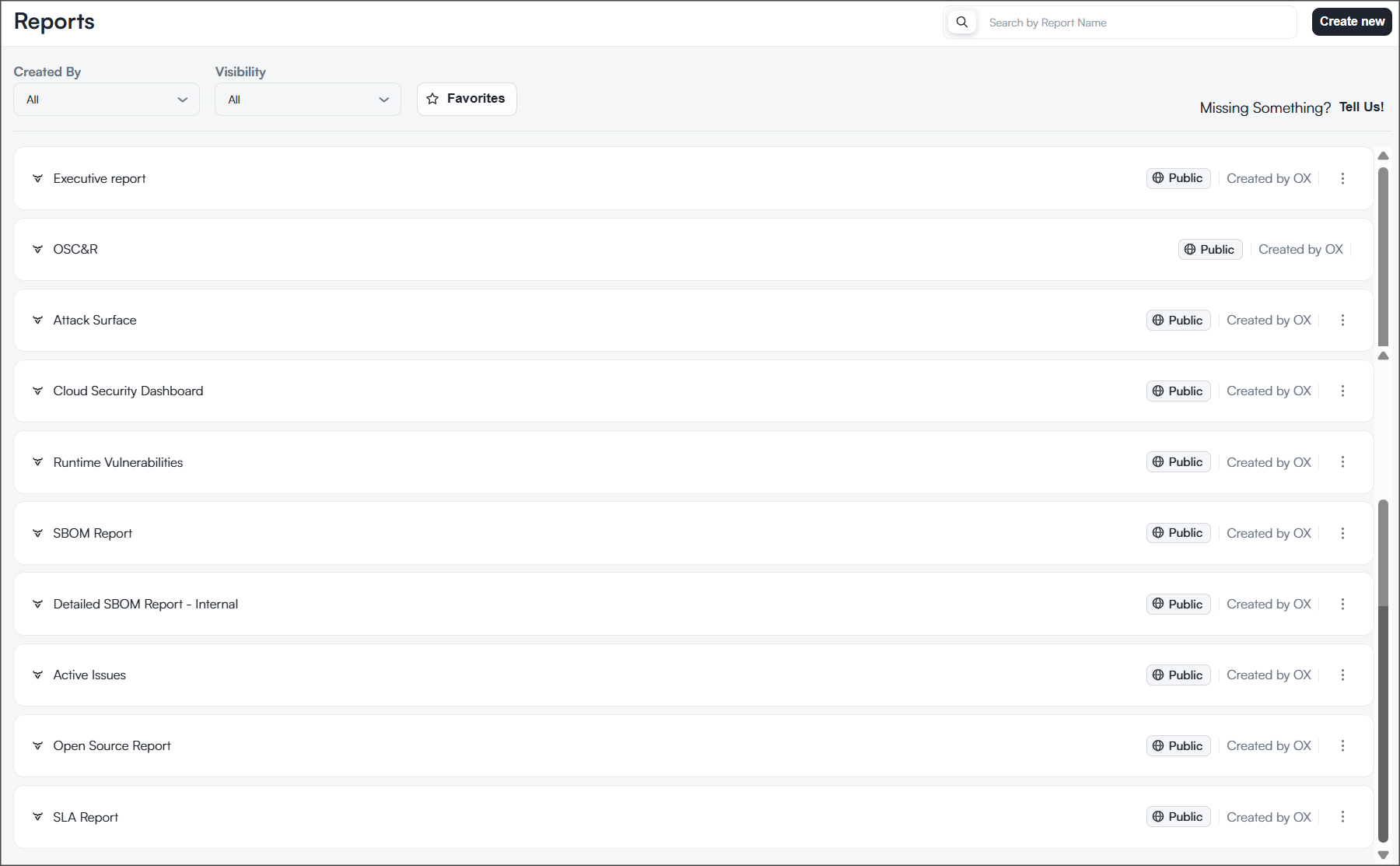
The Reports List is your hub for opening, searching, filtering, favoriting, and exporting reports. It includes both built-in reports created by OX and custom reports created by users in your organization.
From this page, you can open, search, filter, and perform actions on reports according to your role and permissions.
Each report in the list includes its name, creator, visibility level, and available actions. Built-in reports are marked with Created by OX, while custom reports display the creator’s name.
OX Security provides the following report types:
* [**Built-in reports:**](https://docs.ox.security/generate-reports/built-in-reports.md) Provided by OX and give you ready-made views. The reports are not editable and are public only.
* [**Custom reports:**](https://docs.ox.security/generate-reports/custom-reports.md) Reports you design to match your goals. Custom reports can be public or private. Admins can edit both public and private reports. Each user can edit the reports they created.
### Filters and Search
You can refine the reports displayed in the list using filters at the top of the page.
| Filter | Options | Description |
| -------------- | --------------------------------- | ----------------------------------------------- |
| **Created By** | All, OX, or individual user names | Filter reports by creator. |
| **Visibility** | All, Public, or Private | Filter reports based on their visibility level. |
| **Favorites** | On / Off | Show only reports marked as favorites. |
You can also search for reports by name using the search bar.
### Report actions
Each report includes a menu (three-dot icon) with actions that depend on your role and the report type.
| Option | Description |
| ---------------------------------------------------------------------------------------------------------------- | ----------------------------------------------------------------------------------------------------------------------- |
| **Edit** | Opens the report in edit mode. This option is disabled for public or shared reports. |
| **Duplicate** | Creates a copy of the current report, allowing you to modify it without changing the original. |
| **Export** | Emails the report data, or downloads the report. You can export it in supported formats such as CSV, PDF, or CycloneDX. |
| [**Schedule Report Export**](https://docs.ox.security/generate-reports/reporting/configure-report-scheduling.md) | |
| **Add to/Remove from favorites** | Adds the report to your list of favorite reports. If removed, the report remains accessible in the reports library. |
| [**Add as Dashboard view**](https://docs.ox.security/generate-reports/custom-reports/custom-dashboard-views.md) | |
| **Delete** | Permanently deletes the report. This action cannot be undone and is only available for reports that you own. |
---
# Agent Instructions
This documentation is published with GitBook. GitBook is the documentation platform designed so that both humans and AI agents can read, navigate, and reason over technical content effectively. Learn more at gitbook.com.
## Querying This Documentation
If you need additional information that is not directly available in this page, you can query the documentation by asking a question.
Perform an HTTP GET request on the following URL with the `ask` and `goal` query parameters:
```
GET https://docs.ox.security/generate-reports/reporting.md?ask=&goal=
```
`ask` is the immediate question: it should be specific, self-contained, and written in natural language.
`goal` is what the user is ultimately trying to achieve, the reason they need the answer. Sharing it helps GitBook give you a better, more relevant answer. A goal is most helpful when it describes the outcome the user wants rather than restating the question. For example, with `ask=how do I create an API token`, a goal like `automate deployments from our CI pipeline` lets GitBook tailor the answer to that use case.
The response will contain a direct answer to the question and relevant excerpts and sources from the documentation.
Use this mechanism when the answer is not explicitly present in the current page, you need clarification or additional context, or you want to retrieve related documentation sections.