> For the complete documentation index, see [llms.txt](https://docs.ox.security/llms.txt). Markdown versions of documentation pages are available by appending `.md` to page URLs; this page is available as [Markdown](https://docs.ox.security/get-started/onboarding-to-ox/review-scan-results/response-center/incident-information.md).
# Incident Information
## About Incident Information
Open an incident from Response Center to investigate its impact on your organization, review supporting evidence, identify affected assets, and coordinate remediation.
The incident header displays the exposure status, incident type, publisher, monitoring status, and workflow status. It can also display Exposure Severity, which is hidden when the incident is Not Affected. You can assign an owner, change workflow status, and manage the incident using the available controls.
Exposure status indicates whether your organization is affected; workflow status tracks the team's response. They are independent: an incident can be Open and Not Affected. Available tabs depend on the incident and its evidence. For Not Affected incidents, Findings, Affected Assets, and Remediation are hidden, while Safe Versions and Related Findings may still be available.
**To investigate an affected incident:**
1. Review [**Overview** ](#overview)to validate exposure status, severity, assessment freshness, and monitored indicators.
2. Open [**Findings** ](#findings)and identify the matched versions and supporting evidence.
3. Open [**Affected Assets**](#affected-assets) to determine the affected resources and responsible teams.
4. Review [**Remediation** ](#remediation)and coordinate available fixes, tickets, or pull requests.
5. Use [**Safe Versions**](#safe-versions) to check whether other instances of the monitored libraries are already outside the affected ranges.
6. Verify the result after the relevant environment data is updated, and record the outcome in [**Activity**](#activity).
An incomplete or failed assessment does not establish that the organization is unaffected. Previously identified evidence may remain visible while assessment is pending or unsuccessful.
## Overview
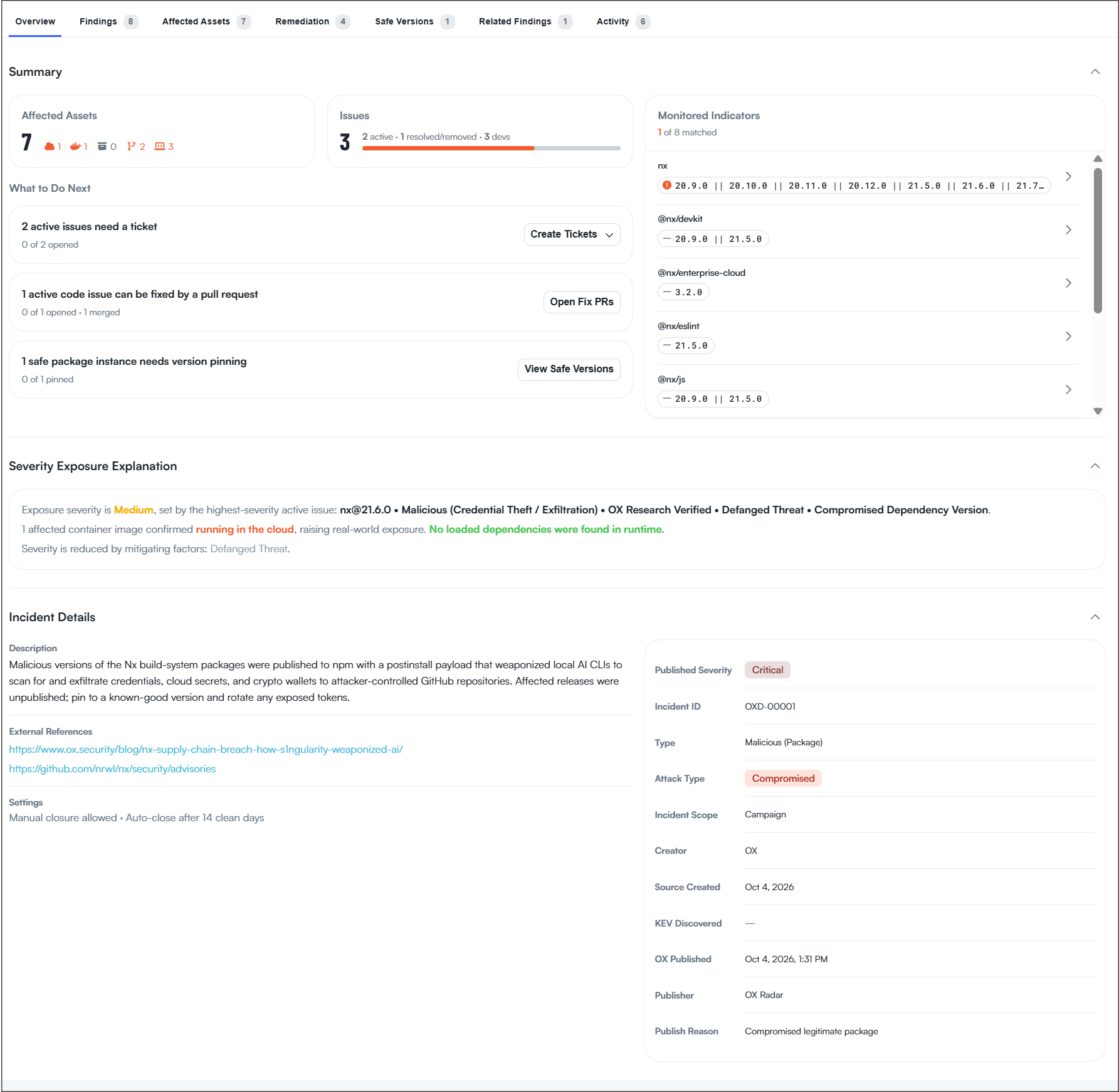
The Overview tab summarizes the incident, explains your organization's exposure severity, and provides details about the security event. It contains three expandable sections: Summary, Severity Exposure Explanation, and Incident Details.
### Summary
The Summary section shows the incident's impact, monitored scope, and available response actions.
| Area | Description |
| ---------------------- | ------------------------------------------------------------------------------------------------------------------------------------------------------------------------------------------ |
| Affected Assets | Number of associated resources by asset type, such as cloud accounts, container images, repositories, and developer environments. |
| Issues / SBOM findings | Number of associated security issues, including active and resolved or removed issues. When exposure is based only on SBOM evidence, the summary can show SBOM findings instead of Issues. |
| Monitored Indicators | Libraries, CVEs, package ecosystems, and affected version ranges monitored by the incident, together with the number of indicators matched in your environment. |
| What to Do Next | Available response actions, such as creating tickets, opening fix pull requests, or reviewing safe versions that may need pinning. |
Monitored Indicators defines what the incident checks; an indicator does not necessarily mean that an affected dependency was found. Expand an indicator to inspect its affected versions and available remediation version information. The first safe version suggested for remediation is different from the Safe Versions tab, which shows versions already detected in your environment.
A dependency can currently resolve to a safe version while its permitted version range still allows an affected version. Pinning it to a safe version, or restricting the allowed range, helps prevent a future installation of an affected release.
Tickets require a connected ticketing tool. Fix pull requests are available only for eligible code issues with supported fixes. Creating a ticket or opening a pull request does not by itself establish that remediation succeeded; verify the resulting evidence.
### Severity Exposure Explanation
This section explains how OX determined Exposure Severity using the incident's current evidence. When there is a rated active issue contributing to exposure, OX uses the highest-severity such issue. If current exposure has no rated active issue, OX uses Published Severity. This fallback also applies to exposure supported by SBOM, pipeline, or developer-environment evidence.
The explanation may include whether an affected container image is running in the cloud, whether a library was found loaded at runtime, and exploitability or mitigating factors. A running container image does not, by itself, prove that a particular dependency is loaded.
Visible evidence does not always contribute to current exposure. For example, blocked dependency-install attempts, excluded issues, suppressed SBOM matches, and expired events may remain visible for investigation without contributing to the current exposure assessment. Pipeline and developer-environment events have a seven-day exposure window.
### Incident Details
This section provides the incident description, references, classification, ownership, publication information, and settings.
| Field | Description |
| ------------------------ | ------------------------------------------------------------------------------------------------------ |
| Description | Description of the security event and its potential impact. |
| External References | Links to source advisories and other supporting information. |
| Monitored Source | Source used to monitor the incident, when available. |
| Settings | Manual and automatic closure settings, including the configured clean-day period. |
| Published Severity | Severity assigned to the security event when published, independently of your organization's exposure. |
| Incident ID | Unique incident identifier. |
| Type | Security-event classification, such as a malicious package. |
| Attack Type | Classification of the attack, when available. |
| Incident Scope | Scope of the incident, such as a single dependency or a broader campaign. |
| Exploitation in the Wild | Available information about observed or reported exploitation. |
| AI Exploit Simulation | Available exploit-simulation checks or results, when supported and present. |
| Owner / Creator | Assigned incident owner and the user or source that created the incident. |
| Source Created | Date the advisory or event was created at its source. |
| KEV Discovered | Date recorded in the Known Exploited Vulnerabilities catalog, when available. |
| OX Published | Date and time the incident was published by OX. |
| Publisher | Incident source, such as OX Radar or User Created. |
| Publish Reason | Reason the incident was published. |
Available fields depend on the incident and source data.
The incident's assessment may show the following states or notices:
| Assessment state or notice | Meaning |
| -------------------------- | ----------------------------------------------------------------------------------------------------------------------------------------------------------------------------- |
| Queued | The assessment is waiting to run. |
| Running | The assessment is in progress. |
| Incomplete | The assessment did not finish sufficiently to establish a complete result. |
| Failed | The assessment could not complete successfully. |
| Awaiting a fresh scan | Existing scan data is missing or too old to complete the assessment. Wait for a completed, sufficiently recent scan before treating an absence of findings as a clean result. |
Incomplete and Failed assessments do not mean Not Affected. Existing findings can remain visible while an assessment is queued, incomplete, or failed.
The header provides separate workflow status and monitoring information. The workflow status can be Open, In Progress, Blocked, Closed, or Ignored. The monitoring indicator in the header shows whether the incident is actively monitored; do not infer monitoring solely from its workflow status. Closed and Ignored incidents are not automatically monitored. Closing an incident does not fix an affected component, and Resolved exposure does not necessarily mean that the incident is Closed.
**To change the incident status:**
1. Open the incident and select the **Status** control in the header.
2. Select the required status.
3. If you select **Blocked**, enter a reason. For other status changes, add a comment if needed.
4. Confirm the change. The reason or comment is recorded in the incident history.
When automatic closure is enabled, it applies only to incidents in Open or In Progress status. OX closes an eligible incident only after the configured number of clean days and a subsequent qualifying assessment. Blocked incidents do not automatically close under this rule, even if they are actively monitored. If manual closure is disabled, you cannot close the incident directly.
A Closed incident can be reopened. When available, **Refresh Incident** reassesses the incident against data already available to OX; it does not replace a new scan if fresher environment data is needed.
An incident must be Closed or Ignored before it can be deleted. Deletion permanently removes the incident's Response Center evidence, monitored indicators, events, remediation records, comments, and banner-dismissal records. Underlying issues and SBOMs remain. Deleting an OX-published incident affects your organization only; OX may declare it again later. Deletion is subject to the available controls and your permissions.
## Findings
The Findings tab displays evidence associated with the incident's monitored indicators. It groups findings by evidence source and shows the number of findings and their states.
| Group | Description |
| ---------------------- | ----------------------------------------------------------------------------------------------------------------------------------------------------------------------------- |
| Container Issues | Container-image security issues, including severity, cloud/Kubernetes deployment, loaded-library information, actions taken, and state. |
| Code Issues | Repository security issues, including severity, code usage, actions taken, and state. |
| Container SBOM | Dependency matches from container SBOMs, including the container image, loaded-library information, and state. |
| Code SBOM | Dependency matches from code SBOMs, including repository, dependency type, pin status, code usage, and state. |
| Developer Environments | Recorded dependency-install activity associated with monitored packages, including environment, developer, event time, and action state such as Blocked, Flagged, or Allowed. |
| Pipeline Issues | Relevant pipeline evidence, when available. |
Developer-environment records can include blocked installation attempts. A requested or predicted package version does not necessarily establish that the dependency was installed.
Findings are retained as supporting evidence even when they do not count toward current exposure. This can include excluded issues, suppressed SBOM matches, blocked events, or expired events. Pipeline and developer-environment events contribute to current exposure only within the applicable seven-day window.
Use **Show Filters** or the search field to narrow the displayed findings. Pin status helps distinguish dependencies fixed to a particular version from ranges that could later resolve to an affected release.
## Affected Assets
The Affected Assets tab lists resources associated with the incident, grouped by asset type. The groups and counts depend on the available evidence.
| Group | Description |
| ---------------- | ----------------------------------------------------------------------------------------------------------------------------------------------------------------------------- |
| Cloud Accounts | Associated cloud accounts, including regions, clusters, images, and runtime information. |
| Container Images | Associated images, including creation date, open issues, SBOMs, and runtime status. |
| Repositories | Associated repositories, including open and resolved issues, SBOMs, and last activity. |
| Developers | Developers with recorded dependency-install activity associated with monitored packages, including counts of Blocked, Flagged, Allowed, and Expired events and last activity. |
Developer activity does not necessarily prove a dependency was installed; a blocked attempt can also appear. Additional asset groups may be available depending on the incident. Use **Show Filters** or the search field to narrow the assets.
## Remediation
The Remediation tab shows tickets and pull requests associated with the incident and identifies issues for which a fix pull request is available.
| Group | Description |
| ----------------------- | -------------------------------------------------------------------------------------------------------------- |
| Tickets Opened | Created tickets, including assignee, status, age, and external link. |
| Pull Requests Opened | Created pull requests, including upgrade type, state, resource, and last update. |
| Pull Requests Available | Eligible issues for which a supported fix pull request can be opened, including severity, issue, and fix type. |
Creating tickets requires a connected ticketing tool. Fix pull requests require eligible code issues and a supported fix. The presence of a ticket, open pull request, or even a merged pull request does not by itself prove that exposure has been removed. Verify the incident's updated findings and assessment after the change is reflected in environment data.
Use **Show Filters** or the search field to locate remediation items.
## Safe Versions
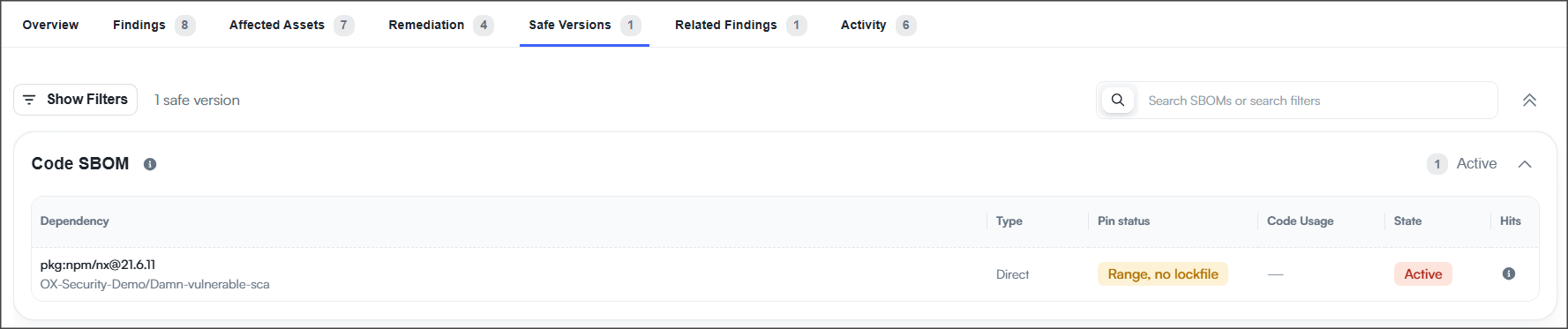
The Safe Versions tab shows monitored dependencies already detected in your environment at versions outside the incident's affected ranges. Unlike the first safe version suggested under Overview > Monitored Indicators, these are observed versions, not a list of recommended upgrades.
| Group | Description |
| --------------- | ----------------------------------------------------------------------------------------------------------------------------- |
| Code SBOM | Safe versions detected in repositories, including dependency, repository, dependency type, pin status, code usage, and state. |
| Container SBOM | Safe versions detected in container images, when available. |
| Pipeline Issues | Safe-version evidence from pipeline scans, when available. |
A safe version can still need pinning when its allowed dependency range permits a future affected version. Review the **Pin status** field before deciding whether the dependency is adequately protected. This tab may be available even when the incident has no current exposure.
Use **Show Filters** or the search field to locate safe-version evidence.
## Related Findings
The Related Findings tab displays additional security findings associated with the incident that may help explain its context. These findings do not necessarily establish current exposure to the monitored threat.
| Group | Description |
| ---------------- | ------------------------------------------------------------------------------------------------------------- |
| Code Issues | Additional repository security issues, including severity, issue details, actions taken, state, and evidence. |
| Container Issues | Additional container-image security issues, when available. |
Use **Show Filters** or the search field to narrow related findings. For evidence matched directly to the incident's monitored indicators, use the Findings tab.
## Activity
The Activity tab provides a chronological record of incident events, assessments, status changes, and investigation comments. It also shows when the incident was opened, last updated, and last checked.
| Option | Description |
| -------------- | ------------------------------------------------------------------------------------------------ |
| All Activity | All recorded events and comments. |
| OX Updates | System-generated events, such as incident publication, scans, refreshes, and monitoring updates. |
| Comments | Notes added by users during investigation. |
| Change Summary | Recorded changes to the incident, including workflow status changes. |
**To add an investigation note:**
1. Open **Activity** and select **Write**.
2. Enter your note. Markdown formatting is supported.
3. Optionally select **Preview** to review the formatted note.
4. Select **Send** to add it to the incident history.
Reasons entered when changing an incident to Blocked, and optional comments on other status changes, are recorded in the incident history.
## Related topics:
[Response Center](/api-documentation/api-reference/api--response-center.md)
[Response Center notifications and settings](/get-started/onboarding-to-ox/review-scan-results/response-center/response-center-notifications-and-settings.md)
---
# Agent Instructions
This documentation is published with GitBook. GitBook is the documentation platform designed so that both humans and AI agents can read, navigate, and reason over technical content effectively. Learn more at gitbook.com.
## Querying This Documentation
If you need additional information that is not directly available in this page, you can query the documentation by asking a question.
Perform an HTTP GET request on the following URL with the `ask` and `goal` query parameters:
```
GET https://docs.ox.security/get-started/onboarding-to-ox/review-scan-results/response-center/incident-information.md?ask=&goal=
```
`ask` is the immediate question: it should be specific, self-contained, and written in natural language.
`goal` is what the user is ultimately trying to achieve, the reason they need the answer. Sharing it helps GitBook give you a better, more relevant answer. A goal is most helpful when it describes the outcome the user wants rather than restating the question. For example, with `ask=how do I create an API token`, a goal like `automate deployments from our CI pipeline` lets GitBook tailor the answer to that use case.
The response will contain a direct answer to the question and relevant excerpts and sources from the documentation.
Use this mechanism when the answer is not explicitly present in the current page, you need clarification or additional context, or you want to retrieve related documentation sections.