Bitbucket
Integrate Bitbucket Cloud with OX to centralize repository security findings alongside container, pipeline, cloud, and runtime signals already in OX.
OX scans Bitbucket repositories on a schedule and on demand, enriches findings with OX context (application mapping, workflows, and compliance), and presents a unified queue for investigation and reporting.
After you connect, Bitbucket scan results appear in the Active issues page (use the filter Source tool > Bitbucket Cloud).
What OX adds
Context and correlation: OX maps Bitbucket findings to applications, services, and teams to show impact and ownership.
Prioritization with severity factors: OX may reprioritize scanner severities when exploitability and environment context reduce risk (for example, Critical → High). Severity factors explain why the priority changed.
Evidence at a glance: When available, OX displays scanner evidence, file locations, and remediation guidance alongside OX analytics to speed triage.
Terminology mapping
Bitbucket and OX use different labels for similar concepts. Use this quick map while you work.
Pipelines
CI/CD Pipelines
Repositories
Applications
Connection methods
For general information about connection methods, see the article Connection methods.
There are three options to connect Bitbucket Cloud to OX.
Bitbucket App (recommended)
Use the OX-created application for streamlined connection with app-level permissions. Simplifies installation and authorization.
Use your existing connection for centralized authentication.
Use Bitbucket app passwords for basic authentication with granular permission control.
Prerequisites
Prerequisites for all connection methods
OX permissions
Permission to configure connectors
Bitbucket Cloud access
Access to the Bitbucket Cloud workspace(s) you want to connect
Additional prerequisites by connection method
Bitbucket app
Permission to install apps in the workspace
Identity provider (IdP)
Access to Bitbucket Cloud using an OAuth connection and Bitbucket Cloud administrator access
User name and password
Bitbucket account with permission to generate app passwords
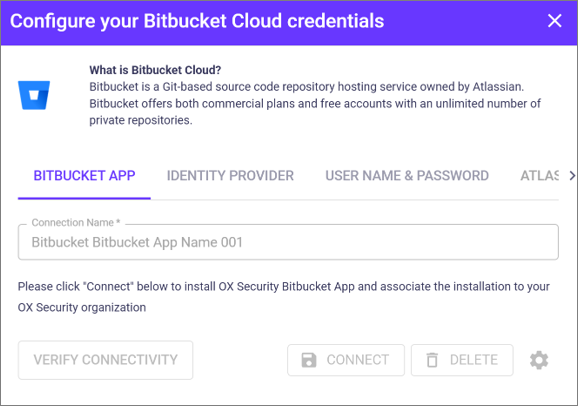
Connect with the OX Bitbucket app
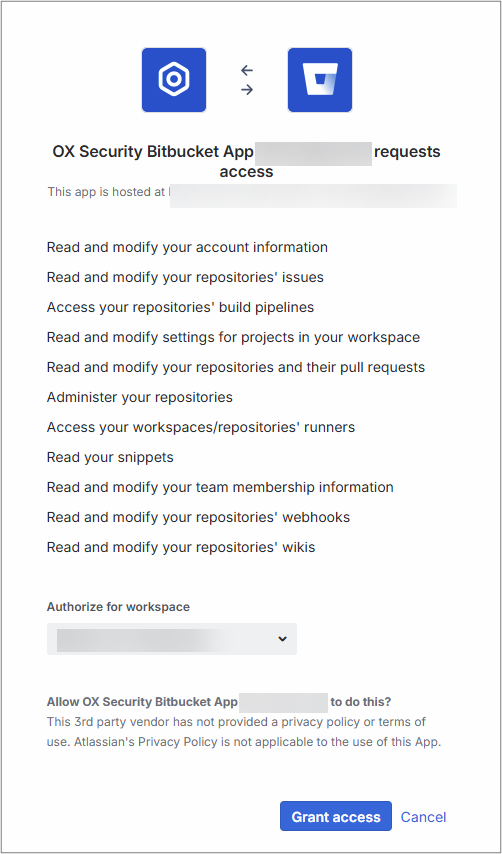
The Bitbucket App method uses an OX-created application to simplify connection. The app requests read access to repositories and branches, pull requests, and pipeline configuration results.
Verify that the prerequisites are in place.
In OX, go to Connectors and select Bitbucket Cloud > BITBUCKET APP.

Select CONNECT. OX validates the credentials.
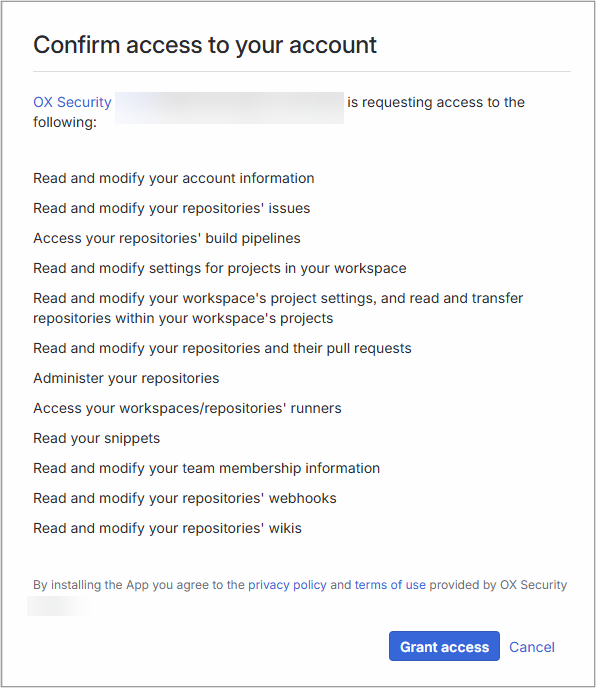
The Grant access dialog opens.

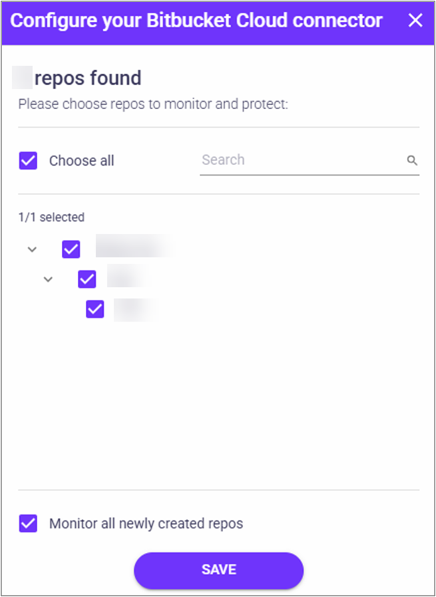
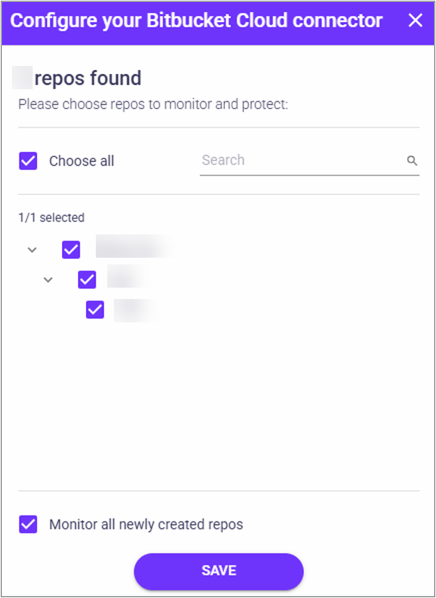
In Configure your Bitbucket Cloud connector, select the repos you want OX to scan.

Select SAVE.
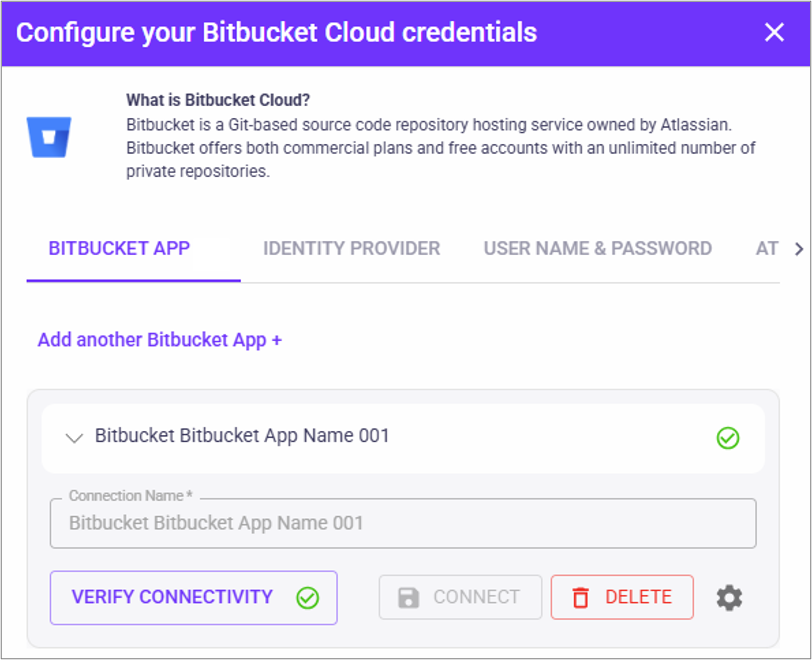
In Configure your Bitbucket Cloud credentials, select VERIFY CONNECTIVITY.

A green success message at the bottom of the screen indicates a successful connection. If verification fails, check your credentials and permissions.
Optional configurations
To change the repositories OX scans and monitors, see the section Change the repositories OX scans.
To connect more Bitbucket accounts to the same organization in the OX platform, see the section Connect multiple Bitbucket accounts.
Connect with Identity Provider
Verify that the prerequisites are in place.
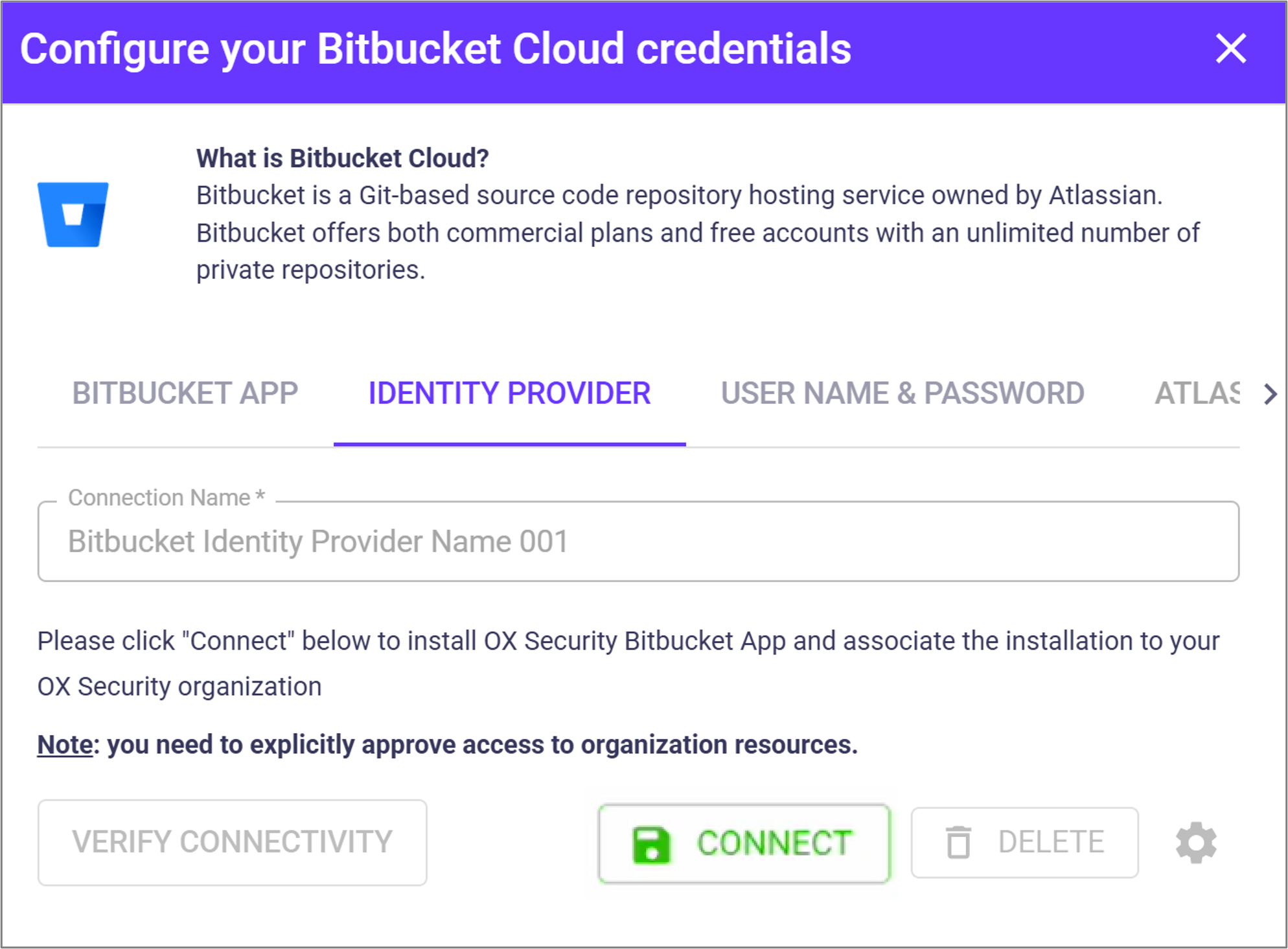
In OX, go to Connectors and select Bitbucket Cloud > IDENTITY PROVIDER.

Select CONNECT. OX validates the credentials.
In Confirm access to your account, select Grant access.

In Configure your Bitbucket connector, select the repos you want OX to scan.

Select SAVE.
In Configure your Bitbucket credentials, select VERIFY CONNECTIVITY. A green checkmark indicates a successful connection. If verification fails, check your credentials and permissions.
Optional configurations
To change the repositories OX scans and monitors, see the section Change the repositories OX scans.
To connect more Bitbucket accounts to the same organization in the OX platform, see the section Connect multiple Bitbucket accounts.
Connect with user name and password
Step 1: Create password and permissions [Bitbucket]
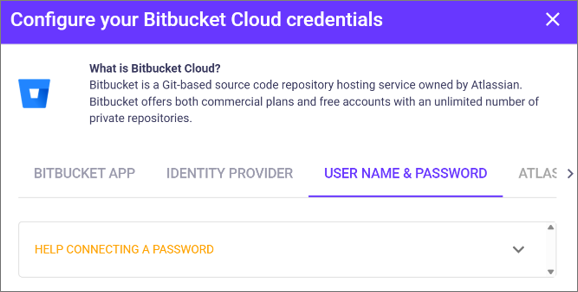
For information on creating a password, see the Bitbucket article Create an app password. You can also get the link from the OX UI. Click the link HELP CONNECTING A PASSWORD.

Verify that the prerequisites are in place.
Log in to your Bitbucket Cloud workspace.
Go to Settings > Personal settings > App passwords.
Select Create app password.
Enter a meaningful label (for example, OX Security Integration).
Select the required permissions:
Account: Read and Write
Workspace memberships: Read and Write
Projects: Write and Admin
Repositories: Write and Admin
Pull requests: Read and Write
Issues: Read and Write
Snippets: Read
Webhooks: Read and Write
Pipelines: Read
Runners: Read
Select Create.
Copy and store the app password in a secure location. You cannot view it again.
Best practice: Store credentials in a secrets manager and set a reminder to rotate it according to your policy.
Step 2: Connect to OX [OX]
Go to Connectors and select Bitbucket Cloud > USER NAME AND PASSWORD.

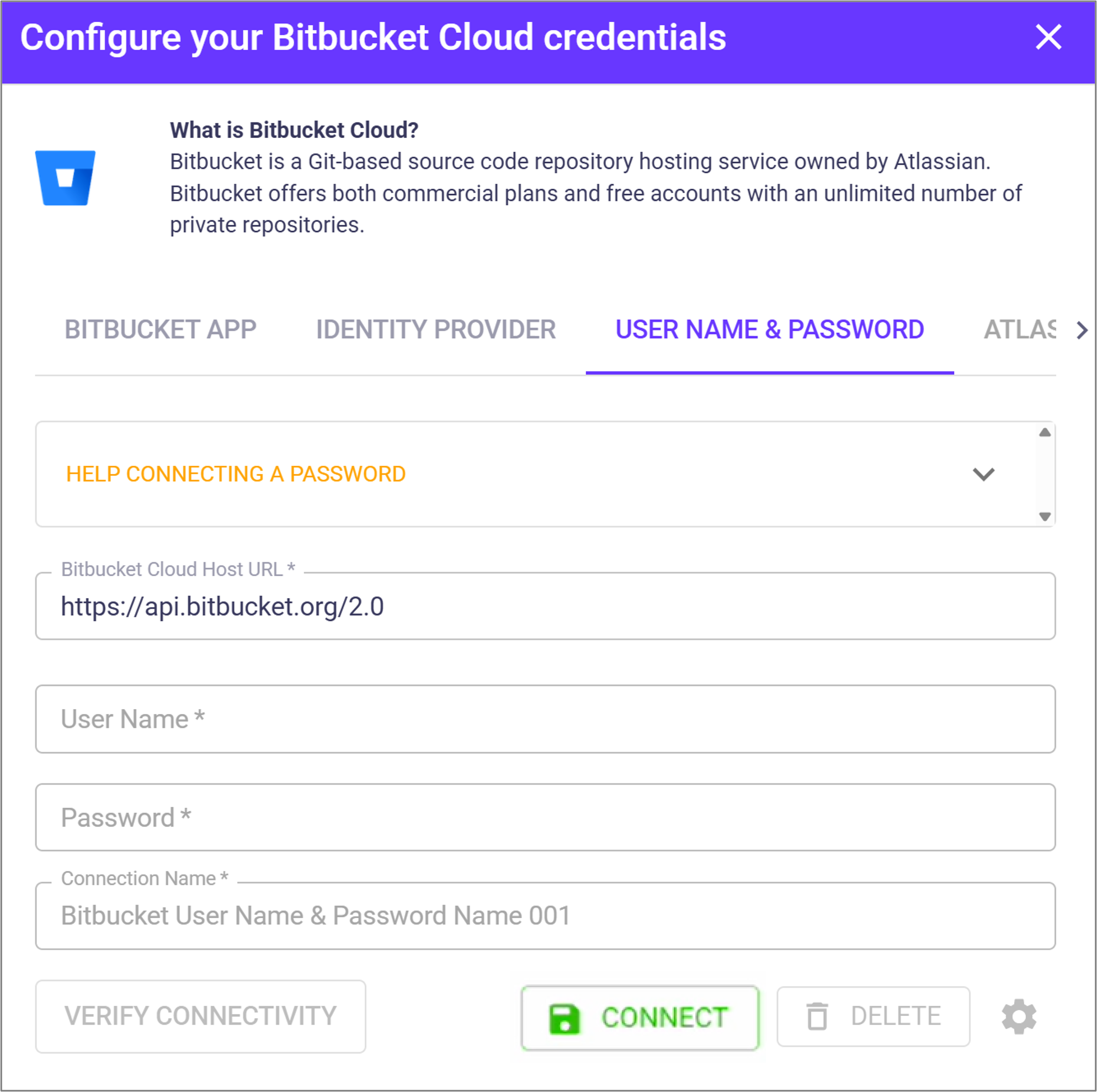
Enter the following parameters.
Bitbucket Cloud Host URL
https://api.bitbucket.org/2.0 (system-generated
User Name
Your Bitbucket name
Password
Your Bitbucket password
Connection Name
Enter a meaningful name
Select CONNECT. OX validates the credentials.
In Configure your Bitbucket connector, select the repos you want OX to scan.

Select SAVE.
In Configure your Bitbucket credentials, select VERIFY CONNECTIVITY. A green checkmark indicates a successful connection. If verification fails, check your credentials and permissions.
Optional configurations
To change the repositories OX scans and monitors, see the section Change the repositories OX scans.
To connect more Bitbucket accounts to the same organization in the OX platform, see the section Connect multiple Bitbucket accounts.
Change the repositories OX scans
Once you have a connection, you can change the repositories that OX scans and monitors.
Use the Gear icon at the bottom of the Configuration screen.
OX displays the locations or objects that OX scans and monitors.
Change the selection as needed.
Select SAVE.

Connect multiple Bitbucket accounts
You can connect multiple Bitbucket Cloud accounts within the same OX organization. OX secures all accounts under a single organization, and each account can use a different connection method.
This setup is useful for large organizations where different teams manage separate Bitbucket Cloud workspaces or require different authentication models. You can combine connection methods—for example:
Use the Bitbucket app for streamlined setup and app-level access.
Use user name and password/token for accounts that do not support app installation.
Use an identity provider for centrally managed user access.
To add another Bitbucket account, select the connection method and follow the steps in this article.
Last updated