> For the complete documentation index, see [llms.txt](https://docs.ox.security/llms.txt). Markdown versions of documentation pages are available by appending `.md` to page URLs; this page is available as [Markdown](https://docs.ox.security/get-started/onboarding-to-ox/source-control/github/github-app/self-hosted-github-app.md).
# Self-Hosted GitHub App
You can connect OX to [GitHub ](/get-started/onboarding-to-ox/source-control/github.md)using a dedicated GitHub App created for your GitHub organization. OX automatically creates the GitHub App with the permissions and URLs required for the integration, so you do not need to manually configure the app in GitHub.
You can use this connection method with GitHub.com or GitHub Enterprise Server.
If your GitHub Enterprise Server instance is not reachable from the public internet, configure the [OX Broker](/get-started/onboarding-to-ox/prerequisites-and-access/ox-deployment/ox-broker.md) so that OX can communicate with your GitHub server.
## Prerequisites
Before you begin, make sure you have:
| Requirement | Description |
| ---------------------------------------------------------------------------------------------- | --------------------------------------------------------------------------------------------------------------------------------------------------- |
| GitHub access | Permissions to create and install a GitHub App for the GitHub organization you want to connect. |
| GitHub URL | The URL of your GitHub environment. For GitHub.com, use `https://github.com`. For GitHub Enterprise Server, use the base URL of your GitHub server. |
| GitHub organization | The GitHub organization containing the repositories you want OX to scan. |
| [OX Broker](/get-started/onboarding-to-ox/prerequisites-and-access/ox-deployment/ox-broker.md) | Required if your GitHub Enterprise Server instance cannot be reached from the public internet. |
> **Note:** If your GitHub environment is not hosted on `github.com` or a GitHub data residency domain (`*.ghe.com`), contact OX Technical Support before connecting. Additional configuration is required on the OX side before you can complete the connection.
## Connect a self-hosted GitHub App
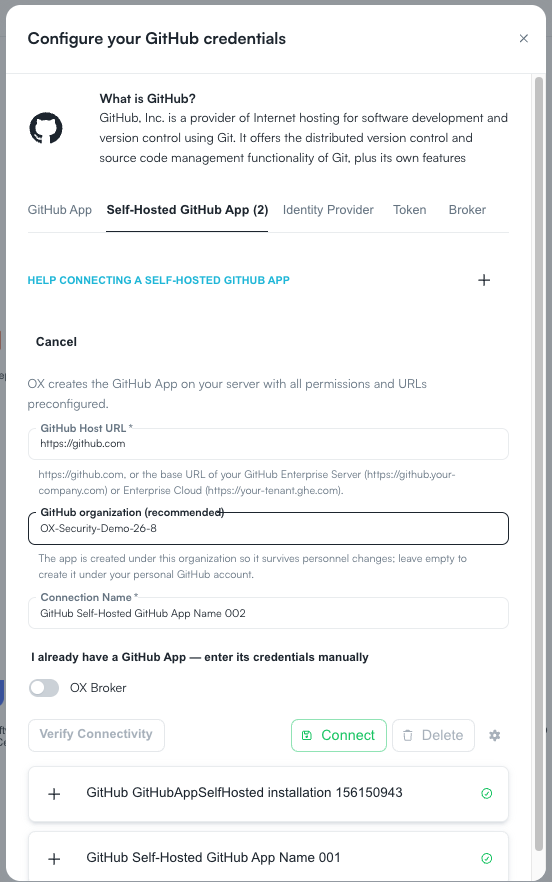
1. In OX, go to the **Connectors** page.
2. Under **Source Control**, select **GitHub**.
3. Select the **Self-Hosted GitHub App** tab.
4. Enter the connection details:
| Field | Description |
| ----------------------- | -------------------------------------------------------------------------------------------------------------------------------------------------------------------------------------- |
| **GitHub Host URL** | Enter `https://github.com` or the base URL of your GitHub Enterprise Server. |
| **GitHub organization** | Enter the GitHub organization where you want to create the app. Creating the app under an organization helps ensure that the integration remains available if individual users change. |
| **Connection Name** | The name used to identify the connection in OX. OX automatically provides a name, which you can change if needed. |
5. Select **Connect**.
GitHub opens the **Create GitHub App** page. OX provides the configuration required to create the app, including its permissions and URLs.
6. In **GitHub App name**, enter a name for the app or use the name provided by OX.
7. Select **Create GitHub App for *****\***.
The GitHub App is created with the permissions required by OX. You do not need to configure the repository and organization permissions manually.
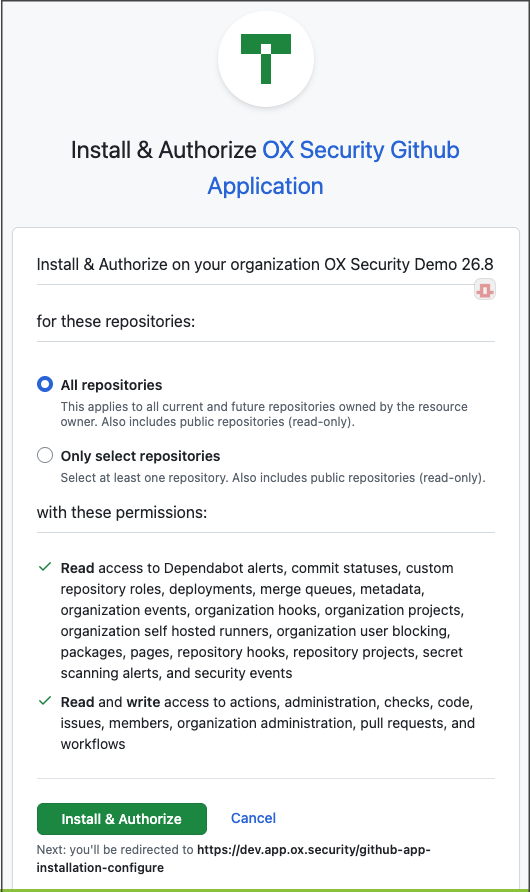
8. On the **Install & Authorize** page, select which repositories OX can access:
* **All repositories:** Grants the app access to all current and future repositories in the organization.
* **Only select repositories:** Grants the app access only to repositories you select.
6. Select **Install & Authorize**.
After authorization, you are redirected to OX.
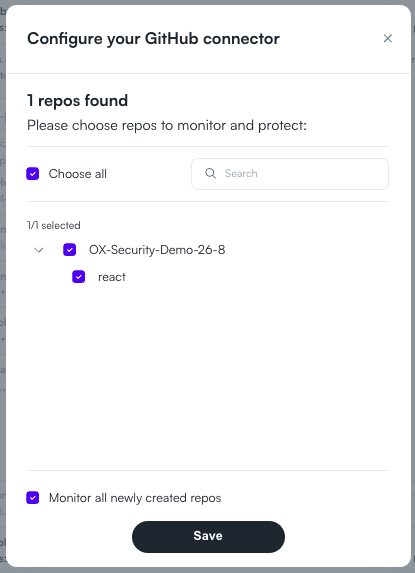
7. In the **Configure your GitHub connector** window, select the repositories that you want OX to monitor and scan.
11. To automatically include repositories created in the future, select **Monitor all newly created repos**.
12. Select **Save**.
The GitHub App is now connected to OX.
## Connecting additional GitHub organizations
If you have multiple GitHub organizations, you can use the same self-hosted GitHub App to connect repositories from all of them to OX. Each GitHub organization can contain multiple repositories, and each installation is configured as a separate connection in OX.
By default, a private GitHub App cannot be installed in other GitHub organizations. You need to enable installation in additional organizations.
### Enable installation in additional organizations
**To enable installation in additional GitHub organizations:**
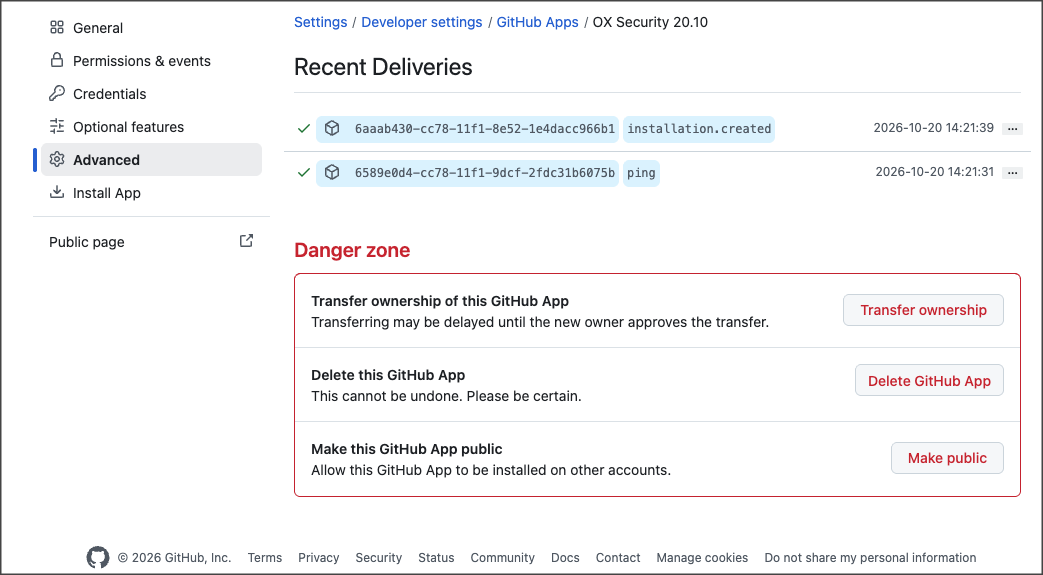
1. In GitHub, open **Settings > Developer settings > GitHub Apps**.
2. Select the GitHub App you created for OX.
3. Select **Advanced**.
4. Under **Danger zone**, select one of the following options:
* **Transfer ownership:** Transfer the app to the GitHub Enterprise account that contains the organizations you want to connect. The new owner must approve the transfer.
* **Make public:** Make the GitHub App available for installation in other GitHub organizations.
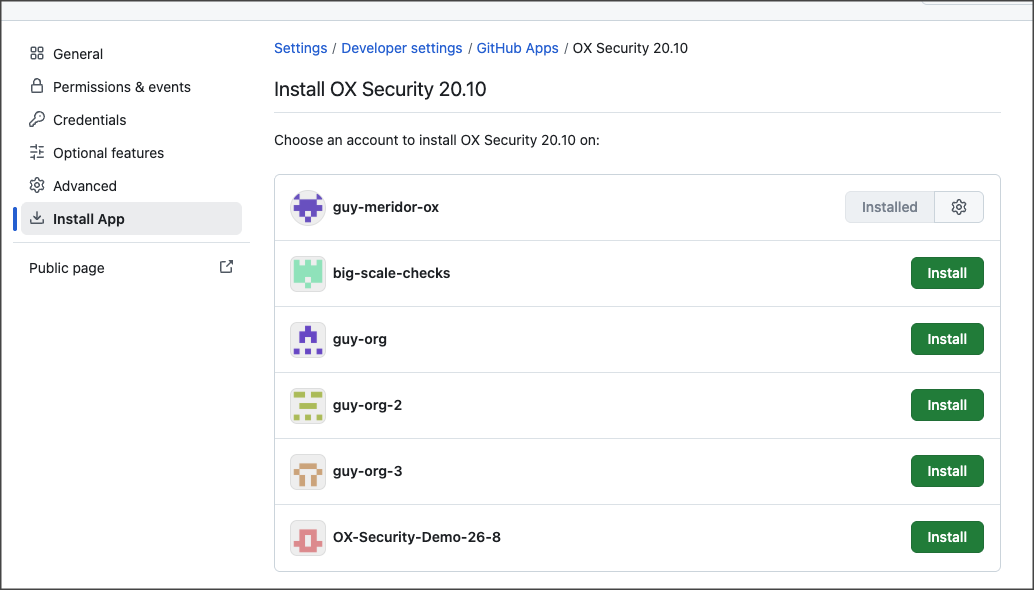
### Install the GitHub App in another organization
After enabling installation in additional organizations, install the GitHub App separately in each organization you want to connect.
**To install the GitHub App in another organization:**
1. In GitHub, open the GitHub App settings.
2. Select **Install App**.
3. In the list of available accounts, locate the GitHub organization you want to connect.
4. Select **Install** next to that organization.
5. Complete the GitHub installation and authorization process.
GitHub redirects you to OX to configure the connection.
6. In OX, select the repositories you want to monitor and scan.
7. Select **Save**.
OX saves the installation as an additional GitHub connection.
8. Repeat these steps for each additional GitHub organization.
> **Note:** To install the same GitHub App in additional organizations, start the installation from GitHub rather than creating a new GitHub App in OX.
---
# Agent Instructions
This documentation is published with GitBook. GitBook is the documentation platform designed so that both humans and AI agents can read, navigate, and reason over technical content effectively. Learn more at gitbook.com.
## Querying This Documentation
If you need additional information that is not directly available in this page, you can query the documentation by asking a question.
Perform an HTTP GET request on the following URL with the `ask` and `goal` query parameters:
```
GET https://docs.ox.security/get-started/onboarding-to-ox/source-control/github/github-app/self-hosted-github-app.md?ask=&goal=
```
`ask` is the immediate question: it should be specific, self-contained, and written in natural language.
`goal` is what the user is ultimately trying to achieve, the reason they need the answer. Sharing it helps GitBook give you a better, more relevant answer. A goal is most helpful when it describes the outcome the user wants rather than restating the question. For example, with `ask=how do I create an API token`, a goal like `automate deployments from our CI pipeline` lets GitBook tailor the answer to that use case.
The response will contain a direct answer to the question and relevant excerpts and sources from the documentation.
Use this mechanism when the answer is not explicitly present in the current page, you need clarification or additional context, or you want to retrieve related documentation sections.