> For the complete documentation index, see [llms.txt](https://docs.ox.security/llms.txt). Markdown versions of documentation pages are available by appending `.md` to page URLs; this page is available as [Markdown](https://docs.ox.security/get-started/onboarding-to-ox/source-control/gitlab-1/gitlab-token.md).
# GitLab Token
Use this method to connect GitLab to OX by using a Personal Access Token (PAT). This method authenticates OX with your GitLab account and allows OX to discover and scan the projects that are accessible to that account.
### Before you begin
Verify that:
* You have permission to configure connectors in OX.
* You have permission to create Personal Access Tokens in GitLab.
* You have access to the GitLab projects and groups that you want OX to scan.
### Step 1: Create a Personal Access Token
1. Sign in to GitLab.
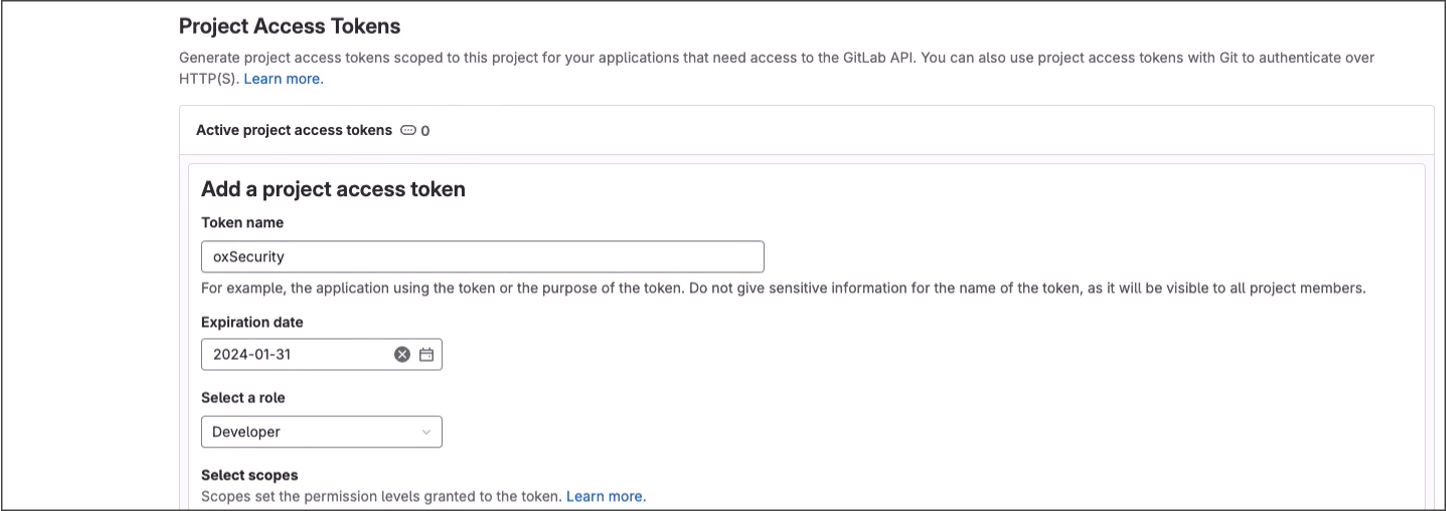
2. Go to **User Settings > Access Tokens**.
3. Select **Add new token**.
4. Enter a name for the token.
5. Optional: Specify an expiration date.
6. Select the following scopes:
* `api`
* `read_user`
* `read_registry`
7. Select **Create personal access token**.
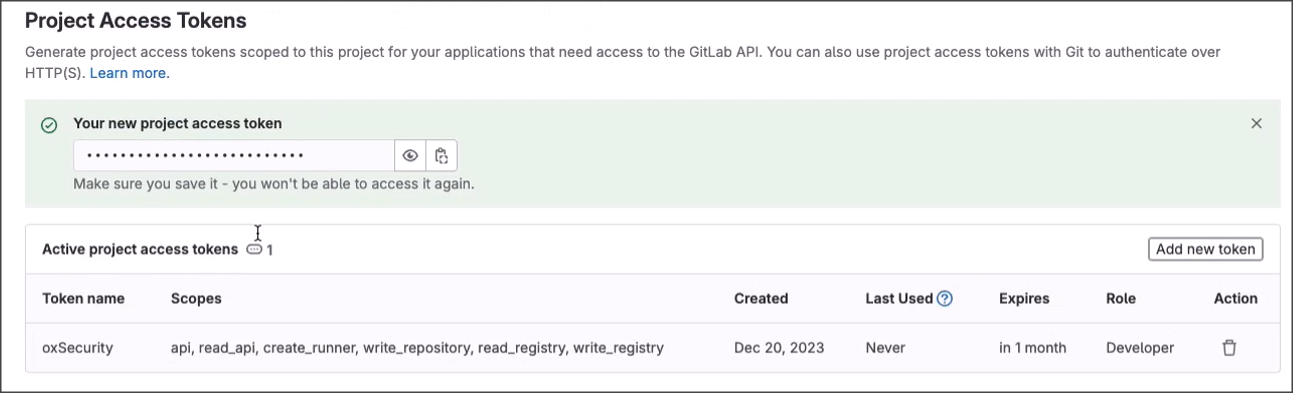
8. Copy the generated token.
> **Note**
>
> GitLab displays the token only once. Store it securely before leaving the page.
### Step 2: Connect GitLab to OX
1. In OX, go to **Settings > Connections**.
2. Select **GitLab**.
3. Open the **Token** tab.
4. Configure the connection.
| Parameter | Description |
| --------------------------- | -------------------------------------------------------------------------------------------------------------------------------------------------------------------------------------------------------------------------------------------------------------------------------------------------------------------------------------------------------- |
| **GitLab Host URL** | The URL of your GitLab instance. For GitLab.com, enter `https://gitlab.com`. For a self-managed GitLab instance, enter your GitLab server URL. |
| **Token** | The Personal Access Token (PAT) that you created in GitLab. |
| **Connection Name** | A unique name for the connection. |
| **OX Broker** | Enable this option to connect GitLab through an OX Broker instead of a direct connection. When enabled, OX routes communication through the broker, allowing access to GitLab instances that are not directly reachable from the internet. After enabling the toggle, provide the broker connection details as described in the OX Broker documentation. |
| **Bypass SSL Verification** | Enable to skip SSL certificate validation. Use only if your environment uses self-signed or otherwise untrusted certificates. Not recommended because it reduces connection security. |
5. Select **Verify Connectivity**.
6. Select **Connect**.
---
# Agent Instructions
This documentation is published with GitBook. GitBook is the documentation platform designed so that both humans and AI agents can read, navigate, and reason over technical content effectively. Learn more at gitbook.com.
## Querying This Documentation
If you need additional information that is not directly available in this page, you can query the documentation dynamically by asking a question.
Perform an HTTP GET request on the current page URL with the `ask` query parameter, and the optional `goal` query parameter:
```
GET https://docs.ox.security/get-started/onboarding-to-ox/source-control/gitlab-1/gitlab-token.md?ask=&goal=
```
`ask` is the immediate question: it should be specific, self-contained, and written in natural language.
`goal` is optional and describes the broader end goal you are ultimately trying to accomplish on behalf of the user. GitBook uses it to tailor the answer towards what is most useful for that goal.
The response will contain a direct answer to the question and relevant excerpts and sources from the documentation.
Use this mechanism when the answer is not explicitly present in the current page, you need clarification or additional context, or you want to retrieve related documentation sections.
.png?alt=media)