> For the complete documentation index, see [llms.txt](https://docs.ox.security/llms.txt). Markdown versions of documentation pages are available by appending `.md` to page URLs; this page is available as [Markdown](https://docs.ox.security/ox-code/scanning/scanning-ci-cd-pipelines/integrating-source-control-platforms/app-pipeline-integration/bitbucket-app.md).
# Bitbucket App
OX Security supports integration with Bitbucket Cloud using the OX Bitbucket App.
This integration enables automatic pipeline scans triggered by events such as push and pull requests, without modifying your CI/CD pipeline configuration.
OX listens for push and pull request events from Bitbucket Cloud. When an event is detected, OX identifies the modified files and triggers a pipeline scan for the specific repository.
Scans run outside the Bitbucket pipeline and results are [displayed in the OX platform](/ox-code/scanning/scanning-ci-cd-pipelines/understanding-pipeline-scan-results.md).
## Prerequisites
* Bitbucket Cloud account
* Admin access to your Bitbucket workspace
* The OX Bitbucket App is installed and authorized for your repositories
## Required Configuration
OX initiates scans using webhook data from BitBucket. You do not need to add variables or modify settings. You just need to [make sure that webhooks are enabled.](/ox-code/scanning/scanning-ci-cd-pipelines/integrating-source-control-platforms/webhooks-pipeline-integration.md)
**To connect to Bitbucket app:**
1. Go to the OX platform and navigate to **Connectors > Source Control**.
2. Select **Bitbucket App** and click **Connect**. You are redirected to Bitbucket.
3. Approve the OX Security app.
4. Select the repositories you want to monitor with OX. When connected, OX automatically receives webhook events and performs scans on changes.
### Block pull request merges based on OX scan results
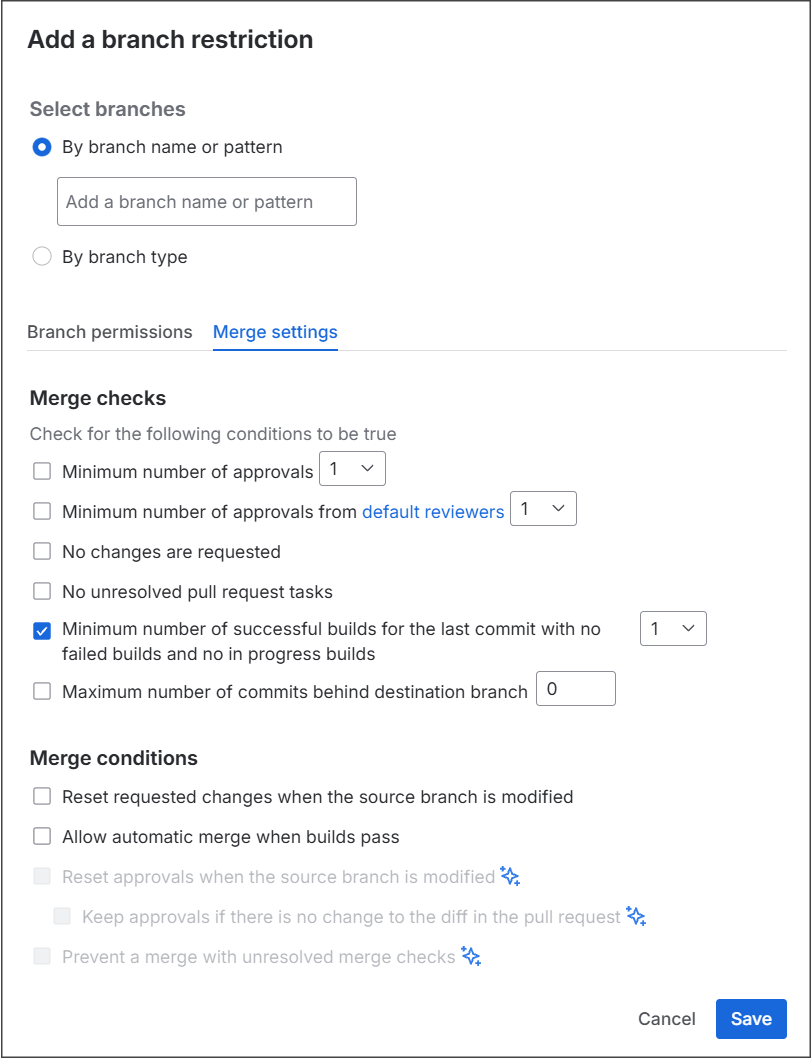
You can configure Bitbucket branch restrictions to prevent pull requests from being merged when OX detects issues that match your blocking policies.
OX reports scan results to Bitbucket as build results. When a scan finds issues that match your blocking policies, the build fails, and Bitbucket prevents the pull request from being merged.
To require successful OX scans before merging:
1. In Bitbucket, open the repository and select **Repository settings**.
2. Select **Branch restrictions**.
3. Select **Add a branch restriction** or edit an existing restriction for the target branch.
4. On the **Merge settings** tab, select **Minimum number of successful builds for the last commit with no failed builds and no in progress builds**.
5. Set the value to **1**.
6. Select **Save**.
After the restriction is configured, pull requests cannot be merged until all required builds complete successfully. If OX finds issues that match your blocking policies, the build fails and Bitbucket blocks the merge until the issues are resolved.
---
# Agent Instructions
This documentation is published with GitBook. GitBook is the documentation platform designed so that both humans and AI agents can read, navigate, and reason over technical content effectively. Learn more at gitbook.com.
## Querying This Documentation
If you need additional information that is not directly available in this page, you can query the documentation by asking a question.
Perform an HTTP GET request on the following URL with the `ask` and `goal` query parameters:
```
GET https://docs.ox.security/ox-code/scanning/scanning-ci-cd-pipelines/integrating-source-control-platforms/app-pipeline-integration/bitbucket-app.md?ask=&goal=
```
`ask` is the immediate question: it should be specific, self-contained, and written in natural language.
`goal` is what the user is ultimately trying to achieve, the reason they need the answer. Sharing it helps GitBook give you a better, more relevant answer. A goal is most helpful when it describes the outcome the user wants rather than restating the question. For example, with `ask=how do I create an API token`, a goal like `automate deployments from our CI pipeline` lets GitBook tailor the answer to that use case.
The response will contain a direct answer to the question and relevant excerpts and sources from the documentation.
Use this mechanism when the answer is not explicitly present in the current page, you need clarification or additional context, or you want to retrieve related documentation sections.