> For the complete documentation index, see [llms.txt](https://docs.ox.security/llms.txt). Markdown versions of documentation pages are available by appending `.md` to page URLs; this page is available as [Markdown](https://docs.ox.security/ox-integrations/3rd-party-integrations/cloud-context/tenable.md).
# Tenable
Tenable is a leading provider of vulnerability management solutions, offering comprehensive tools to identify, assess, and manage security vulnerabilities in IT environments.
It enables organizations to continuously monitor their networks, systems, and applications for potential weaknesses, providing critical insights to help mitigate security risks.
Tenable's platform, including products like Tenable.io and Tenable.sc, delivers real-time visibility into vulnerabilities and facilitates efficient remediation strategies.
By integrating with OX Security, Tenable helps enhance security teams' ability to proactively manage vulnerabilities and prioritize responses to potential threats, ensuring stronger protection across organizational systems.
Through this integration, OX Security can import vulnerability data from Tenable and correlate it with security issues found using the OX Security platform. This allows security teams to gain a broader view of vulnerabilities and manage them more effectively.
Seamless integration between the two platforms, allows continuous vulnerabilities monitoring and prioritization. It helps security teams streamline their workflows by centralizing data from multiple sources, improving the accuracy and efficiency of remediation efforts.
The integration supports automated reporting, enabling organizations to stay on top of security vulnerabilities across their environment.
The integration process includes the following steps:
1. [Generate Tenable API key.](#generating-a-tenable-vulnerability-management-api-key)
2. [Connect the OX platform to Tenable.](#connecting-to-tenable)
## Prerequisites
Tenable account.
## Generating a Tenable Vulnerability Management API Key
1. Log in to Tenable at [cloud.tenable.com](http://cloud.tenable.com/).
2. In the upper-right corner, click the user profile icon. The **My Account** page appears.
3. In the left navigation, click **API Keys**. The **API Keys** section appears.
4. In the bottom-left corner, click **Generate**. In the top-right corner, a dialog appears with a message that existing keys will be unauthorized.
5. Click **Continue**. Under **ACCESS KEY** and **SECRET KEY**, new keys appear.
6. Copy the keys to a safe location. After you close the **My Account page**, you cannot view the keys again.
## Connecting to Tenable
1. In the **OX app**, go to **Connectors** and search for Tenable.
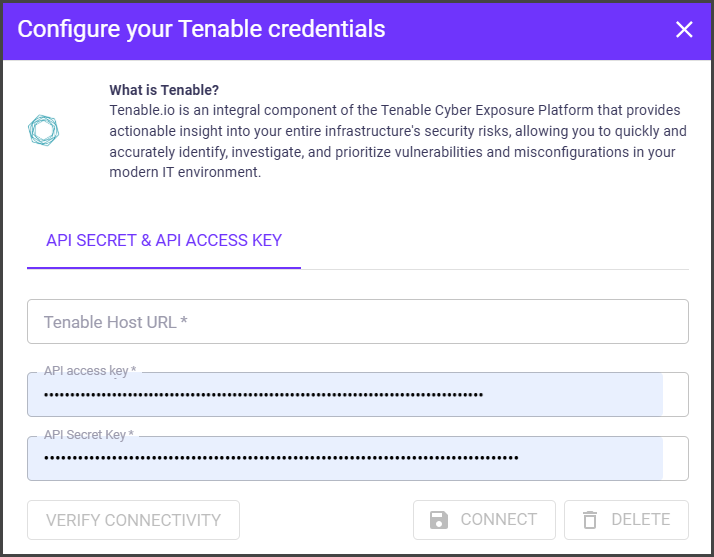
2. Select **Tenable** and set the following parameters in the **Configure your Tenable credentials** dialog.
| Parameter | Description |
| -------------------- | ------------------------------------------------- |
| **Tenable Host URL** | Add your Tenable organization account URL. |
| **API Access Key** | Paste the Tenable access key you have generated. |
| **API Secret Key** | Paste the Tenable secret key you have generated.. |
3. Select **CONNECT**. The success message appears.
\\
---
# Agent Instructions
This documentation is published with GitBook. GitBook is the documentation platform designed so that both humans and AI agents can read, navigate, and reason over technical content effectively. Learn more at gitbook.com.
## Querying This Documentation
If you need additional information that is not directly available in this page, you can query the documentation dynamically by asking a question.
Perform an HTTP GET request on the current page URL with the `ask` query parameter, and the optional `goal` query parameter:
```
GET https://docs.ox.security/ox-integrations/3rd-party-integrations/cloud-context/tenable.md?ask=&goal=
```
`ask` is the immediate question: it should be specific, self-contained, and written in natural language.
`goal` is optional and describes the broader end goal you are ultimately trying to accomplish on behalf of the user. GitBook uses it to tailor the answer towards what is most useful for that goal.
The response will contain a direct answer to the question and relevant excerpts and sources from the documentation.
Use this mechanism when the answer is not explicitly present in the current page, you need clarification or additional context, or you want to retrieve related documentation sections.