> For the complete documentation index, see [llms.txt](https://docs.ox.security/llms.txt). Markdown versions of documentation pages are available by appending `.md` to page URLs; this page is available as [Markdown](https://docs.ox.security/ox-integrations/3rd-party-integrations/cloud-context/upwind.md).
# Upwind
Upwind is a cloud and runtime security platform that helps organizations discover, assess, and continuously monitor risks across their cloud estates and running workloads. It provides real-time visibility into assets, configurations, and runtime activity, surfacing actionable insights so teams can reduce exposure and misconfigurations before they become incidents.
By integrating Upwind with OX, you centralize Upwind findings together with code, container, pipeline, and infrastructure signals already in OX.
OX ingests Upwind data on a schedule and on demand, enriches it with OX context (application mapping, workflows, compliance), and presents a unified queue for investigation and reporting.
After connecting, you will see Upwind results in Issues > Active issues (filter Source tool = Upwind) and on relevant Application pages. The connector imports data only; it does not run scans or sensors in Upwind.
### What OX adds
* **Context and correlation:** OX maps Upwind data to applications, repositories, and services to show impact and ownership.
* **Prioritization with severity factors:** OX may reprioritize vendor severities when exploitability and environment context reduce risk (e.g., Critical → High).
* **Evidence at a glance:** When available, OX displays vendor evidence and links alongside OX analytics to speed triage.
### Terminology mapping
| Upwind term | What it includes (examples) | OX equivalent |
| ----------------------- | -------------------------------------------------- | ---------------------------------------------------- |
| **Findings / Risks** | Misconfigurations, runtime risks, exposed services | **Issues** (CSPM / Runtime categories) |
| **Severity / Priority** | Upwind’s own ranking | **Issues with severity factors** (OX prioritization) |
## Prerequisites
* Upwind account with access to **My organization > Credentials**.
* Permission in Upwind to **Generate credentials** for **API** usage.
* Your Upwind **Organization ID** (shown on the Credentials page)
* **API URL** for your region:
* US: `https://api.upwind.io`
* EU: `https://api.eu.upwind.io`
* ME: `https://api.me.upwind.io`
## Step 1: Generate API credentials in Upwind \[Upwind]
1. Log in to **Upwind Enterprise**.
2. Go to **My organization > Credentials**.
3. Select **Generate credentials**.
4. When prompted, choose **API** (for third-party integration).
5. Enter a **friendly name** (for example, `OX ingestion`).
6. Select **Generate**, then select **Save** (bottom right).
> **Warning**\
> The generated API credentials are shown **only once**. Copy them immediately and store them securely. If you viewed them before and did not record them, select **Reset** to generate new credentials. Resetting **invalidates** prior uses everywhere.
> **Info**\
> To find your **Organization ID**, open **My organization > Credentials** and locate the **Organization ID** field.
### Step 2: Connect Upwind to OX \[OX]
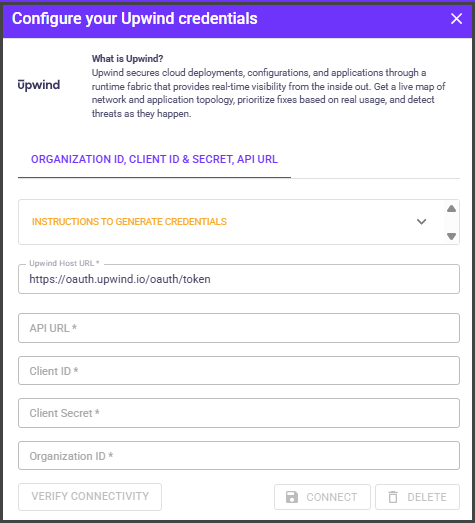
1. In OX, go to **Connectors**.
2. Search for **Upwind**.
| Field | What to use |
| ------------------- | ----------------------------------------------------------------------------------------------------- |
| **API URL** | Your regional endpoint (US, EU, or ME) from the list above. |
| **Organization ID** | The value shown on the Upwind **Credentials** page. |
| **API credentials** | The values you generated in Step 1 (for example, Client ID and Client Secret as displayed by Upwind). |
3. Select **Connect**. OX validates the credentials.
4. When connected, OX begins scheduled imports. You can also trigger a **manual sync** from the connector card.
---
# Agent Instructions
This documentation is published with GitBook. GitBook is the documentation platform designed so that both humans and AI agents can read, navigate, and reason over technical content effectively. Learn more at gitbook.com.
## Querying This Documentation
If you need additional information that is not directly available in this page, you can query the documentation dynamically by asking a question.
Perform an HTTP GET request on the current page URL with the `ask` query parameter, and the optional `goal` query parameter:
```
GET https://docs.ox.security/ox-integrations/3rd-party-integrations/cloud-context/upwind.md?ask=&goal=
```
`ask` is the immediate question: it should be specific, self-contained, and written in natural language.
`goal` is optional and describes the broader end goal you are ultimately trying to accomplish on behalf of the user. GitBook uses it to tailor the answer towards what is most useful for that goal.
The response will contain a direct answer to the question and relevant excerpts and sources from the documentation.
Use this mechanism when the answer is not explicitly present in the current page, you need clarification or additional context, or you want to retrieve related documentation sections.