> For the complete documentation index, see [llms.txt](https://docs.ox.security/llms.txt). Markdown versions of documentation pages are available by appending `.md` to page URLs; this page is available as [Markdown](https://docs.ox.security/ox-integrations/3rd-party-integrations/cloud-security/azure-cloud.md).
# Azure Cloud old
For a description of the supported Kubernetes connection models, including direct cloud integration and Inspector-based access, see [Kubernetes Reachability](/ox-integrations/3rd-party-integrations/cloud-security/kubernetes-reachability.md).
### Automatic connection instructions
1. Make sure you are logged into your Azure Portal on the correct Tenant you want to connect and that you have a \\"User Access Administrator\\" Role which is required in order to run this script.
* You can either run the script from the Azure Portal (Cloud Shell) or locally on your machine if you have Azure CLI installed.
* If running locally you can run the following command to log in: 'az login --tenant $TENANT\_ID --use-device-code --output none'.
2. Click the 'Download Script' button In the OX Connector window to download the script.
3. Run the downloaded script by executing \`./azure-connector.sh -t TENANT\_ID -s SUBSCRIPTION\_ID\` in the terminal. TENANT\_ID is the ID of the tenant you want to connect (this parameter is required), SUBSCRIPTION\_ID is the ID of the Subscription you want to connect (this parameter is optional, if no SUBSCRIPTION\_ID has been entered the default Subscription will be chosen).
4. Once the script completes, it will output the Client ID and Client Secret that has been created.
5. In the OX Connector fields below, enter your Tenant ID and the values you got from running the script (Client ID and Client Secret).
6. Click Connect.
7. You should receive a message that the connection was successful, if not please repeat the steps above or contact support.
○ Note - if you want to create the required assets manually please follow the instructions below.
### Manual connection Instructions
1. Log in to your Azure portal.
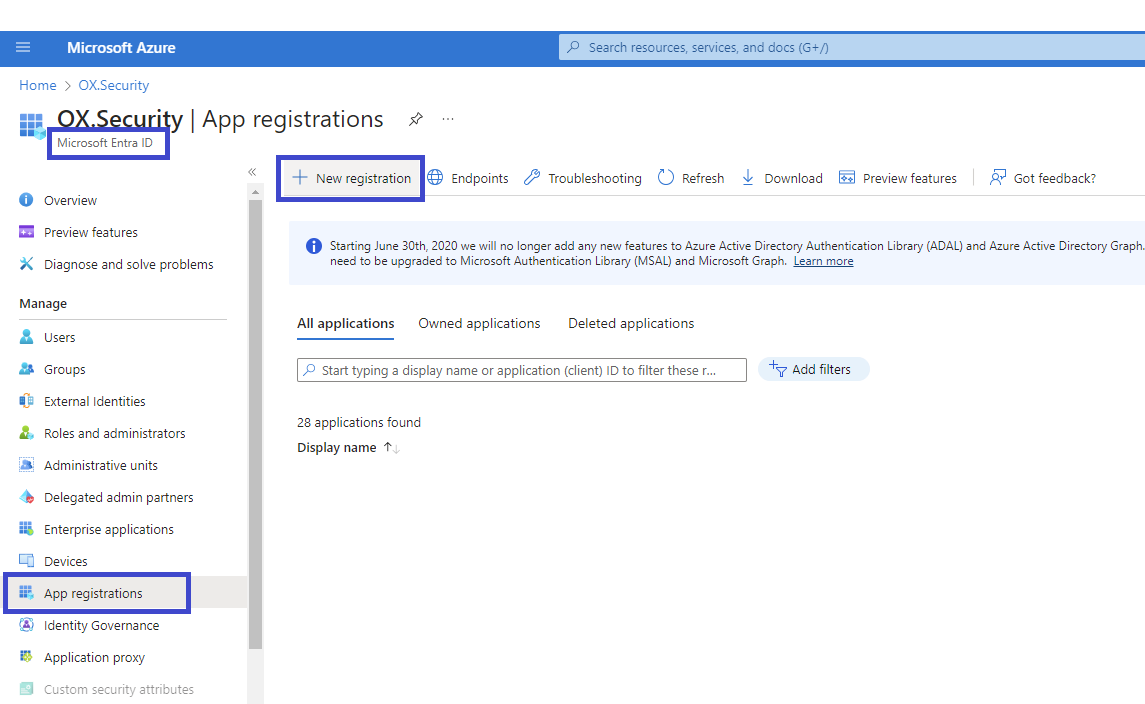
2. Navigate to Microsoft Entra ID → App registrations → New registration.
3. You should be in the following screen:
4. In the Register an application screen:
* Enter a name for the application, e.g. "ox-security-connector-sp".
* Keep the single tenant option selected in the Supported account types.
* Click Register.
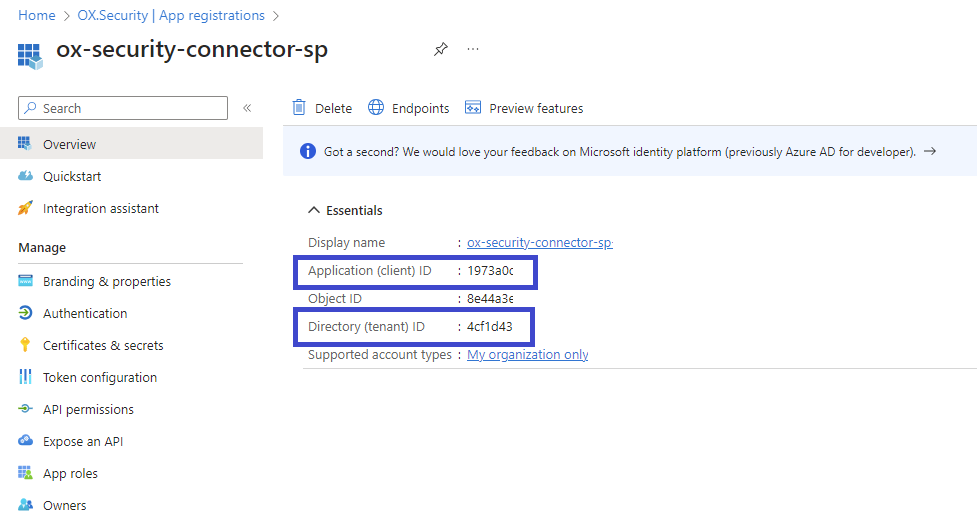
5. Note the generated values:
6. Note down the Application (client) ID and Directory (tenant) ID.
7. Navigate to Subscriptions → Your subscription → Access control (IAM) → Add → Add role assignment.
8. In the Add role assignment screen:
* Role tab: Click the “Reader” role and then click next.
* Members tab: Click “Select Members”, search for the app you created in step 3, click it, and then click select so it will be added.
* Click “Review + assign”.
> **Note:** To connect to Azure Kubernetes Service (AKS), in addition to the Reader role, assign:
>
> * **Azure Kubernetes Service RBAC Reader** at the subscription or cluster level.
> * **Azure Kubernetes Service Cluster User Role** at the subscription or cluster level.
9. Navigate back to App registrations → Your app → Certificates & secrets → New client secret.
10. Enter a description for the secret and set the expiration for the desired time period (note that if the secret expires you will have to reconnect again in the OX platform) and click “Add”.
11. Note down the Value of the client secret.
12. In the Ox Connector, enter the Tenant ID, Client ID, and Client Secret.
13. Click Connect.
14. You should receive a message that the connection was successful, if not please repeat the steps above or contact support.
---
# Agent Instructions
This documentation is published with GitBook. GitBook is the documentation platform designed so that both humans and AI agents can read, navigate, and reason over technical content effectively. Learn more at gitbook.com.
## Querying This Documentation
If you need additional information that is not directly available in this page, you can query the documentation dynamically by asking a question.
Perform an HTTP GET request on the following URL with the `ask` and `goal` query parameters:
```
GET https://docs.ox.security/ox-integrations/3rd-party-integrations/cloud-security/azure-cloud.md?ask=&goal=
```
`ask` is the immediate question: it should be specific, self-contained, and written in natural language.
`goal` is what the user is ultimately trying to achieve, the reason they need the answer. Sharing it helps GitBook give you a better, more relevant answer. A goal is most helpful when it describes the outcome the user wants rather than restating the question. For example, with `ask=how do I create an API token`, a goal like `build a script that syncs our docs to a CMS` lets GitBook tailor the answer to that use case.
The response will contain a direct answer to the question and relevant excerpts and sources from the documentation.
Use this mechanism when the answer is not explicitly present in the current page, you need clarification or additional context, or you want to retrieve related documentation sections.