> For the complete documentation index, see [llms.txt](https://docs.ox.security/llms.txt). Markdown versions of documentation pages are available by appending `.md` to page URLs; this page is available as [Markdown](https://docs.ox.security/ox-integrations/3rd-party-integrations/dynamic-app-security/applause.md).
# Applause
> Note: This capability may be in Early Access (EA) in your environment. Coordinate availability with your OX technical contact.
You can connect OX to your Applause instance to import Dynamic Application Security Testing (DAST) results without interfering with live cycles.
If your Applause deployment is self-hosted or uses a custom domain, you may need a custom API host URL.
## Prerequisites
* **Applause role**: You must have **Primary Manager** account in Applause to manage API keys.
* **Access to the customer tenant** where products and test cycles are defined.
## Step 1: Generate an Applause API key \[Applause]
For validation, Applause users can issue a restricted API key, which is limited to 1–2 test cycles and certain issue types.
After testing, they can issue an unrestricted API key that works for all products in the customer’s Applause tenant.
**To generate a restricted Applause API key:**
1. Sign in to Applause with a **Primary Manager** account.
2. Go to **Configurations > API keys**.
3. Select **Generate New API key**.
4. **In the Generate New API Key dialog**, set the following:
| Field | Description |
| ---------------------------------------- | ------------------------------------------------------------------------------------------------------------------------------------------------------------------------------------------------------------------------------------------------------------------------- |
| **Key Name** | Provide a key name. |
| **Restricted Key by Product (Optional)** |
Unrestricted (recommended for OX): Do not select any products. The key will work for all products in the tenant.
Product-restricted: Select one or more products to limit the key strictly to those products.
|
5. Select **Generate Key**. The information box with the key appears.
6. Select **Copy Key & Close**, and store the copied key securely, it is shown only once.
## Step 2: Connect Applause to OX \[OX]
1. In the OX platform, go to the **Connectors** page.
2. Select **Add Connector** and search for **Applause**.
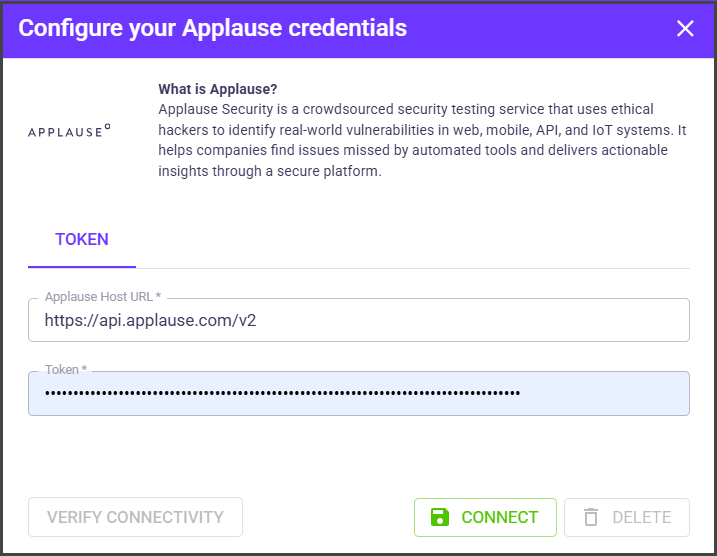
3. In the **Configure your Applause credentials** box, provide the following details:
| Field | Description |
| --------------------- | ------------------------------------------------------------------------- |
| **Applause Host URL** | The base server URL Applause provides. |
| **Token** | The unrestricted API key (no products selected) you generated in Appause. |
4. Select **CONNECT**.
5. To select specific Applause projects to import, click the gear icon next to the **DELETE** button.
6. Select the Applause projects and select **SAVE**.
When connected, OX starts pulling DAST data from Applause.
---
# Agent Instructions
This documentation is published with GitBook. GitBook is the documentation platform designed so that both humans and AI agents can read, navigate, and reason over technical content effectively. Learn more at gitbook.com.
## Querying This Documentation
If you need additional information that is not directly available in this page, you can query the documentation dynamically by asking a question.
Perform an HTTP GET request on the current page URL with the `ask` query parameter, and the optional `goal` query parameter:
```
GET https://docs.ox.security/ox-integrations/3rd-party-integrations/dynamic-app-security/applause.md?ask=&goal=
```
`ask` is the immediate question: it should be specific, self-contained, and written in natural language.
`goal` is optional and describes the broader end goal you are ultimately trying to accomplish on behalf of the user. GitBook uses it to tailor the answer towards what is most useful for that goal.
The response will contain a direct answer to the question and relevant excerpts and sources from the documentation.
Use this mechanism when the answer is not explicitly present in the current page, you need clarification or additional context, or you want to retrieve related documentation sections.