> For the complete documentation index, see [llms.txt](https://docs.ox.security/llms.txt). Markdown versions of documentation pages are available by appending `.md` to page URLs; this page is available as [Markdown](https://docs.ox.security/ox-integrations/3rd-party-integrations/dynamic-app-security/invicti.md).
# Invicti Enterprise
> **Note:** This capability is currently in Early Access (EA) and is not generally available. To request access, please contact OX technical support.
You can connect OX to your Invicti Enterprise instance to import Dynamic Application Security Testing (DAST) results.
This lets you view Invicti Enterprise findings alongside your other security findings in the OX platform.
Invicti Enterprise runs proof-based DAST scans against your running web applications and APIs. OX reads those results through the Invicti API, maps them to your applications, and presents them in one place for triage, prioritization, and reporting.
> **Notes:**
>
> * Some advanced Invicti Enterprise capabilities, such as automatic crawling of subdomains, depend on your Invicti configuration and may affect what data is shown in OX.
> * The Invicti Enterprise connector does not support automatic discovery of credentials from the Invicti UI. You must obtain the required credentials manually.
> * If your Invicti Enterprise instance requires a token instead of a username and password, consult your Invicti administrator.
## Terminology mapping
Invicti Enterprise and OX use different labels for similar concepts. Use this map while you work.
| Invicti Enterprise | OX Security |
| ------------------ | ------------ |
| Websites, Targets | Applications |
| Vulnerabilities | Issues |
| Scans | Scans |
| Severity | Severity |
## Prerequisites
* **Invicti Enterprise account:** An account that can open **API Settings** and generate an API token.
* **OX permissions:** Permission to configure connectors.
> **Note:** If your organization uses single sign-on (SSO), the **API Settings** page may open without a password prompt. If SSO is enabled but you are still prompted for a password, go to **Settings > Single Sign-On** and select **Enforce to authenticate only with single sign-on**.
## Connect Invicti Enterprise to OX
1. In the OX platform, go to the **Connectors** page.
2. Select **Add Connector** and search for **Invicti Enterprise**.
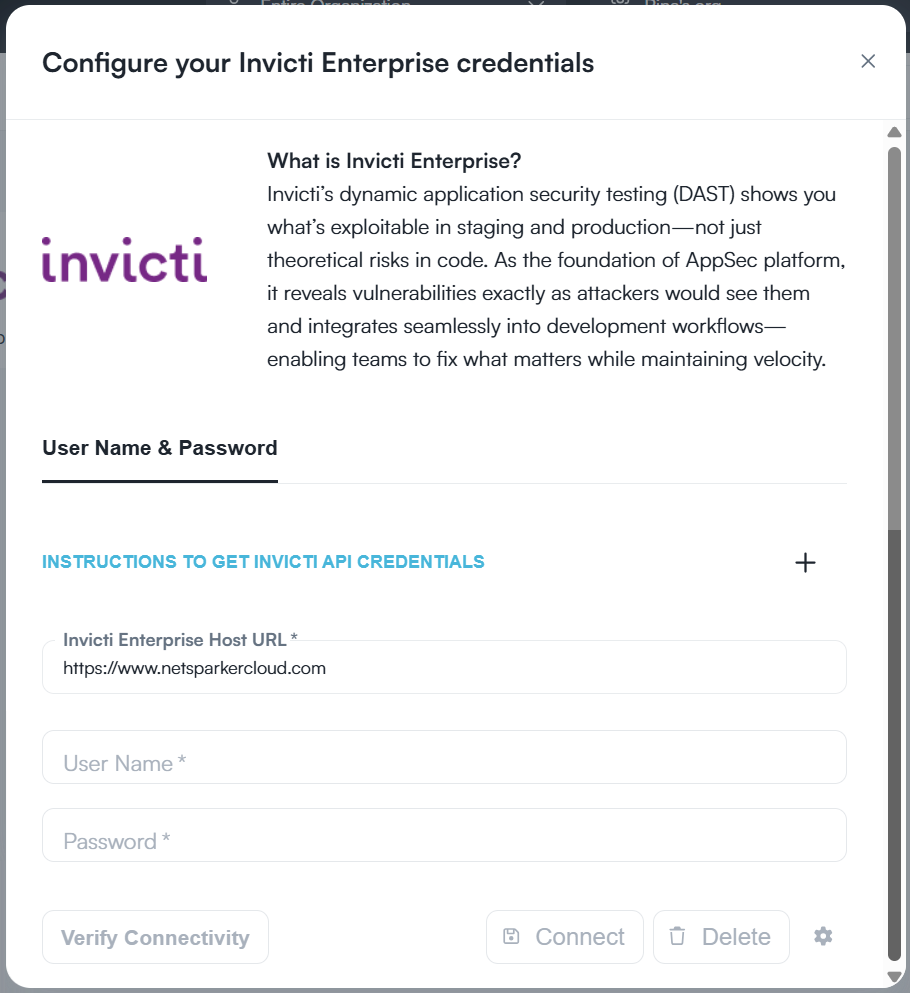
3. In the **Configure your Invicti credentials** box, provide the following details:
| Field | Description |
| ---------------- | --------------------------------------------------------------------------------------------------------------------------------------------------- |
| Invicti host URL | The base URL of your Invicti Enterprise instance, for example `https://www.netsparkercloud.com`. On-premises deployments use your own instance URL. |
| User Name | Your Invicti username. |
| Password | Your Invicti password. |
4. Select **CONNECT**.
5. To select specific Invicti projects to import, click the gear icon next to the **DELETE** button.
4. Select the Invicti projects and select **SAVE**.
When connected, OX starts pulling DAST data from Invicti.
---
# Agent Instructions
This documentation is published with GitBook. GitBook is the documentation platform designed so that both humans and AI agents can read, navigate, and reason over technical content effectively. Learn more at gitbook.com.
## Querying This Documentation
If you need additional information that is not directly available in this page, you can query the documentation dynamically by asking a question.
Perform an HTTP GET request on the current page URL with the `ask` query parameter, and the optional `goal` query parameter:
```
GET https://docs.ox.security/ox-integrations/3rd-party-integrations/dynamic-app-security/invicti.md?ask=&goal=
```
`ask` is the immediate question: it should be specific, self-contained, and written in natural language.
`goal` is optional and describes the broader end goal you are ultimately trying to accomplish on behalf of the user. GitBook uses it to tailor the answer towards what is most useful for that goal.
The response will contain a direct answer to the question and relevant excerpts and sources from the documentation.
Use this mechanism when the answer is not explicitly present in the current page, you need clarification or additional context, or you want to retrieve related documentation sections.