> For the complete documentation index, see [llms.txt](https://docs.ox.security/llms.txt). Markdown versions of documentation pages are available by appending `.md` to page URLs; this page is available as [Markdown](https://docs.ox.security/ox-integrations/3rd-party-integrations/registry/google.md).
# Google Artifact Registry
Google Cloud Artifact Registry (GAR) is a unified registry service for managing and securing software artifacts.
GAR offers:
* **Centralized hosting** for multiple artifact types like Docker images, language-specific packages (Maven, npm, Python) and OS packages.
* **Granular access contro**l through Cloud IAM.
* **Direct integration with Google Cloud's deployment services**, such as Cloud Run and Google Kubernetes Engine (GKE).
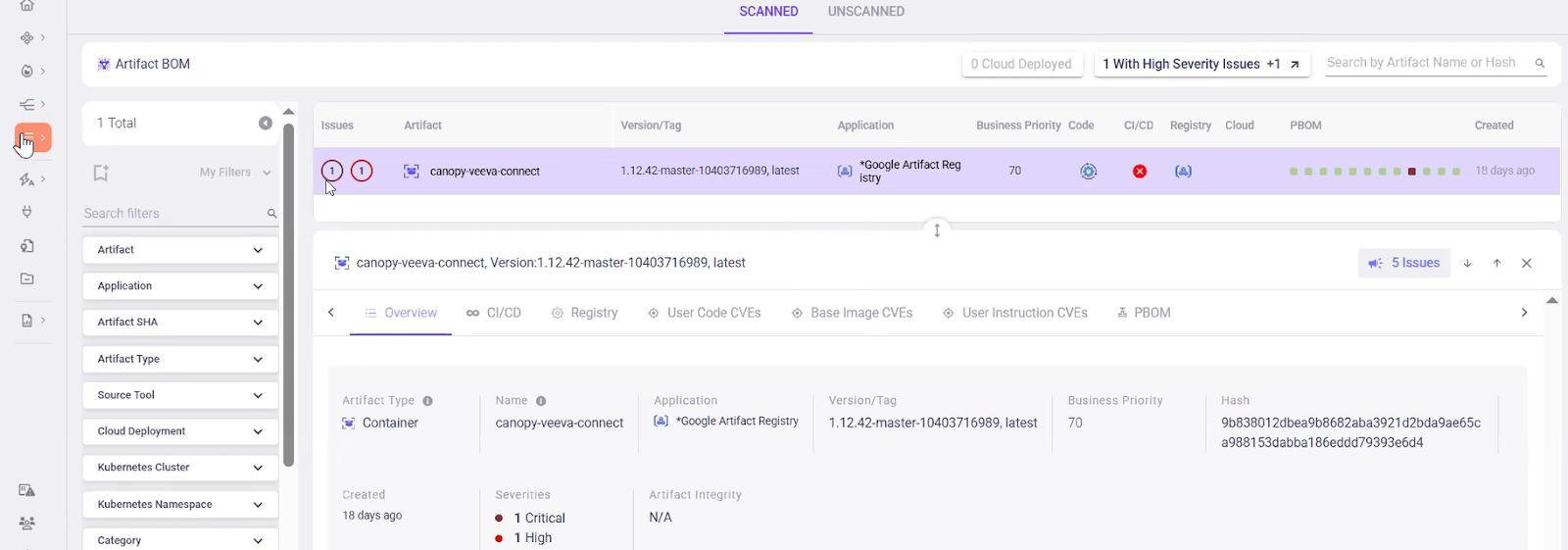
By connecting GAR to OX Security, you have a constant connection to GAR and scanned results are displayed in the Artifact’s BOM.
## Prerequisites
Ensure the following requirements are met:
* You have OX Security admin permissions to set up the connection.
* You have a Google Cloud account with permissions to create projects and API tokens.
* You have a project in Google Cloud.
## Connection overview
These steps summarize the connection process.
1. [Enable API services in Google Cloud.](#step-1-enable-api-services-in-google-cloud)
2. [Create a custom role in Google Cloud with specific permissions.](#step-2-create-a-custom-role-in-google-cloud-with-specific-permissions)
3. [Create a service account in Google Cloud.](#step-3-create-a-service-account-in-google-cloud)
4. [Create the service account API key in Google Cloud.](#step-4-create-the-service-account-api-key-in-google-cloud)
5. [Pass the credentials to OX Security](#step-5-pass-the-credentials-to-ox-security)
## Connection steps
To connect GAR to OX Security, follow these steps:
### Step 1: Enable API services in Google Cloud
1. From the dashboard, use the search bar to find **API & Services** and click **Enable API & Services**. This opens the **API Library** page.
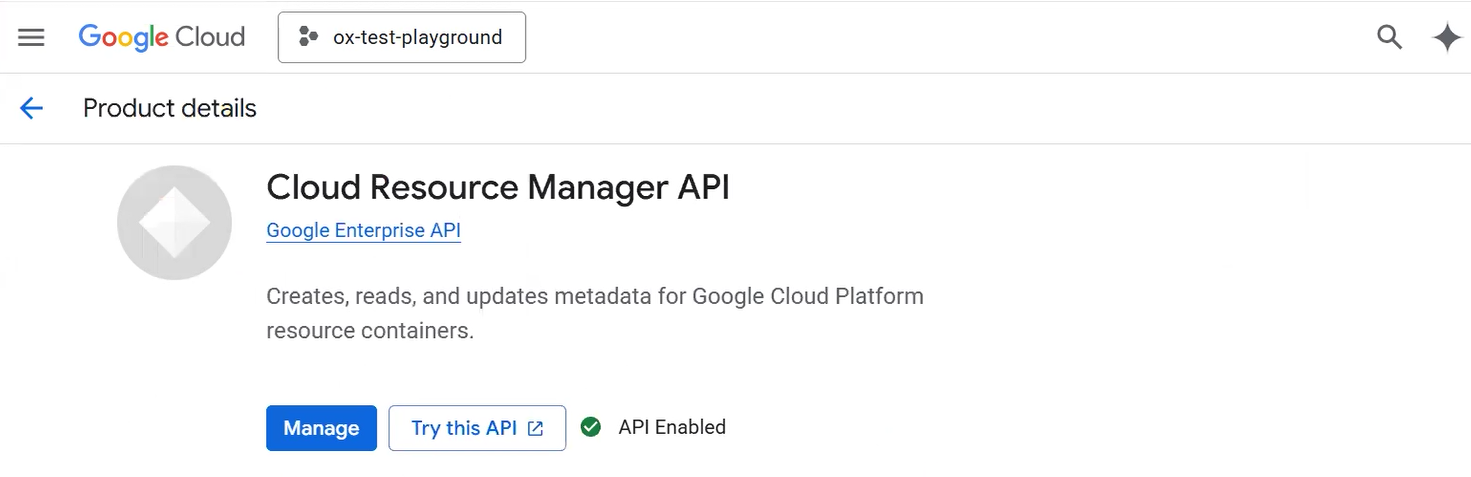
2. From the **API Library** page, use the search bar to find **Cloud Resource Manager AP**I and click the **Cloud Resource Manager API** link.
3. Verify that the **API is enabled** (default). If not, click **Manage** to enable it.
4. Next, use the same search action to open the **Artifact Registry API** page and verify that it is also enabled.
***
### Step 2: Create a custom role in Google Cloud with specific permissions
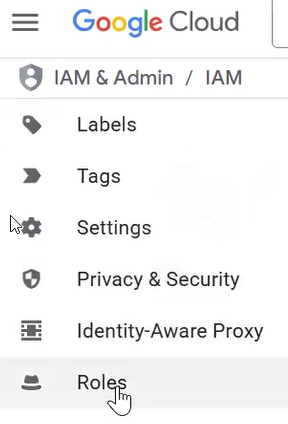
1. From the Google Cloud dashboard menu, select **IAM & Admin > Roles**.
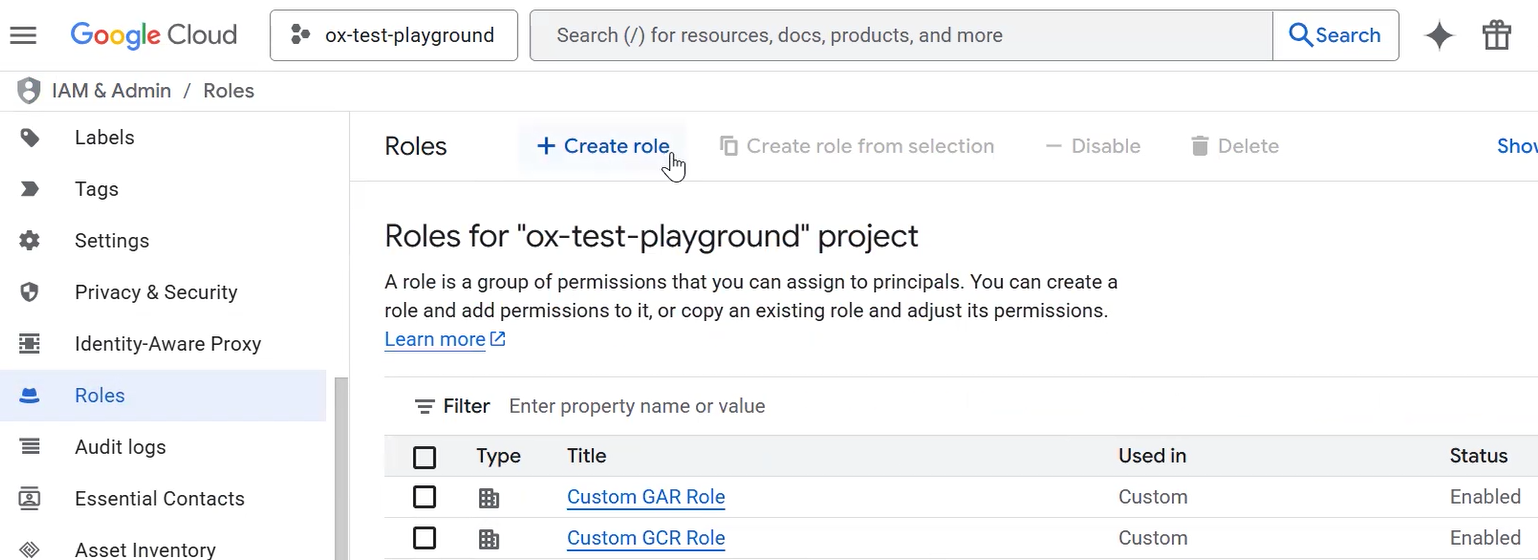
2. From the **Roles** page, click **Create role**.
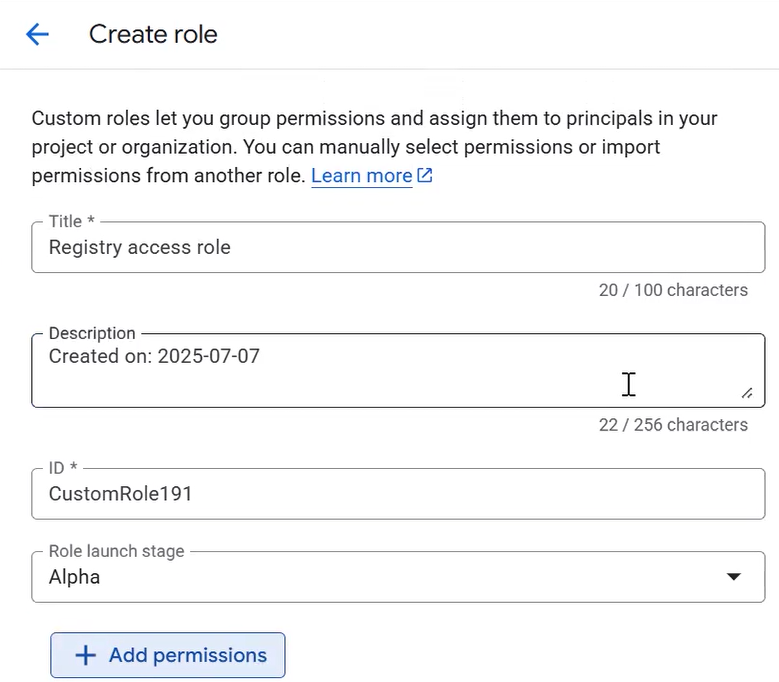
3. Enter a title and description.
1. The ID is auto-generated.
2. Leave the **Role launch stage** as is.
4. Click **Add permissions** to open a dialog box.\
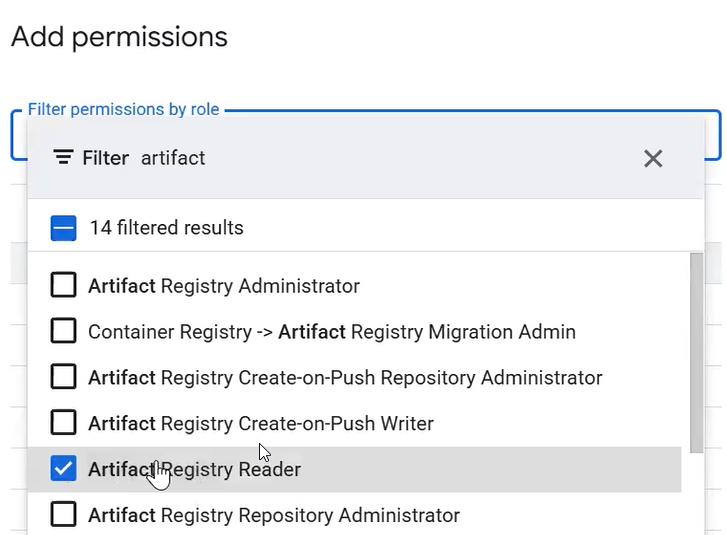
You’ll add two permissions **Artifact Registry Reader** and **resourcemanager.projects.get**.
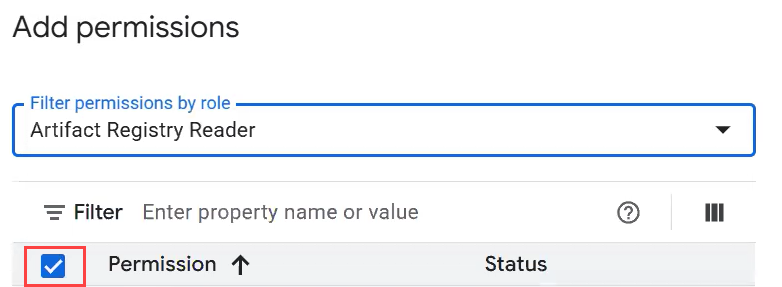
5. Locate the **Artifact Registry Reader**, activate the checkbox and click **OK**.
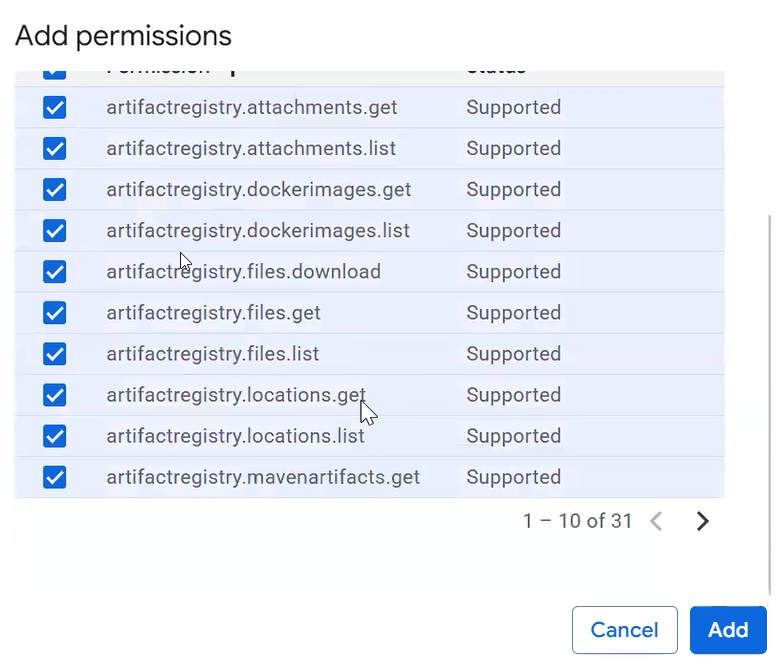
6. You’ll see that there are multiple pages of related permissions. To select all permissions on a specific page, activate the “master” checkbox in the header.
7. Use the navigation chevron at bottom to move to the next page and select all the permissions on that page.
8. Repeat until all the related permissions are selected, then click **Add**.
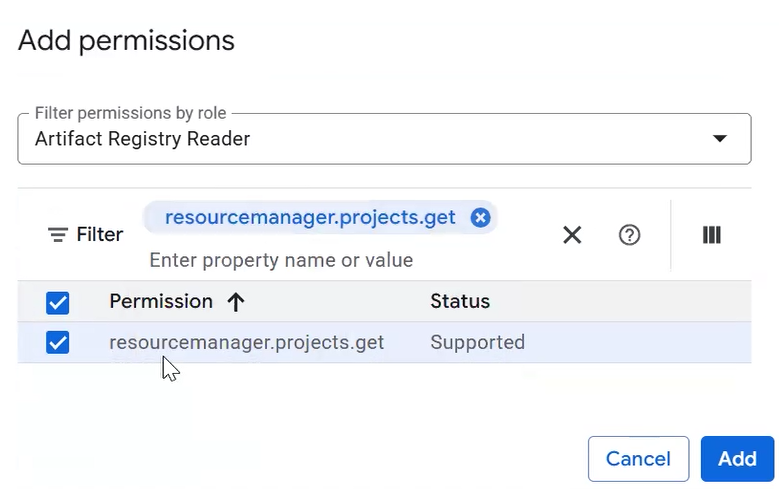
9. Next, locate the **permission resourcemanager.projects.get** and click **Add**.
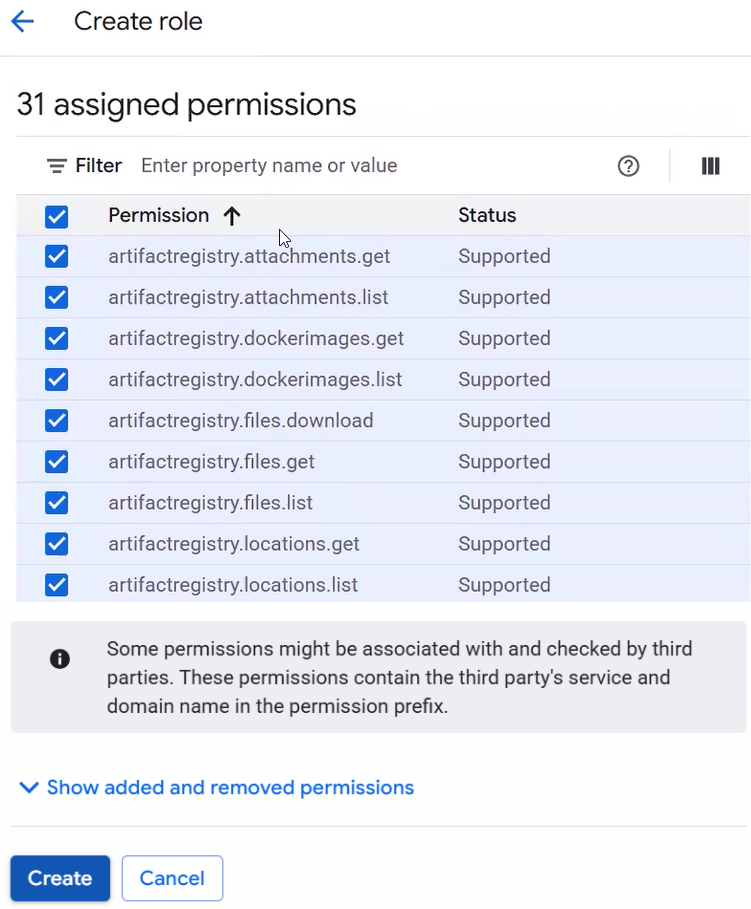
10. To complete and create the role, click **Create**.
***
### Step 3: Create a service account in Google Cloud
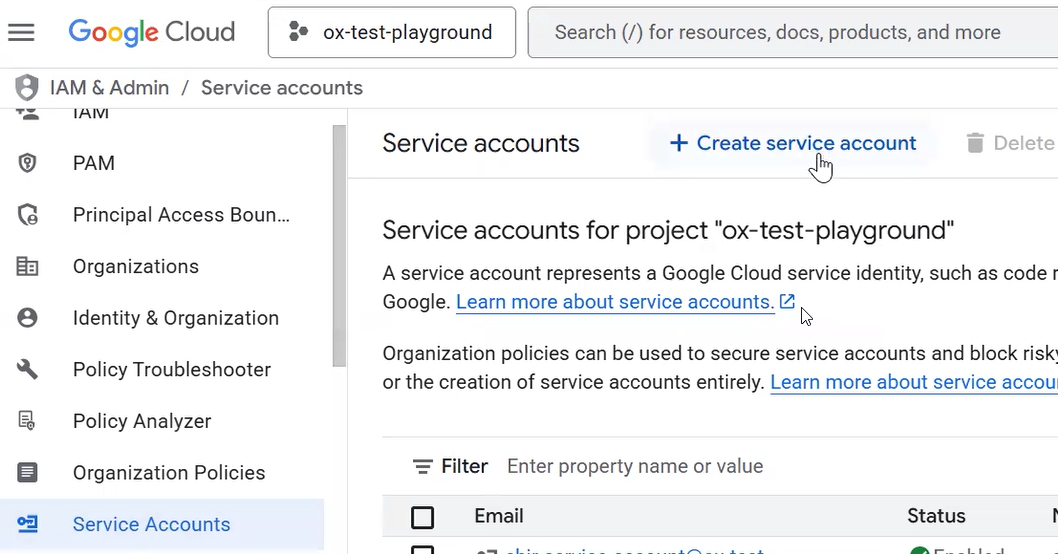
1. From **IAM & Admin / Roles**, select **Service Accounts** from the menu and click **Create service accoun**t.
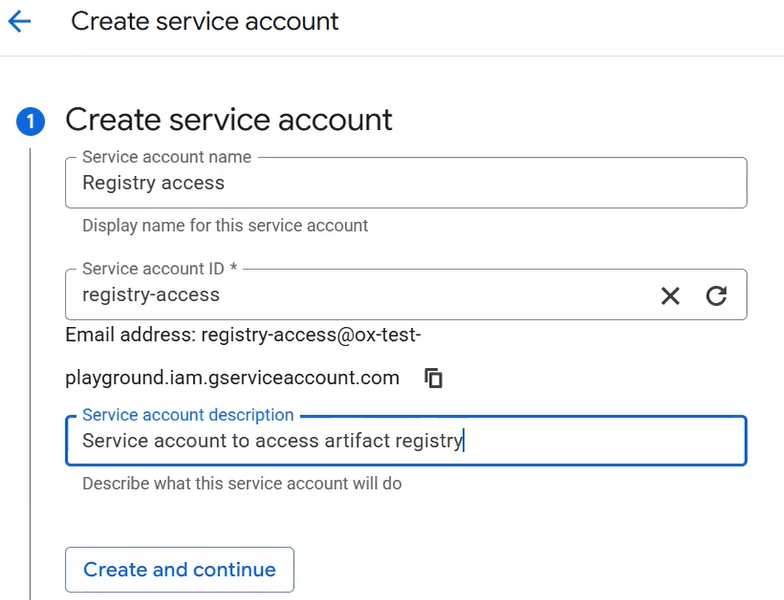
2. Enter a **Service account name** and **Service account description** (the **Service account ID** is auto-generated). Then click **Create and continue** to assign permissions to the service account.
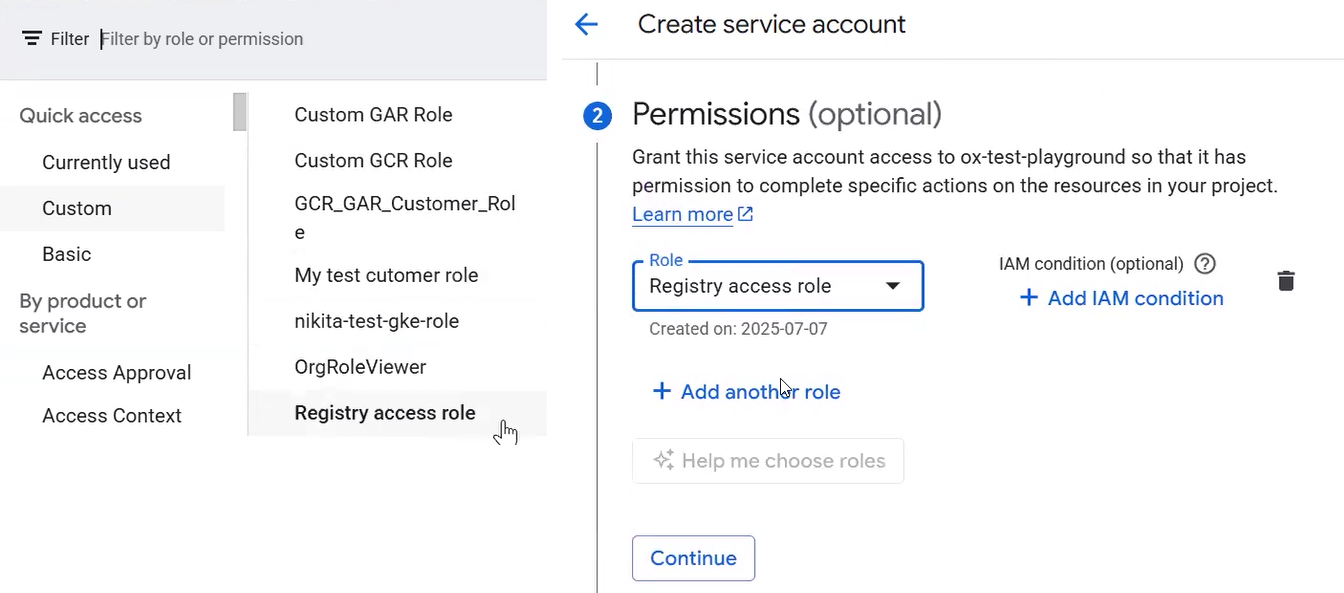
3. To add the role you just created, open the **Select a role dropdown**, select **Custom**. Select the role (left screen), then click **Continue** (right screen).
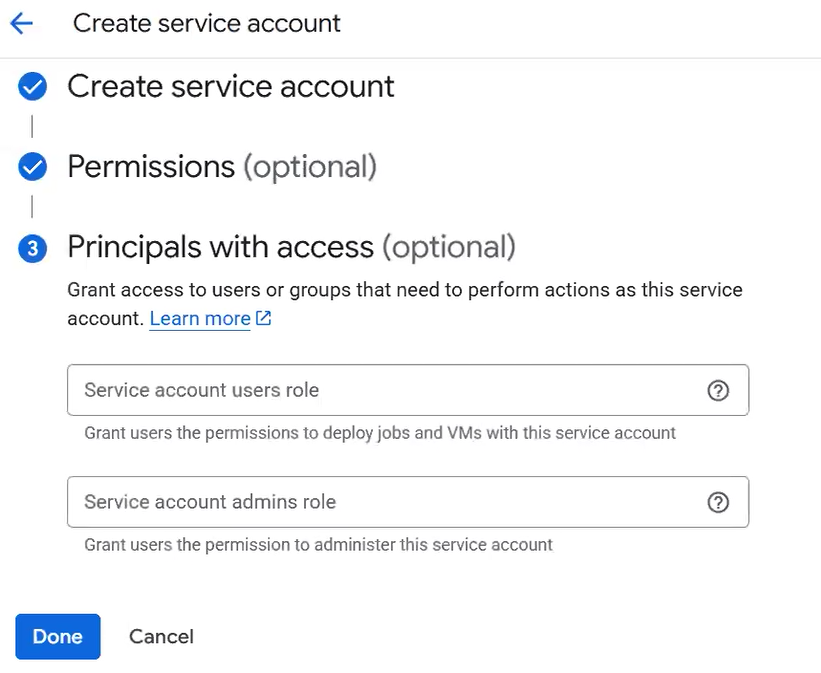
4. Leave the **Principals with access** as is. To complete the creation of the service account, click **Done**.
5. To verify the service account, enter the service account name you just created in the filter.
***
### Step 4: Create the service account API key in Google Cloud
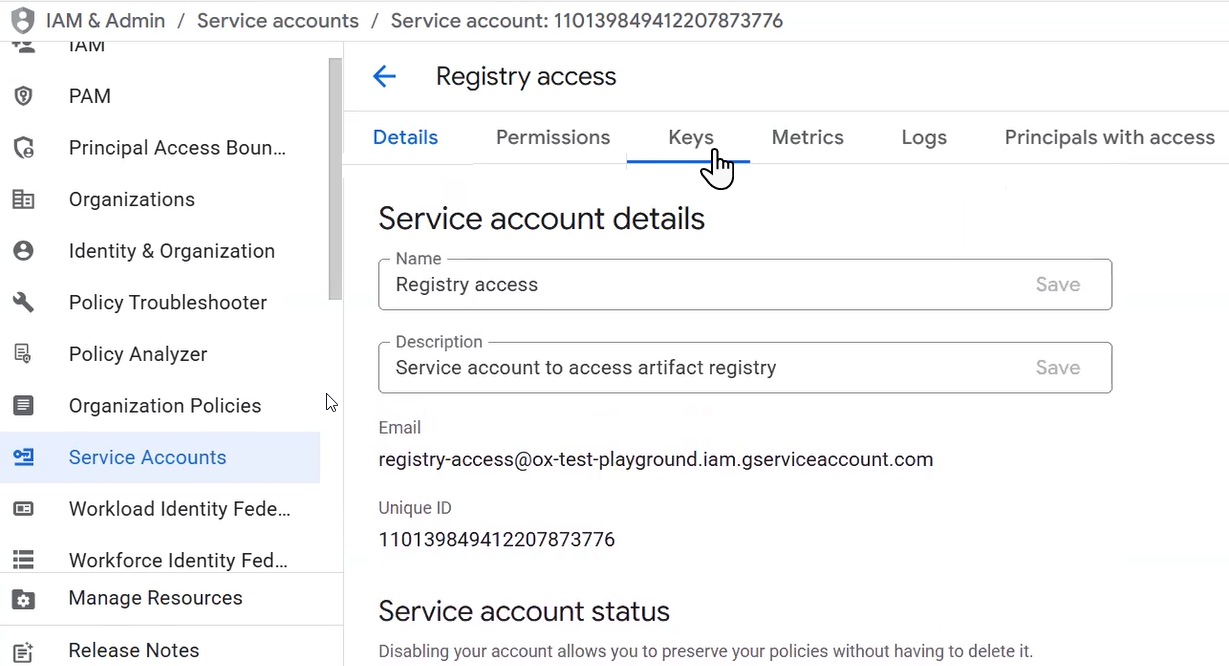
1. Continue from the previous screen, select the service account you created and select the **Keys** tab.
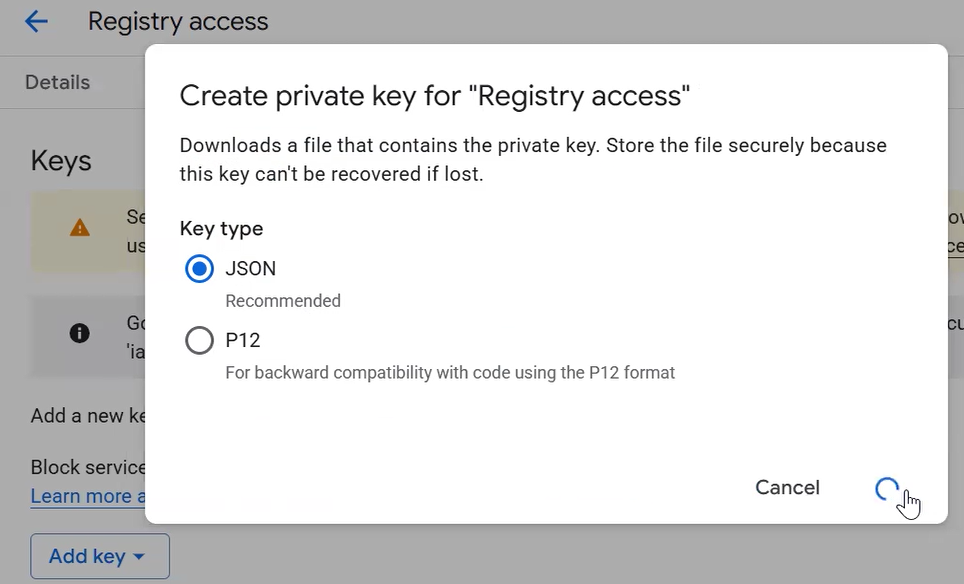
2. On the **Keys tab,** click **Add key** and select JSON as the Key type.
3. Read the warning about data security.
4. To complete, click **Close**. The JSON key is now saved to your computer.
***
### Step 5: Pass the credentials to OX Security
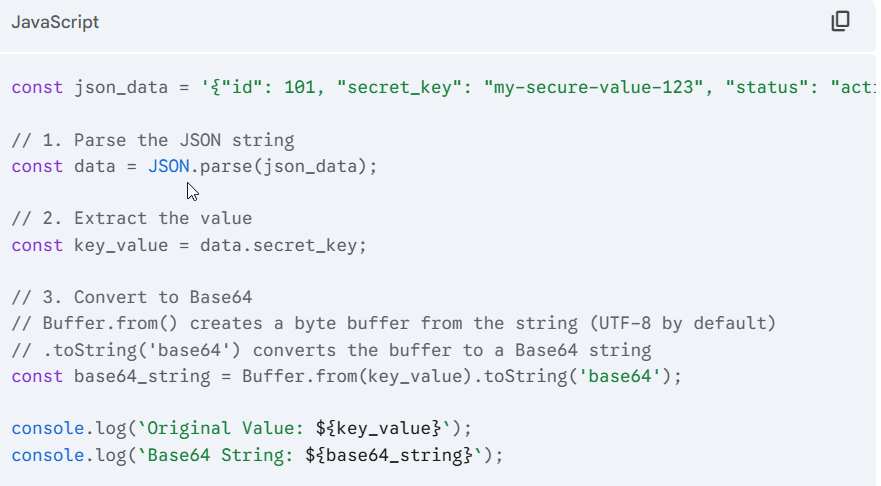
1. Create a Base64 string including the Key and the Project name from the JSON key. There are several methods to do this. If you use [Node.js/Browser](http://node.js/Browser), here is a code example.
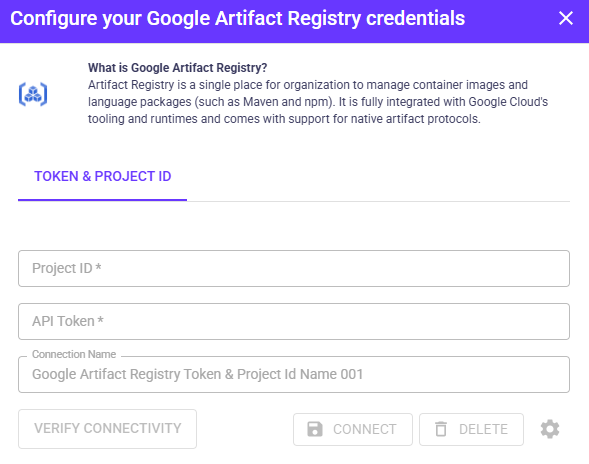
2. Sign in to OX Security. From the **OX Connectors** page open the **GAR connector** and enter these details:
1. **Project ID:** The ID of the project you want to scan.
2. **API Token:** The Base64 string you created.
3. Click **Connect**. If the credentials are valid, a success message appears.
That’s it. OX Security is now connected to your Google Artifact Registry.
## Post-setup checks
Use either or both of these steps.
* From the OX Connectors page open the GAR connector and click **Verify Connectivity**.
* From the same screen, click **Settings**. This displays a list of all images.
## Logs and alerts
If your credentials are not accepted, an error message shows on the connection screen.
## Troubleshooting
If your credentials are valid but you can’t connect to GAR, reach out to Customer Support.
## Disconnection
To disconnect, open the GAR connector and select **DELETE**.
To reconnect, re-enter the Project ID and API token.
---
# Agent Instructions
This documentation is published with GitBook. GitBook is the documentation platform designed so that both humans and AI agents can read, navigate, and reason over technical content effectively. Learn more at gitbook.com.
## Querying This Documentation
If you need additional information that is not directly available in this page, you can query the documentation dynamically by asking a question.
Perform an HTTP GET request on the current page URL with the `ask` query parameter, and the optional `goal` query parameter:
```
GET https://docs.ox.security/ox-integrations/3rd-party-integrations/registry/google.md?ask=&goal=
```
`ask` is the immediate question: it should be specific, self-contained, and written in natural language.
`goal` is optional and describes the broader end goal you are ultimately trying to accomplish on behalf of the user. GitBook uses it to tailor the answer towards what is most useful for that goal.
The response will contain a direct answer to the question and relevant excerpts and sources from the documentation.
Use this mechanism when the answer is not explicitly present in the current page, you need clarification or additional context, or you want to retrieve related documentation sections.


.png?alt=media)