# JFrog Artifactory

Integrate JFrog Artifactory with OX to centralize security findings alongside container, pipeline, cloud, and runtime signals already in OX.

OX scans JFrog Artifactory on a schedule and on demand, enriches findings with OX context (application mapping, workflows, and compliance), and presents a unified queue for investigation and reporting.

After you connect, JFrog Artifactory scan results appear on the Active Issues page (use the filter **Source tool > JFrog Artifactory**).

## What OX adds

* **Context and correlation:** OX maps JFrog Artifactory findings to applications, services, and teams to show impact and ownership.
* **Prioritization with severity factors:** OX may reprioritize scanner severities when exploitability and environment context reduce risk (for example, Critical → High). Severity factors explain why the priority changed.
* **Evidence at a glance:** When available, OX displays scanner evidence, file locations, and remediation guidance alongside OX analytics to speed triage.

## Connection methods

For general information about connection methods, see [Connection methods](https://docs.ox.security/get-started/onboarding-to-ox/source-control/connection-methods).

Connect to OX with a JFrog group-scoped access token.

## Prerequisites

**OX**

* Permission to configure connectors

**JFrog**

* JFrog Platform user account with permission to create groups, permissions, and access tokens

***

## Connect with a group access token

### Step 1: Create credentials and permissions \[JFrog]

The step has several parts.

**Create a group**

1. Verify that the [prerequisites](#prerequisites) are in place.
2. Log in to your JFrog Platform (cloud or on-premises).
3. Go to **Administration > User Management > Groups**.
4. Select **New Group** and enter a name for the group.
5. Select **Save**.

**Create permissions**

1. Go to **Administration > User Management > Permissions**.
2. Select **New Permission** and enter a name (e.g., ox-permissions).
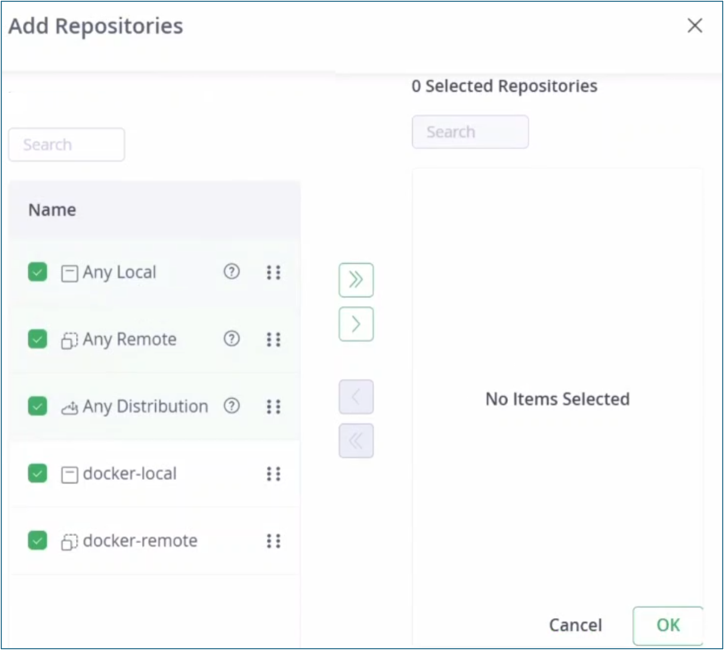
3. Scroll to **Resources** and select **Add Repositories**.
4. Select the local repositories you want OX Security to scan and move them to the **Selected Repositories** list (right side of the page).<br>

   <div align="left"><figure><img src="https://884876233-files.gitbook.io/~/files/v0/b/gitbook-x-prod.appspot.com/o/spaces%2FdK3XMLdV8zRg847RmGmZ%2Fuploads%2Fgit-blob-4f14a6e225139104b663ea35b2e3891e86d3006e%2FJFrog%20%E2%80%93%20add%20repositories.png?alt=media" alt="" width="362"><figcaption></figcaption></figure></div>
5. Select **OK**.
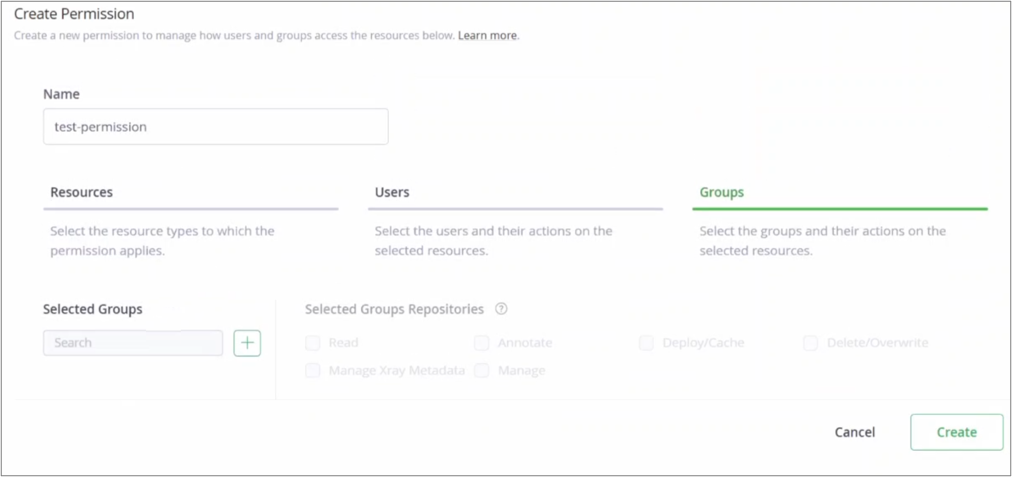
6. Still in **Permissions**, select the **Groups** tab.

   <div align="left"><figure><img src="https://884876233-files.gitbook.io/~/files/v0/b/gitbook-x-prod.appspot.com/o/spaces%2FdK3XMLdV8zRg847RmGmZ%2Fuploads%2Fgit-blob-37b3659e43ac0720020d562224f5ee3659a25862%2FJFrog%20%E2%80%93%20select%20groups%20tab.png?alt=media" alt="" width="375"><figcaption></figcaption></figure></div>
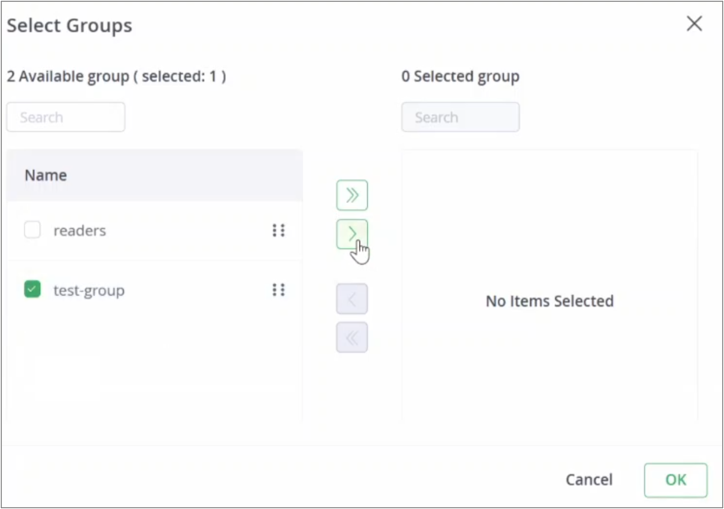
7. From **Selected Groups**, select the group you just created and move it to the **Selected Group** list (right side of the screen).<br>

   <div align="left"><figure><img src="https://884876233-files.gitbook.io/~/files/v0/b/gitbook-x-prod.appspot.com/o/spaces%2FdK3XMLdV8zRg847RmGmZ%2Fuploads%2Fgit-blob-3e9079a782a020bcf0a6d4603c47efbf03299477%2Fjfrog%20move%20group%20to%20right.png?alt=media" alt="" width="362"><figcaption></figcaption></figure></div>
8. Select **OK**.
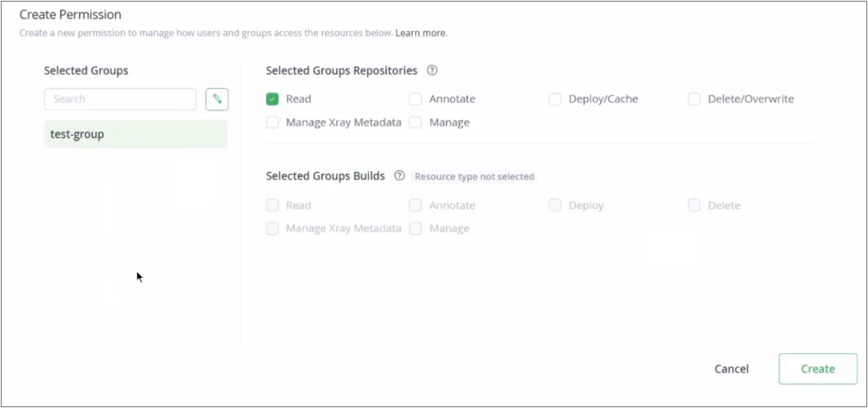
9. Still in **Permissions**, in **Selected Group Repositories**, checkmark **Read**.\ <br>

   <div align="left"><figure><img src="https://884876233-files.gitbook.io/~/files/v0/b/gitbook-x-prod.appspot.com/o/spaces%2FdK3XMLdV8zRg847RmGmZ%2Fuploads%2Fgit-blob-481ddba677598e4c7cde0509c42f759da2666c51%2FJfrog%20%E2%80%93%20add%20read%20to%20the%20group%20permissions.png?alt=media" alt="" width="375"><figcaption></figcaption></figure></div>
10. To complete, select **Create**.

**Create a user**

Now create a user and add the user to the group.

1. Go to **Administration > User Management > Users**.
2. Select **New User**.
   * **User Name:** A meaningful name. You use this to set up the connection in OX.
   * **Email:** Your JFrog email.
   * **Can Update Profile:** Leave checked.
   * **Password:** Create one.
3. Scroll to **Related Groups** and select the group you created. If there are other groups, uncheck them.
4. To complete, select **Save**.

**Create an access token**

For JFrog documentation, see the article [Creating Access Tokens in Artifactory](https://jfrog.com/help/r/how-to-generate-an-access-token-video/artifactory-creating-access-tokens-in-artifactory).

1. Go to **Administration > User Management > Access Tokens**.
2. Select **Generate Token**.
3. Select **Scoped Token**.
4. Complete the details.

<table><thead><tr><th width="223.066650390625" valign="top">Field</th><th width="452.4000244140625" valign="top">Value</th></tr></thead><tbody><tr><td valign="top">Description</td><td valign="top">Enter a meaningful description<br>(e.g., OX Security Integration Token)</td></tr><tr><td valign="top">Token Scope</td><td valign="top">From the dropdown, select User</td></tr><tr><td valign="top">User</td><td valign="top">Select the user you just created</td></tr><tr><td valign="top">Service</td><td valign="top">Select Artifactory</td></tr><tr><td valign="top">Expiration Time</td><td valign="top">Select Never (recommended)</td></tr><tr><td valign="top">Create Reference Token<br>(creates a shorter url)</td><td valign="top">Enable<br></td></tr></tbody></table>

5. Select **Generate**.
6. Copy and store the reference token in a secure location. You cannot view it again after this step.\
   **Best practice:** Store the access token in a secrets manager and set a reminder to rotate the access token before expiration according to your policy.

### Step 2: Connect to OX \[OX]

1. Verify that the [prerequisites](#prerequisites) are in place.
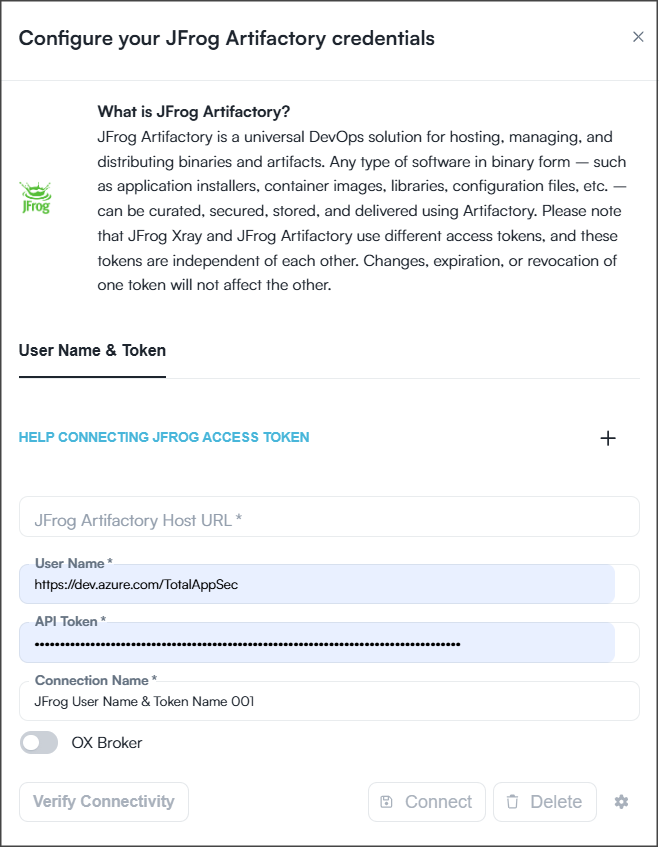
2. In OX, go to **Connectors > Registry** and select **JFrog Artifactory**.<br>

   <div align="left"><figure><img src="https://884876233-files.gitbook.io/~/files/v0/b/gitbook-x-prod.appspot.com/o/spaces%2FdK3XMLdV8zRg847RmGmZ%2Fuploads%2Fgit-blob-58edee6aad7d79e1ca530a0513666c237da63ac8%2FJFrog%20%E2%80%93OX%20config%20screen.png?alt=media" alt="" width="362"><figcaption></figcaption></figure></div>
3. Enter the following parameters.

<table><thead><tr><th width="188.9332275390625" valign="top">Text</th><th width="468.933349609375" valign="top">Text</th></tr></thead><tbody><tr><td valign="top">JFrog Platform URL</td><td valign="top">The base URL of your JFrog Platform account + artifactory<br>(e.g., https://your-organization.jfrog.io/artifactory)</td></tr><tr><td valign="top">User Name</td><td valign="top">The user name for this connection</td></tr><tr><td valign="top">API Token</td><td valign="top">The group-scoped access token you created in JFrog</td></tr><tr><td valign="top">Connection Name</td><td valign="top">Enter a name if there isn’t one</td></tr></tbody></table>

4. Click **VERIFY CONNECTIVITY**.
5. A green success message at the bottom of the screen indicates a successful connection. If verification fails, check your credentials and permissions.
6. Click **CONNECT**.

#### Optional configurations

* To change the resources OX scans and monitors, see the section [Change the locations OX scans](#change-the-locations-ox-scans).
* To connect more JFrog accounts to the same organization in the OX platform, repeat the process.
* For information on the OX Broker, see the article [OX Broker](https://docs.ox.security/get-started/onboarding-to-ox/prerequisites-and-access/ox-broker).

## Change the locations OX scans

By default, OX scans everything if you did not make a specific selection. Once you have a connection, you can change the locations that OX scans and monitors.

1. Use the **Gear** icon at the bottom of the Configuration screen.
2. OX displays the locations or objects that OX scans and monitors.
3. Change the selection as needed.
4. Select **SAVE**.

<div align="left"><figure><img src="https://884876233-files.gitbook.io/~/files/v0/b/gitbook-x-prod.appspot.com/o/spaces%2FdK3XMLdV8zRg847RmGmZ%2Fuploads%2Fgit-blob-5397f500c4f3fdeab972b14d6eb9bf7b1897ad4a%2Fgitlab%20change%20repos%20gear%20icon.png?alt=media" alt="" width="375"><figcaption></figcaption></figure></div>