> For the complete documentation index, see [llms.txt](https://docs.ox.security/llms.txt). Markdown versions of documentation pages are available by appending `.md` to page URLs; this page is available as [Markdown](https://docs.ox.security/ox-integrations/3rd-party-integrations/registry/nexus-container-registry.md).
# Nexus Container Registry
Integrate your Nexus on-premises account with OX to centralize security findings alongside container, pipeline, cloud, and runtime signals already in OX.
OX scans Nexus on a schedule and on demand, enriches findings with OX context (application mapping, workflows, and compliance), and presents a unified queue for investigation and reporting.
After you connect, Nexus scan results appear in the Active issues page (use the filter Source tool > Nexus).
## What OX adds
* **Context and correlation:** OX maps findings to applications, services, and teams to show impact and ownership.
* **Prioritization with severity factors:** OX may reprioritize scanner severities when exploitability and environment context reduce risk (for example, Critical → High). Severity factors explain why the priority changed.
* **Evidence at a glance:** When available, OX displays scanner evidence, file locations, and remediation guidance alongside OX analytics to speed triage.
## Connection Methods
For general information about connection methods, see[ Connection methods](/get-started/onboarding-to-ox/source-control/connection-methods.md).
Connect to OX with a Nexus username and password.
## Prerequisites
* OX permission to configure connectors
* Access to the Nexus on-premises account you want to connect.
* Add the OX Security IP address 108.128.213.11 to Nexus's whitelist or your firewall rules.
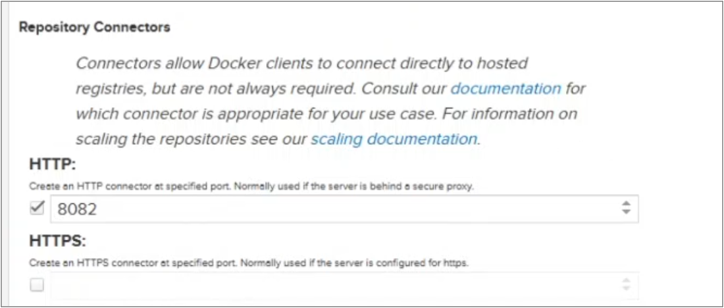
* The Docker-hosted repository in Nexus has either an HTTP or HTTPS port enabled.
## Connect with username and password
### **Step 1: Create an OX role and local user \[Nexus]**
The step has several parts.
**Create role and permissions**
1. Verify that the [prerequisites](#prerequisites) are in place.
2. Log in to the Nexus repository.
3. Select the **Gear** icon and select **Roles** from the menu pane.
4. In **Roles**, select **Create Role**.
5. Enter the details:
* **Role type:** Nexus role
* **Role ID:** A text identifier of your choice.
* **Role name:** A descriptive name.
6. Select the **Modify Applied Privileges** button.
7. In **Privileges Selection**, select the privileges:
* nx-repository-view -\*-\*- browse
* nx-repository-view -\*-\*- read
* nx-repository-view-docker -\*- browse
* nx-repository-view-docker -\*- read
* nx-search-read
* nx-repository-admin-docker-\*-read
8. Select **Confirm**.
9. To save the new role, scroll to the bottom of the screen and select **Save**.
**Create user**
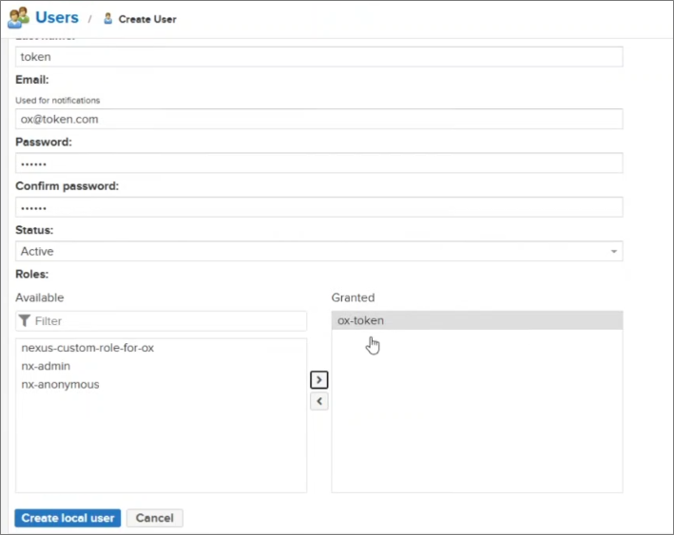
1. From the menu pane, select **Users**.
2. Select the **Create local user** button.
3. Complete the mandatory fields:
* Username
* First name
* Last name
* Email address to receive notifications.
* Password and confirm it
* Status: Active
4. Scroll down to **Roles** and add the role to the **Granted** box.\
5. Select **Create local user**.\
A success message appears. If the verification fails, check the credentials.
**Enable Docker-hosted repository port**
1. Select **Repositories** from the menu pane.
2. Select the **Docker-hosted** repository.
3. Enable either of the HTTP ports.
### Step 2: Connect OX to Nexus \[OX]
1. Verify that the [prerequisites](#prerequisites) are in place.
2. In OX, go to **Connectors > Registry > Nexus Container Registry** to open the connector configuration dialog.
3. In **Configure your Nexus Container Registry credentials**, enter the following parameters.
| Parameter | Description |
| --------------------------------- | --------------------------------------------------------------------------------------------------------------------------------------------------------------------------------------------------------------------------------------------------------------------------------------------------------------------- |
| Nexus Container Registry Host URL | Enter the URL of your Nexus Container Registry instance. |
| User Name | Enter the username that OX will use to authenticate to Nexus Container Registry. |
| Password | Enter the password associated with the Nexus user account. |
| Connection Name | The name is generated automatically by OX. You can change it at any time. |
| OX Broker | Enable to connect through an OX Broker. Use this option when Nexus Container Registry is accessible only through an internal network or when your organization requires all connector traffic to be routed through an [OX Broker](/get-started/onboarding-to-ox/prerequisites-and-access/ox-deployment/ox-broker.md). |
3. Select **CONNECT**. OX validates the credentials.
**Optional configurations**
* To change the images OX scans and monitors, see the section [Change the locations OX scans](#change-the-locations-ox-scans).
* To connect more Nexus accounts to the same organization in the OX platform, repeat the process.
## Change the locations OX scans
By default, OX scans everything if you did not make a specific selection. Once you have a connection, you can change the locations that OX scans and monitors.
1. Use the **Gear** icon at the bottom of the Configuration screen.
2. OX displays the locations or objects that OX scans and monitors.
3. Change the selection as needed.
4. Select **SAVE**.
---
# Agent Instructions
This documentation is published with GitBook. GitBook is the documentation platform designed so that both humans and AI agents can read, navigate, and reason over technical content effectively. Learn more at gitbook.com.
## Querying This Documentation
If you need additional information that is not directly available in this page, you can query the documentation dynamically by asking a question.
Perform an HTTP GET request on the current page URL with the `ask` query parameter, and the optional `goal` query parameter:
```
GET https://docs.ox.security/ox-integrations/3rd-party-integrations/registry/nexus-container-registry.md?ask=&goal=
```
`ask` is the immediate question: it should be specific, self-contained, and written in natural language.
`goal` is optional and describes the broader end goal you are ultimately trying to accomplish on behalf of the user. GitBook uses it to tailor the answer towards what is most useful for that goal.
The response will contain a direct answer to the question and relevant excerpts and sources from the documentation.
Use this mechanism when the answer is not explicitly present in the current page, you need clarification or additional context, or you want to retrieve related documentation sections.
.png?alt=media)
.png?alt=media)
