> For the complete documentation index, see [llms.txt](https://docs.ox.security/llms.txt). Markdown versions of documentation pages are available by appending `.md` to page URLs; this page is available as [Markdown](https://docs.ox.security/ox-integrations/3rd-party-integrations/registry/red-hat-quay.md).
# Red Hat Quay
Integrating Red Hat Quay with OX Security platform enhances your organization's container image security and management.
Red Hat Quay is a scalable, security-focused container image registry designed for storing, building, and distributing container images across enterprise environments.
As a fully-featured registry, Quay provides robust capabilities, including automated vulnerability scanning, image signing, access control, and geo-replication, making it a preferred choice for organizations that prioritize security and compliance.
By integrating Red Hat Quay with OX Security platform, organizations can achieve:
* **Unified Visibility**: Consolidate data from Quay and other sources to gain a comprehensive view of your container images and their security posture.
* **Automated Vulnerability Management**: Leverage OX Security's capabilities to continuously monitor and prioritize vulnerabilities detected in container images stored within Quay.
* **Streamlined Compliance**: Ensure that container images meet organizational and regulatory compliance standards through automated policies and reporting.
## How the integration works
Quay projects are associated with container images that accumulate over time as new commits are made.
OX connects to the registry and starts managing images each time new images are pushed.
### Configuring which images to retain
By default, OX selects and retains the latest image for each project.
You can configure which images are included in scanning by specifying tags.
**To configure image selection:**
1. In the OX app, go to **Settings > Scan > Container Security**.
2. Enter a regex pattern for container image tags.
3. Select **UPDATE**.
### Extending the retention period
By default, images are retained for six months.
You can extend the retention period if needed.
**To change the retention period:**
1. In the OX app, go to **Settings > Scan > Container Security > Container Age Threshold for Scanning**.
2. Set the number of months after which images are excluded from scanning.
Images older than the configured threshold are removed unless a longer retention period is defined.
If a project has no new commits, its images are not deleted.
## Prerequisites
* Red Hat account.
## Step 1: Generate a new token \[Quay]
1. Sign in to your Quay account.
2. Select your organization.
3. Go to **Applications** and create a new application.
4. Select the application and select **Generate Token**.
5. Enable the following permissions:
* View all visible repositories
* Read user information
6. Select **Generate Access Token**.
7. Copy the generated token.
## Step 2: Connecting to Red Hat Quay \[OX]
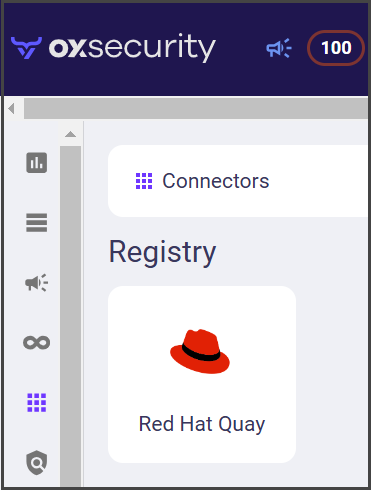
1. In the **OX app**, go to **Connectors** and search for Red Hat Quay.
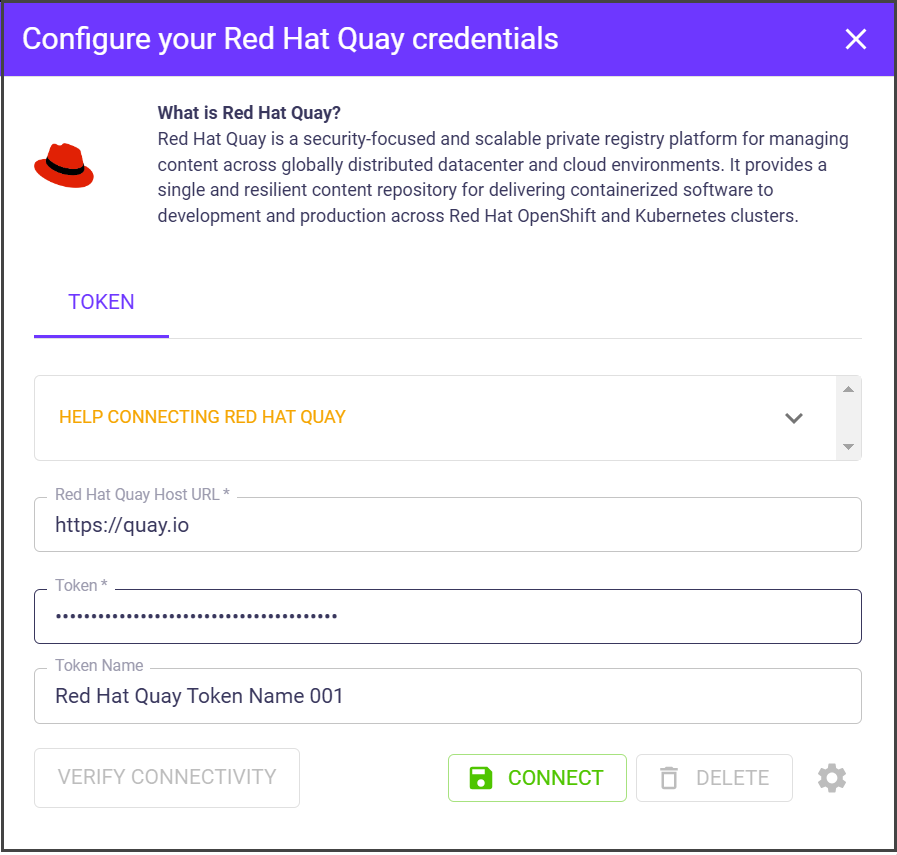
2. Select **Red Hat Quay** and The **Configure your Red Hat Quay credentials** dialog appears.
| Parameter | Description |
| ------------------------- | ------------------------------------------ |
| **Red Hat Quay Host URL** | Add your Red Hat account URL. |
| **Token** | Paste the token you have created. |
| **Token Name** | The name is generated automatically by OX. |
2. Select **CONNECT**. The Red Hat Quay connector is configured.
---
# Agent Instructions
This documentation is published with GitBook. GitBook is the documentation platform designed so that both humans and AI agents can read, navigate, and reason over technical content effectively. Learn more at gitbook.com.
## Querying This Documentation
If you need additional information that is not directly available in this page, you can query the documentation dynamically by asking a question.
Perform an HTTP GET request on the current page URL with the `ask` query parameter, and the optional `goal` query parameter:
```
GET https://docs.ox.security/ox-integrations/3rd-party-integrations/registry/red-hat-quay.md?ask=&goal=
```
`ask` is the immediate question: it should be specific, self-contained, and written in natural language.
`goal` is optional and describes the broader end goal you are ultimately trying to accomplish on behalf of the user. GitBook uses it to tailor the answer towards what is most useful for that goal.
The response will contain a direct answer to the question and relevant excerpts and sources from the documentation.
Use this mechanism when the answer is not explicitly present in the current page, you need clarification or additional context, or you want to retrieve related documentation sections.