> For the complete documentation index, see [llms.txt](https://docs.ox.security/llms.txt). Markdown versions of documentation pages are available by appending `.md` to page URLs; this page is available as [Markdown](https://docs.ox.security/ox-integrations/3rd-party-integrations/secret-pii-scan/gitguardian.md).
# GitGuardian
GitGuardian is a leading provider of automated secrets detection and remediation solutions, helping organizations protect sensitive information across their codebases and development workflows.
GitGuardian enables continuous monitoring of public and private repositories to detect exposed secrets like API keys, credentials, and other sensitive data, providing real-time alerts to minimize security risks.
GitGuardian’s platform offers actionable insights and collaboration tools to facilitate swift remediation and ensure compliance with security policies.
By integrating with OX Security, GitGuardian enhances the ability of security teams to correlate detected secrets with broader security issues identified within the OX Security platform.
This integration provides:
* unified visibility into code-related vulnerabilities and secrets exposure, allowing teams to manage and prioritize risks more effectively
* automated detection
* centralized data analysis
* efficient response workflows
* security operations streamline
* stronger control over sensitive data throughout the development lifecycle
The integration process includes the following steps:\
1\. [Generate a GitGuardian token.](#generating-a-gitguardian-token)\
2\. [Connect the OX platform to GitGuardian.](#connecting-to-gitguardian)
## Prerequisites
GitGuardian account with read access.
## Generating a GitGuardian Token
1. Log in to GitGuardian at [dashboard.gitguardian.com](http://dashboard.gitguardian.com/).
2. In the left sidebar, click on **Settings**.
3. Navigate to the **API** section.
4. Click **Create a token**.
5. Enter a name for the token and configure the necessary permissions.
6. Click **Generate**.
7. Copy the token to a secure location. You will not be able to view it again after closing the dialog.
## Connecting to GitGuardian
1. In the **OX app**, go to **Connectors** and search for GitGuardian.
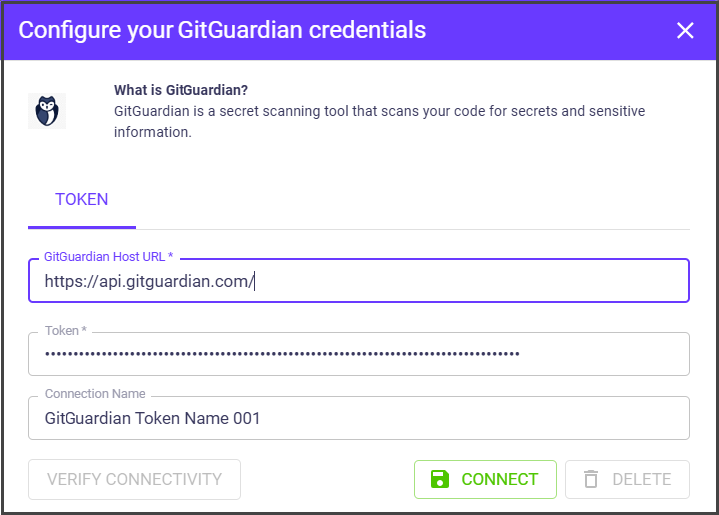
2. Select **GitGuardian** and set the following parameters in the **Configure your GitGuardian credentials** dialog.
| Parameter | Description |
| ------------------------ | ------------------------------------------------------------------------------------------------------------------------------------------------------------------------------------------- |
| **GitGuardian Host URL** |
Add your GitGuardian organization account URL. - Use the default account: , - Or use your org account.
|
| **Token** | Paste the GitGuardian token you have generated. |
3. Select **CONNECT**. The success message appears.
---
# Agent Instructions
This documentation is published with GitBook. GitBook is the documentation platform designed so that both humans and AI agents can read, navigate, and reason over technical content effectively. Learn more at gitbook.com.
## Querying This Documentation
If you need additional information that is not directly available in this page, you can query the documentation by asking a question.
Perform an HTTP GET request on the following URL with the `ask` and `goal` query parameters:
```
GET https://docs.ox.security/ox-integrations/3rd-party-integrations/secret-pii-scan/gitguardian.md?ask=&goal=
```
`ask` is the immediate question: it should be specific, self-contained, and written in natural language.
`goal` is what the user is ultimately trying to achieve, the reason they need the answer. Sharing it helps GitBook give you a better, more relevant answer. A goal is most helpful when it describes the outcome the user wants rather than restating the question. For example, with `ask=how do I create an API token`, a goal like `automate deployments from our CI pipeline` lets GitBook tailor the answer to that use case.
The response will contain a direct answer to the question and relevant excerpts and sources from the documentation.
Use this mechanism when the answer is not explicitly present in the current page, you need clarification or additional context, or you want to retrieve related documentation sections.