> For the complete documentation index, see [llms.txt](https://docs.ox.security/llms.txt). Markdown versions of documentation pages are available by appending `.md` to page URLs; this page is available as [Markdown](https://docs.ox.security/ox-policies/artifact-integrity.md).
# Artifact Integrity
Artifact Integrity ensures that container images in your registries were built by your organization's CI/CD pipeline and not pushed from an unknown or unauthorized source, such as a developer's local machine or a malicious actor.
The main goals are:
* Verifying artifact origin prevents the risk of running images that might be tampered with or injected with malicious code.
* Providing assurance that all deployed artifacts are traceable to your build process.
Currently OX Security supports artifact integrity in GitLab and GitHub pipelines.
Verifying artifact integrity in container images contains the following steps:
1. [Update images with metadata labels](#updating-your-ci-cd-pipelines-with-labels)
2. [Enable the Artifact Integrity policy and exlude trusted images](#enabling-the-artifact-integrity-policy)
3. Run a security scan
4. [Analyze the results](#analyzing-the-container-image-scan-results)
## Prerequisites
Use the following environment variables in your pipeline:
* **For GitLab:** `CI_PROJECT_ID`, `CI_JOB_ID`
* **For GitHub:** `GITHUB_REPOSITORY`, `GITHUB_RUN_ID`
## Updating your CI/CD pipelines with labels
When building the image, you need to include specific metadata labels in the image. Then, during the security scan, OX Security analyzes image labels and corresponding pipeline logs to ensure the integrity and trustworthiness of the image, as follows:
* If OX finds a match in the build logs, the image is marked as verified.
* If no match is found, the image is flagged as unverified, and you are advised to review it.
The labels are added to the `docker build` command during the Docker build process. The label keys are the same for all CI/CD systems, but the values differ depending on the platform.
| Label | GitHub Value | GitLab Value |
| ------------------------------ | ---------------------- | ------------------ |
| `security.ox.image.ci.repo.id` | `${GITHUB_REPOSITORY}` | `${CI_PROJECT_ID}` |
| `security.ox.image.ci.job.id` | `${GITHUB_RUN_ID}` | `${CI_JOB_ID}` |
| `security.ox.image.ci.source` | `github` | `gitlab` |
> **Important:**\
> Do not use `docker build --push`.\
> Use separate `docker build` and `docker push` commands. This ensures the image hash is visible and can be verified during artifact integrity checks.
**Docker build command example:**
```bash
docker build -t $YOUR_IMAGE_NAME \
--label "security.ox.image.ci.repo.id=..." \
--label "security.ox.image.ci.job.id=..." \
--label "security.ox.image.ci.source=..."
docker push $YOUR_IMAGE_NAME
```
## Before the scan
Before running a scan on the container image to which you have added the metadata labels, you need to enable the policy that verifies the image.
In addition, you can exclude images from scan by name or registry name.
**To enable the Artifact Integrity policy:**
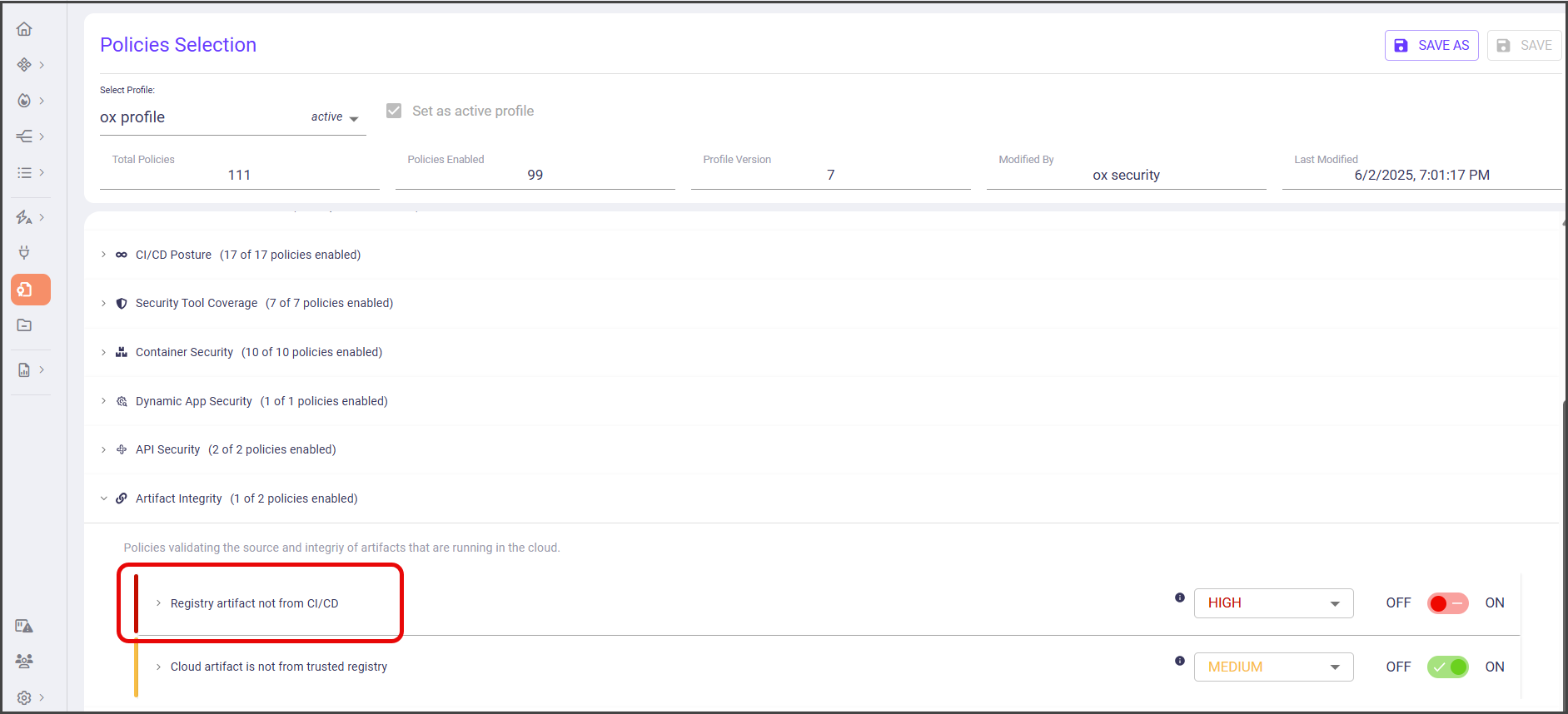
1. In the OX Security platform, go to **Policies > Artifact Integrity**.
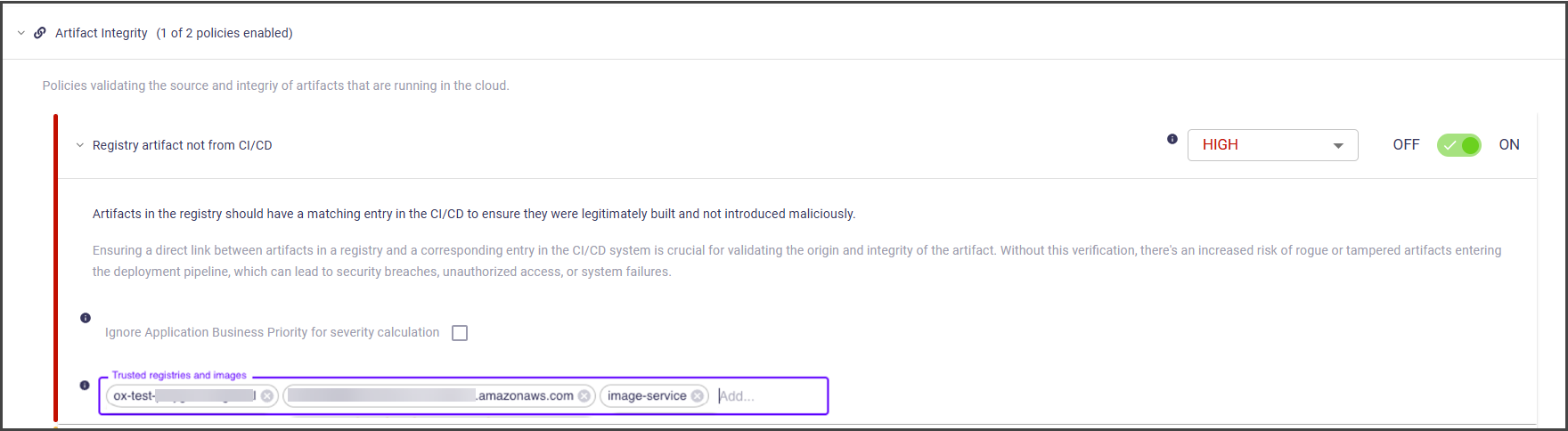
2. Enable **Registry artifact not from CI/CD**.
3. To reduce load during the scan, exclude trusted images, as follows: in the **Trusted registries and images** box, add trusted images/registries names.
2. To save your policy definitions, select **SAVE AS** or **SAVE**.
## Analyzing the container image scan results
After running a security scan, you can view the artifact integrity status and plan your further actions.
**To view the artifact integrity status:**
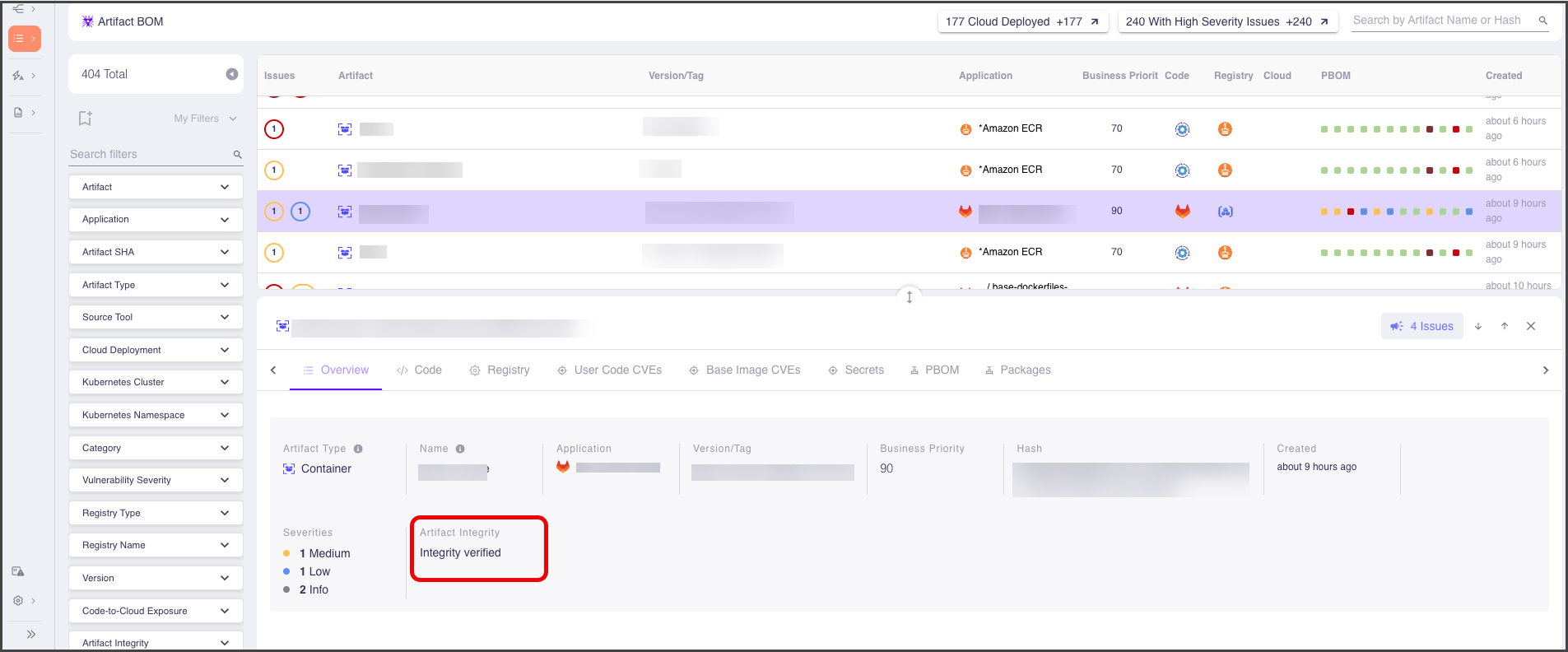
1. In the **Artifact BOM** page, select the image you have scanned and check the artifact integrity status in the image overview.
The following integrity statuses are available:
| Status | Required actions |
| --------------------------------- | ---------------------------------------------------------------------------------------------------------------------------------------------------------------------------------------------------------------------------------------------------------------------------------------------------------------------------------------------------------------------------------------------- |
| **Integrity verified** | |
| **Integrity verification failed** |
Review the relevant pipeline and ensure the correct labels were added during build.
Make sure the Docker build and push commands are not combined into one (docker build --push) as it hides the image hash.
If the labels and commands are correct, then maybe the image came from an unknown source. In that case you must rebuild the image.
|
| **N/A** | Review the image and make sure the labels were added correctly. |
2. When artifact integrity is not verified, a new security issue is added in the **Issues** page.
The following issue types can be added by OX Security:
| Issue Type | Description |
| -------------------------------------------------------------------------- | ---------------------------------------------------------------------------------------------------------------------------------------------------------------------------------- |
| **Image was not correlated with any known artifact from the build system** | The artifact did not pass the artifact integrity check. |
| **Image is not from a known repository** | The image contains all required labels, but cannot be matched to any known repository. This issue can be resolved by adding the missing repository in the corresponding connector. |
| **Image previously had labels but now does not** | The image currently lacks the required labels, while previous versions of this image had the correct labels. |
---
# Agent Instructions
This documentation is published with GitBook. GitBook is the documentation platform designed so that both humans and AI agents can read, navigate, and reason over technical content effectively. Learn more at gitbook.com.
## Querying This Documentation
If you need additional information that is not directly available in this page, you can query the documentation by asking a question.
Perform an HTTP GET request on the following URL with the `ask` and `goal` query parameters:
```
GET https://docs.ox.security/ox-policies/artifact-integrity.md?ask=&goal=
```
`ask` is the immediate question: it should be specific, self-contained, and written in natural language.
`goal` is what the user is ultimately trying to achieve, the reason they need the answer. Sharing it helps GitBook give you a better, more relevant answer. A goal is most helpful when it describes the outcome the user wants rather than restating the question. For example, with `ask=how do I create an API token`, a goal like `automate deployments from our CI pipeline` lets GitBook tailor the answer to that use case.
The response will contain a direct answer to the question and relevant excerpts and sources from the documentation.
Use this mechanism when the answer is not explicitly present in the current page, you need clarification or additional context, or you want to retrieve related documentation sections.