> For the complete documentation index, see [llms.txt](https://docs.ox.security/llms.txt). Markdown versions of documentation pages are available by appending `.md` to page URLs; this page is available as [Markdown](https://docs.ox.security/ox-code/scanning/ox-ide-integrations/ox-ide-extension.md).
# OX IDE Extension (VS Code)
The OX IDE extension provides scanning of code changes locally within Visual Studio Code (VS Code) and VS Code–based environments.
It integrates with the OX Security platform and is intended for developers working in extension-based IDEs.
The extension appears in the IDE sidebar, where you can run scans and review issues directly in your workspace.
## How it works
After you [install the IDE Extension](/ox-code/scanning/ox-ide-integrations/ox-ide-extension/installing-the-ox-ide-extension.md), it appears in the side toolbar with the OX icon, and starts monitoring changes to files in your workspace.
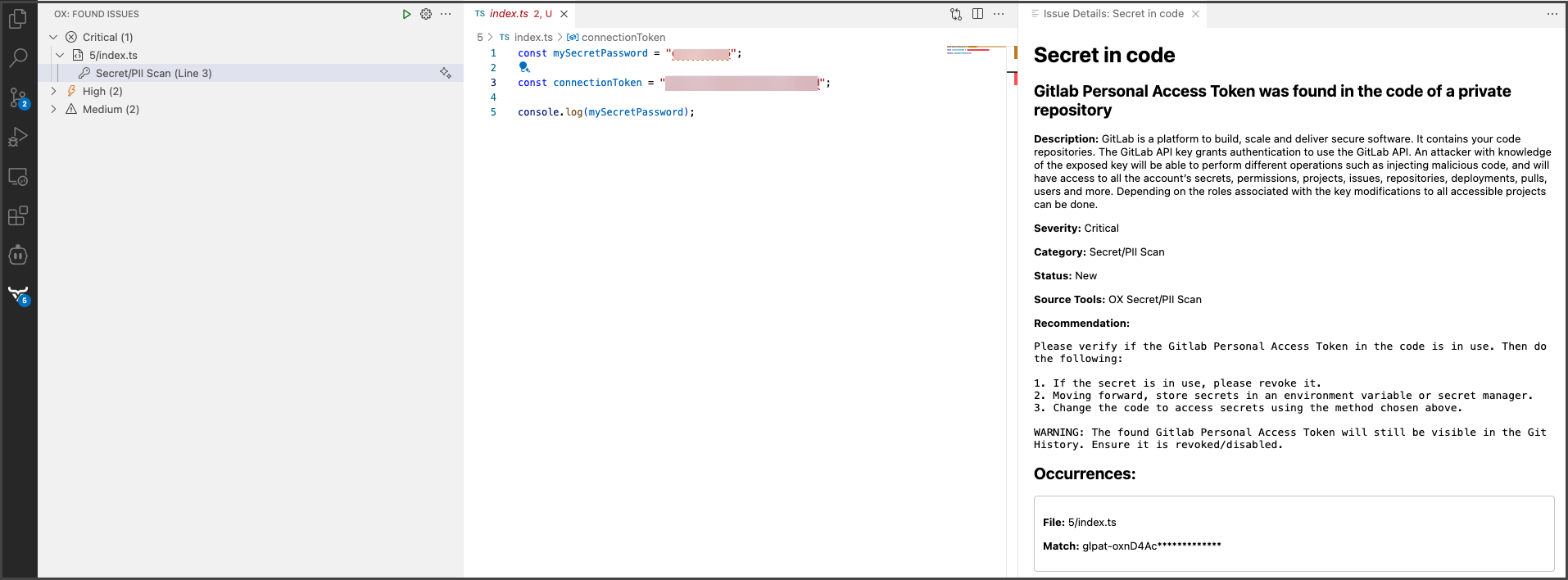
You can initiate a scan directly from the IDE, which compresses your local changes and sends them to the OX backend for analysis. Scan results, such as vulnerable dependencies and hard-coded secrets are displayed in a dedicated sidebar, with each issue linked to the exact line of code and accompanied by a recommended fix.
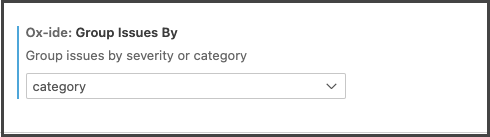
You can group these findings by severity or category, filtering the view to focus on critical issues or to see all results at once. Throughout the process, the UI keeps you informed of scan status and messages (for example, **Scan is cancelled**).
After a scan completes, the IDE extension displays the detected issues in the left sidebar of your development environment. To help you review and prioritize results more efficiently, the extension supports grouping and filtering options.
## Setting API endpoints for OX cloud services
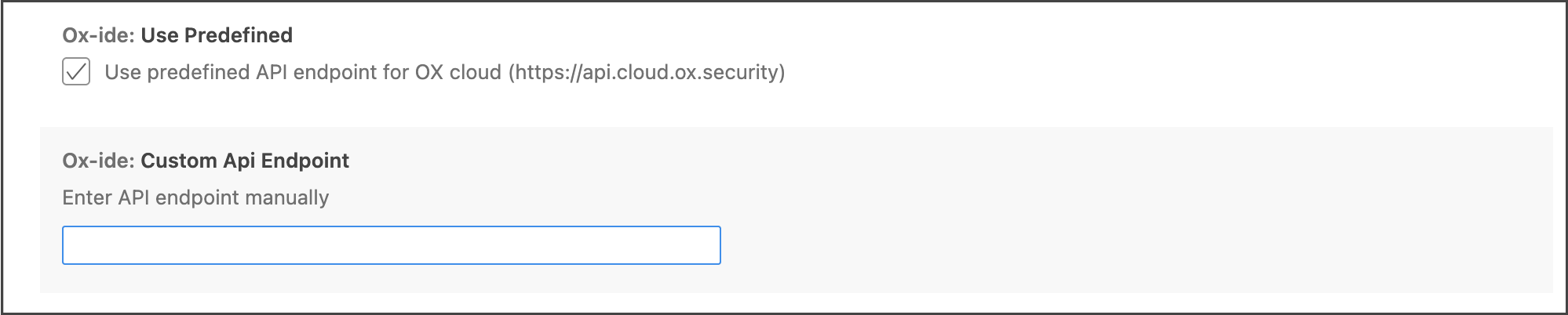
By default OX IDE extension operates on the cloud using settings predefined by OX Security. In addition, you can manually switch to the custom API endpoint.
**To define API endpoints:**
1. In the top part of the OX IDE extension, click the gear icon next to the scan button and select **Settings**.
2. To work on-prem or other scenarios, clear **Use predefined API endpoints for OX cloud**, and then in the **Custom API Endpoints** text box, type your local deployment URL.
## Sending logs/events to the telemetry service
To support compliance and regulatory opt-out requirements, OX IDE extension can send logs/events to the telemetry service. This option is enabled by default, and you can disable it.
**To disable sending logs/events to telemetry service:**
1. In the top part of the OX IDE extension, click the gear icon next to the scan button and select **Settings**.
2. Clear the **Enable telemetry for your VS Code extension** checkbox.
## Running a scan and analyzing the results
After installing the OX IDE extension and setting it up, you can start running security scans.
When viewing scan results, you can select an issue to navigate directly to the relevant line in the code. This allows you to understand and resolve issues without leaving the OX IDE extension.
**To run a scan:**
* Click the triangle button on the top. The scan runs and then the results appear with the direct link to the specific location in the code that contains a security risk and remediation recommendations.
Each issue in the list includes the following:
* Severity label
* Short description
* Category
* Status
* Reference to the affected code line
* Suggested fix
### Grouping issues
You can organize issues into logical sets for better navigation, as follows:
* **By severity:** Displays issues in the following order: Critical, High, Medium, and Low. Use this option to focus on the most urgent issues first.\
OR,
* **By category:** Displays issues based on their type: Open Source Security, Code Security, SBOM, IaC, Secret/PII. Use this option to address similar types of issues across your codebase.
Each group is collapsible and expandable.
**To group security issues:**
* In the top part of the OX IDE extension, click the gear icon next to the scan button and select **Settings**.
### Filtering issues
You can use filtering to reduce visual noise and concentrate on the issues that matter most.
You can filter which issues to display, based on the severity levels. The Appoxalypse severity level issues are always presented by default and you cannot set the extension not to display them.
**To filter security issues:**
* In the top part of the OX IDE extension, click the gear icon next to the scan button and select **Settings**.
You’re now ready to start using the OX IDE VS Code extension.
---
# Agent Instructions
This documentation is published with GitBook. GitBook is the documentation platform designed so that both humans and AI agents can read, navigate, and reason over technical content effectively. Learn more at gitbook.com.
## Querying This Documentation
If you need additional information that is not directly available in this page, you can query the documentation dynamically by asking a question.
Perform an HTTP GET request on the following URL with the `ask` and `goal` query parameters:
```
GET https://docs.ox.security/ox-code/scanning/ox-ide-integrations/ox-ide-extension.md?ask=&goal=
```
`ask` is the immediate question: it should be specific, self-contained, and written in natural language.
`goal` is what the user is ultimately trying to achieve, the reason they need the answer. Sharing it helps GitBook give you a better, more relevant answer. A goal is most helpful when it describes the outcome the user wants rather than restating the question. For example, with `ask=how do I create an API token`, a goal like `build a script that syncs our docs to a CMS` lets GitBook tailor the answer to that use case.
The response will contain a direct answer to the question and relevant excerpts and sources from the documentation.
Use this mechanism when the answer is not explicitly present in the current page, you need clarification or additional context, or you want to retrieve related documentation sections.