> For the complete documentation index, see [llms.txt](https://docs.ox.security/llms.txt). Markdown versions of documentation pages are available by appending `.md` to page URLs; this page is available as [Markdown](https://docs.ox.security/ticketing-and-messaging/messaging/microsoft-teams.md).
# Microsoft Teams
Microsoft Teams is a powerful collaboration platform that enables seamless communication and coordination across organizations. With its integration capabilities, it can serve as an effective notification and communication system for security platforms such as OX Security.
By leveraging Microsoft Teams, you can receive real-time security alerts, incident updates, and workflow notifications directly within your Teams channels or private chats, ensuring swift response and improved security operations.
This way, you can streamline incident management, reduce response time, and enhance team collaboration.
Integration use-cases:
* [Sending information about an individual issue to Teams.](#sending-a-teams-message-about-an-issue)
* [Adding OX-Teams related tasks as part of OX workflows.](#adding-teams-messages-to-workflows)
* [Sending OX notifications from an organization app.](/ticketing-and-messaging/messaging/microsoft-teams/microsoft-teams-bot-identity-provider.md)
## Prerequisites
* Microsoft Teams account
* (Optional) Administrative access to Microsoft Azure Admin Center
* Permissions to manage enterprise applications in Azure
## Connecting to Microsoft Teams
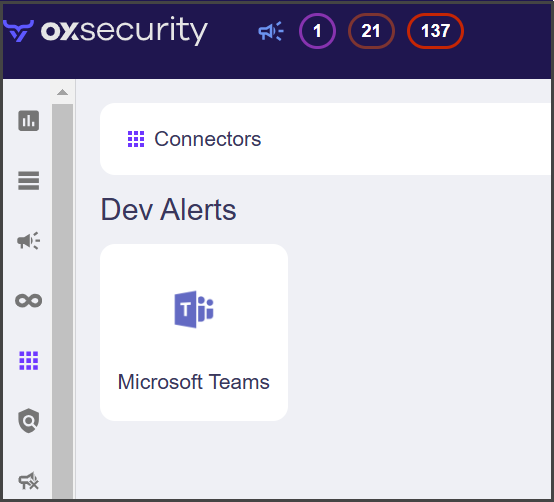
1. In the **OX app**, go to **Connectors** and search for Microsoft Teams.
2. Select **Microsoft Teams**. The **Configure your Microsoft Teams credentials** dialog appears.
3. Select **CONNECT**. The Microsoft Teams connector is configured.
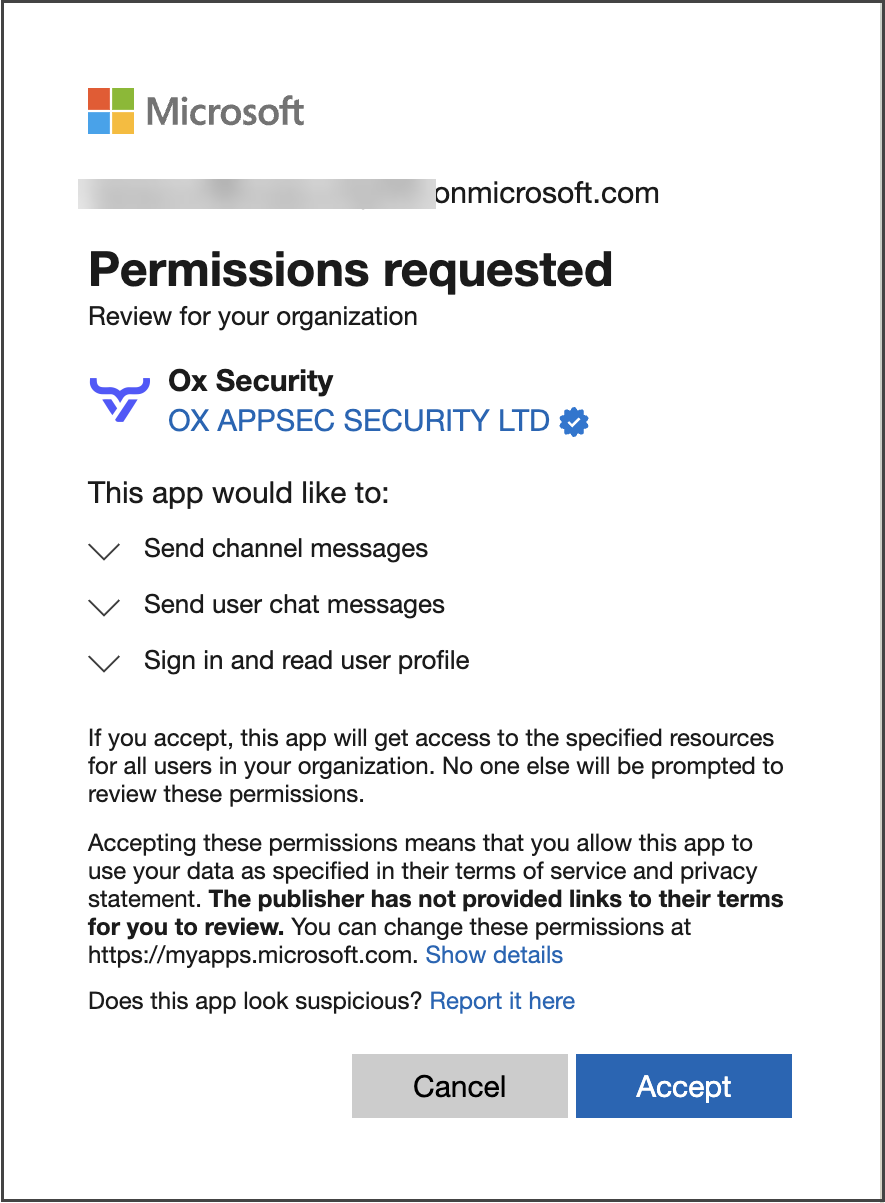
4. In case you do not have the administrative access to Microsoft Azure Admin Center, the permissions request appears.
5. Select **Accept**.
## Viewing OX in Microsoft Entra admin center
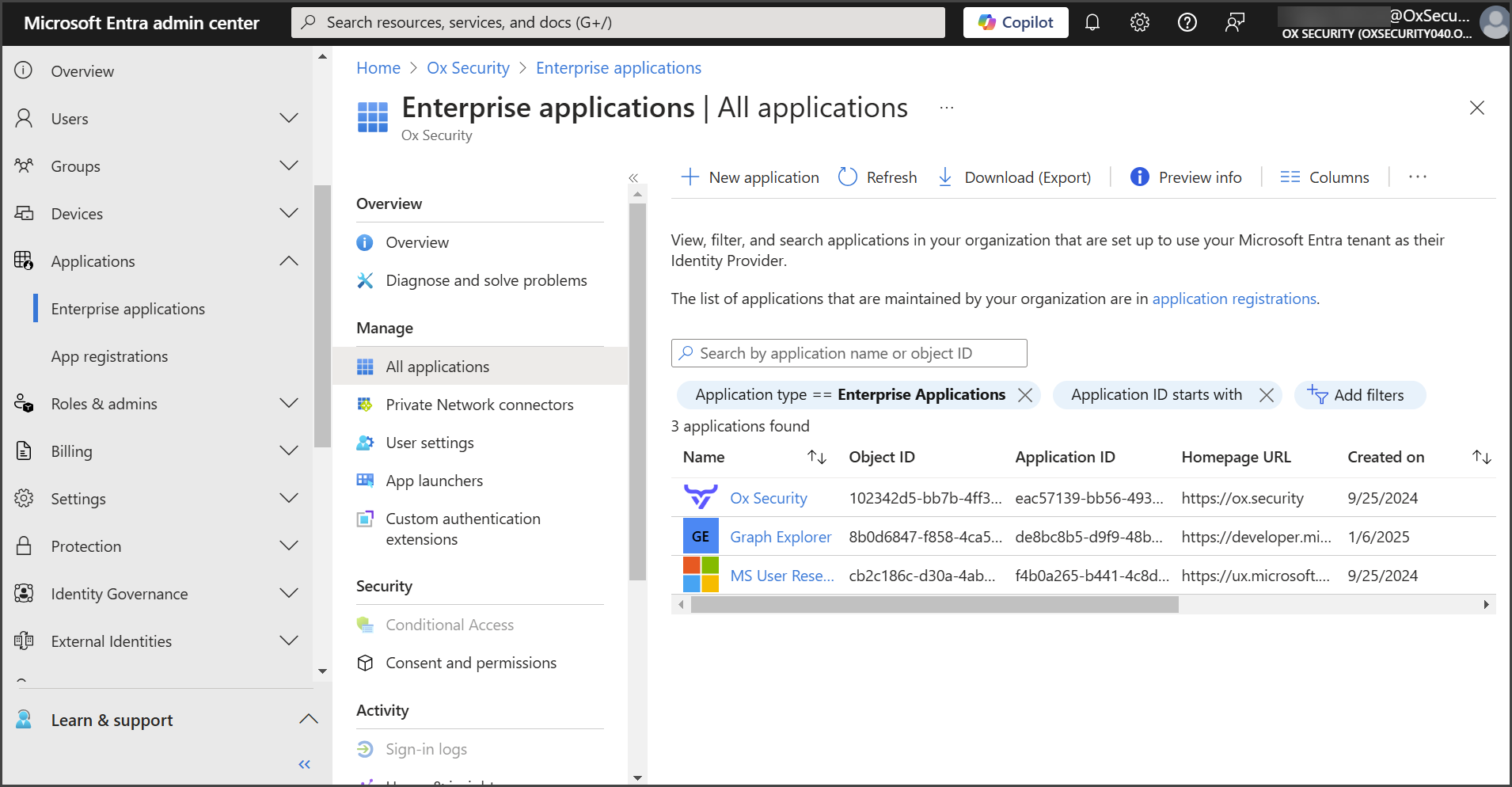
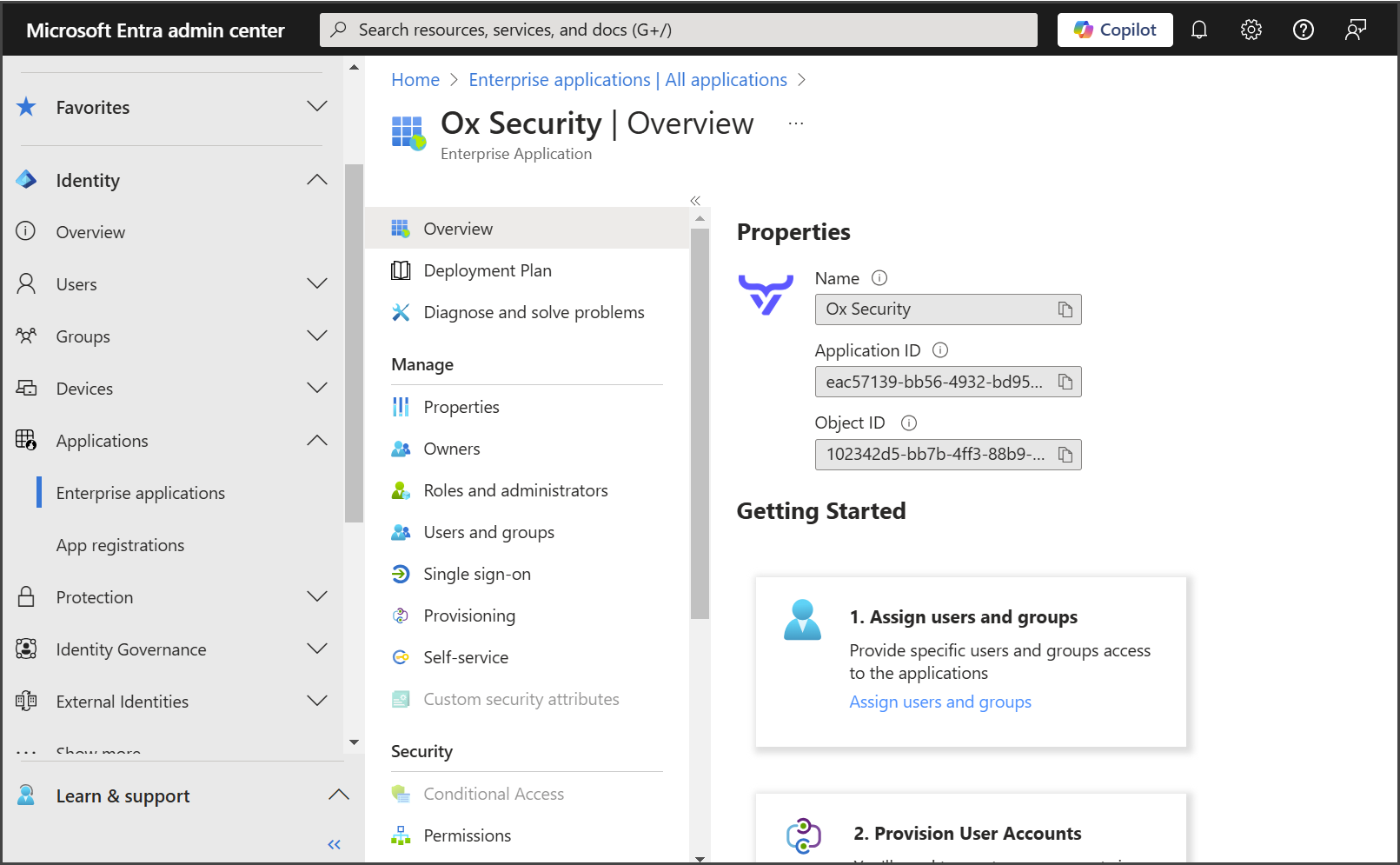
1. Go to **Microsoft Entra admin center,** login and select **Applications** **>** **Enterprise Applications**.
2. From the right pane, select **OXSecurity**. The **OX Security Overview** pane appears.
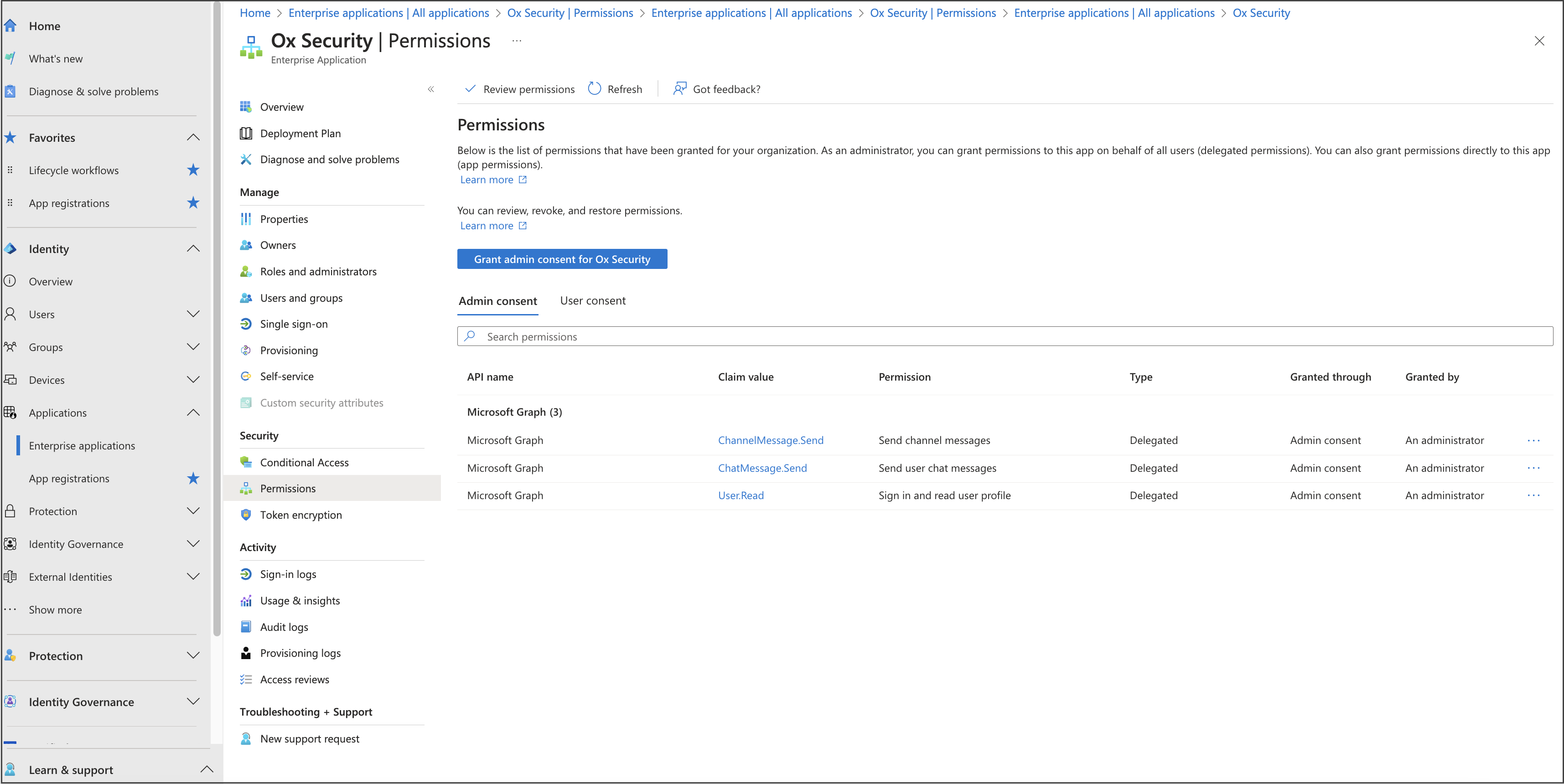
3. From the left pane, select **Permissions**. The **Permissions** pane appears, displaying the list of the channels through which you can get messages to Teams.
## Sending a Teams message about an issue
1. In the **OX app**, go to **Active Issues,** select the issue about which you want to send a message to Microsoft Teams, and in the issue property section, select the Teams icon. The **Send message to Teams** dialog appears.
2. Select one or more destinations for the message:
* **Recipients**: Select one or more Microsoft Teams users to receive the message directly.
* **Teams**: Select one or more Microsoft Teams.
* **Channels**: After selecting one or more teams, select one or more channels from the selected teams.
> **Note**
>
> Channels are available only after you select at least one team because Microsoft Teams channels belong to a specific team.
3. (Optional) Enter a comment to include in the message.
4. Select **SEND**.
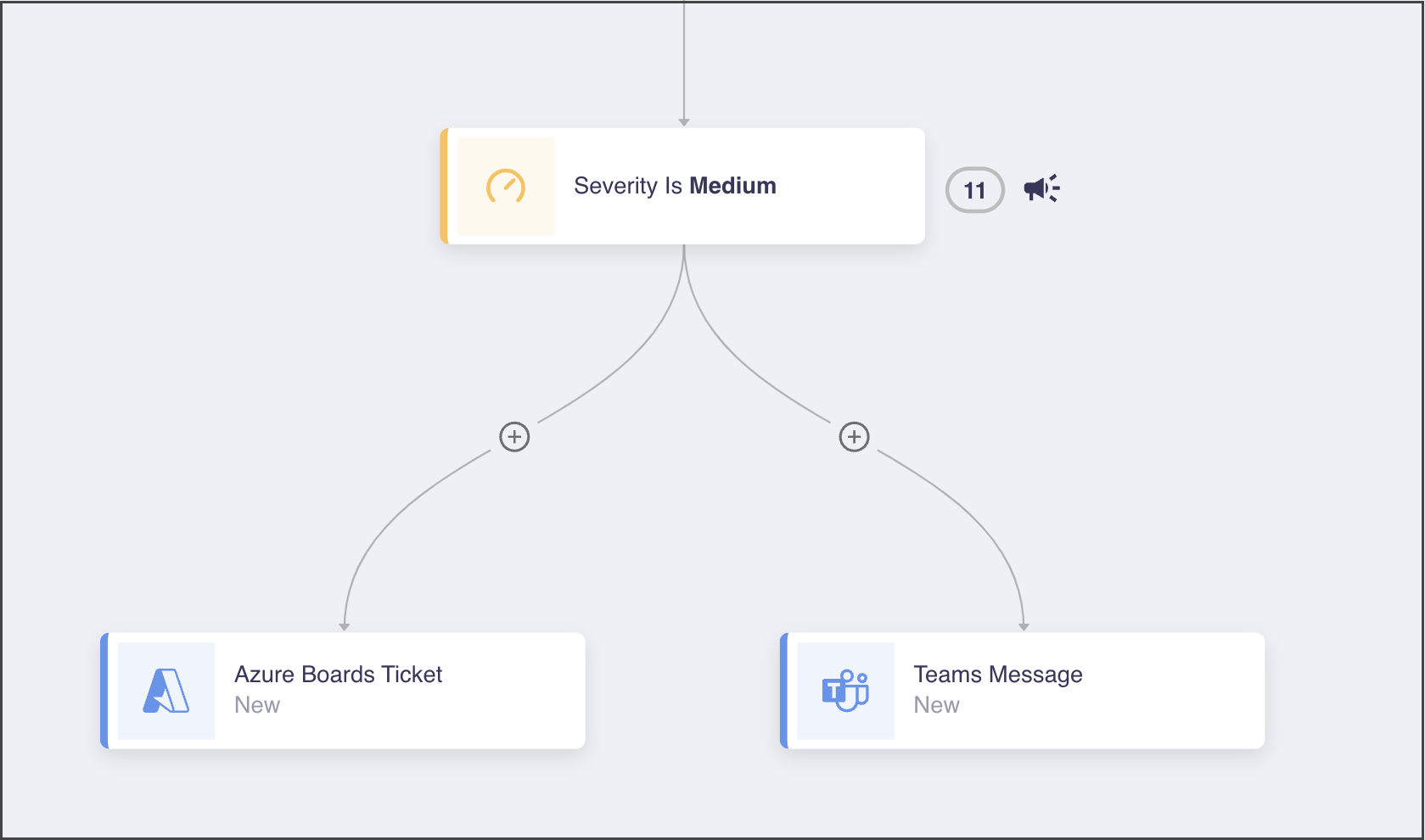
## Adding Teams messages to workflows
1. In the **OX app**, go to **Workflows** and select the workflow to which you want to add sending Teams messages.
2. In the workflow, find the step to which you want to add the Teams-related action and click **+**.
3. Select **Action > Teams** and set the following:
| Field | Description |
| --------------------- | ------------------------------------------------------------------------------------------------------------------------------------------------------ |
| **Select recipients** | Select one or more Microsoft Teams users to receive the notification directly. |
| **Select teams** | Select one or more Microsoft Teams. |
| **Select channels** | After selecting one or more teams, select one or more channels from the selected teams. Only channels that belong to the selected teams are available. |
| **Comment** | Optional text to include in the Teams message. |
| **Apply to** | Specify whether the action applies to new, updated, existing, or all matching issues. |
> **Note**
>
> Channels are available only after you select at least one team because Microsoft Teams channels belong to a specific team.
4. Select **ADD**. The new action appears in the workflow.
---
# Agent Instructions
This documentation is published with GitBook. GitBook is the documentation platform designed so that both humans and AI agents can read, navigate, and reason over technical content effectively. Learn more at gitbook.com.
## Querying This Documentation
If you need additional information that is not directly available in this page, you can query the documentation by asking a question.
Perform an HTTP GET request on the following URL with the `ask` and `goal` query parameters:
```
GET https://docs.ox.security/ticketing-and-messaging/messaging/microsoft-teams.md?ask=&goal=
```
`ask` is the immediate question: it should be specific, self-contained, and written in natural language.
`goal` is what the user is ultimately trying to achieve, the reason they need the answer. Sharing it helps GitBook give you a better, more relevant answer. A goal is most helpful when it describes the outcome the user wants rather than restating the question. For example, with `ask=how do I create an API token`, a goal like `automate deployments from our CI pipeline` lets GitBook tailor the answer to that use case.
The response will contain a direct answer to the question and relevant excerpts and sources from the documentation.
Use this mechanism when the answer is not explicitly present in the current page, you need clarification or additional context, or you want to retrieve related documentation sections.


.png?alt=media)
.png?alt=media)