# Slack

Integrate Slack with OX to receive real-time security alerts, incident updates, and workflow notifications directly within your Slack channels or private messages.

This integration streamlines incident management, reduces response time, enhances team collaboration, and enables you to:

* Send information about an individual issue to Slack
* Add OX-Slack related tasks as part of OX workflows

## Connection methods

You can connect OX to Slack in one of two ways:

* [OX Slack App](#connect-with-the-ox-slack-app): Use the published OX Security Alerts Slack app. It will be added to your Slack workspace during authorization.
* [Token](#connect-with-a-token): Use your own Slack app by providing its Bot User OAuth Token. For this method, add the permission scopes described in the section [Permission scopes](#permission-scopes).

## Prerequisites

<table><thead><tr><th width="145.00006103515625" valign="top">Connection</th><th width="242.33331298828125" valign="top">OX</th><th valign="top">Slack</th></tr></thead><tbody><tr><td valign="top">OX Slack App</td><td valign="top">Permission to configure connectors</td><td valign="top">Workspace with installation permissions</td></tr><tr><td valign="top">Slack Token</td><td valign="top">Permission to configure connectors</td><td valign="top">Workspace with installation permissions<br><br>A Slack app with permissions listed in the section <a href="#permission-scopes">Permission scopes</a>.</td></tr></tbody></table>

## Permission scopes

Both connection methods use the OAuth scopes listed in the table.

* The Slack integration requests OAuth scopes to enable OX to display the list of channels (public and private) and people in your workspace. This allows you to choose where to send an issue.
* Once you've made your selection, OX needs permission to send the message to that channel or person.
* If you use the OX Slack app method, the scopes are automatically configured when you authorize the OX Security Alerts app. If you connect with a token, you add the scopes yourself.

<table><thead><tr><th width="180.199951171875" valign="top">Scope</th><th width="172.06671142578125" valign="top">Required / Optional</th><th valign="top">Description</th></tr></thead><tbody><tr><td valign="top">chat:write</td><td valign="top">Required</td><td valign="top">Send messages as the app (alerts and issue notifications).</td></tr><tr><td valign="top">channels:read</td><td valign="top">Required</td><td valign="top">View basic information about public channels so you can select where to publish an issue.</td></tr><tr><td valign="top">groups:read</td><td valign="top">Required</td><td valign="top">View basic information about private channels so you can select where to publish an issue.</td></tr><tr><td valign="top">users:read</td><td valign="top">Required</td><td valign="top">View people in the workspace (for the channel/user picker).</td></tr><tr><td valign="top">users:read.email</td><td valign="top">Required</td><td valign="top">View email addresses of people in the workspace (to resolve users by email when needed).</td></tr><tr><td valign="top">chat:write.public</td><td valign="top">Optional</td><td valign="top">Send messages to public channels the app is not a member of.<br><br>Only required when posting to a channel the app has not been added to.</td></tr></tbody></table>

For full scope descriptions, see[ Slack's OAuth scopes documentation](https://api.slack.com/scopes).

## Connect with the OX Slack App

Use the published OX Security Alerts Slack app. The connection process adds the app to your Slack workspace during authorization. The OX Security Alerts app includes the required OAuth scopes.

1. Verify that the [prerequisites ](#prerequisites)are in place.
2. In the OX app, go to **Connectors > Dev Alerts** and select **Slack**.
3. In **Configure your Slack credentials,** select **IDENTITY PROVIDER**.
4. Select **VERIFY CONNECTIVITY**.\
   A green success message at the bottom of the screen indicates a successful connection. If verification fails, check your credentials and permissions.
5. Select **CONNECT**.
6. You are redirected to Slack to authorize OX Security Alerts.
7. In Slack, review the requested permissions and select **Allow**.<br>

   <div align="left"><figure><img src="https://884876233-files.gitbook.io/~/files/v0/b/gitbook-x-prod.appspot.com/o/spaces%2FdK3XMLdV8zRg847RmGmZ%2Fuploads%2Fgit-blob-c2229f9121513be66e429a479aab5868cf98be59%2Fslack%20idp%20allow.png?alt=media" alt="" width="434"><figcaption></figcaption></figure></div>
8. After authorization, you are returned to OX.

The Slack connector is configured and ready to use.

## Connect with a Token

#### Step 1: Create a Slack app \[Slack]

1. Verify that the [prerequisites ](#prerequisites)are in place.
2. Create a Slack app in the[ Slack API](https://api.slack.com/apps) (or use an existing one).
3. In your app's **OAuth & Permissions**, scroll down to **Bot Token Scopes**.
4. Add the required scopes listed in the [permissions scopes table](#permission-scopes). As a minimum, add:
   * chat:write
   * channels:read
   * groups:read
   * users:read
   * users:read.email
   * Add chat:write.public if you need to post to public channels the app is not in.
5. Install or reinstall the app to your workspace.
6. Copy the Bot User OAuth token (starts with xoxb-).\
   **Best practice:** Store the Bot User OAuth token securely. OX uses it to call the Slack API on your behalf within the scopes you granted.

#### Step 2: Connect to OX \[OX]

1. In the OX app, go to **Connectors > Dev Alerts** and select **Slack**.<br>

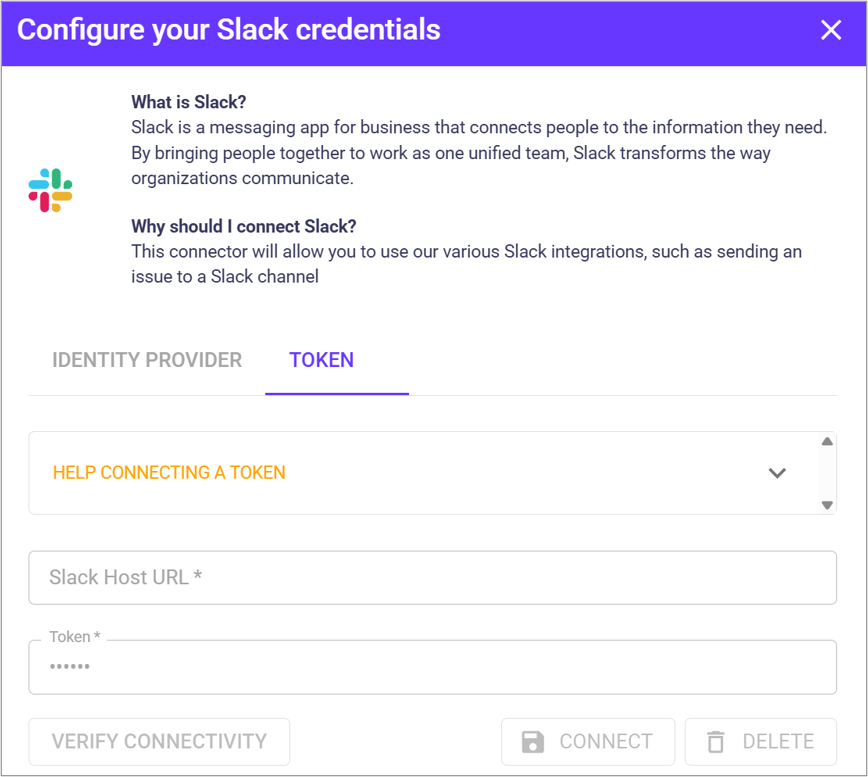
   <div align="left"><figure><img src="https://884876233-files.gitbook.io/~/files/v0/b/gitbook-x-prod.appspot.com/o/spaces%2FdK3XMLdV8zRg847RmGmZ%2Fuploads%2Fgit-blob-ecb4f67d37dd1bcca326460f20e0365ba0d8d3e9%2Fslack%20configure%20token.png?alt=media" alt="" width="375"><figcaption></figcaption></figure></div>
2. In **Configure your Slack credentials**, select **TOKEN**.
3. Enter the following parameters.

<table><thead><tr><th valign="top">Parameter</th><th valign="top">Description</th></tr></thead><tbody><tr><td valign="top">Slack Host URL</td><td valign="top">The Slack URL for your account</td></tr><tr><td valign="top">Token</td><td valign="top">The Slack token</td></tr></tbody></table>

4. Select **VERIFY CONNECTIVITY**.\
   A green success message at the bottom of the screen indicates a successful connection. If verification fails, check your credentials and permissions.
5. Select **CONNECT**.

## Send a message to a Slack channel

You can send issue notifications to Slack channels directly from the Active Issues page.

1. In Active Issues, locate the issue.
2. You can send the message to Slack from the bottom of an issue (left) or from the 3-dots menu (right).<br>

   <figure><img src="https://884876233-files.gitbook.io/~/files/v0/b/gitbook-x-prod.appspot.com/o/spaces%2FdK3XMLdV8zRg847RmGmZ%2Fuploads%2Fgit-blob-9ab9fa015db26dc0975393d2a27eefe5a046f2f6%2Fslack%20send%20from%20issues%20page%20(1).png?alt=media" alt=""><figcaption></figcaption></figure>
3. Select **Send to Slack**.
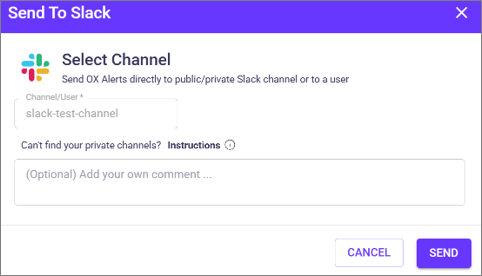
4. The **Send to Slack** dialog opens.

   <div align="left"><figure><img src="https://884876233-files.gitbook.io/~/files/v0/b/gitbook-x-prod.appspot.com/o/spaces%2FdK3XMLdV8zRg847RmGmZ%2Fuploads%2Fgit-blob-1e252fbb1c8d296bb03f03f94e05719682e5ce0c%2Fslack%20sent%20to%20slack%20channel.png?alt=media" alt=""><figcaption></figcaption></figure></div>

   * **Channel/User:** Choose the Slack channel where you want to send the notification.
   * **Add your own comment** (optional): Add a comment to provide additional context.
5. Select **SEND**.

## Add Slack messages to workflows

1. In OX, go to **Workflows**.
2. Select the relevant workflow.
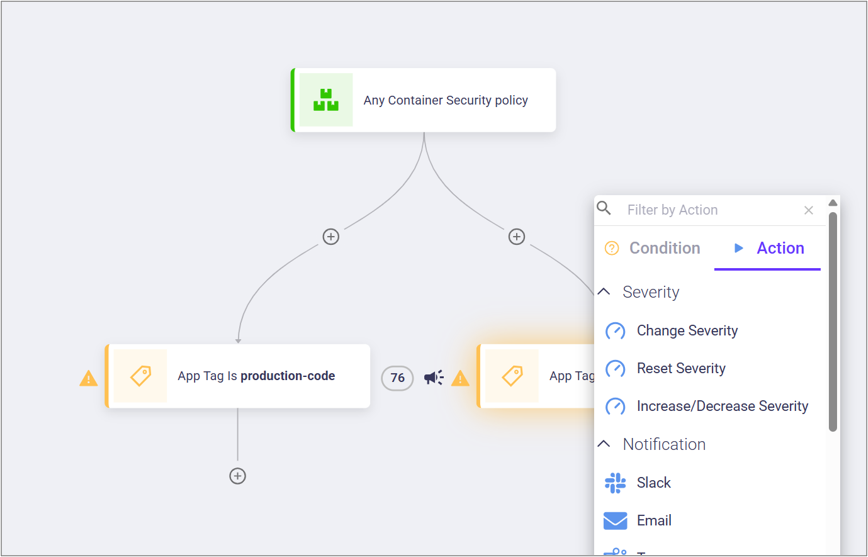
3. Find the workflow step where you want to add the Slack action and select **+**.
4. Select **Action > Slack**.<br>

   <div align="left"><figure><img src="https://884876233-files.gitbook.io/~/files/v0/b/gitbook-x-prod.appspot.com/o/spaces%2FdK3XMLdV8zRg847RmGmZ%2Fuploads%2Fgit-blob-428d9e4d5d38cade86638fe0f78529c72a7b3d06%2Fslack%20send%20from%20workflow.png?alt=media" alt="" width="563"><figcaption></figcaption></figure></div>
5. Configure the following settings.

<table><thead><tr><th width="222.5333251953125" valign="top">Setting</th><th valign="top">Description</th></tr></thead><tbody><tr><td valign="top">Select channel</td><td valign="top">Choose the Slack channel where notifications should be sent</td></tr><tr><td valign="top">(Optional)<br>Add your own comment</td><td valign="top">Add a custom message to provide additional context. It's good practice to explain the reason for the notification.</td></tr><tr><td valign="top">Execute on</td><td valign="top"><p>Select the condition that triggers this action:</p><p>• New, Updated or Existing Issues<br>• Periodic</p></td></tr></tbody></table>

6. Select **ADD**.

The new Slack action appears in the workflow.\
When the workflow runs and the specified condition is met, OX sends a notification to the configured Slack channel.