> For the complete documentation index, see [llms.txt](https://docs.ox.security/llms.txt). Markdown versions of documentation pages are available by appending `.md` to page URLs; this page is available as [Markdown](https://docs.ox.security/ticketing-and-messaging/ticket-management/github-issues.md).
# GitHub Issues
GitHub is a widely used platform for version control and collaborative software development. It enables teams to manage repositories, track issues, and collaborate efficiently through pull requests, code reviews, and project boards.
Integrating OX Security with GitHub enhances your software development lifecycle by embedding security insights directly into your GitHub workflow, as follows:
* **Automated Issue Tracking**: Security findings detected by OX Security can be logged as issues or pull requests in GitHub, ensuring that vulnerabilities are tracked and addressed promptly.
* **Seamless Collaboration**: Developers, security teams, and project managers can manage security-related tasks within their existing GitHub environment, streamlining the remediation process and improving team collaboration.
* **Improved Security Visibility**: The integration provides clear visibility into security risks within the development pipeline, helping teams prioritize and resolve issues more efficiently.
* **Enhanced Compliance Management**: Organizations can ensure compliance by tracking security-related tasks alongside other development activities, simplifying audits and reporting.
## Adding GitHub Tickets
After [establishing the connection with GitHub](#connecting-to-github-issues), you can add GitHub tickets for a variety of tasks and issues in OX using one of the following methods:
* Adding a new ticket to an issue, or bulk of issues.
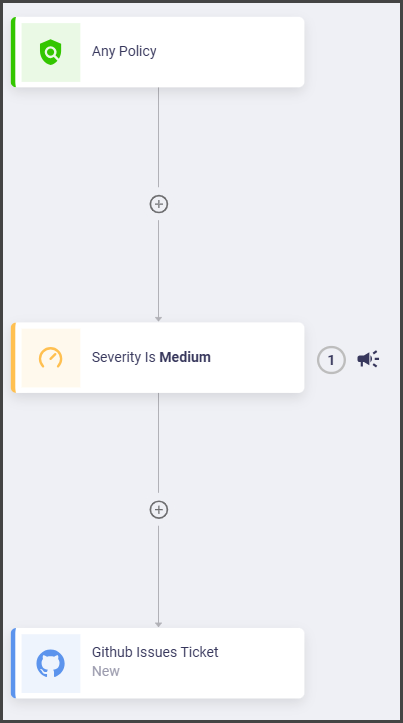
* Adding a new ticket as a scheduled task using workflows.
**To add a new GitHub ticket in OX:**
1. In the **Issues** page, identify and select the issue for which you want to add a ticket in GitHub.
2. Select the GitHub icon.
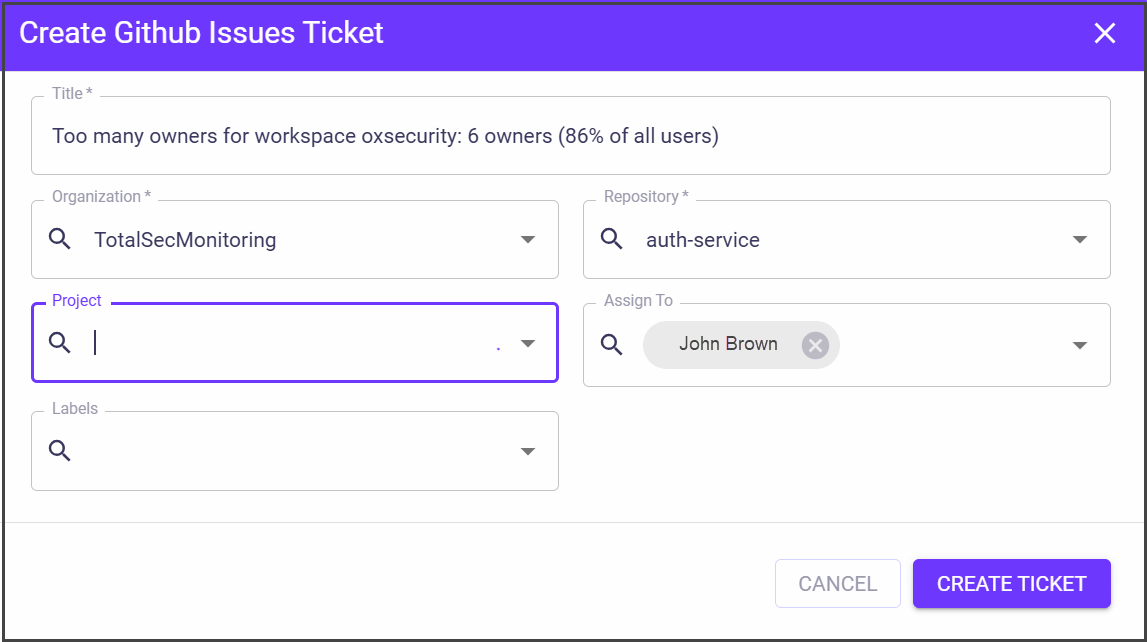
3. Set the ticket parameters in the **Create GitHub Issue Ticket** dialog.
| Parameter | Description |
| ---------------- | ---------------------------------------------------------------------------------------------- |
| **Title** | The title of the ticket that describes the problem/issue, as it appears in the OX Issues page. |
| **Organization** | Your organization name. |
| **Project** | The name of the project, as it's defined in GitHub. |
| **Labels** | Select GitHub labels. |
| **Repository** | Select the repository where the issue was identified. |
| **Assigned To** | Select the person to who you want to assign the ticket. |
4. Select **CREATE TICKET**.
The new ticket appears in GitHub.
## Connecting to GitHub Issues
### Prerequisites
GitHub account.
{% hint style="info" %}
OX integration supports GitHub private repositories only.
{% endhint %}
### Connect to GitHub Issues
1. [Get a GitHub token.](/get-started/onboarding-to-ox/source-control/github/github-token/getting-github-tokens.md)
2. In the **OX** platform, go to **Connectors** and search for **GitHub Issues**.
3. Select **GitHub Issues** and set the following parameters in the **Configure your GitHub Issues credentials** dialog.
| Parameter | Description |
| -------------------------- | --------------------------------------------------------------------------------------------------------------- |
| **GitHub Issues Host URL** | Add your GitHub organization account URL. |
| **Token** | Paste the GitHub token you have created. |
| **Token Name** |
The token name is automatically generated by OX. You can change/edit the connection name at any time.
|
4. Select **CONNECT**. The success message appears.
---
# Agent Instructions
This documentation is published with GitBook. GitBook is the documentation platform designed so that both humans and AI agents can read, navigate, and reason over technical content effectively. Learn more at gitbook.com.
## Querying This Documentation
If you need additional information that is not directly available in this page, you can query the documentation dynamically by asking a question.
Perform an HTTP GET request on the current page URL with the `ask` query parameter, and the optional `goal` query parameter:
```
GET https://docs.ox.security/ticketing-and-messaging/ticket-management/github-issues.md?ask=&goal=
```
`ask` is the immediate question: it should be specific, self-contained, and written in natural language.
`goal` is optional and describes the broader end goal you are ultimately trying to accomplish on behalf of the user. GitBook uses it to tailor the answer towards what is most useful for that goal.
The response will contain a direct answer to the question and relevant excerpts and sources from the documentation.
Use this mechanism when the answer is not explicitly present in the current page, you need clarification or additional context, or you want to retrieve related documentation sections.

.png?alt=media)
.png?alt=media)
.png?alt=media)