
> For the complete documentation index, see [llms.txt](https://docs.ox.security/llms.txt). Markdown versions of documentation pages are available by appending `.md` to page URLs; this page is available as [Markdown](https://docs.ox.security/vibesec/installing-vibesec/installing-vibesec.md).

# Installing VibeSec on a Single Device Using OAuth

This guide explains how to install and connect VibeSec to AI-powered coding environments using hooks and OAuth authentication.

Once the connection is established, VibeSec activates automatically in your development environment and applies security controls during coding, without interrupting your workflow.

After the installation, your admin can view developer usage and risk-prevention metrics in the [VibeSec Usage Report](/generate-reports/built-in-reports/vibesec-usage-reports.md) in the OX dashboard.

You can [uninstall VibeSec](/vibesec/installing-vibesec/uninstalling-vibesec.md) at any time.

> **Note:** When using Copilot, the following models are not supported with the VS Code Copilot Extension: Gemini 2.5 Pro and GPT-4o. You can disable them before you start working with OX VibeSec. For instructions on how to disable Copilot models, refer to [Disabling Unsupported Copilot Models.](/vibesec/installing-vibesec/disabling-unsupported-copilot-models.md)

## Prerequisites

<table><thead><tr><th width="310.66668701171875">Prerequisite</th><th>Details</th></tr></thead><tbody><tr><td>Network access</td><td>If your organization restricts outbound network traffic (for example, using a proxy or firewall), add the following domains to your allowlist:<br><br><code>api.cloud.ox.security*</code><br><code>ox-vibesec.s3.eu-west-1.amazonaws.com*</code></td></tr><tr><td>Auto-provisioning for new OX users</td><td>If you authenticate using OAuth and your developers do not already have OX user accounts, ensure that auto-provisioning is enabled in your OX settings.<br><br>This allows OX to automatically create a user for each developer upon first login.<br><br>To enable auto-provisioning, see <a href="/pages/C7DVWqndB3NuLw3uN3Ry">Sign in to OX</a> for instructions.</td></tr></tbody></table>

## Install VibeSec on Cursor, Claude Code, VS Code IDE Extension, and VS Code Copilot Extension

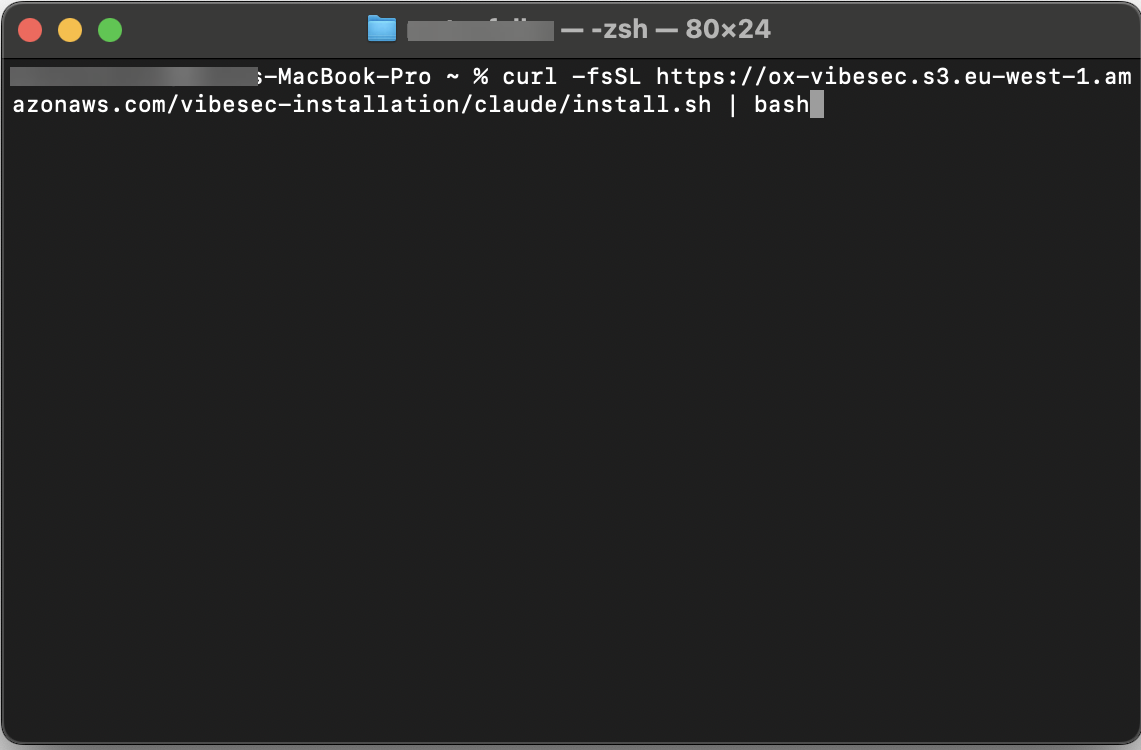
1. From any terminal, run:

**Mac**

```
curl -fsSL https://ox-vibesec.s3.eu-west-1.amazonaws.com/vibesec-installation/install.sh | bash -s -- --ox-flag
```

**Linux**

```
wget -qO- https://ox-vibesec.s3.eu-west-1.amazonaws.com/vibesec-installation/install.sh | bash -s -- --ox-flag
```

**Windows (PowerShell)**

```
& ([scriptblock]::Create((irm https://ox-vibesec.s3.eu-west-1.amazonaws.com/vibesec-installation/install.ps1))) -OxFlag
```

<figure><img src="/files/ywB4BQqETp5WuqQyV4ee" alt="" width="563"><figcaption></figcaption></figure>

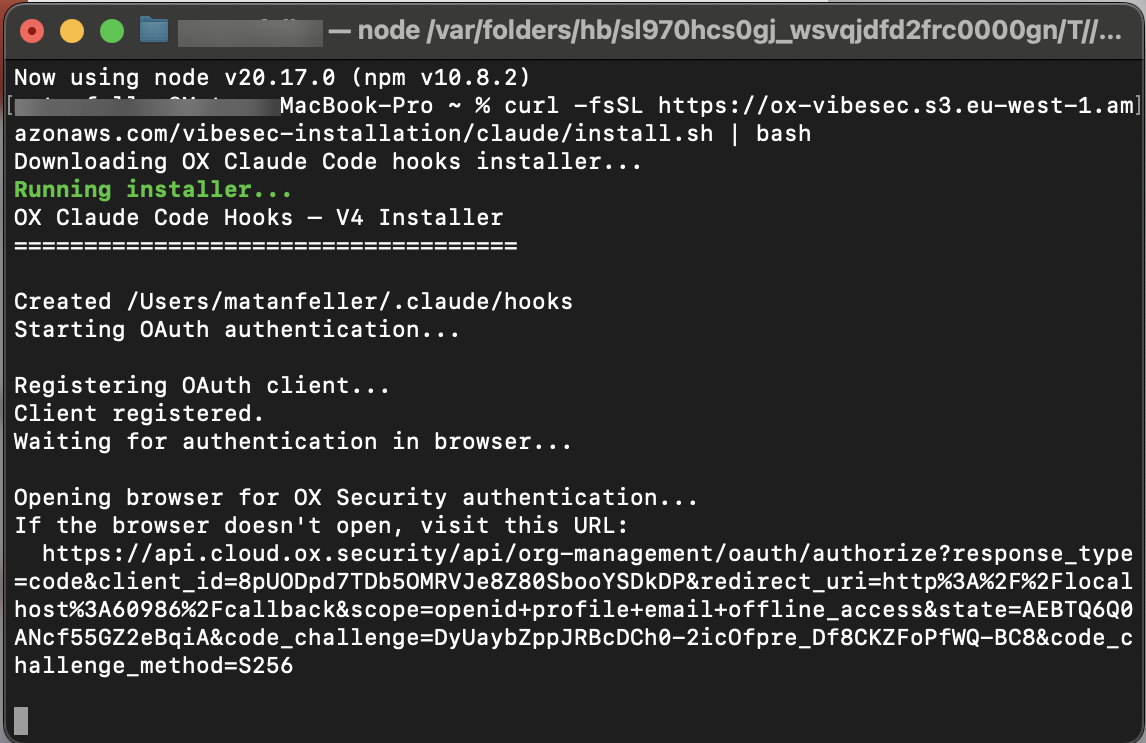
The authentication process starts.

<figure><img src="/files/dHRjsv3FLHHQSvgnTDrl" alt="" width="563"><figcaption></figcaption></figure>

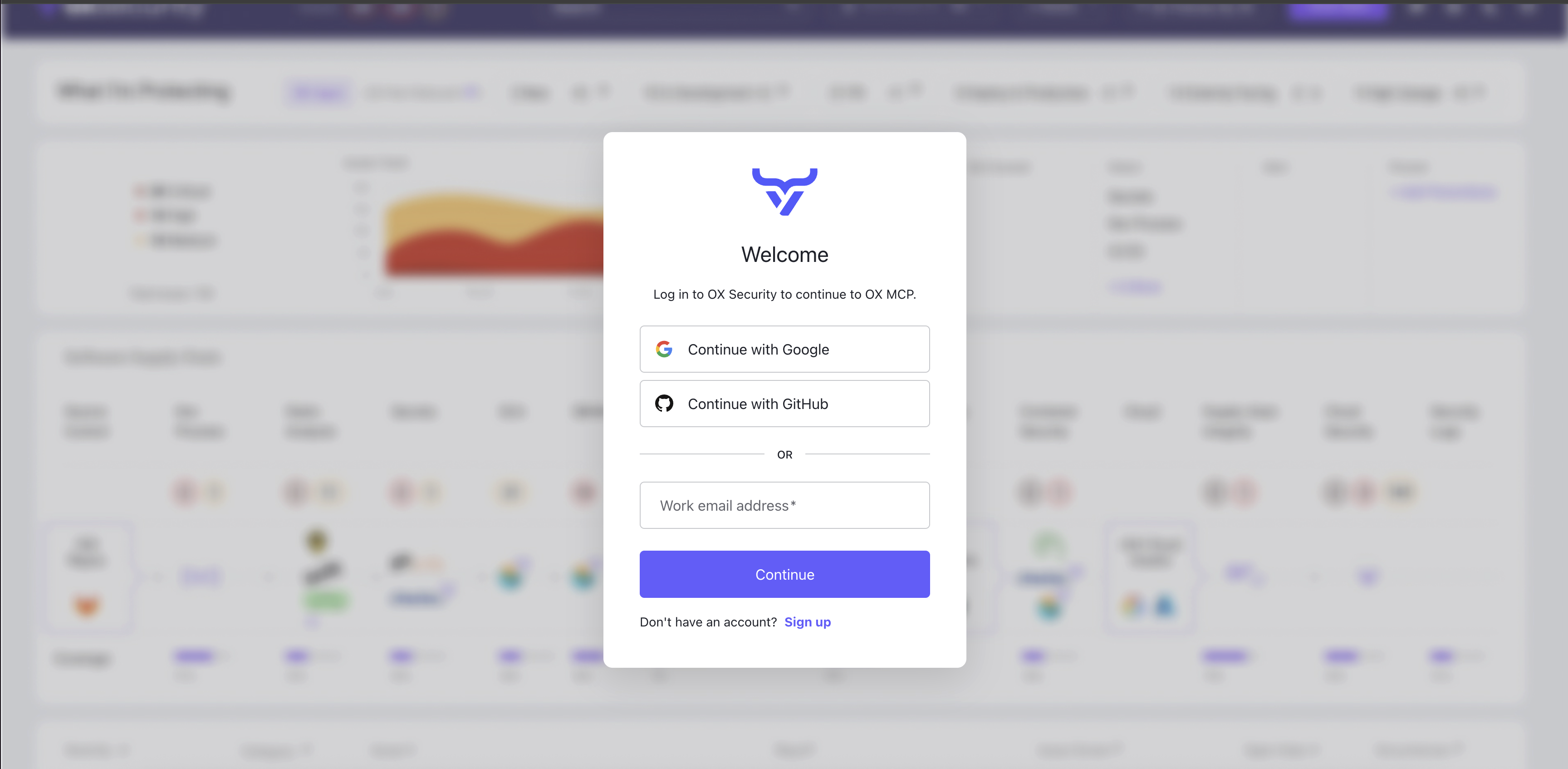
2. Log in to OX.

> **Note**\
> If your organization requires SSO, sign in using your enterprise email address.

<figure><img src="/files/2KwCDoyaC6p0KiIlqfss" alt="" width="563"><figcaption></figcaption></figure>

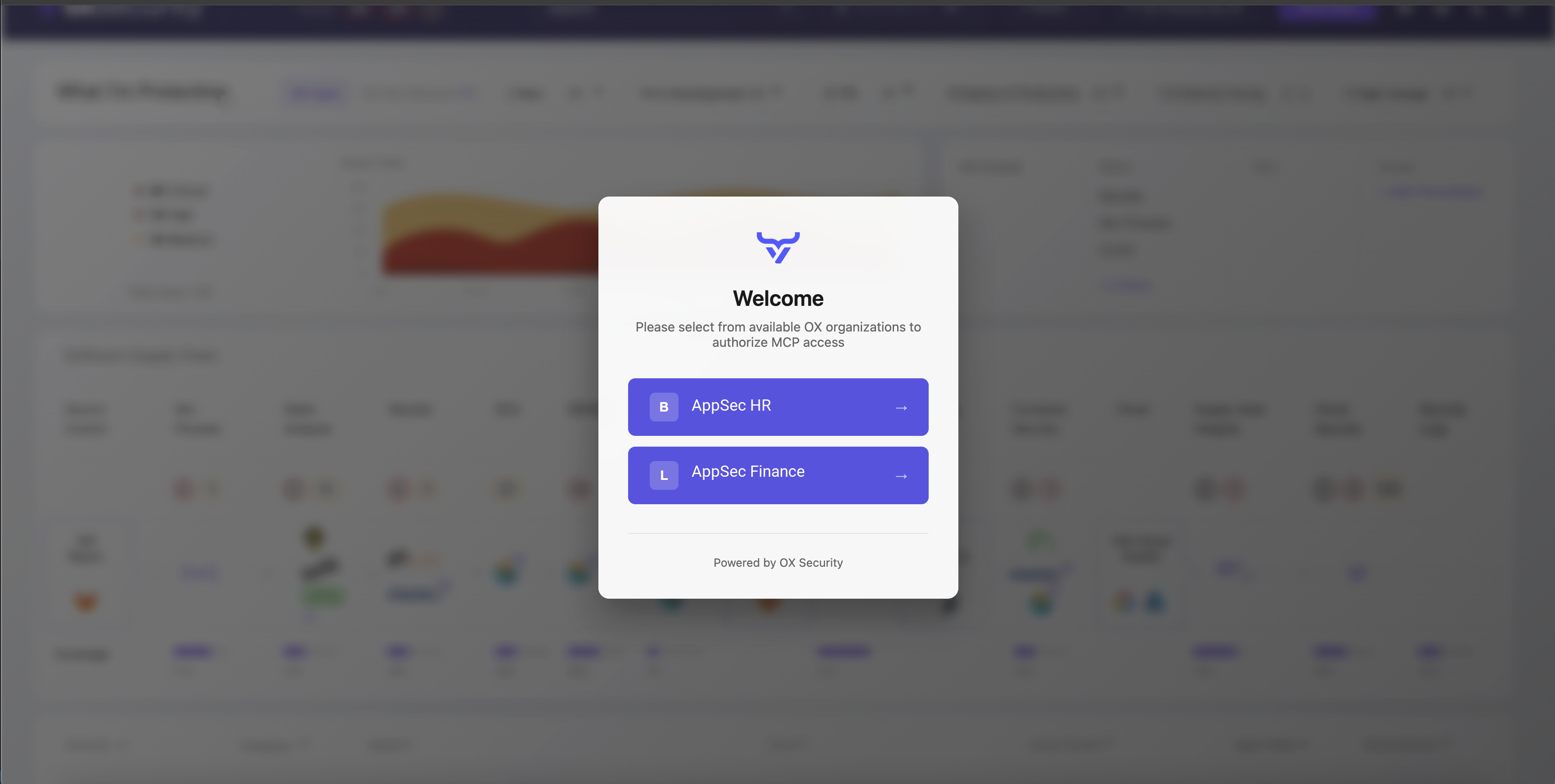
3. Select your organization.

<figure><img src="/files/0iOX7Ku2rgsrjgsMdzy6" alt="" width="563"><figcaption></figcaption></figure>

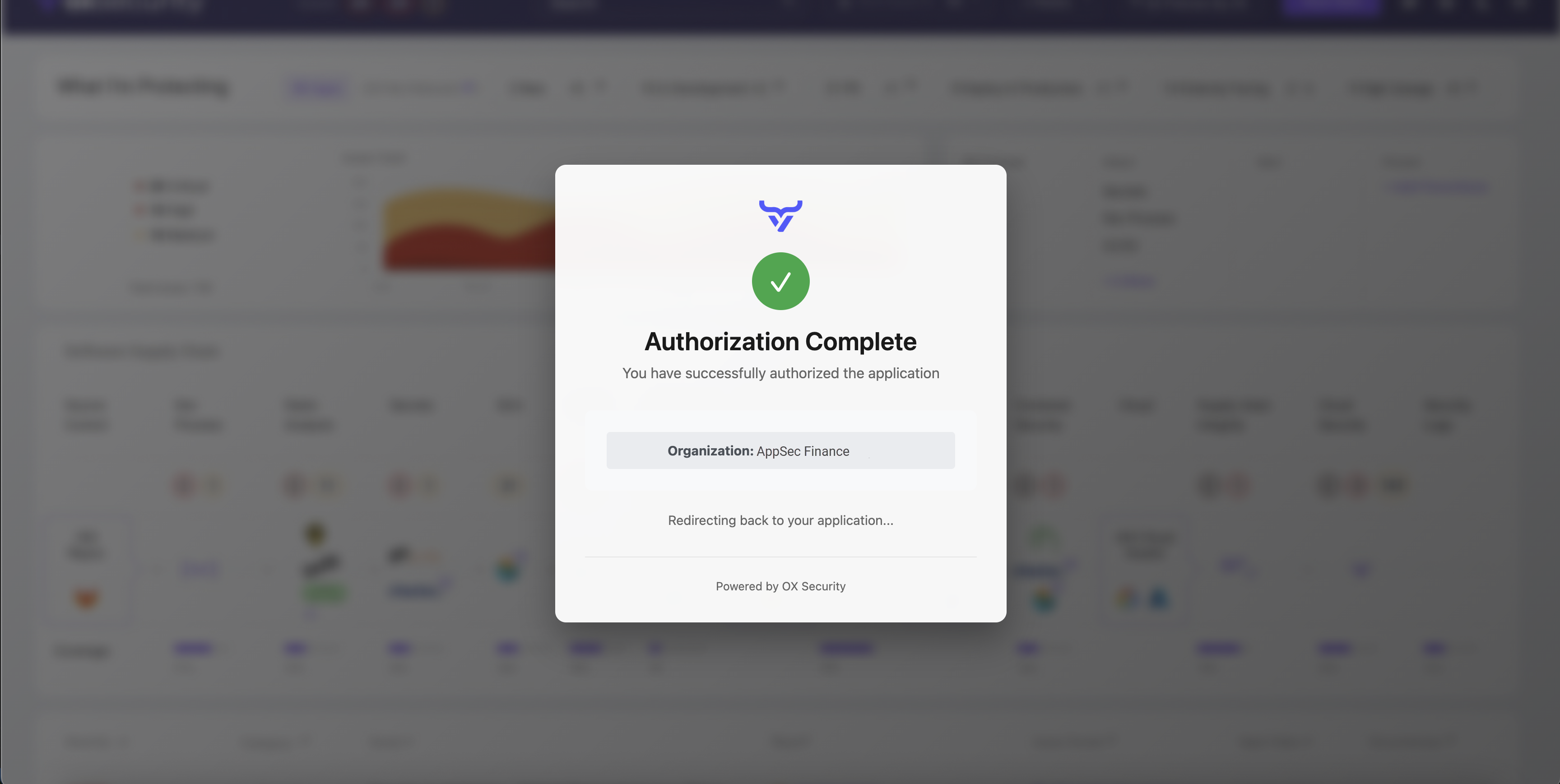
Authorization completion message appears.

<figure><img src="/files/iGBOdvHaOu2hec0XgvaE" alt="" width="563"><figcaption></figcaption></figure>

Authentication completion message appears.

<figure><img src="/files/SCNS70LWfy0vGBn9Orlg" alt="" width="563"><figcaption></figcaption></figure>

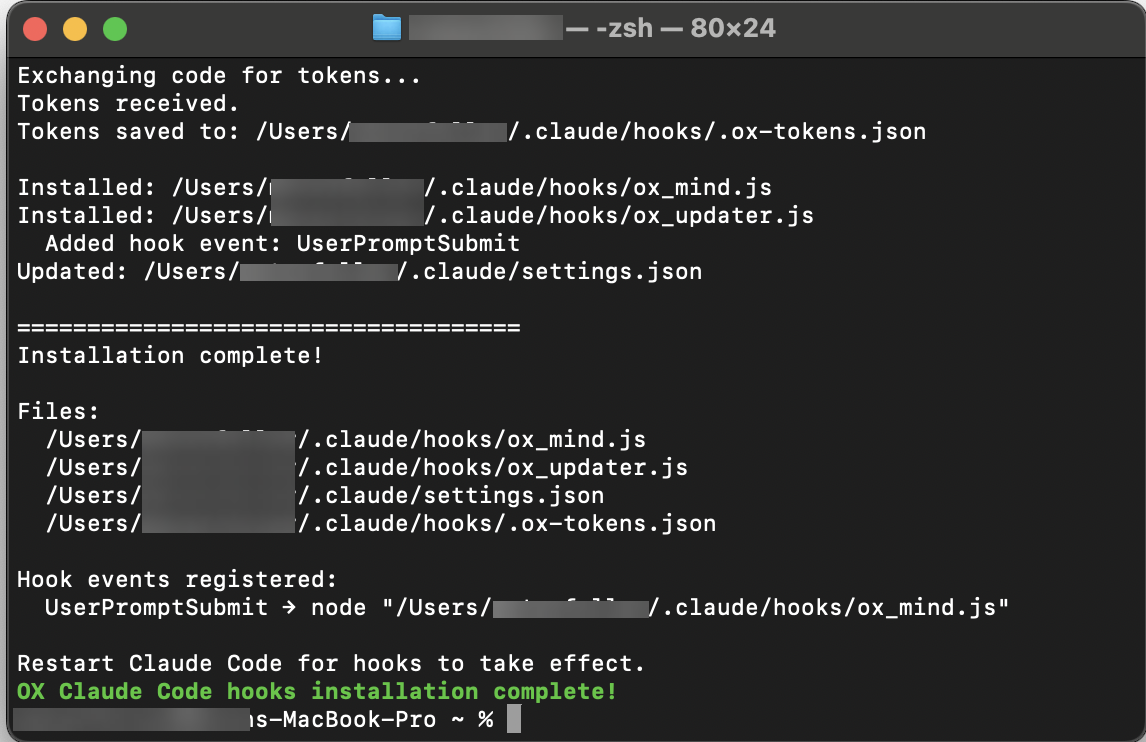
Final completion of the installation process appears.

<figure><img src="/files/getiPlfayb5y90E8A138" alt="" width="563"><figcaption></figcaption></figure>

4. Restart your AI coding tool.

> **Note**\
> It is recommended to test VibeSec with a prompt such as:
>
> `Create a web form that accepts user input and stores it in the database`,
>
> or
>
> `Create a web form that allows the user to upload a file and store it in the database`.


---

# Agent Instructions
This documentation is published with GitBook. GitBook is the documentation platform designed so that both humans and AI agents can read, navigate, and reason over technical content effectively. Learn more at gitbook.com.

## Querying This Documentation
If you need additional information that is not directly available in this page, you can query the documentation dynamically by asking a question.

Perform an HTTP GET request on the current page URL with the `ask` query parameter, and the optional `goal` query parameter:

```
GET https://docs.ox.security/vibesec/installing-vibesec/installing-vibesec.md?ask=<question>&goal=<endgoal>
```

`ask` is the immediate question: it should be specific, self-contained, and written in natural language.
`goal` is optional and describes the broader end goal you are ultimately trying to accomplish on behalf of the user. GitBook uses it to tailor the answer towards what is most useful for that goal.

The response will contain a direct answer to the question and relevant excerpts and sources from the documentation.

Use this mechanism when the answer is not explicitly present in the current page, you need clarification or additional context, or you want to retrieve related documentation sections.
