> For the complete documentation index, see [llms.txt](https://docs.ox.security/llms.txt). Markdown versions of documentation pages are available by appending `.md` to page URLs; this page is available as [Markdown](https://docs.ox.security/automate-with-ox-workflows/pipeline-workflows.md).
# Pipeline Workflows
Pipeline workflows in OX Security automate how OX evaluates and handles issues during CI/CD runs. They build on the standard OX pipeline integration, which [connects your CI/CD system and enables pipeline scanning](/ox-code/scanning/scanning-ci-cd-pipelines.md).
You can use workflows to configure conditions, such as severity levels or issue types, and specify whether to block the pipeline or raise an alert.
OX Security provides the following configuration methods for pipeline workflows:
* [Customizing default pipeline workflows](#working-with-the-default-pipeline-workflow)
* [Creating custom pipeline workflows](#creating-a-new-pipeline-workflow)
After configuring a pipeline workflow, you need [to activate it](#activating-pipeline-workflows).
## Working with the default pipeline workflow
OX Security provides a built-in default pipeline workflow. This workflow applies to all applications unless a custom workflow is assigned. It is recommended to work with this workflow when you only need small adjustments.
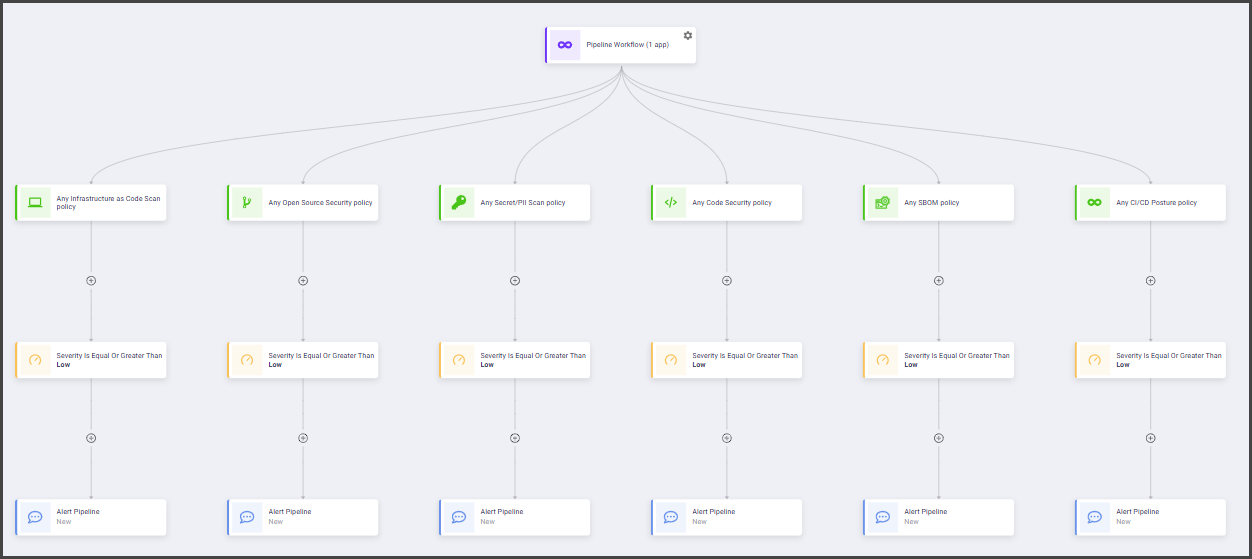
The default pipeline workflow includes predefined conditions and actions for common use cases, and it includes the following elements:
* [**Trigger types:**](/automate-with-ox-workflows/pipeline-workflows/pipeline-triggers.md) The default workflow includes triggers for all supported pipeline events.
* [**Conditions:**](/automate-with-ox-workflows/pipeline-workflows/pipeline-conditions.md) All severities (low and above) are included by default.
* [**Actions:**](/automate-with-ox-workflows/pipeline-workflows/pipeline-actions.md) The default action for all conditions is set to `alert`.
You can view the default workflow by opening any development environment. Even when the workflow is disabled, you can expand it and inspect the configuration without activating it.
You can use a default pipeline workflow or create custom workflows based on your use cases.
**To use the default workflow:**
1. Go to the **Pipeline Workflows** page.
2. Click the **Default** workflow to review its configuration.
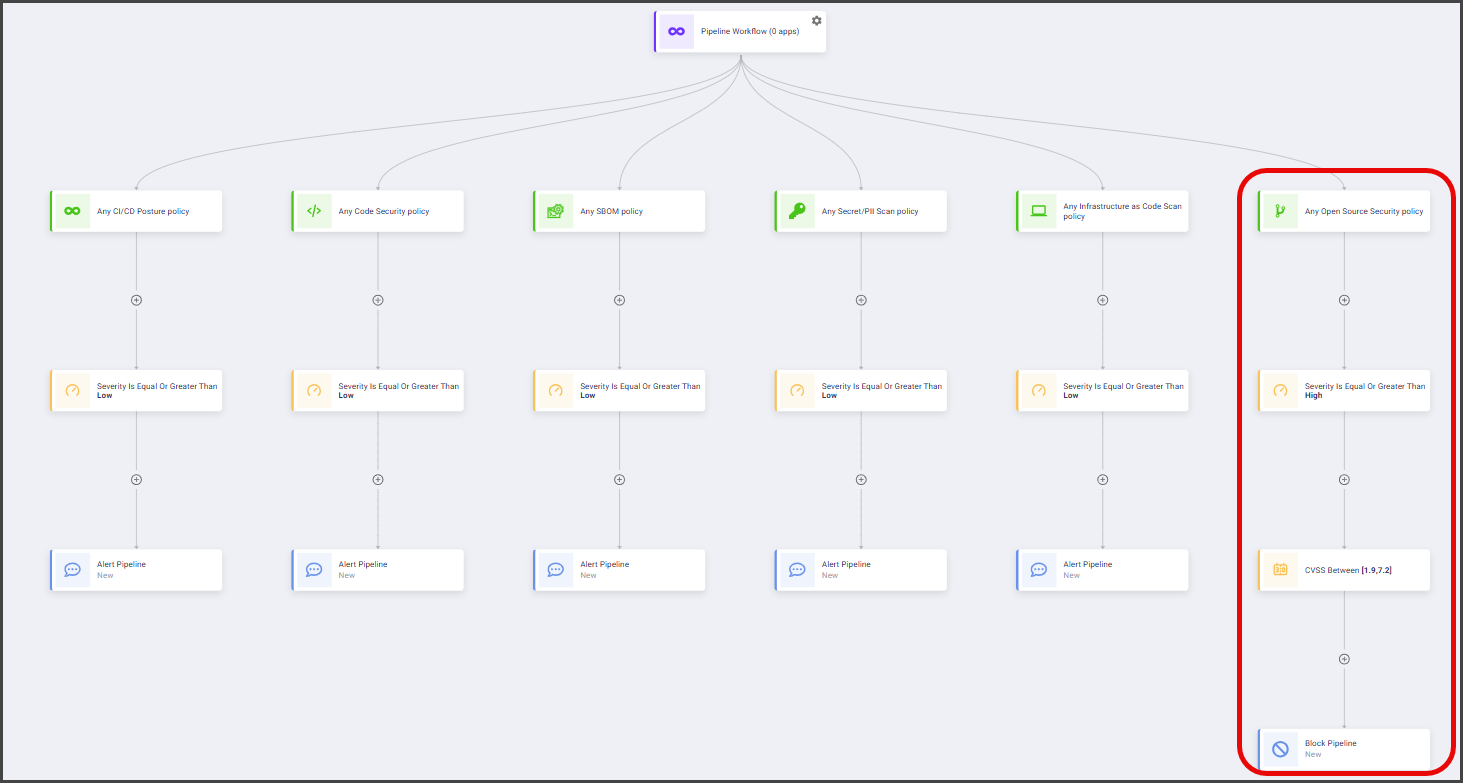
3. Modify the workflow as needed:
* Change alert to block.
* Adjust severity levels.
* Remove or add conditions and actions.
4. Enable the default pipeline workflow.
5. [Activate the default pipeline workflow on the application](#activating-pipeline-workflows).
## Creating a new pipeline workflow
When you need many custom rules or want to separate workflows for different categories such as, secrets, specific branches, or apps, you can create a new workflow.
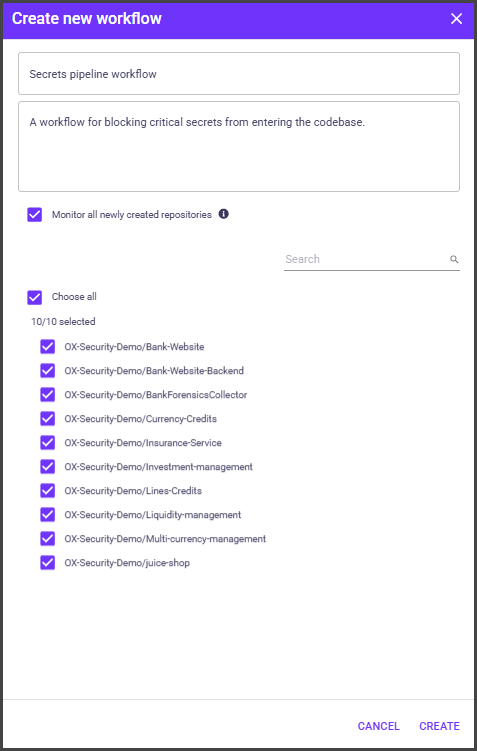
For example, to block critical secrets from entering the codebase, you can create a new workflow. When configured, this workflow ensures that any new secret of critical severity will block the pipeline and prevent the pull request from being merged.
**To create a new workflow:**
1. In the **Pipeline Workflows** page, select **Create New Workflow**.
2. Enter a name and a description for your new workflow.
3. Select the applications or repositories it should apply to and select **CREATE**. A new policy appears on the page.
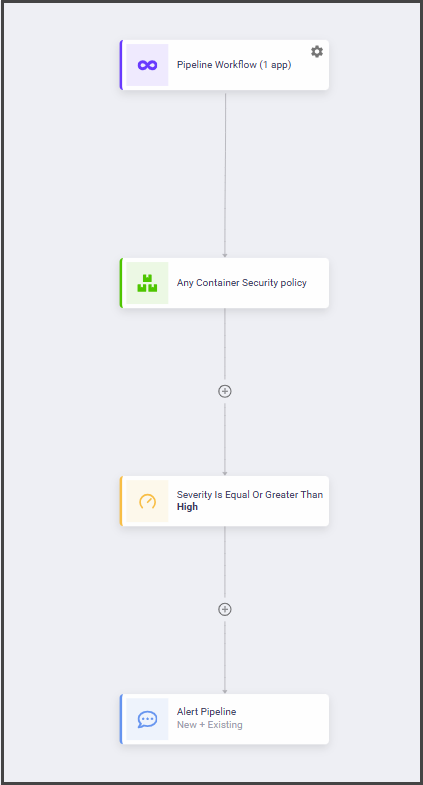
4. Add [triggers](/automate-with-ox-workflows/pipeline-workflows/pipeline-triggers.md), [conditions](/automate-with-ox-workflows/pipeline-workflows/pipeline-conditions.md), and [actions ](/automate-with-ox-workflows/pipeline-workflows/pipeline-actions.md)to your new pipeline workflow.
5. Enable the workflow and [activate it on the application](#activating-pipeline-workflows).
## Activating pipeline workflows
To run the workflow, make sure it is assigned to the application, enabled, and that pipeline integration has been completed for that application.
**To activate a workflow on an application:**
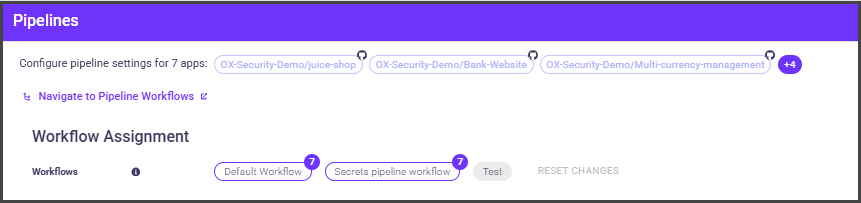
1. Go to the **Applications** page, select the relevant applications, and then select the **Pipeline Workflows** icon.
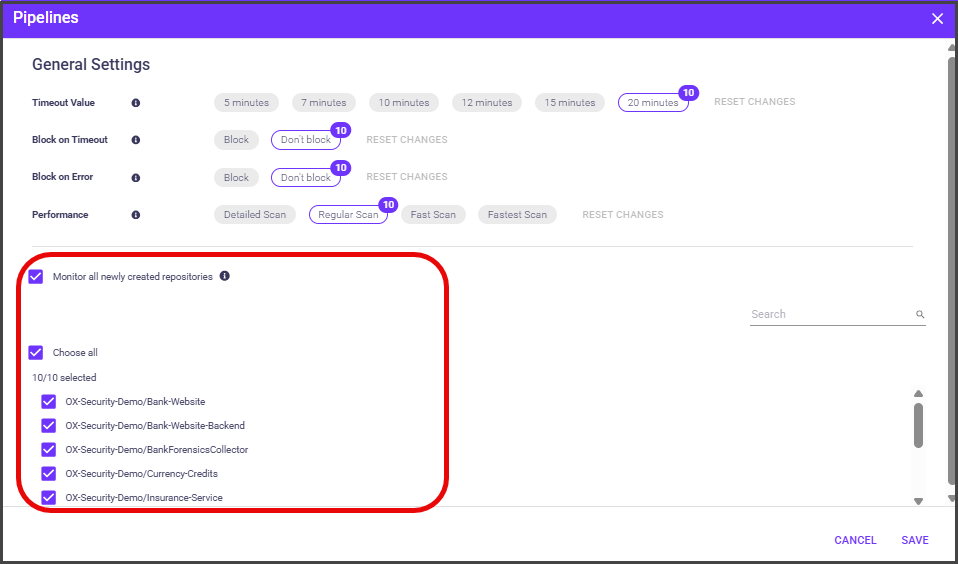
2. In the **Pipelines** dialog box, verify that the relevant pipeline workflows are enabled.
**Alternatively:**
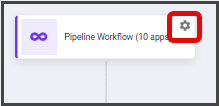
1. On the **Pipeline Workflows** page, click the workflow gear icon.
2. In the **Pipelines** dialog box, select the applications in which you want to activate your pipeline workflow and select **SAVE**.
---
# Agent Instructions
This documentation is published with GitBook. GitBook is the documentation platform designed so that both humans and AI agents can read, navigate, and reason over technical content effectively. Learn more at gitbook.com.
## Querying This Documentation
If you need additional information that is not directly available in this page, you can query the documentation dynamically by asking a question.
Perform an HTTP GET request on the current page URL with the `ask` query parameter, and the optional `goal` query parameter:
```
GET https://docs.ox.security/automate-with-ox-workflows/pipeline-workflows.md?ask=&goal=
```
`ask` is the immediate question: it should be specific, self-contained, and written in natural language.
`goal` is optional and describes the broader end goal you are ultimately trying to accomplish on behalf of the user. GitBook uses it to tailor the answer towards what is most useful for that goal.
The response will contain a direct answer to the question and relevant excerpts and sources from the documentation.
Use this mechanism when the answer is not explicitly present in the current page, you need clarification or additional context, or you want to retrieve related documentation sections.