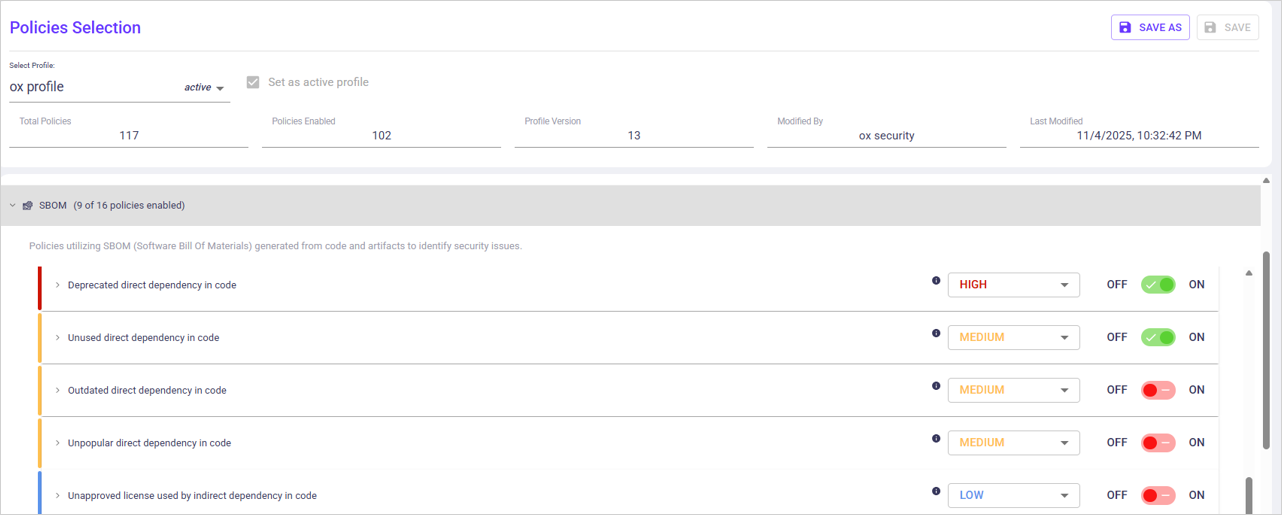

| Item / Setting | Description |
|---|---|
| Severity (dropdown) ON/OFF (toggle) | Change the severity as needed. Enable/disable the policy. |
| Policy text | A description of the implications for using unauthorized licenses for the policy. The description is also available in the tooltip. |
| Optional features | Activate the checkboxes to enable the feature/s. Generate issue for library with N/A licenses When enabled, an issue will be created for libraries that have no licenses. Ignore Application Business Priority for severity calculation When enabled, the severity of an issue is not affected by the Application Business Priority. |
| Approved licenses | Click to open and view all approved licenses. Scroll as needed. The licenses use the standard format SPDX. The list includes the OX default list. Users can add or remove licenses.
OX classifies licenses that are not included in the Approved list a as not approved. To add a license:
To remove a license:
|
| Unapproved licenses | This section gives visibility of licenses that are not approved. To add a license:
To move a license to the Approved list:
To remove a license:
|
| Import tags | Upload a previously exported license list to replace or update the current approved license configuration. |
| Export tags | Download the current approved license list as a file. Use this option to back up your configuration or reuse it in another OX organization. |
| Copy to clipboard | Copy the approved license list to the clipboard for review or manual editing. |

| Item / Setting | Description |
|---|---|
| Severity (dropdown) ON/OFF (toggle) | Change the severity as needed. Enable/disable the policy. |
| Policy text | A description of the implications for using unauthorized licenses for the policy. The description is also available in the tooltip. |
| Optional features | Activate the checkboxes to enable the feature/s Generate issue for library with N/A licenses When enabled, an issue will be created for libraries that have no licenses. Ignore Application Business Priority for severity calculation When enabled, the severity of an issue is not affected by the Application Business Priority. |
| Approved licenses | Click to open and view all approved licenses. Scroll as needed. The licenses use the standard format SPDX. The list includes the OX default list. Users can add or remove licenses.
OX classifies licenses that are not included in the Approved list a as not approved. To add a license:
To remove a license:
|
| Unapproved licenses | To add a license:
To move a license to the Approved list:
To remove a license:
|
| Import tags | Upload a previously exported license list to replace or update the current approved license configuration. |
| Export tags | Download the current approved license list as a file. Use this option to back up your configuration or reuse it in another OX organization. |
| Copy to clipboard | Copy the approved license list to the clipboard for review or manual editing. |

| Item / Setting | Description |
|---|---|
| Severity (dropdown) ON/OFF (toggle) | Change the severity as needed. Enable/disable the policy. |
| Policy text | A description of the implications for using unauthorized licenses for the policy. The description is also available in the tooltip. |
| Optional features | Ignore Application Business Priority for severity calculation. When enabled the severity of an issue will not be affected by the Application Business Priority. |

| Item / Setting | Description |
|---|---|
| Severity (dropdown) ON/OFF (toggle) | Change the severity as needed. Enable/disable the policy. |
| Policy text | A description of the implications for using unauthorized licenses for the policy. The description is also available in the tooltip. |
| Optional features | Ignore Application Business Priority for severity calculation. When enabled, the severity of an issue will not be affected by the Application Business Priority. Click Add to add additional licenses (case sensitive). Click X to remove. Save changes. Use the Enabled checkboxes to apply the setting. |
| Import tags | Upload a previously exported license list to replace or update the current approved license configuration. |
| Export Tags | Download the current approved license list as a file. Use this option to back up your configuration or reuse it in another OX organization. |
| Copy to clipboard | Copy the approved license list to the clipboard for review or manual editing. |


