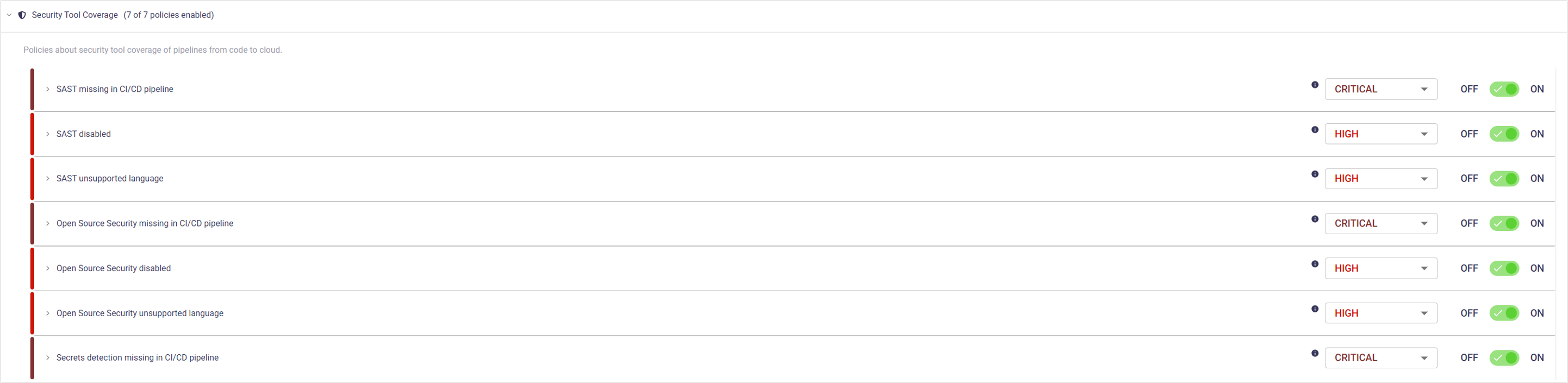

Security Tool Coverage Policies

Security Tool Coverage policies detect missing or incomplete use of required security scanning tools in code repositories and CI/CD pipelines. These policies cover Static Application Security Testing (SAST), Software Composition Analysis (SCA), and secrets detection.

Proper coverage ensures consistent identification of code, dependency, and credential risks before software reaches production.

The article describes the policies in this category, configuration options, and the impact of policy violations. For an overview of policies and policy management, see the Policies arrow-up-rightarticle.

View and manage Security Tool Coverage policies

Open each policy to view the business impact and optional settings.

chevron-rightSAST missing in CI/CD pipelinehashtag

Purpose: Detect code repositories that do not include an approved Static Application Security Testing (SAST) tool in the CI/CD pipeline.

Business impact: Missing SAST coverage allows preventable vulnerabilities to reach production. Common issues such as injection flaws or insecure code patterns may remain undetected. This increases the likelihood of security incidents and raises remediation costs later in the development lifecycle.

Setting
Description
Default

ON/OFF (toggle)

Enable/disable the policy.

ON

SAST (dropdown)

Select one or more approved SAST applications

Current setting

Ignore Application Business Priority for severity calculation (checkbox)

When enabled, severity is not adjusted based on application priority.

OFF

Ignore if OX SAST is enabled

Enable/disable.

ON

chevron-rightOpen Source Security disabledhashtag

Purpose: Detect code repositories where an approved Software Composition Analysis (SCA) tool is configured but not enabled.

Business impact: Disabled SCA prevents detection of known vulnerabilities in third-party dependencies. Insecure or outdated components may remain in use without visibility. This increases exposure to widely exploited flaws and supply chain security incidents.

Setting
Description
Default

ON/OFF (toggle)

Enable/disable the policy.

ON

SCA (dropdown)

Select one or more approved SCA applications.

Current setting

Ignore Application Business Priority for severity calculation (checkbox)

When enabled, severity is not adjusted based on application priority.

OFF

chevron-rightOpen Source Security missing in CI/CD pipelinehashtag

Purpose: Detect code repositories that do not include an approved Software Composition Analysis (SCA) tool in the CI/CD pipeline.

Business impact: Missing SCA coverage allows vulnerable third-party dependencies to enter production without detection. Known flaws in open-source components may remain unpatched and exploitable. This increases the risk of supply chain attacks and large-scale incidents similar to widely exploited dependency vulnerabilities.

Setting
Description
Default

ON/OFF (toggle)

Enable/disable the policy.

ON

SCA (dropdown)

Select one or more approved SCA applications.

Current setting

Ignore Application Business Priority for severity calculation (checkbox)

When enabled, severity is not adjusted based on application priority.

OFF

Ignore if OX SCA is enabled

Enable/disable.

ON

chevron-rightOpen Source Security unsupported languagehashtag

Purpose: Detect code repositories that contain dependencies written in languages not supported by the approved Software Composition Analysis (SCA) tool.

Business impact: Unsupported languages create blind spots in dependency vulnerability detection. Vulnerable third-party components may remain undiscovered and exploitable. This increases the risk of supply chain attacks and security incidents similar to widely abused dependency flaws..

Setting
Description
Defau

ON/OFF (toggle)

Enable/disable the policy.

ON

Ignore Application Business Priority for severity calculation (checkbox)

When enabled, severity is not adjusted based on application priority.

OFF

chevron-rightSAST disabledhashtag

Purpose: Detect code repositories where an approved Static Application Security Testing (SAST) tool is configured but not enabled.

Business impact: Disabled SAST removes a core security control from the development process. Vulnerabilities such as injection flaws or insecure coding patterns may go undetected. This increases exposure to application compromise and raises the cost of fixing issues after deployment.

Setting
Description
Default

ON/OFF (toggle)

Enable/disable the policy.

ON

SAST (dropdown)

Select one or more approved SAST applications.

Current setting

Ignore Application Business Priority for severity calculation (checkbox)

When enabled, severity is not adjusted based on application priority.

OFF

chevron-rightSAST unsupported languagehashtag

Purpose: Detect code repositories that contain source files written in languages not supported by the approved Static Application Security Testing (SAST) tool.

Business impact: Unsupported languages create gaps in application security coverage. Vulnerabilities in unscanned code may reach production without detection. This increases the risk of exploitable weaknesses and inconsistent security enforcement across the codebase.

Setting
Description
Default

ON/OFF (toggle)

Enable/disable the policy.

ON

Ignore Application Business Priority for severity calculation (checkbox)

When enabled, severity is not adjusted based on application priority.

OFF

chevron-rightSecrets detection missing in CI/CD pipelinehashtag

Purpose: Detect code repositories that do not include an approved secrets scanning tool in the CI/CD pipeline.

Business impact: Missing secrets scanning allows hardcoded credentials, tokens, or keys to reach source control and production. Exposed secrets can lead to unauthorized access to systems or cloud resources. This increases the risk of data breaches and infrastructure compromise

Setting
Description
Default

ON/OFF (toggle)

Enable/disable the policy.

ON

Secrets (dropdown)

Select one or more approved SAST applications.

Current setting

Ignore Application Business Priority for severity calculation (checkbox)

When enabled, severity is not adjusted based on application priority.

OFF

Ignore if OX Secret Scan is enabled

Enable/disable.

ON

View policy issues

  1. Open the Active Issues page.

  2. Use the Category filter and select the policy category to view related active issues.

  3. Use the Policy filter to narrow the list to a specific policy.

  4. Apply the Category and Policy filters separately or together, depending on how specific you want the results to be.

  5. Use the search box to refine results, such as filtering by file name, keyword, or rule identifier.

Create or save policy profiles

When you change a policy’s severity, ON/OFF toggle or any other setting, you must save the current profile or create a new one.

Last updated





