> For the complete documentation index, see [llms.txt](https://docs.ox.security/llms.txt). Markdown versions of documentation pages are available by appending `.md` to page URLs; this page is available as [Markdown](https://docs.ox.security/generate-reports/custom-reports.md).
# Custom Reports
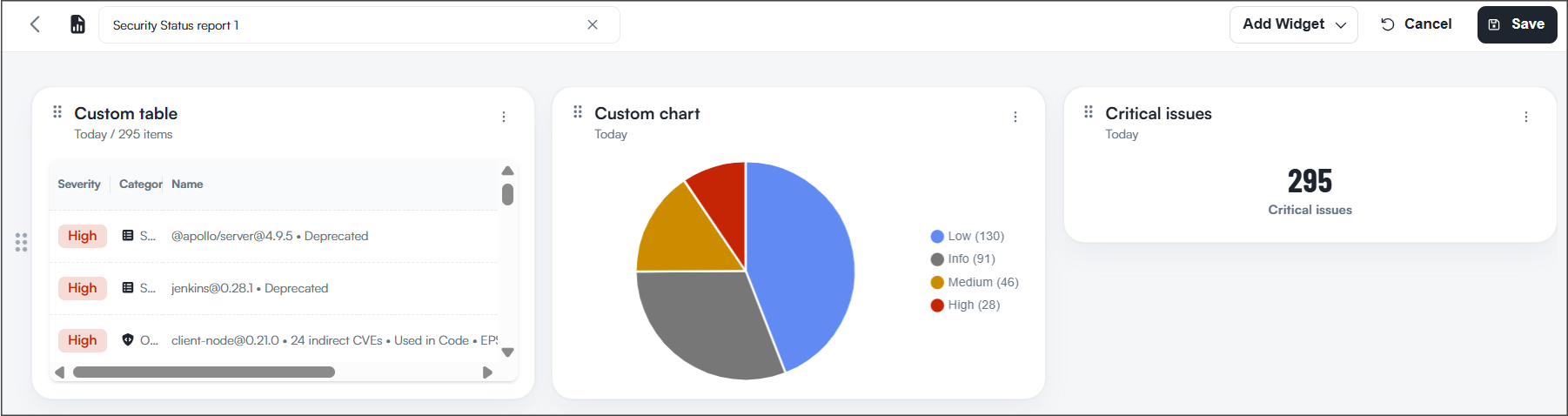
Custom reports let you turn OX data into focused dashboards that answer specific questions for your team. You combine predefined widgets with your own charts and tables, apply filters, and share the result as a public or private report.
Why use custom reports:
* Align views to your goals. Build dashboards per product, business unit, or initiative.
* Reduce noise. Filter by application, severity, category, owner, time window, or tags.
* Share the right context. Make reports public for the organization or keep them private while you iterate.
* Move work forward. Keep critical KPIs and queues visible so teams act on them.
**To create a custom report:**
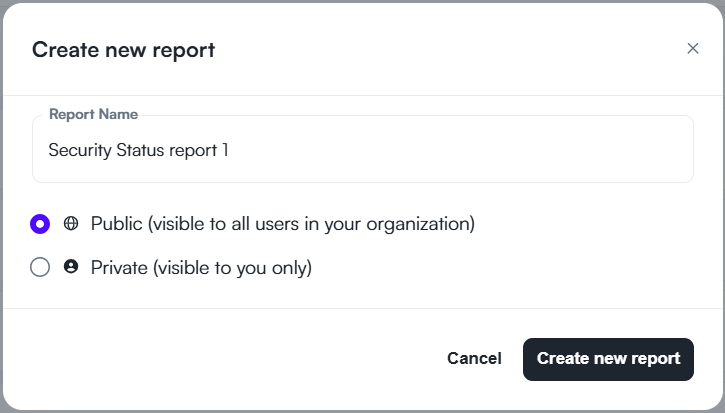
1. Go to **Reports > Custom Reports** and select **+** **Create report**.
2. Add a **Report Name** and select visibility:
* **Public:** Visible to all users in your organization.
* **Private:** Visible only to you.
3. Select **CREATE NEW REPORT**. Now you can start adding widgets.
> **Note:** The page opens with a creation picker. A full list of saved reports may not be available yet.
## Add widgets
Custom Reports include three widget types that share the same filter model and preview behavior. Choose the type that matches the level of detail you want, then apply filters to focus the data.
| Widget Type | Purpose | Data granularity | Editable settings |
| --------------------------------------------------------------------------------------- | ----------------------------------------------------------------------------------------------------------------------- | --------------------------- | ---------------------------------------------------------------------------------- |
| [**Gallery widget**](/generate-reports/custom-reports/add-a-widget-from-the-gallery.md) | Pick Gallery widget to add a ready-made insight quickly. | Aggregated | Title, chart type, widget-level filters |
| [**Custom chart**](/generate-reports/custom-reports/add-a-custom-visualization.md) | Pick Custom visualization for trends or distributions by a field, with optional series. | Aggregated | Title, data source, group by, optional sub-group, chart type, widget-level filters |
| [**Custom table**](/generate-reports/custom-reports/add-a-custom-table-widget.md) | Pick Custom table when you need item-level details for triage and follow-up. | Granular (one row per item) | Title, data source, columns and order, widget-level filters |
| [**Custom number**](/generate-reports/custom-reports/add-a-metric-card-number-chart.md) | Pick Custom number to display a single aggregated value, such as the number of issues, applications, or resolved items. | Aggregated | Title, data source, date range (when available), widget-level filters |
### Filters
All widget types support the same filter controls:
* **Common filters:** Application, Severity, Category, App Tag
* **Additional filters:** Time window and other context fields, depending on the data source
* **Scope:** Widget-level filters apply only to the selected widget and persist. Report-level filters apply to all widgets and reset when you reopen the report.
> Note: Filters set for a widget apply to this widget only. Report-level filters do not overwrite widget-level filters.
---
# Agent Instructions
This documentation is published with GitBook. GitBook is the documentation platform designed so that both humans and AI agents can read, navigate, and reason over technical content effectively. Learn more at gitbook.com.
## Querying This Documentation
If you need additional information that is not directly available in this page, you can query the documentation dynamically by asking a question.
Perform an HTTP GET request on the current page URL with the `ask` query parameter, and the optional `goal` query parameter:
```
GET https://docs.ox.security/generate-reports/custom-reports.md?ask=&goal=
```
`ask` is the immediate question: it should be specific, self-contained, and written in natural language.
`goal` is optional and describes the broader end goal you are ultimately trying to accomplish on behalf of the user. GitBook uses it to tailor the answer towards what is most useful for that goal.
The response will contain a direct answer to the question and relevant excerpts and sources from the documentation.
Use this mechanism when the answer is not explicitly present in the current page, you need clarification or additional context, or you want to retrieve related documentation sections.