.png?alt=media)
| Policy Category | Description | Typical Critical issues |
|---|---|---|
| Git Posture | Checks repository configuration, access controls, branch protection rules, exposure settings, and overall repository security posture. | Public repo Weak branch protection |
| Code Security | Evaluates source code using static analysis and pattern detection (SAST). Identifies insecure coding patterns and vulnerabilities in source code before the application is built or deployed. | SAST issues XML External Entity |
| Secret / PII Scan | Detects exposed secrets, credentials, and personal identifiable information in code, configuration files, and commit history. | API key leak Token in history Hard-coded secrets |
| Open Source Security | Uses Software Composition Analysis (SCA). Reviews open-source packages for common vulnerabilities and Exposures (CVEs) in open-source dependencies or base images | Critical CVEs |
| SBOM | Uses third party libraries with unapproved licensing, low health (i.e., outdated or unpopular libraries) and malicious behavior. Validates dependency and artifact metadata, including completeness, accuracy, and licensing compliance across the supply chain. | Disallowed license Missing metadata Malicious dependencies |
| Infrastructure as Code Scan | Checks IaC templates (Terraform, CloudFormation, Kubernetes YAML, Helm, etc.) for insecure defaults and misconfigurations. | Open security group Weak IAM role |
| CI/CD Posture | Evaluates CI/CD pipeline permissions, runner security, secret handling, and build isolation controls. | Insecure runner Poor secret handling |
| Security Tool Coverage | Confirms that required scanning tools and security controls are installed, configured, and active in the environment. | Missing scan Disabled tool |
| Container Security | Analyzes container images for vulnerabilities, embedded secrets, insecure configurations, and unsafe base images. | Vulnerable base image Embedded secrets |
| Dynamic App Security | Detects security issues found during runtime testing, including logic flaws, authentication failures, and exposed endpoints. | Auth bypass Logic flaw |
| API Security | Checks API configuration, authentication, authorization, and exposure settings to ensure safe API behavior. | Weak authorization Exposed endpoints |
| Artifact Integrity | Validates that build artifacts are authenticated, untampered, complete, and consistent with expected metadata. | Tampered artifact Missing signature |
| Cloud Security | Evaluates Cloud Asset Posture and Cloud Security Posture (CSPM). | Public bucket, exposed access key |
| Manual Upload | Analyzes manually uploaded issue files (CSV/SARIF). | Malware indicator Invalid metadata |
| Role | View | Edit |
|---|---|---|
| Admin | :check: | :check: |
| Policy Manager | :check: | :check: |
| Dev Manager / Security Champion | :check: | :check: |
| Developer | :check: | :check: |
| Read only | :check: | :x: |
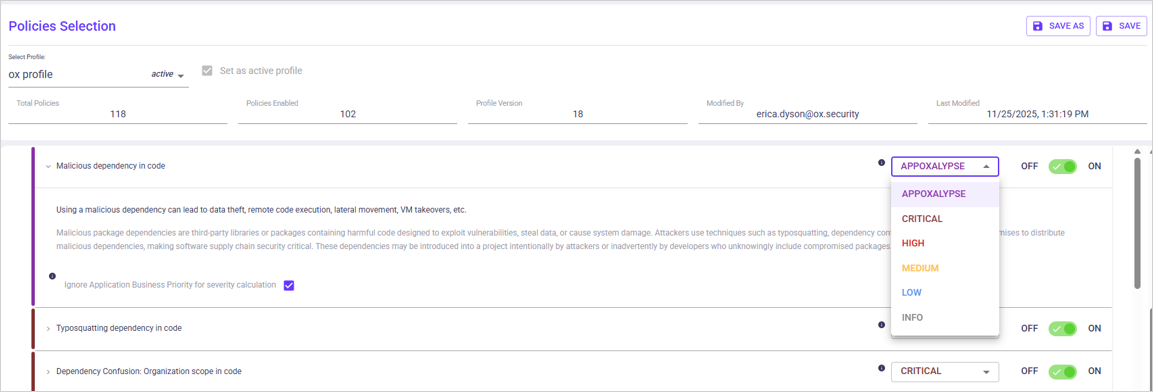
.png?alt=media) **To change the active profile:**
1. From the page header, open the **Select Profile** dropdown and select the profile you want to make active.
2. Activate the checkbox **Set as active profile**. When you return to the Policies page, the new active profile displays.\
.png?alt=media)
**To view a non-active profile:**
* Select the profile from the Select Profile dropdown.
## Policy best practices
We recommend you:
* Review issues regularly to identify non-compliant artifacts.
* Enable only the policies your organization needs.
* Adjust the OX policy severity only if you believe that the default severity does not reflect your organization’s risk policy.
---
# Agent Instructions
This documentation is published with GitBook. GitBook is the documentation platform designed so that both humans and AI agents can read, navigate, and reason over technical content effectively. Learn more at gitbook.com.
## Querying This Documentation
If you need additional information that is not directly available in this page, you can query the documentation dynamically by asking a question.
Perform an HTTP GET request on the current page URL with the `ask` query parameter, and the optional `goal` query parameter:
```
GET https://docs.ox.security/ox-policies/policies.md?ask=
**To change the active profile:**
1. From the page header, open the **Select Profile** dropdown and select the profile you want to make active.
2. Activate the checkbox **Set as active profile**. When you return to the Policies page, the new active profile displays.\
.png?alt=media)
**To view a non-active profile:**
* Select the profile from the Select Profile dropdown.
## Policy best practices
We recommend you:
* Review issues regularly to identify non-compliant artifacts.
* Enable only the policies your organization needs.
* Adjust the OX policy severity only if you believe that the default severity does not reflect your organization’s risk policy.
---
# Agent Instructions
This documentation is published with GitBook. GitBook is the documentation platform designed so that both humans and AI agents can read, navigate, and reason over technical content effectively. Learn more at gitbook.com.
## Querying This Documentation
If you need additional information that is not directly available in this page, you can query the documentation dynamically by asking a question.
Perform an HTTP GET request on the current page URL with the `ask` query parameter, and the optional `goal` query parameter:
```
GET https://docs.ox.security/ox-policies/policies.md?ask=