> For the complete documentation index, see [llms.txt](https://docs.ox.security/llms.txt). Markdown versions of documentation pages are available by appending `.md` to page URLs; this page is available as [Markdown](https://docs.ox.security/get-started/onboarding-to-ox/connect-to-ox/create-an-organization.md).
# Create an Organization
Use this article to create your OX account and set up your organization.\
If you already received an invitation email, skip this article and see **Accept an invitation** instead.
#### Create your OX account and organization
**To create your account and organization:**
1. Go to [**https://app.ox.security/**](https://app.ox.security/) and click **Login**.
2. In the dialog, click **Sign up**.
3. Select how you want to create your account:
* Google
* GitHub
* Email and password
1. Enter an email address.
2. Create a password that meets the requirements.
3. Verify your email using the link we send you.
4. OX creates your organization and prompts you to connect your repositories.
* You can rename the organization now or later in **Settings**.
5. Choose how you want to get started:
* **Load demo data** to explore OX without connecting your own repositories.
* **Connect your repositories** to start scanning immediately.
***
#### Load demo data
**To load demo data:**
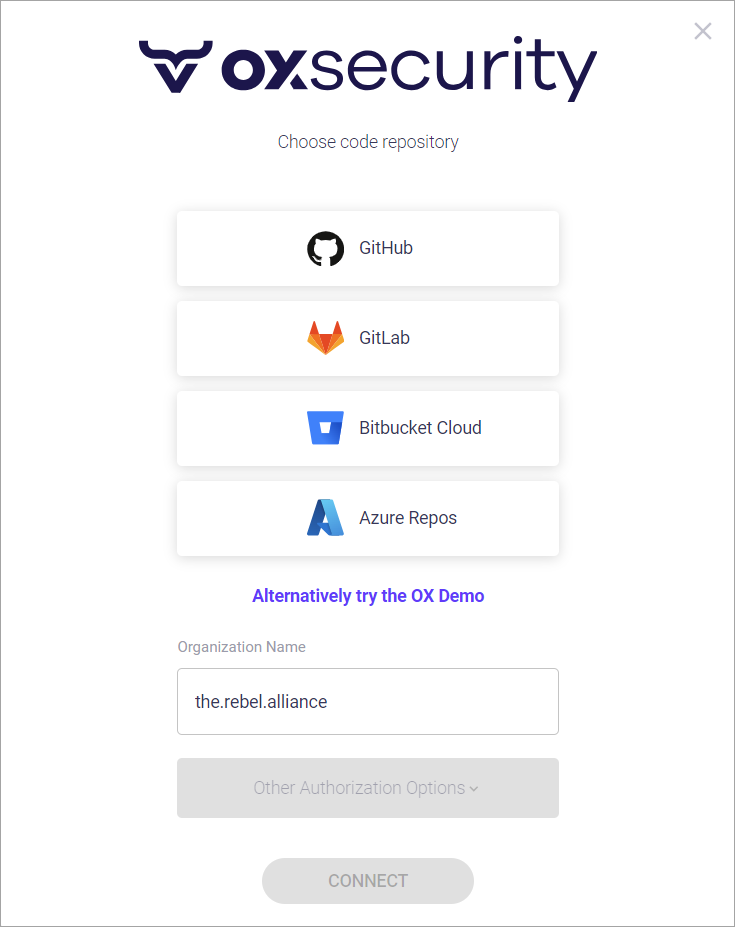
1. From the dialog, click **Alternatively try the OX Demo**.
2. OX loads and scans demo repositories and opens your **Dashboard**.
***
#### Connect your repositories
Follow the steps in the dialog to connect repositories from GitHub, GitLab, Bitbucket, or Azure Repos.\
If your source control system doesn’t appear in the dialog, close it and go to **Connectors** to select another platform.
{% hint style="success" %}
**At a glance:** Create an OX account and an organization, then explore how we can secure your software supply chain. You can use our demo data to get acquainted, or you can jump right in and connect your own repositories.
{% endhint %}
## Overview
{% hint style="info" %}
If you've received an email invitation to join an OX organization, you can skip this article and create your account by accepting the invitation.
{% endhint %}
If you're trying out OX on your own or if you're the person setting up OX for your company, follow these steps to get connected:
### **1: Create your OX account and organization**
**To create an OX account and organization:**
1. Go to [**https://app.ox.security/**](https://app.ox.security/) and click the **Login** button at the top-right corner of the screen.
2. In the dialog, click **Sign up.**\\
3. From the **Create your account** dialog, select the method you want to use to create your account:
* Google (requires an existing Google account)
* GitHub (requires an existing GitHub account)
* **Note:** Choosing this option does not connect your GitHub repositories to OX.
* Email address and password
1. Enter an email address where you can receive mail.
2. Create a password that meets the requirements displayed in the dialog.
3. Click **Continue.**
4. Check your email inbox for a verification email. Click the link in the email.
4. OX creates your organization and prompts you to connect a code repository.
* If you want to change the organization name, you can do it here. Or you can change it later from the **Settings** page.
5. Follow the instructions in section 2a or 2b, below:
* If you want to explore using the demo data before connecting your repositories, follow the steps in section [**2a**](#id-2a-load-demo-data)**.**\
\&#xNAN;**– OR –**
* If you'd rather get started with OX using your own data, skip section 2a and follow the steps in section [**2b**](#id-2b-connect-your-repositories) to connect your repositories.
### 2a: Load demo data
**To load the demo data:**
1. From the dialog, click the **Alternatively try the OX Demo** link.\\
2. OX loads and scans the demo data and opens the **Dashboard** (this takes a minute or two).
{% hint style="success" %}
Congratulations! You're ready to start exploring OX using the demo data.
{% endhint %}
### 2b: Connect your repositories
{% hint style="warning" %}
If your repositories are located on a source control platform other than the 4 available in this dialog:
1. Click **X** to close the dialog.
2. In the **Choose your environment setup** dialog that appears, click **Connect manually.**
3. The **Connectors** page will open, allowing you to select your source control platform from all the available OX-supported options.
{% endhint %}
**To connect your repositories, follow the instructions in the tab below for your source control platform:**
{% tabs %}
{% tab title="GitHub" %}
There are 3 authorization options available for GitHub:
* OX GitHub app (default)
* GitHub identity provider
* GitHub access token
**To select an option and connect:**
1. Click the button.\
The **Connect** button and the **Other authorization options** dropdown are now available.
2. Select your authorization option:
1. To use the **OX GitHub app** (the default option), click **Connect** and follow the prompts.
2. To use the **GitHub identity provider:**
* Click the arrow to open the **Other authorization options** dropdown.
* Select **Use git identity provider** and follow the prompts to sign in and authorize OX.
3. To use a **GitHub access token:**
* Click the arrow to open the **Other authorization options** dropdown.
* Select **Use git access token.**
* Enter the git host URL.\
**Note:** By default, OX enters the GitHub SaaS URL (). If you use a self-hosted git installation (GitHub Enterprise Server), replace it with your local git URL.
* Follow the displayed instructions for generating a GitHub access token and paste it into the **Token** field.
* Click **Connect.**
3. From the displayed list, select the repositories you want OX to monitor and protect.
* By default, all detected repositories are selected. You can check/uncheck options according to your preference.
* Check the **Monitor all newly created repos option** if you want OX to begin monitoring any future repos automatically upon their creation.
4. Click **Continue.**
OX starts a scan of the selected repos and opens the **Dashboard.**
{% hint style="success" %}
Congratulations! You're ready to start using OX.
**Note:** If you have repositories on other source control platforms, you can connect them anytime from the **Connectors** page.
{% endhint %}
{% endtab %}
{% tab title="GitLab" %}
There are 2 authorization options available for GitLab:
* GitLab identity provider (default)
* GitLab access token
**To select an option and connect:**
1. Click the button.\
The **Connect** button and the **Other authorization options** dropdown are now available.
2. Select your authorization option:
1. To use the **GitLab identity provider** (the default option), click **Connect** and follow the prompts to sign in and authorize OX.
2. To use a **GitLab access token:**
* Click the arrow to open the **Other authorization options** dropdown.
* Select **Use git access token.**
* Enter the git host URL.\
**Note:** By default, OX enters the GitLab SaaS URL (). If you use a self-hosted git installation (GitLab Self-Managed), replace it with your local git URL.
* Follow the displayed instructions for generating a GitLab access token and paste it into the **Token** field.
* Click **Connect.**
3. From the displayed list, select the repositories you want OX to monitor and protect.
* By default, all detected repositories are selected. You can check/uncheck options according to your preference.
* Check the **Monitor all newly created repos option** if you want OX to begin monitoring any future repos automatically upon their creation.
4. Click **Continue.**
OX starts a scan of the selected repos and opens the **Dashboard.**
{% hint style="success" %}
Congratulations! You're ready to start using OX.
**Note:** If you have repositories on other source control platforms, you can connect them anytime from the **Connectors** page.
{% endhint %}
{% endtab %}
{% tab title="Bitbucket Cloud" %}
There are 3 authorization options available for Bitbucket Cloud:
* OX Bitbucket app (default)
* Bitbucket identity provider
**To select an option and connect:**
1. Click the button.\
The **Connect** button and the **Other authorization options** dropdown are now available.
2. Select your authorization option:
1. To use the **OX Bitbucket app** (the default option), click **Connect** and follow the prompts.
2. To use the **Bitbucket identity provider:**
* Click the arrow to open the **Other authorization options** dropdown.
* Select **Use git identity provider** and follow the prompts to sign in and authorize OX.
3. From the displayed list, select the repositories you want OX to monitor and protect.
* By default, all detected repositories are selected. You can check/uncheck options according to your preference.
* Check the **Monitor all newly created repos option** if you want OX to begin monitoring any future repos automatically upon their creation.
4. Click **Continue.**
OX starts a scan of the selected repos and opens the **Dashboard.**
{% hint style="success" %}
Congratulations! You're ready to start using OX.
**Note:** If you have repositories on other source control platforms, you can connect them anytime from the **Connectors** page.
{% endhint %}
{% endtab %}
{% tab title="Azure Repos" %}
There are 2 authorization options available for Azure Repos:
* Azure identity provider (default)
* Azure access token
**To select an option and connect:**
1. Click the button.\
The **Connect** button and the **Other authorization options** dropdown are now available.
2. Select your authorization option:
1. To use the **Azure identity provider** (the default option), click **Connect** and follow the prompts to sign in and authorize OX.
2. To use an **Azure access token:**
* Click the arrow to open the **Other authorization options** dropdown.
* Select **Use git access token.**
* The Azure SaaS URL () is automatically filled in. If you use an on-prem installation (Azure DevOps Server), do not connect from this screen. Instead, connect from the **Connectors** page.
* Follow the displayed instructions for generating an Azure access token and paste it into the **Token** field.
* Click **Connect.**
3. From the displayed list, select the repositories you want OX to monitor and protect.
* By default, all detected repositories are selected. You can check/uncheck options according to your preference.
* Check the **Monitor all newly created repos option** if you want OX to begin monitoring any future repos automatically upon their creation.
4. Click **Continue.**
OX starts a scan of the selected repos and opens the **Dashboard.**
{% hint style="success" %}
Congratulations! You're ready to start using OX.
**Note:** If you have repositories on other source control platforms, you can connect them anytime from the **Connectors** page.
{% endhint %}
{% endtab %}
{% endtabs %}
---
# Agent Instructions
This documentation is published with GitBook. GitBook is the documentation platform designed so that both humans and AI agents can read, navigate, and reason over technical content effectively. Learn more at gitbook.com.
## Querying This Documentation
If you need additional information that is not directly available in this page, you can query the documentation dynamically by asking a question.
Perform an HTTP GET request on the current page URL with the `ask` query parameter, and the optional `goal` query parameter:
```
GET https://docs.ox.security/get-started/onboarding-to-ox/connect-to-ox/create-an-organization.md?ask=&goal=
```
`ask` is the immediate question: it should be specific, self-contained, and written in natural language.
`goal` is optional and describes the broader end goal you are ultimately trying to accomplish on behalf of the user. GitBook uses it to tailor the answer towards what is most useful for that goal.
The response will contain a direct answer to the question and relevant excerpts and sources from the documentation.
Use this mechanism when the answer is not explicitly present in the current page, you need clarification or additional context, or you want to retrieve related documentation sections.
.png?alt=media)
.png?alt=media)
 button.\
The **Connect** button and the **Other authorization options** dropdown are now available.
2. Select your authorization option:
1. To use the **OX GitHub app** (the default option), click **Connect** and follow the prompts.
2. To use the **GitHub identity provider:**
* Click the arrow to open the **Other authorization options** dropdown.
* Select **Use git identity provider** and follow the prompts to sign in and authorize OX.
3. To use a **GitHub access token:**
* Click the arrow to open the **Other authorization options** dropdown.
* Select **Use git access token.**
* Enter the git host URL.\
**Note:** By default, OX enters the GitHub SaaS URL (
button.\
The **Connect** button and the **Other authorization options** dropdown are now available.
2. Select your authorization option:
1. To use the **OX GitHub app** (the default option), click **Connect** and follow the prompts.
2. To use the **GitHub identity provider:**
* Click the arrow to open the **Other authorization options** dropdown.
* Select **Use git identity provider** and follow the prompts to sign in and authorize OX.
3. To use a **GitHub access token:**
* Click the arrow to open the **Other authorization options** dropdown.
* Select **Use git access token.**
* Enter the git host URL.\
**Note:** By default, OX enters the GitHub SaaS URL ( button.\
The **Connect** button and the **Other authorization options** dropdown are now available.
2. Select your authorization option:
1. To use the **GitLab identity provider** (the default option), click **Connect** and follow the prompts to sign in and authorize OX.
2. To use a **GitLab access token:**
* Click the arrow to open the **Other authorization options** dropdown.
* Select **Use git access token.**
* Enter the git host URL.\
**Note:** By default, OX enters the GitLab SaaS URL (
button.\
The **Connect** button and the **Other authorization options** dropdown are now available.
2. Select your authorization option:
1. To use the **GitLab identity provider** (the default option), click **Connect** and follow the prompts to sign in and authorize OX.
2. To use a **GitLab access token:**
* Click the arrow to open the **Other authorization options** dropdown.
* Select **Use git access token.**
* Enter the git host URL.\
**Note:** By default, OX enters the GitLab SaaS URL ( button.\
The **Connect** button and the **Other authorization options** dropdown are now available.
2. Select your authorization option:
1. To use the **OX Bitbucket app** (the default option), click **Connect** and follow the prompts.
2. To use the **Bitbucket identity provider:**
* Click the arrow to open the **Other authorization options** dropdown.
* Select **Use git identity provider** and follow the prompts to sign in and authorize OX.
3. From the displayed list, select the repositories you want OX to monitor and protect.
* By default, all detected repositories are selected. You can check/uncheck options according to your preference.
* Check the **Monitor all newly created repos option** if you want OX to begin monitoring any future repos automatically upon their creation.
4. Click **Continue.**
OX starts a scan of the selected repos and opens the **Dashboard.**
{% hint style="success" %}
Congratulations! You're ready to start using OX.
**Note:** If you have repositories on other source control platforms, you can connect them anytime from the **Connectors** page.
{% endhint %}
{% endtab %}
{% tab title="Azure Repos" %}
There are 2 authorization options available for Azure Repos:
* Azure identity provider (default)
* Azure access token
**To select an option and connect:**
1. Click the
button.\
The **Connect** button and the **Other authorization options** dropdown are now available.
2. Select your authorization option:
1. To use the **OX Bitbucket app** (the default option), click **Connect** and follow the prompts.
2. To use the **Bitbucket identity provider:**
* Click the arrow to open the **Other authorization options** dropdown.
* Select **Use git identity provider** and follow the prompts to sign in and authorize OX.
3. From the displayed list, select the repositories you want OX to monitor and protect.
* By default, all detected repositories are selected. You can check/uncheck options according to your preference.
* Check the **Monitor all newly created repos option** if you want OX to begin monitoring any future repos automatically upon their creation.
4. Click **Continue.**
OX starts a scan of the selected repos and opens the **Dashboard.**
{% hint style="success" %}
Congratulations! You're ready to start using OX.
**Note:** If you have repositories on other source control platforms, you can connect them anytime from the **Connectors** page.
{% endhint %}
{% endtab %}
{% tab title="Azure Repos" %}
There are 2 authorization options available for Azure Repos:
* Azure identity provider (default)
* Azure access token
**To select an option and connect:**
1. Click the  button.\
The **Connect** button and the **Other authorization options** dropdown are now available.
2. Select your authorization option:
1. To use the **Azure identity provider** (the default option), click **Connect** and follow the prompts to sign in and authorize OX.
2. To use an **Azure access token:**
* Click the arrow to open the **Other authorization options** dropdown.
* Select **Use git access token.**
* The Azure SaaS URL (
button.\
The **Connect** button and the **Other authorization options** dropdown are now available.
2. Select your authorization option:
1. To use the **Azure identity provider** (the default option), click **Connect** and follow the prompts to sign in and authorize OX.
2. To use an **Azure access token:**
* Click the arrow to open the **Other authorization options** dropdown.
* Select **Use git access token.**
* The Azure SaaS URL (