Dashboard

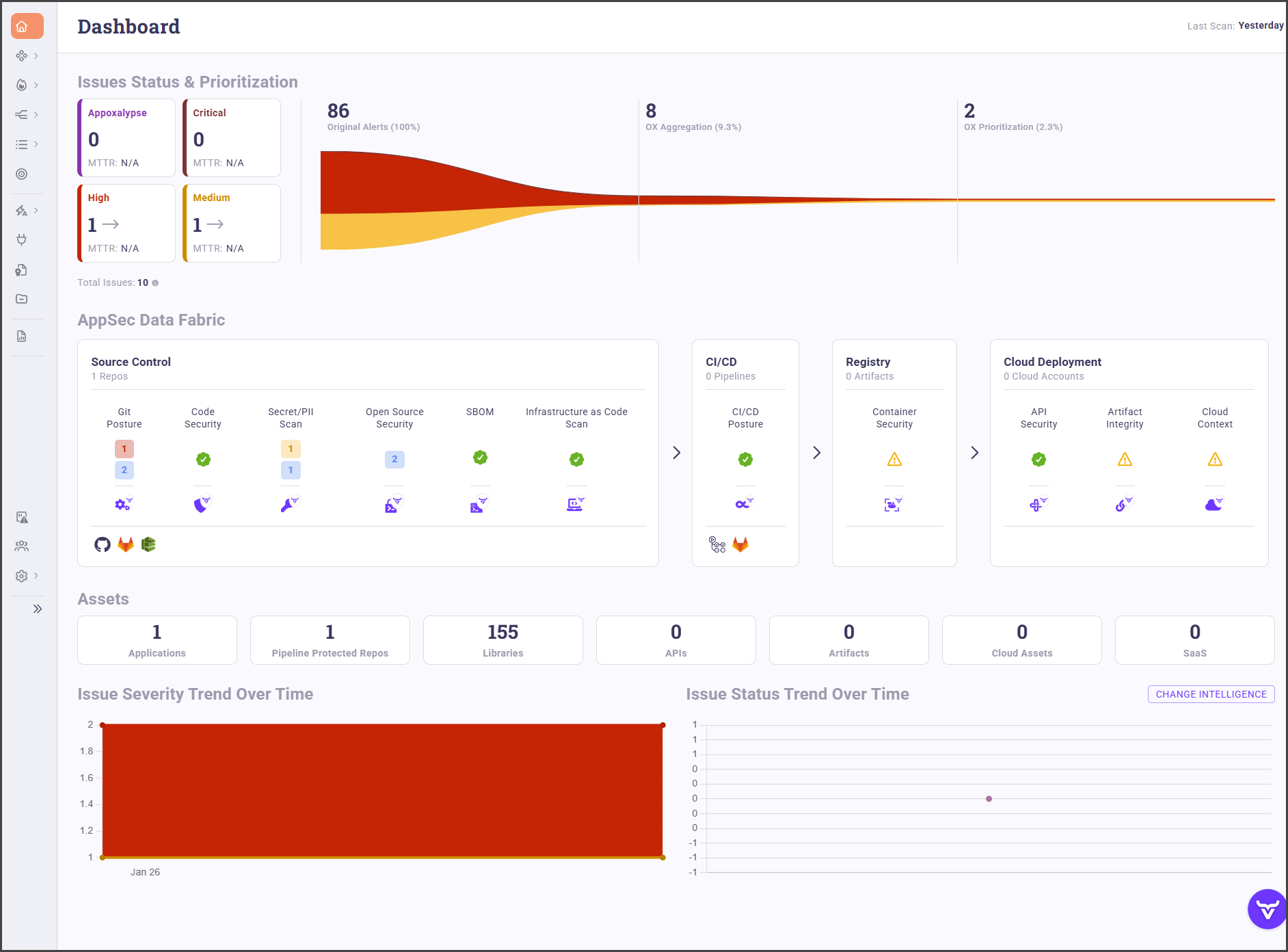
The OX dashboard provides a system-wide snapshot of your security posture. It brings together issue status, application security coverage, asset inventory, and trends in a single view so you can quickly understand what requires attention.

OX focuses on protecting what really matters by reducing noise and highlighting real risk. The dashboard helps you:

  • See the full impact of an issue across tools and environments through aggregation, by grouping related findings into a single issue.

  • Focus remediation efforts where they matter most through prioritization, by ranking issues based on runtime context, exposure, and business impact.

  • Improve visibility across your delivery pipeline and runtime environment, by showing security coverage from source control through deployment.

  • Track progress over time, by monitoring severity and status trends as issues move through remediation.

This page describes the standard dashboard that opens by default when you log in. You can later replace this view with a custom dashboard based on a report that better matches your daily workflow.

Issues status and prioritization

This section summarizes open issues by severity and shows how findings move through OX processing, from raw scanner output to actionable, prioritized issues.

Element
Description

Severity Summary

Cards that show the number of open issues for each severity level (Apocalypse, Critical, High, Medium) and the current MTTR for each level.

Original Alerts

The total number of findings as reported by connected scanners and tools, before OX applies correlation or prioritization.

OX Aggregation

A consolidated view of related findings grouped into a single issue based on shared attributes such as asset, component, vulnerability type, and location.

OX Prioritization

A ranked view of aggregated issues based on severity, runtime context, exposure, and business impact.

AppSec Data Fabric

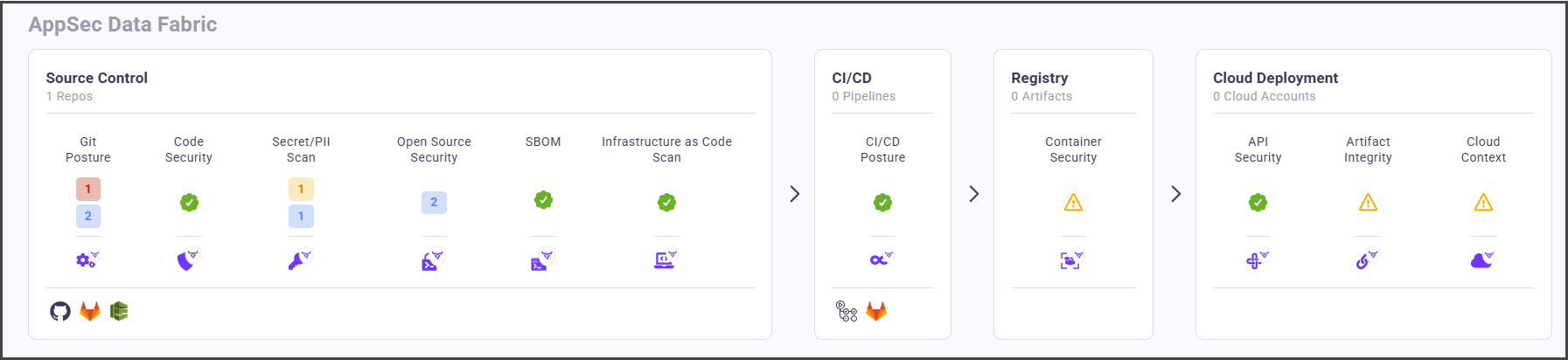
This section shows coverage across the main stages of your software delivery and runtime environment. Each tile represents a domain and indicates whether posture and scan data are available.

Domain
What it shows
Why it matters

Source Control

Posture and scan coverage for connected repositories, including code, secrets and PII, open source, SBOM, and Infrastructure as Code.

Confirms that development assets and dependencies are being monitored.

CI/CD

Pipeline posture and scan status for connected CI/CD systems.

Confirms that security checks run during build and deployment.

Registry

Container and artifact security coverage for connected registries.

Confirms that images and artifacts are scanned before deployment.

Cloud Deployment

Runtime and cloud context, including API security, artifact integrity, and cloud exposure.

Shows risk in deployed and running workloads.

Assets

This section provides a count of key asset types managed by OX.

Asset type
Description

Applications

Logical groupings of repositories, services, and workloads managed as a single unit.

Pipeline protected repositories

Repositories with CI/CD protection and scan enforcement enabled.

Libraries

Open source and third-party dependencies identified across repositories and images.

APIs

Discovered or defined application programming interfaces.

Artifacts

Build outputs such as packages and images stored in registries.

Cloud assets

Cloud resources discovered across connected accounts.

SaaS

Connected software-as-a-service applications.

Issue severity trend over time

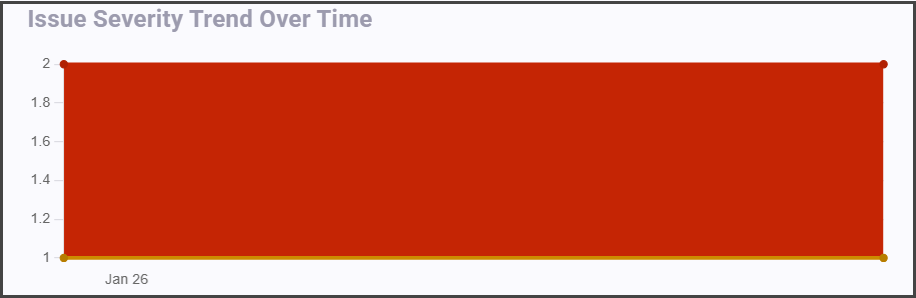
This chart shows how the number of issues changes over time by severity.

Aspect
Description

Time range

The period displayed on the horizontal axis.

Severity bands

Color-coded areas that represent issue counts per severity level.

Data points

Snapshots of issue counts at each point in time.

Issue status trend over time

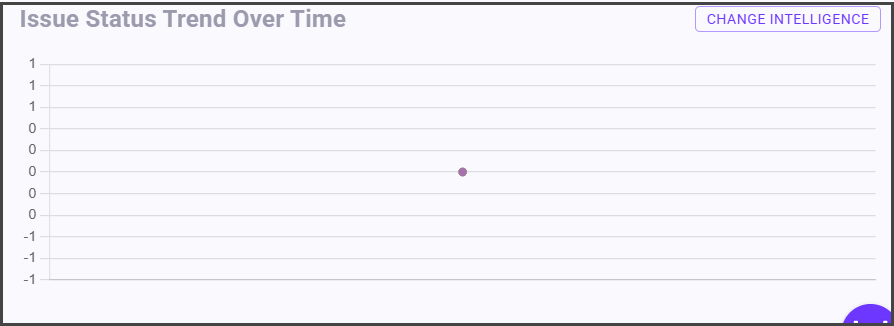
This chart shows how issue states change over time, such as open, resolved, or suppressed.

Aspect
Description

Time range

The period displayed on the horizontal axis.

Status categories

Issue states tracked over time.

Data points

Snapshots of issue counts for each status at each point in time.

Last scan indicator

The upper-right corner of the dashboard shows the time of the most recent scan.

Field
Description

Last scan

The timestamp of the most recent completed scan across connected sources.

Last updated