SSO with PingIdentity

OX Security supports Single Sign-On (SSO) for secure authentication and centralized access control. The connection allows users to sign in to OX Security with their corporate credentials managed by an Identity Provider (IdP).

OX Security supports:

  • Auto-provisioning: Automatically creates user accounts at first login.

  • App-initiated login: Starts login directly from the OX sign-in page.

  • Group-based roles and scopes: Assigns OX permissions based on IdP groups.

When auto-provisioning is ON:

  • OX automatically creates a user account when someone signs in through the IdP.

  • Account details (name, email, groups) come directly from the IdP.

  • You do not need to invite users manually.

When auto-provisioning is OFF:

  • OX does not create accounts automatically.

  • You must invite users manually before they can access OX.

  • Users who are not invited via the OX Members page receive the Read Only role by default.

  • When auto-provisioning with roles is configured, role assignments must be managed in the IdP.

  • Roles assigned directly in OX are ignored for SSO users.

Prerequisites

  • OX and IdP admin permissions

  • Access to your PingIdentity SAML configuration details and X.509 certificate

  • A decision on enabling optional features:

    • App-initiated login

    • Auto-provisioning for roles

    • Auto-provisioning for scopes

If you are new to PingIdentity, check out the article Quickstart: Create a PingIdentity Application.

Process steps

Step 1: Get OX Inputs for your IdP [OX]

The inputs are specific for your IdP and organization.

  1. To get the correct values from OX, go to Settings > Login and click the IdP icon. The Configuration screen opens.

  2. Click PINGIDENTITY SSO SETUP INSTRUCTIONS.

  3. Locate the parameters, copy the values, and save them for use in Step 3.

    • Single Sign-On URL (ACS)

    • SP Entity ID

    • Initiate login URI

Step 2: Register the application [IdP]

  1. Log in to your PingIdentity Admin Console.

  2. Go to Applications > Add Application.

  3. Select SAML 2.0 as the sign-in method.

  4. Enter an application name, for example, OX Security SSO.

  5. Save the changes.

Step 3: Configure the IdP settings [IdP]

  1. In your PingIdentity console, under the application you created, go to the Browser SSO/Connection tab (or similar).

  2. Paste the OX values from the Configuration screen that you saved in Step 1 and paste them into your IdP's configuration:

    • Single Sign-On URL (ACS)

    • Audience URI (SP Entity ID)

    • Initiate Login URI (Target Resource URL in PingIdentity)

  3. In Attribute Mapping (or Attribute Contract) set the attributes for: name, email, email_verified.

  4. Collect and save the following PingIdentity details to paste into OX later:

    • Initiate Single Sign-On URL: the IdP SSO endpoint

    • X.509 Certificate: download the signing certificate (PEM .crt file). It’s already Base64-encoded.

Step 4: Configure SSO [OX]

  1. In OX, go to Settings > Login and click the relevant IdP icon. The Configuration screen opens.

  2. Enter the details collected from your IdP in Step 3.

    • Initiate Single Sign-On URL

    • X.509 certificate (Base64)

  3. Click Save.

    Auto-provisioning is enabled by default. The feature allows OX to create user accounts automatically upon first sign-in. To disable it, deactivate the toggle.

Optional Step 5: Enable IdP app-initiated login and visibility [OX-IdP]

This step allows users to start their login directly from your IdP dashboard.

  1. In your IdP, open General Settings (or Connection Configuration) for the PingIdentity app

  2. Add the Initiate login URI you saved in Step 1.

  3. Click Save.

Optional Step 6: Configure auto-provisioning for roles [OX-IdP]

This step enables the automatic assignment of OX Security roles based on user groups in your IdP.

  1. Each role group requires a prefix. The default is: XApp-. To change the prefix in OX, go to Settings > Login > [IdP icon] and enter a different prefix.

  2. Create IdP role groups: In your IdP, go to Directory > Groups and create groups using these exact names (case-sensitive) for each OX role you want to sync:

    • OXApp-Admin

    • OXApp-Developer

    • OXApp-Dev Manager/Security Champion

    • OXApp-Policy Manager

    • OXApp-Read Only

  3. Map group attributes: In your IdP, ensure you have groups attribute mapping enabled.

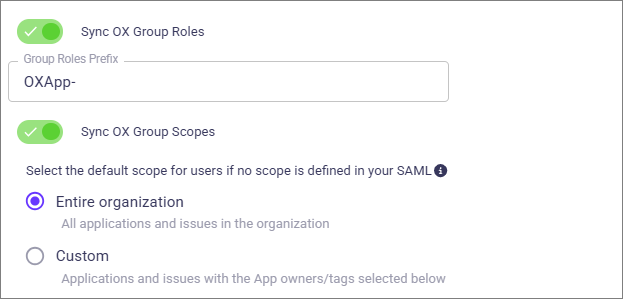
  4. Enable sync: In OX, go to Settings > Login > [IdP icon] and enable Sync OX Group Roles using the prefix you selected.

  5. Click Save.

  6. In the IdP, assign users who need that specific scope access as members of the corresponding group.

Optional Step 7: Configure Auto-Provisioning for Scopes [OX-IdP]

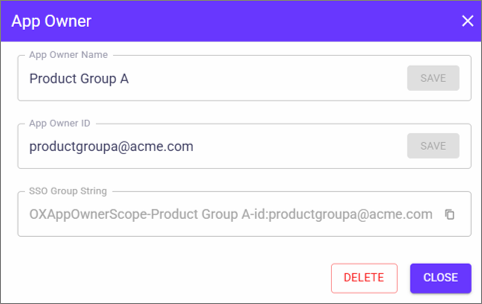
This step enables the automatic assignment of granular access scopes based on user groups in your IdP. There is no prefix required for Scopes in OX; however, you do need to create a Scopes group and assign an owner.

  1. In OX, go to the Applications page, and select an app from the list. From the header, click the Assign Owner icon.

  2. In the Assign Application Owners screen:

    • Select a role.

    • App New Owner: Enter a descriptive name.

    • Email: Enter an email. The email can be a functional address.

  3. Click + ADD. This generates the SSO Group String. Save this string to paste into the IdP.

  4. Create scope groups in the IdP: In your IdP, go to Directory > Groups and create scope groups using these specific formats. - App Owner Scope: OXAppOwnerScope-<SCOPE_NAME>-id:<APP_OWNER_ID> Example: OXAppOwnerScope-DevOps-id:[email protected] - Tag Scope: OXTagScope-<TAG_NAME>-id:<TAG_ID> Example: OXTagScope-app-id:acme-app

  5. Assign members in the IdP: In the IdP, assign members to the relevant scope groups.

  6. Enable sync in OX: In OX, go to Settings > Login > [Idp] and enable the toggle Sync OX Group Scopes. Generally select the Entire Organization.

  7. Click Save.

Step 8: Test the Sign-In [OX]

  1. In OX, log out and then log in again using your SSO.

  2. Verify that the configured roles and scopes from your IdP are applied correctly.

Your OX organization is now connected to your IdP. Users can sign in securely with corporate credentials, and applied roles and scopes are based on the IdP configuration.

Troubleshooting

The table lists some possible issues and recommended actions.

Issue
Recommended Action

Users cannot sign in

Verify that the PingIdentity Single Sign-On Service URL and X.509 certificate match the OX setup.

Account not created

Enable auto-provisioning in OX or invite the user manually.

Role not applied

Ensure PingIdentity group names match OX role names exactly.

Scope not applied

Confirm group naming follows OXAppOwnerScope- or OXTagScope- format.

Role changes ignored in OX

Manage all role assignments within PingIdentity.

Certificate errors

Re-upload a valid Base64-encoded certificate in OX.

Last updated