Wiz

circle-info

Wiz connects to OX across four categories. This article covers all four types:

Integrate Wiz with OX to centralize security findings alongside container, pipeline, cloud, and runtime signals already in OX.

OX scans Wiz on a schedule and on demand, enriches findings with OX context (application mapping, workflows, and compliance), and presents a unified queue for investigation and reporting.

After you connect, Wiz scan results appear on the Active Issues page (use the filter Source tool > Wiz).

What OX adds

  • Context and correlation: OX maps Wiz findings to applications, services, and teams to show impact and ownership.

  • Prioritization with severity factors: OX may reprioritize scanner severities when exploitability and environment context reduce risk (for example, Critical → High). Severity factors explain why the priority changed.

  • Evidence at a glance: When available, OX displays scanner evidence, file locations, and remediation guidance alongside OX analytics to speed triage.

Connection methods

For general information about connection methods, see the article Connection methods.

All connection methods use the same Wiz service account credentials: Client ID and Client Secret.

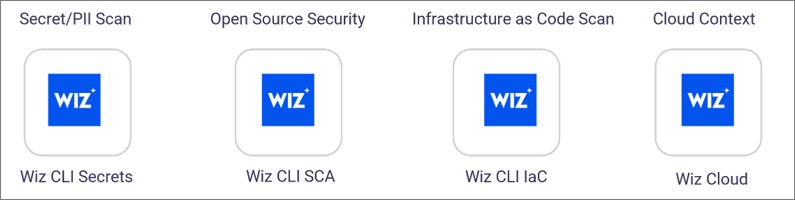
There are four methods to connect Wiz to OX:

  • Wiz CLI Secrets: Scan for secrets and PII in your codebase through the Wiz CLI.

  • Wiz CLI SCA: Scan open-source dependencies through the Wiz CLI.

  • Wiz CLI IaC: Scan Infrastructure as Code configurations for security issues through the Wiz CLI.

  • Wiz Cloud (Cloud Context): Scan cloud locations and identify critical risks in AWS, Azure, GCP, and Kubernetes. Requires API URL configuration.

Prerequisites

OX

  • Permission to configure connectors

Wiz

  • Access to the Wiz account you want to connect

  • Wiz user account with permissions to create accounts and tokens

Connect with Wiz CLI Secrets

chevron-rightConnect with Wiz CLI Secretshashtag

The Wiz CLI Secrets connector scans your codebase for secrets and PII through the Wiz command-line interface.

Step 1: Create a service account and credentials [Wiz]

  1. Verify that the prerequisites are in place.

  2. Log in to your Wiz account.

  3. Go to Settings > Access Management > Service Accounts.

  4. Click Add Service Account.

    • Name: Enter a name (e.g., OX Security CLI Secrets Integration).

    • Type: Select Custom Integration (GraphQL API).

    • (Optional) Projects: Select specific projects to limit access, or leave blank to allow access to all projects.

  5. Select the required API Scopes (permissions):

    • read:projects

    • read:reports

    • write:reports

    • read:issues

    • read:threat_issues

  6. Click Add Service Account.

  7. Copy and store the Client ID and Client Secret in a secure location. You cannot view the client secret again after this step. Best practice: Store credentials in a secrets manager and set a reminder to rotate the client secret according to your policy.

Step 2: Connect to OX [OX]

  1. Verify that the prerequisites are in place.

  2. In OX, go to Connectors > Secret/PII Scan, and select Wiz.

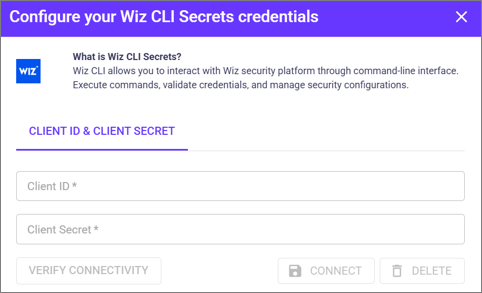
  3. In Configure your Wiz CLI Secrets credentials, enter the following parameters.

Parameter
Description

Client ID

The Client ID from the Wiz Service Account

Client Secret

The Client Secret from the Wiz Service Account

  1. Click VERIFY CONNECTIVITY.

  2. A green success message at the bottom of the screen indicates a successful connection. If verification fails, check your credentials and permissions.

  3. Click CONNECT.

Optional configurations

To change the resources OX scans and monitors, see the section Change the locations OX scans.

Connect with Wiz CLI SCA

chevron-rightConnect with Wiz CLI SCAhashtag

The Wiz CLI SCA connector performs Software Composition Analysis (SCA) to scan open-source dependencies for vulnerabilities through the Wiz command-line interface.

Step 1: Create a service account and credentials [Wiz]

  1. Verify that the prerequisites are in place.

  2. Log in to your Wiz account.

  3. Go to Settings > Access Management > Service Accounts.

  4. Click Add Service Account.

    • Name: Enter a name (e.g., OX Security CLI Secrets Integration).

    • Type: Select Custom Integration (GraphQL API).

    • (Optional) Projects: Select specific projects to limit access, or leave blank to allow access to all projects.

  5. Select the required API Scopes (permissions):

    • read:projects

    • read:reports

    • write:reports

    • read:issues

    • read:threat_issues

  6. Click Add Service Account.

  7. Copy and store the Client ID and Client Secret in a secure location. You cannot view the client secret again after this step. Best practice: Store credentials in a secrets manager and set a reminder to rotate the client secret according to your policy.

Step 2: Connect to OX [OX]

  1. Verify that the prerequisites are in place.

  2. In OX, go to Connectors > Open Source Security and select Wiz.

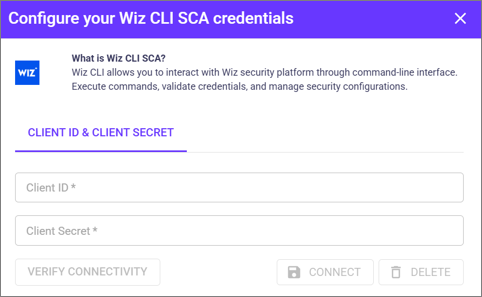
  3. In Configure your Wiz CLI SCA credentials, enter the following parameters:

Parameter
Description

Client ID

The Client ID from the Wiz Service Account

Client Secret

The Client Secret from the Wiz Service Account

  1. Click VERIFY CONNECTIVITY.

  2. A green success message at the bottom of the screen indicates a successful connection. If verification fails, check your credentials and permissions.

  3. Click CONNECT.

Optional configurations

To change the resources OX scans and monitors, see the section Change the locations OX scans.

Connect with Wiz CLI IaC

chevron-rightConnect with Wiz CLI IaChashtag

The Wiz CLI IaC connector scans Infrastructure as Code configurations for security issues through the Wiz command-line interface.

Step 1: Create a service account and credentials [Wiz]

  1. Verify that the prerequisites are in place.

  2. Log in to your Wiz account.

  3. Go to Settings > Access Management > Service Accounts.

  4. Click Add Service Account.

    • Name: Enter a name (e.g., OX Security CLI Secrets Integration).

    • Type: Select Custom Integration (GraphQL API).

    • (Optional) Projects: Select specific projects to limit access, or leave blank to allow access to all projects.

  5. Select the required API Scopes (permissions):

    • read:projects

    • read:reports

    • write:reports

    • read:issues

    • read:threat_issues

  6. Click Add Service Account.

  7. Copy and store the Client ID and Client Secret in a secure location. You cannot view the client secret again after this step. Best practice: Store credentials in a secrets manager and set a reminder to rotate the client secret according to your policy.

Step 2: Connect to OX [OX]

  1. Verify that the prerequisites are in place.

  2. In OX, go to Connectors > Infrastructure as Code Scan, and select Wiz.

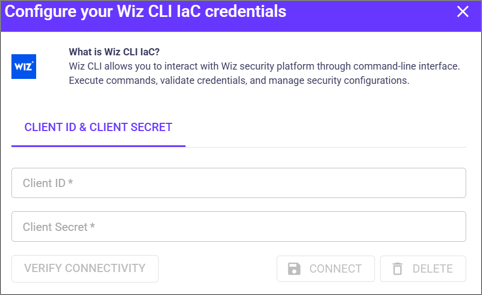
  3. In Configure your Wiz CLI IaC credentials, enter the following parameters:

Parameter
Description

Client ID

The Client ID from the Wiz Service Account

Client Secret

The Client Secret from the Wiz Service Account

  1. Click VERIFY CONNECTIVITY.

  2. A green success message at the bottom of the screen indicates a successful connection. If verification fails, check your credentials and permissions.

  3. Click CONNECT.

Optional configurations

To change the resources OX scans and monitors, see the section Change the locations OX scans.

Connect with Wiz (Cloud Context)

chevron-rightConnect with Wiz (Cloud Context)hashtag

The Wiz Cloud Context connector scans cloud resources to identify and remove critical risks in AWS, Azure, GCP, and Kubernetes.

Step 1: Create a service account and credentials [Wiz]

  1. Verify that the prerequisites are in place.

  2. Log in to your Wiz account.

  3. Go to Settings > Access Management > Service Accounts.

  4. Click Add Service Account.

    • Name: Enter a name (e.g., OX Security CLI Secrets Integration).

    • Type: Select Custom Integration (GraphQL API).

    • (Optional) Projects: Select specific projects to limit access, or leave blank to allow access to all projects.

  5. Select the required API Scopes (permissions):

    • read:projects

    • read:reports

    • write:reports

    • read:issues

    • read:threat_issues

  6. Click Add Service Account.

  7. Copy and store the Client ID and Client Secret in a secure location. You cannot view the client secret again after this step. Best practice: Store credentials in a secrets manager and set a reminder to rotate the client secret according to your policy.

  8. Select your user icon and go to User Settings > Tenant.

  9. Copy the API Endpoint URL and save it. Format: https://apiarrow-up-right.<region>.app.wiz.io/ Where <region> is your tenant's data center (e.g., us1, us2, eu1, eu2).

Step 2: Connect to OX [OX]

  1. Verify that the prerequisites are in place.

  2. In OX, go to Connectors > Cloud Context and select Wiz.

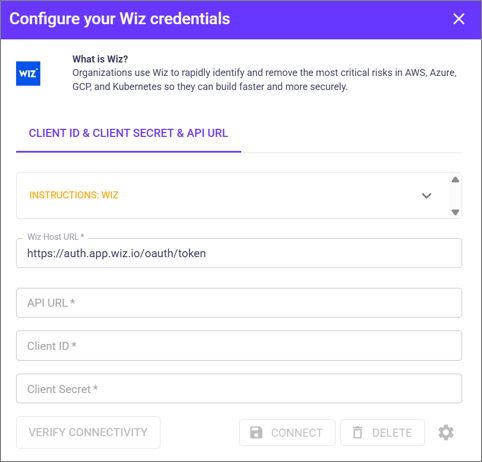
  3. In Configure your Wiz credentials, select the link INSTRUCTIONS:WIZ to open an online summary of the connection process.

  4. On the same screen, enter the following parameters.

Parameter
Description

Wiz Host URL

Pre-filled: https://auth.app.wiz.io/oauth/token (or https://auth.gov.wiz.io/oauth/token for GovCloud)

API URL

The API Endpoint URL from Wiz (format: https://api.<region>.app.wiz.io/)

Client ID

The Client ID from the Wiz Service Account

Client Secret

The Client Secret from the Wiz Service Account

  1. Click VERIFY CONNECTIVITY.

  2. A green success message at the bottom of the screen indicates a successful connection. If verification fails, check your credentials and permissions.

  3. Click CONNECT.

Optional configurations

To change the resources OX scans and monitors, see the section Change the locations OX scans.

Change the locations OX scans

Once you have a connection, you can change the locations that OX scans and monitors.

  1. Use the Gear icon at the bottom of the Configuration screen.

  2. OX displays the locations or objects that OX scans and monitors.

  3. Change the selection as needed.

  4. Select SAVE.

Last updated