# Amazon ECR

Integrate Amazon ECR with OX to centralize security findings alongside container, pipeline, cloud, and runtime signals already in OX.

OX scans Amazon ECR on a schedule and on demand, enriches findings with OX context (application mapping, workflows, and compliance), and presents a unified queue for investigation and reporting.

After you connect, Amazon ECR scan results appear on the Active issues page (use the filter Source tool > Amazon ECR).

## What OX adds

* **Context and correlation:** OX maps findings to applications, services, and teams to show impact and ownership.
* **Prioritization with severity factors:** OX may reprioritize scanner severities when exploitability and environment context reduce risk (for example, Critical → High). Severity factors explain why the priority changed.
* **Evidence at a glance:** When available, OX displays scanner evidence, file locations, and remediation guidance alongside OX analytics to speed triage.

## Terminology mapping

Amazon ECR and OX use different labels for similar concepts.

<table><thead><tr><th width="258.26666259765625" valign="top">OX Security</th><th width="472.13323974609375" valign="top">Amazon ECR</th></tr></thead><tbody><tr><td valign="top">Connector</td><td valign="top">Integration</td></tr><tr><td valign="top">Active issue</td><td valign="top">Finding / Vulnerability</td></tr><tr><td valign="top">Application</td><td valign="top">Repository</td></tr></tbody></table>

## Connection methods

For general information about connection methods, see[ Connection methods](https://docs.ox.security/get-started/onboarding-to-ox/source-control/connection-methods).

For OX AWS documentation, see the article[ AWS](https://docs.ox.security/ox-integrations/3rd-party-integrations/cloud-security/aws).

There are 3 options to connect Amazon ECR to OX:

* **Automatic:** A plug-and-play option to connect a single AWS account. OX provides a pre-configured CloudFormation template that creates the required user, role, and policies automatically.
* **Manual:** A more advanced option for organizations that want to create the required IAM policy, role, and permissions themselves.
* **Organization:** For organizations with multiple AWS accounts. Connects your AWS management account so OX can scan all accounts under it. Uses a CloudFormation StackSet to deploy across the organization.

## Prerequisites

**OX**

* Permission to configure connectors

**Amazon ECR**

* Access to the AWS account that contains the ECR registries you want to connect
* Permission to create CloudFormation stacks (Automatic and Organization methods) or IAM policies and roles (Manual method) in the AWS account
* Secure Token Service (STS) activated for the relevant account and region

## Set up the connection

Once you decide on your connection method, there are two main parts:

1. Create credentials and permissions in AWS
2. Connect OX to Amazon ECR

### Step 1: Create credentials and permissions \[AWS]

Open the accordion for your connection method.

<details>

<summary><mark style="color:purple;">Automatic</mark></summary>

The automatic method uses an AWS CloudFormation stack to create the IAM role and policies that OX requires. Everything is pre-configured. Use this method to connect a single AWS account.

1. Verify that the [prerequisites](#prerequisites)[ ](#prerequisites)are in place.
2. Log in to your AWS console.
3. In OX, go to **Connectors > Registry** and select **Amazon ECR**.\ <br>
4. Under the **AUTOMATIC** tab, select the **CLOUD FORMATION ASSUME ROLE** button. This opens the AWS CloudFormation page in your default browser.
5. On the **CloudFormation** page, enable the two acknowledgment checkboxes at the bottom.
6. Select **Create stack**.

> **Note:** If you already created a CloudFormation stack for ox-security, rename the stack. Otherwise AWS returns the error: Stack \[ox-security] already exists.

5. Wait for the stack creation to complete (this may take some time), then select the newly created stack if it is not already selected.
6. Select the **Outputs** tab and copy the **OxRoleArn** value.

</details>

<details>

<summary><mark style="color:purple;">Manual</mark></summary>

The manual method is a more advanced option for organizations that want to create the required IAM policy, role, and permissions themselves.

1. Verify that the [prerequisites](#prerequisites)[ ](#prerequisites)are in place.
2. Log in to your AWS console.
3. Go to A**WS IAM Console > Policies** and select **Create policy**.
4. In **Create policy**, select the **JSON** tab.
5. Go to the[ OX AWS Integration Policy](https://docs.ox.security/ox-integrations/3rd-party-integrations/cloud-security/aws/aws-ox-integration-policy) page and copy the JSON policy object.
6. Paste the JSON object in the **Create policy** page in AWS and select **Next**.
7. Add tags if needed and select **Next**.
8. Name the policy **OxAWSIntegrationPolicy** (or a name of your choice that you can identify later).
9. Add a description if needed and review the summary.
10. Select **Create policy**.
11. In **AWS IAM Console**, create a new role.
    1. **Role type:** Select Another AWS account.
    2. **Account ID:** Enter 351456651185 (OX's account ID). This grants OX read-only access to your AWS data.
12. Select **Require external ID** and enter the value from the AWS External ID field in the OX Amazon ECR connector window. Leave **Require MFA** disabled.
13. Select **Next: Permissions**.
14. In **Attach permissions policies**, search for and select the following policies:
    * ViewOnlyAccess
    * SecurityAudit
    * OxAWSIntegrationPolicy (or the name you gave to the policy you created)
15. Select **Next: Tags** and then **Next: Review**.
16. Name the role OxAWSIntegrationRole (or a name of your choice) and provide an appropriate description.
17. Select **Create role**.
18. Once the role creation is complete, open the role and copy the Role ARN value.

</details>

<details>

<summary><mark style="color:purple;">Organization</mark></summary>

The organization method is for organizations with multiple AWS accounts. By connecting your AWS management account, OX can scan all accounts under it.

This step has two parts.

**Deploy the StackSet**

1. Verify that the [prerequisites](#prerequisites)[ ](#prerequisites)are in place.
2. Log in to your AWS console and go to the **CloudFormation** service.
3. Select **StackSets** and then **Create StackSet**.
4. In the **Choose a template** page:
   * Under **Permissions**, select the **Service-managed permissions** option.
   * Under **Prerequisite - Prepare template**, verify that the **Template is ready** option is selected.
   * Under **Specify template**, select the **Amazon S3 URL** option.
   * Under **Amazon S3 URL**, paste the following link: `https://ox-cloudformation-template.s3.eu-west-1.amazonaws.com/aws/ox_aws_integration_stackset_template_k8s.yml`
   * Select **Next**.
5. In the **Specify StackSet details** page:
   * Set **StackSet name** to `ox-security` (must be unique from other StackSet names).
   * Change the description if needed.
   * Set **ExternalId** — paste the **AWS External ID** value from the OX Amazon ECR connector window.
   * Verify that **IAMRoleName** and **OxAWSAccountId** are already filled.
   * Select **Next**.
6. In the **Configure StackSet options** page:
   * Under **Execution configuration**, verify that **Managed execution** is set to **Inactive**.
   * Select **Next**.
7. In the **Set deployment options** page:
   * Set **Add stacks to stack set** to **Deploy new stacks**.
   * Set **Deployment targets** to **Deploy to organization**.
   * Set **Automatic deployment** to **Enabled**.
   * Set **Account removal behavior** to **Delete stacks**.
   * In the **Specify regions** section, select the region your organization is in. **Important:** Select only one region. Selecting multiple regions causes the deployment to fail.
   * In the **Deployment options** section, set:
     * **Maximum concurrent accounts:** `1`
     * **Failure tolerance:** `0`
     * **Region Concurrency:** **Sequential**
   * Select **Next**.
8. Review the configuration:
   * Verify that the configuration is correct and adjust if necessary.
   * Check the **I acknowledge that AWS CloudFormation...** checkbox under **Capabilities**.
   * Select **Submit**.

The StackSet is now deployed.

When you use service-managed permissions (enabled in AWS Organizations), the parent/admin account receives a StackSet admin role named `AWSServiceRoleForCloudFormationStackSetsOrgAdmin`.

Each child/target account receives a StackSet execution role named `stacksets-exec-<id>`.

The CloudFormation service adds both roles automatically to establish the trust relationship.

* This method only adds the default trust and permission policies (administrative access) and does not allow you to customize the IAM roles at creation time.
* Some CSPM tools may flag the `stacksets-exec-<id>` role as a violation. Consider removing this role from target accounts after the deployment is complete.

**Create the management account stack**

1. Verify that the [prerequisites](#prerequisites)[ ](#prerequisites)are in place.
2. In OX, go to **Connectors** > **Registry** and select **Amazon ECR**.
3. Under the **ORGANIZATION** tab, select the **CLOUD FORMATION ASSUME ROLE** button.
4. On the CloudFormation page:

   * Check the acknowledgment box at the bottom.

   * Select **Create stack**.

   > **Note:** If you already created a CloudFormation stack for ox-security, rename the stack. Otherwise AWS returns the error: *Stack \[ox-security] already exists*.
5. Once the stack is created, open **CloudFormation outputs** and copy the **OxRoleArn** value.

</details>

### Step 2: Connect OX to Amazon ECR \[OX]

Open the accordion for your connection method.

<details>

<summary><mark style="color:purple;">Automatic</mark></summary>

1. Verify that the [prerequisites](#prerequisites)[ ](#prerequisites)are in place.
2. In OX, go to **Connectors > Registry** and select **Amazon ECR**.<br>

   <div align="left"><figure><img src="https://884876233-files.gitbook.io/~/files/v0/b/gitbook-x-prod.appspot.com/o/spaces%2FdK3XMLdV8zRg847RmGmZ%2Fuploads%2Fgit-blob-41756e2e69094b6aa4332a5778baa43f53a3ddb3%2FAmazon%20ecr%20%E2%80%93%20automatic%20config%20(2).png?alt=media" alt="" width="375"><figcaption></figcaption></figure></div>
3. In **Configure your Amazon ECR credentials**, select the **AUTOMATIC** tab.
4. Select the **INSTRUCTIONS: AUTOMATIC - CLOUD FORMATION** link to open an online summary of the connection process.
5. On the same screen, enter the following parameters:

<table><thead><tr><th width="190.5333251953125" valign="top">Parameter</th><th valign="top">Description</th></tr></thead><tbody><tr><td valign="top">AWS External ID</td><td valign="top">Auto-generated by OX. No action required for the Automatic method.</td></tr><tr><td valign="top">AWS Role ARN</td><td valign="top">The OxRoleArn value you copied from the CloudFormation stack Outputs tab.</td></tr><tr><td valign="top">Connection Name</td><td valign="top">A meaningful name for this connection (for example, Production ECR).</td></tr></tbody></table>

5. Select **VERIFY CONNECTIVITY**.
6. A green success message at the bottom of the screen indicates a successful connection. If verification fails, check your credentials and permissions.
7. Select **CONNECT**.

**Optional configurations**

* To change the resources OX scans and monitors, see the section [Change the locations OX scans](#change-the-resources-ox-scans).

</details>

<details>

<summary><mark style="color:purple;">Manual</mark></summary>

1. Verify that the [prerequisites](#prerequisites)[ ](#prerequisites)are in place.
2. In OX, go to **Connectors > Registry** and select **Amazon ECR**.<br>

   <div align="left"><figure><img src="https://884876233-files.gitbook.io/~/files/v0/b/gitbook-x-prod.appspot.com/o/spaces%2FdK3XMLdV8zRg847RmGmZ%2Fuploads%2Fgit-blob-206c9ae8db9c0db42d2508cd4800107fa3512154%2FAmazon%20ecr%20%E2%80%93%20manual%20config%20(1).png?alt=media" alt="" width="375"><figcaption></figcaption></figure></div>
3. In **Configure your Amazon ECR credentials**, select the **MANUAL** tab.
4. Select the **INSTRUCTIONS: MANUAL** link to open an online summary of the connection process.
5. On the same screen, enter the following parameters:

<table><thead><tr><th width="210.2667236328125" valign="top">Parameter</th><th valign="top">Description</th></tr></thead><tbody><tr><td valign="top">AWS External ID</td><td valign="top">Auto-generated by OX. Copy this value when creating the IAM role in AWS.</td></tr><tr><td valign="top">AWS Role ARN</td><td valign="top">The Role ARN you copied from the IAM role you created in AWS.</td></tr><tr><td valign="top">Connection Name</td><td valign="top">A meaningful name for this connection (for example, Production ECR Manual).</td></tr></tbody></table>

5. Select **VERIFY CONNECTIVITY**.
6. A green success message at the bottom of the screen indicates a successful connection. If verification fails, check your credentials and permissions.
7. Select **CONNECT**.

**Optional configurations**

* To change the resources OX scans and monitors, see the section [Change the locations OX scans](#change-the-locations-ox-scans).

</details>

<details>

<summary><mark style="color:purple;">Organization</mark></summary>

1. Verify that the [prerequisites](#prerequisites)[ ](#prerequisites)are in place.
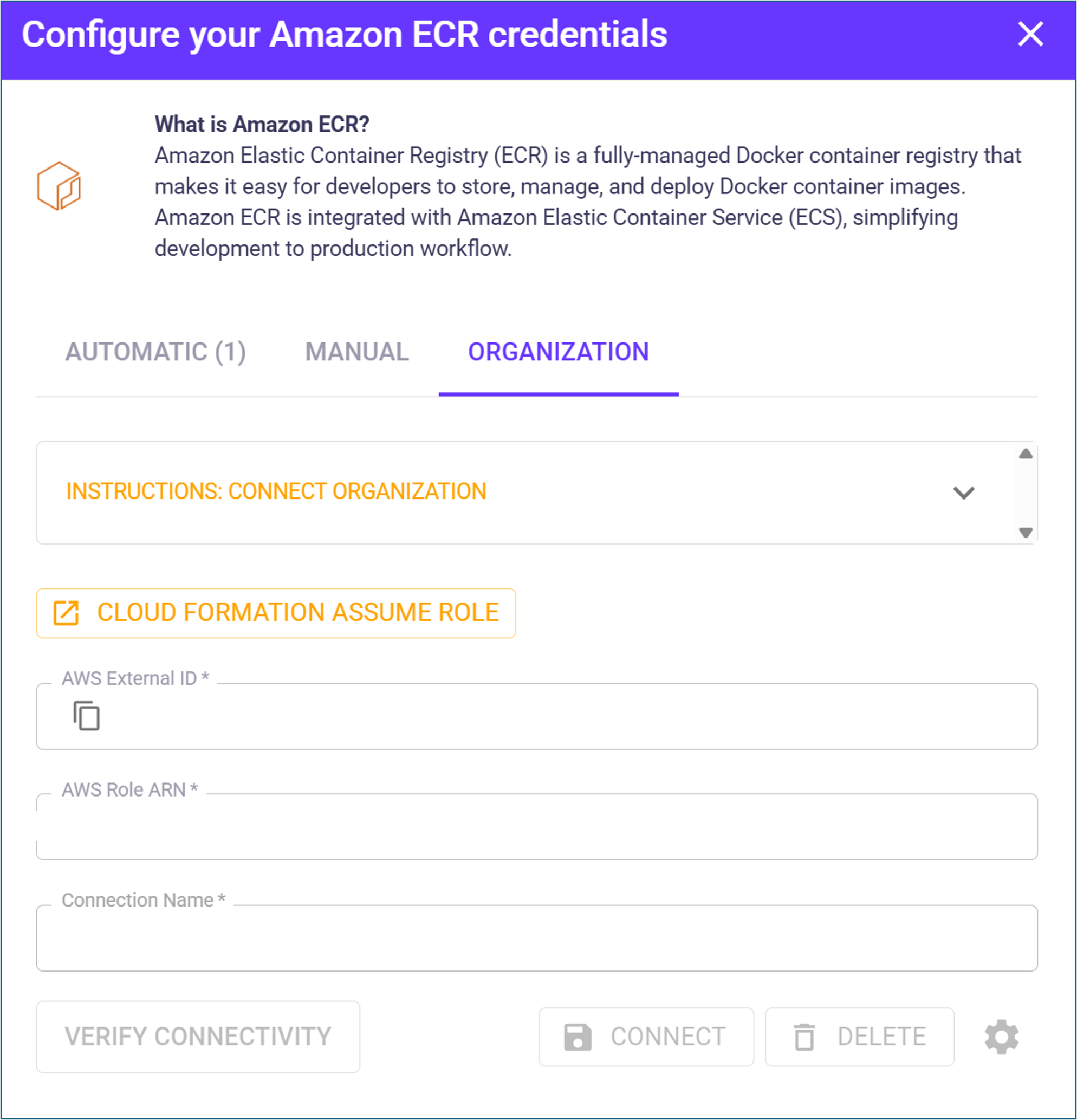
2. In OX, go to **Connectors > Registry** and select **Amazon ECR**.<br>

   <div align="left"><figure><img src="https://884876233-files.gitbook.io/~/files/v0/b/gitbook-x-prod.appspot.com/o/spaces%2FdK3XMLdV8zRg847RmGmZ%2Fuploads%2Fgit-blob-f7aac27ab918fd6673b5686d6d73e400bd6d8cbc%2FAmazon%20ecr%20%E2%80%93%20organization%20config.png?alt=media" alt="" width="375"><figcaption></figcaption></figure></div>
3. Select the **ORGANIZATION** tab.
4. In **Configure your Amazon ECR credentials**, select the **INSTRUCTIONS: CONNECT ORGANIZATION** link to open an online summary of the connection process.
5. On the same screen, enter the following parameters:

<table><thead><tr><th width="211.86663818359375" valign="top">Parameter</th><th valign="top">Description</th></tr></thead><tbody><tr><td valign="top">AWS External ID</td><td valign="top">Auto-generated by OX. Copy this value when configuring the StackSet (Step 1, Organization, step 4).</td></tr><tr><td valign="top">AWS Role ARN</td><td valign="top">The OxRoleArn value you copied from the CloudFormation stack Outputs tab.</td></tr><tr><td valign="top">Connection Name</td><td valign="top">A meaningful name for this connection (for example, Organization ECR).</td></tr></tbody></table>

5. Select **VERIFY CONNECTIVITY**.
6. A green success message at the bottom of the screen indicates a successful connection. If verification fails, check your credentials and permissions.
7. Select **CONNECT**.

**Optional configurations**

* To change the resources OX scans and monitors, see the section [Change the locations OX scans](#change-the-locations-ox-scans).

</details>

## Change the locations OX scans

By default, OX scans everything if you did not make a specific selection. Once you have a connection, you can change the locations that OX scans and monitors.

1. Use the **Gear** icon at the bottom of the Configuration screen.
2. OX displays the locations or objects that OX scans and monitors.
3. Change the selection as needed.
4. Select **SAVE**.

<div align="left"><figure><img src="https://884876233-files.gitbook.io/~/files/v0/b/gitbook-x-prod.appspot.com/o/spaces%2FdK3XMLdV8zRg847RmGmZ%2Fuploads%2Fgit-blob-5397f500c4f3fdeab972b14d6eb9bf7b1897ad4a%2Fgitlab%20change%20repos%20gear%20icon.png?alt=media" alt="" width="375"><figcaption></figcaption></figure></div>