> For the complete documentation index, see [llms.txt](https://docs.ox.security/llms.txt). Markdown versions of documentation pages are available by appending `.md` to page URLs; this page is available as [Markdown](https://docs.ox.security/ticketing-and-messaging/ticket-management/jira/automating-jira-ticketing-in-ox.md).
# Automating Jira Ticketing
In addition to [creating Jira tickets from OX](/ticketing-and-messaging/ticket-management/jira/adding-jira-tickets.md), you can automate several aspects of how security issues are tracked and updated in Jira. These automations help you sync key information between platforms, reduce manual updates, and ensure consistency across issue workflows.
You can automatically add comments to Jira tickets based on actions taken in OX, set due dates aligned with your SLAs or custom rules, and map issue severity to Jira priorities. These capabilities improve collaboration between security and development teams by keeping Jira issues accurate and up to date.
You can also dynamically populate Jira ticket fields using contextual values from OX issues. This allows required Jira custom text fields and labels to be automatically filled with issue-specific data when a ticket is created, instead of using static values.
The following automated capabilities are available:
* [Adding comments to Jira tickets](/ticketing-and-messaging/ticket-management/jira/page-1.md)
* [Mapping default due dates](#mapping-default-due-dates)
* [Mapping Jira priorities](#mapping-jira-priorities)
* [Automating Jira ticket status updates](#automating-jira-ticket-status-updates)
* [Using custom Jira fields](#using-custom-jira-fields)
## Mapping default Due Dates
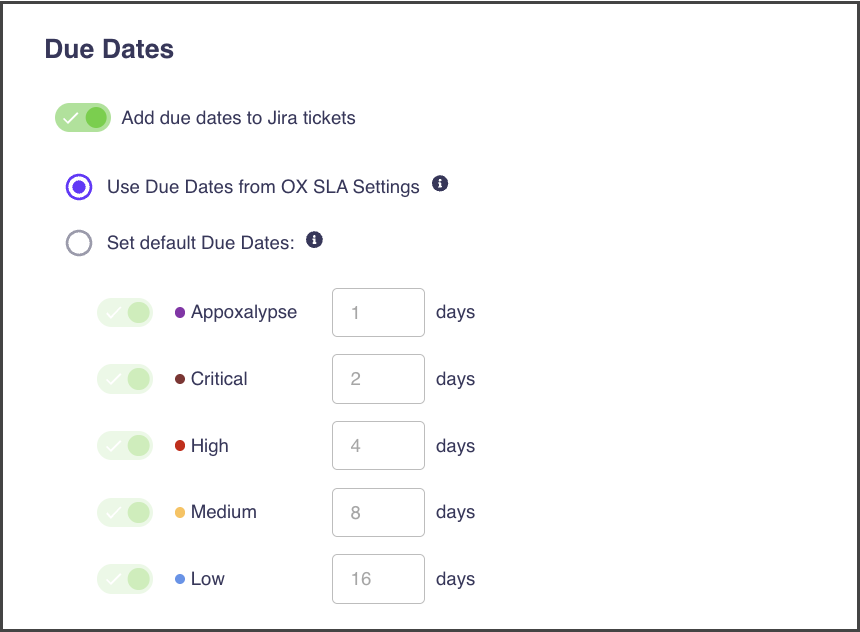
You can add to a Jira ticket a custom field named Due Date and then configure a default Due Date value in OX platform based on the OX issue severity. This helps ensure that tickets align with your SLA expectations without requiring manual date entry.
> **Note:** Jira ticket must include the Due Date field for this mapping to work. If you manually change the value of the Due Date parameter in Jira while creating the ticket, that value overrides the default defined in OX.
For example, if a critical issue has a 3-day SLA, the Due Date parameter in Jira will automatically be set to 3 days from the ticket creation date, unless manually overridden.
**To map default Due Dates:**
1. Go to **Settings > TICKETING AND MESSAGING**.
2. Enable **Add Due Dates to Jira tickets**.
3. Set the **Due Date** parameter in Jira in one of the following ways:
* **Use Due Dates from OX SLA Settings**: The **Due Date** is automatically taken from the **Settings > SLA** definitions in OX.
* **Set default Due Dates**: Define manually SLA for each severity level. These settings override all the other SLA settings for the selected issues.
## Mapping Jira Priorities
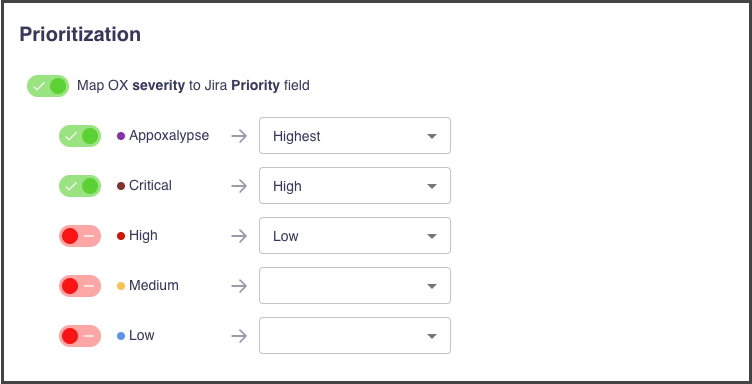
You can map issue severity levels in OX to the Priority parameter values in Jira. This ensures that each ticket created reflects the appropriate level of urgency within your existing Jira workflows.
For example, mappings might include:
* `Critical` severity → `Highest` Jira priority
* `High` severity → `High` Jira priority
* `Medium` severity → `Medium` Jira priority
After you configure these settings, all the they are applied automatically for all the new when tickets created for OX issues.
**To map priorities:**
1. Go to **Settings > TICKETING AND MESSAGING**.
2. Enable **Map severity to Jira Priority field**.
3. Enable the severity levels that you want to map and define the **Priority** value in Jira associated with each severity level in OX.
## **Automating Jira ticket status updates**
OX can automatically update the status of a Jira ticket based on changes to the related OX issue or issues. This keeps your Jira workflow in sync with the current state of issues in OX without manual ticket updates.
Status update rules apply to two types of Jira tickets:
* **Single-issue tickets:** One Jira ticket linked to one OX issue. The Jira ticket status updates whenever the linked OX issue changes state.
* **Aggregated-issue tickets:** One Jira ticket linked to multiple OX issues (up to 50). The Jira ticket status changes based on the collective state of all linked OX issues, not on each individual issue change. Individual issue changes can still trigger comments — see **Adding comments to Jira tickets**.
**To configure automatic Jira status updates:**
1. Go to **Settings > TICKETING AND MESSAGING**.
2. Expand the **Jira** section.
3. Under **Jira ticket automated status updates**, enable the rules you want and select the Jira status to apply for each.
> **Notes:**
>
> * The dropdown lists statuses from across your connected Jira projects. Start typing to filter if you do not see the status you need.
> * Make sure the status you select is accepted by the ticket's Jira project workflow. Otherwise, OX adds a comment to the ticket but does not update the ticket's status.
The available rules for single-issue Jira tickets are:
| Rule | Triggers when |
| -------------------------------------------- | ------------------------------------------------------------------------------------------------------------------- |
| **When an OX issue is resolved** | The linked OX issue is marked as resolved. |
| **When an OX issue is excluded** | The linked OX issue is excluded. |
| **When an OX issue is removed** | The linked OX issue no longer appears in scan results, for example after the underlying repository is disconnected. |
| **When a resolved OX issue is reactivated** | A previously resolved OX issue is active again. |
| **When an excluded OX issue is reactivated** | A previously excluded OX issue is active again. |
| **When a removed OX issue is reactivated** | A previously removed OX issue is active again. |
The available rules for aggregated-issue Jira tickets are:
| Rule | Triggers when |
| --------------------------------------------------------------------- | ------------------------------------------------------------------------------------------- |
| **When all linked OX issues are closed** | Every OX issue linked to the aggregated-issue ticket is now resolved, excluded, or removed. |
| **When a closed aggregated-issue ticket has an OX issue reactivated** | At least one OX issue is active again after all linked OX issues had been closed. |
## Using custom Jira fields
OX supports Jira custom fields when creating tickets. Custom fields are pulled from your Jira configuration and displayed in OX based on your project setup.
When creating or configuring a Jira ticket, custom fields appear alongside the default fields. You can populate these fields with fixed values or dynamic values using `@`.
Dynamic values are supported only when the field meets both conditions:
* The field is required in Jira
* The field type is text (string)
If a field is not required, it does not appear in OX. If the field is not a text field, dynamic values are not supported.
Fixed values apply the same value to all tickets. Dynamic values are resolved per issue, allowing you to map Jira fields to relevant issue data without manual updates.
{% hint style="info" %}
Custom fields are defined and managed in Jira. OX displays only the fields available in your Jira project configuration.
{% endhint %}
Examples:
* **License field**\
Enter `@license` to populate the field with the license of the affected component for each issue.
* **Application name field**\
Enter `@app.name` to insert the relevant application name per ticket.
* **Custom “Component” field**\
Enter `@library.name` to include the vulnerable library name.
* **Labels field**\
Enter `@tags` to add all related tags, or `@tags.github` to include GitHub topics only.
* **Static vs dynamic**\
Enter `test` → all tickets include the value *test*\
Enter `@license` → each ticket includes the actual license based on the issue
---
# Agent Instructions
This documentation is published with GitBook. GitBook is the documentation platform designed so that both humans and AI agents can read, navigate, and reason over technical content effectively. Learn more at gitbook.com.
## Querying This Documentation
If you need additional information that is not directly available in this page, you can query the documentation by asking a question.
Perform an HTTP GET request on the following URL with the `ask` and `goal` query parameters:
```
GET https://docs.ox.security/ticketing-and-messaging/ticket-management/jira/automating-jira-ticketing-in-ox.md?ask=&goal=
```
`ask` is the immediate question: it should be specific, self-contained, and written in natural language.
`goal` is what the user is ultimately trying to achieve, the reason they need the answer. Sharing it helps GitBook give you a better, more relevant answer. A goal is most helpful when it describes the outcome the user wants rather than restating the question. For example, with `ask=how do I create an API token`, a goal like `automate deployments from our CI pipeline` lets GitBook tailor the answer to that use case.
The response will contain a direct answer to the question and relevant excerpts and sources from the documentation.
Use this mechanism when the answer is not explicitly present in the current page, you need clarification or additional context, or you want to retrieve related documentation sections.